

차례를 기다리는 다운로드
대기열은 몇 개의 다운로드를 한 번에 순서대로 실행하는 목록입니다. 파일 정보 다운로드에서 나중에 다운로드를 클릭하거나, 목록에서 다운로드를 마우스 오른쪽 버튼으로 클릭하고 대기열에 추가를 선택하세요. Q 열에 표시되며, 카테고리 창의 대기열에서 각 대기열을 개별적으로 볼 수 있습니다.
대기열은 기본적으로 4개의 다운로드를 동시에 실행합니다. 큐의 파일 탭에서 다른 숫자를 설정하거나, 1로 설정하여 하나씩 가져올 수 있습니다. 실패한 다운로드는 목록의 끝으로 이동하여 30초 후에 다시 시도됩니다. 기본 다운로드 대기열 외에도 원하는 만큼 대기열을 만들 수 있습니다.
시간에 맞춰 시작하고 중지
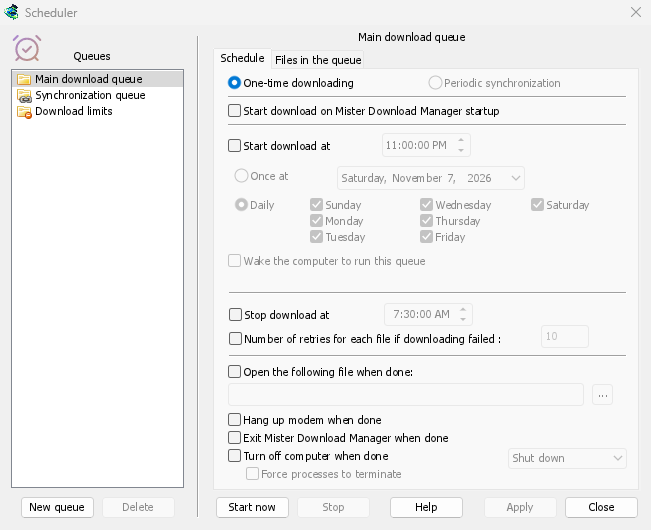
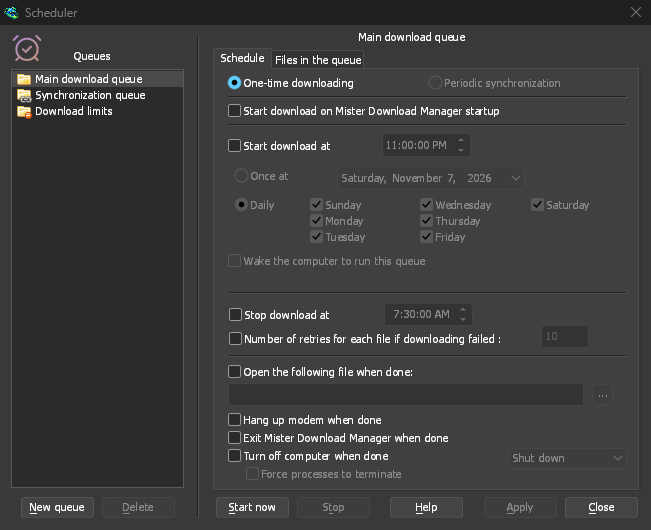
On a queue's Schedule tab, tick Start download at and choose a time, Once at a date or Daily on the days you tick. Stop download at halts whatever is left, for example before work in the morning. A queue can also start whenever GDM starts.
GDM has to be running for a schedule to fire. Closing the main window is fine: GDM keeps going in the notification area.
대기열 작업이 완료되면
GDM can open a file, such as a sound or a script, exit, or turn the computer off with Shut down, Sleep or Hibernate. A 30-second countdown comes first, so if you are still at the computer, Cancel stops it.


대기열을 위해 깨어남
이 큐를 실행하기 위해 컴퓨터 절전 모드 해제를 선택하면, 시작 시간 1분 전에 절전 모드 컴퓨터가 깨어나 대기열이 시작될 때 네트워크가 다시 연결됩니다. 대기열이 실행되는 동안 컴퓨터는 깨어 있으며, 완료 후에는 자체 절전 설정이 다시 적용됩니다. 옵션 아래 줄에는 다음 절전 모드 해제 시간이 표시되거나, 절전 모드 해제가 불가능한 이유가 표시됩니다.
The computer has to be asleep, not shut down. On Windows the power plan must allow wake timers: the Scheduler says when it doesn't, and Change opens the setting. On Linux an administrator allows it once. On macOS only an administrator can schedule a wake, so the option is greyed there. GDM never asks for an administrator's password.
데이터 제한 내에서
다운로드 제한은 데이터 제한이 있는 인터넷 요금제를 관리합니다. 몇 시간마다 설정된 메가바이트를 초과하지 않도록 합니다. 제한에 도달하면 다운로드는 대기 상태가 되고, 기간이 끝나면 자동으로 다시 시작됩니다.
밤샘 다운로드에서 단계별로 설명합니다.
무료, 오픈 소스, 광고 없음, 평가판 없음.
Download GolinksPRO Download Manager