

等待轮次的下载
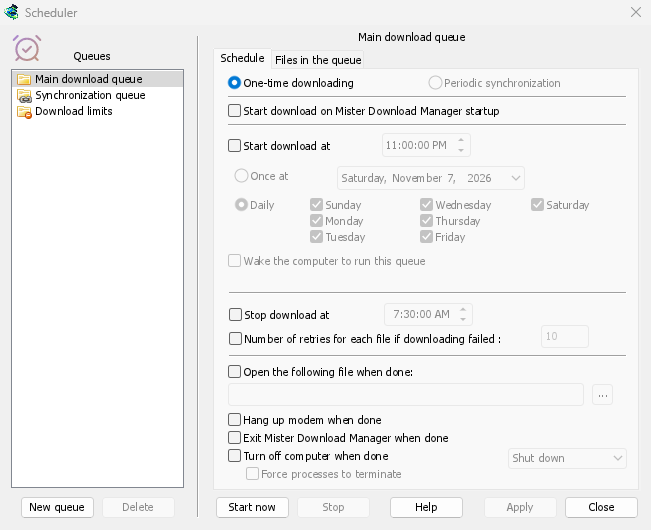
队列是按顺序运行的下载列表,每次运行少量任务。在下载文件信息中点击稍后下载,或右键点击列表中的下载任务并选择添加到队列。Q列会标记它们,类别窗格中的队列会单独显示每个队列。
默认情况下,一个队列同时运行四个下载任务。您可以在其队列中的文件选项卡上设置其他数字,或设置为 1 以逐个获取。下载失败的任务会移到队尾,并在 30 秒后再次尝试。除了主下载队列,您可以创建任意数量的队列。
按时启动和停止
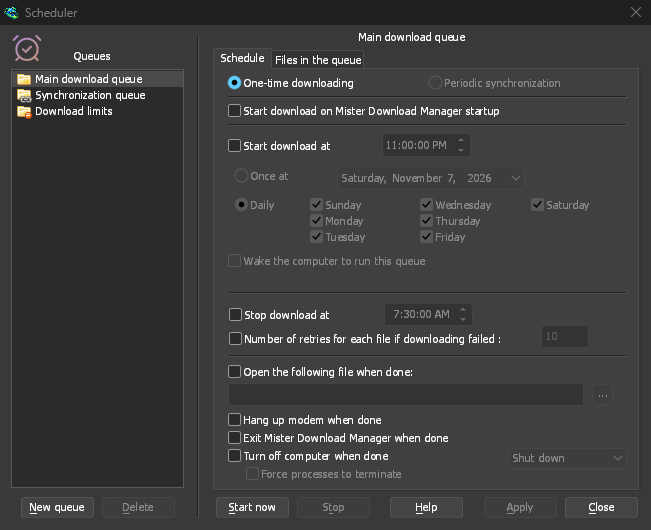
On a queue's Schedule tab, tick Start download at and choose a time, Once at a date or Daily on the days you tick. Stop download at halts whatever is left, for example before work in the morning. A queue can also start whenever GDM starts.
GDM has to be running for a schedule to fire. Closing the main window is fine: GDM keeps going in the notification area.
队列完成后
GDM can open a file, such as a sound or a script, exit, or turn the computer off with Shut down, Sleep or Hibernate. A 30-second countdown comes first, so if you are still at the computer, Cancel stops it.


为队列唤醒
勾选唤醒电脑以运行此队列,休眠的计算机会在开始时间前一分钟被唤醒,以便在队列开始时网络恢复。队列运行时它会保持唤醒状态;之后会再次应用其自身的睡眠设置。选项下方的文字会说明下次唤醒的时间,或为何无法唤醒。
The computer has to be asleep, not shut down. On Windows the power plan must allow wake timers: the Scheduler says when it doesn't, and Change opens the setting. On Linux an administrator allows it once. On macOS only an administrator can schedule a wake, so the option is greyed there. GDM never asks for an administrator's password.
在流量限制下
下载限制可以控制有流量限制的互联网套餐:每隔几小时下载的兆字节数不超过设定值。达到限制后,下载会暂停,并在期限结束后自行继续。
夜间下载会逐步引导您完成。
免费、开源、无广告、无试用版。
Download GolinksPRO Download Manager