

GDM runs on 64-bit Windows 10 and Windows 11, and on 64-bit Linux: see On Linux. Builds for macOS are new and still experimental: see On a Mac.
Einen Download auswählen
Jede Version finden Sie auf der Seite Releases. Für Windows gibt es drei Dateien:
| Datei | Was es ist |
|---|---|
MisterDownloadManager-<version>-setup.exe |
The installer. Pick this one unless you have a reason not to. It can set up browser integration and open .torrent files and magnet links with GDM. |
MisterDownloadManager-<version>-portable.zip |
Eine portable Kopie. Die Download-Liste und die Einstellungen bleiben in einem data-Ordner neben dem Programm, und es wird nichts in die Registrierung geschrieben. Die Browser-Integration erfordert das Installationsprogramm. Siehe Portabler Modus. |
MisterDownloadManager-<version>-x64.zip |
Die gleichen Programme ohne Installationsprogramm. Es speichert seine Daten in %APPDATA%\misterdownloadmanager, wie eine installierte Kopie. |
Unter Linux
GDM runs on 64-bit Linux with a desktop session. It is tested on Ubuntu 24.04, Debian 12 and
Fedora, with GNOME, KDE Plasma, Xfce and Cinnamon, on X11 and in Wayland sessions. Pick one
of these files (up to version 0.2.4, their names end in -experimental, as in
...-linux-x86_64-experimental.deb):
| Datei | Was es ist |
|---|---|
...-linux-x86_64.deb |
For Ubuntu, Debian, Mint and Pop!_OS: sudo apt install ./<file>.deb. It brings the libraries GDM needs. |
...-linux-x86_64.rpm |
For Fedora, openSUSE and RHEL: sudo dnf install ./<file>.rpm. It brings the libraries GDM needs. |
...-linux-x86_64.AppImage |
Läuft auf den meisten Distributionen: ausführbar machen (chmod +x) und ausführen. Es aktualisiert sich selbst (Hilfe → Nach Updates suchen). |
...-linux-x86_64.tar.gz |
Die reinen Programme, für jede Distribution. |
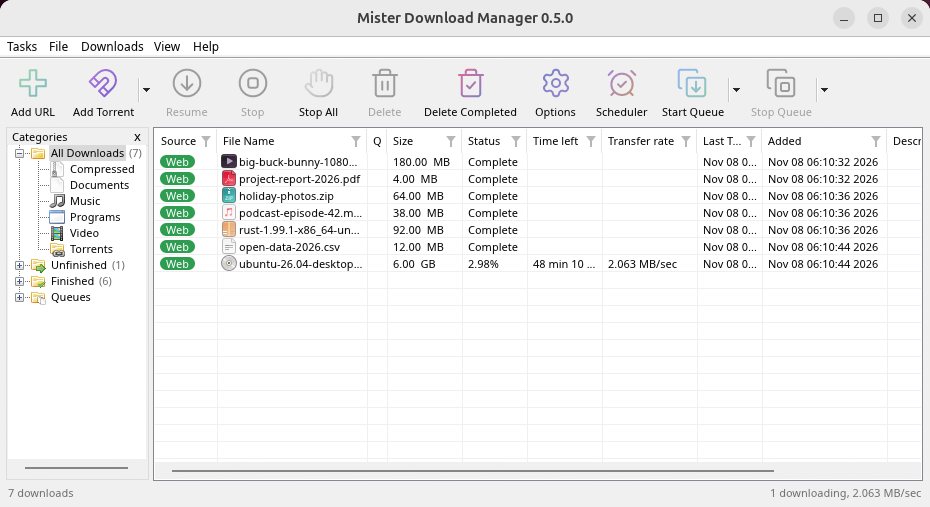
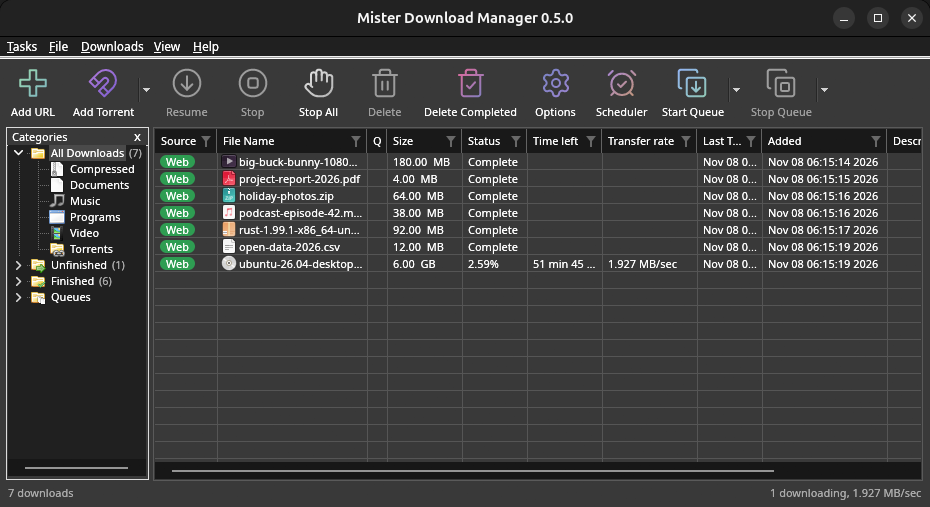
Browser integration is set up by GDM itself at each start (the browsers installed then are found); add the extension as in Browser integration. Firefox installed as a Snap (Ubuntu's) reaches GDM once you allow it; other Snap and Flatpak browsers can't (see Flatpak and Snap browsers). The tray icon, Dark Mode support and Launch on startup work on GNOME (Ubuntu's), KDE Plasma, Xfce and Cinnamon.
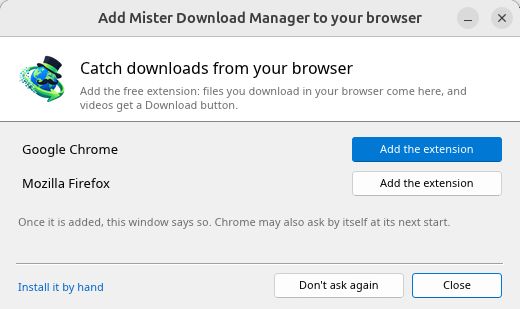
In a Wayland session the windows go through XWayland (below). Not there yet on Linux: screen readers (Orca) don't read GDM's windows; browsers installed as a Flatpak can't reach GDM (Firefox from Flathub may, through the desktop as the Snap does, but that isn't checked yet); and View → Draw with → Vulkan is a choice, OpenGL stays the default.
In a Wayland session (GNOME, KDE Plasma and others), GDM's windows run through XWayland when it is there: Wayland doesn't let a program place its own windows, so GDM's menus and drop-down lists would open in the middle of the screen. To run on Wayland itself anyway, start it with MDM_WAYLAND=1 misterdownloadmanager. If the system lacks a library X11 windows need (such as libxkbcommon-x11, which the .deb and .rpm bring but the AppImage and the tar.gz can't), GDM opens on Wayland instead; with no window system it can use, it names what's missing and the command that installs it.
Die Fenster sind die in dieser Hilfe beschriebenen, mit den Schriftarten, Dateisymbolen und Titelleisten des Desktops:
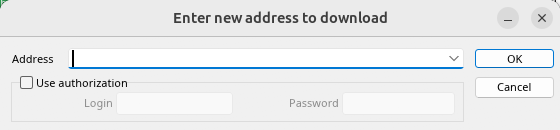
URL hinzufügen. 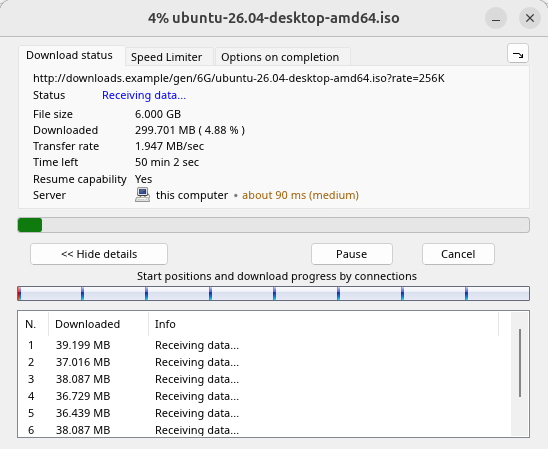
Der Fortschritt eines Downloads. 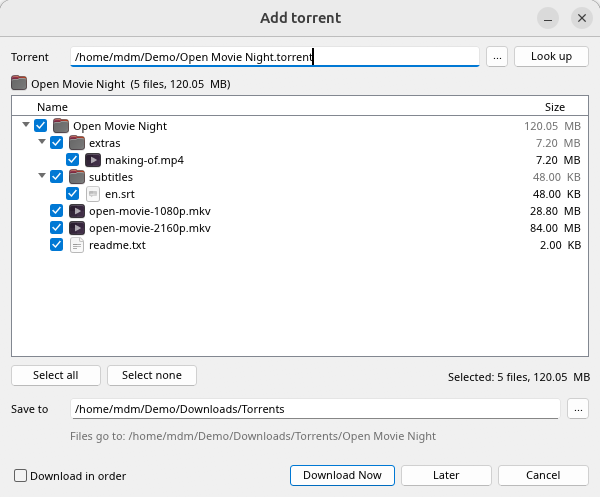
Torrent hinzufügen. 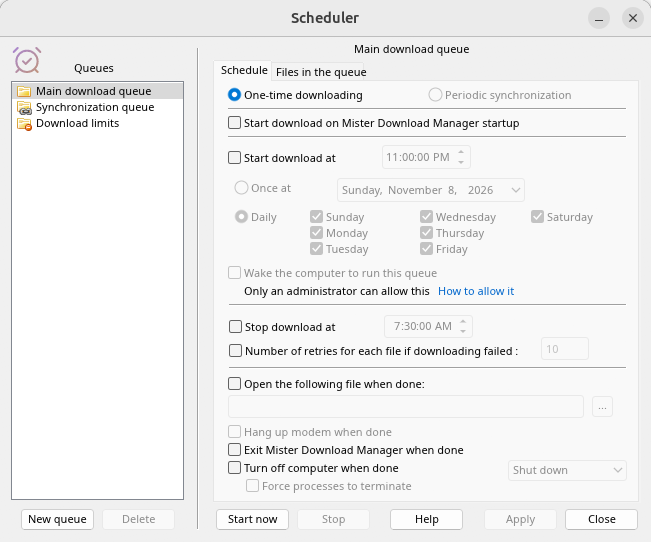
Der Zeitplaner. 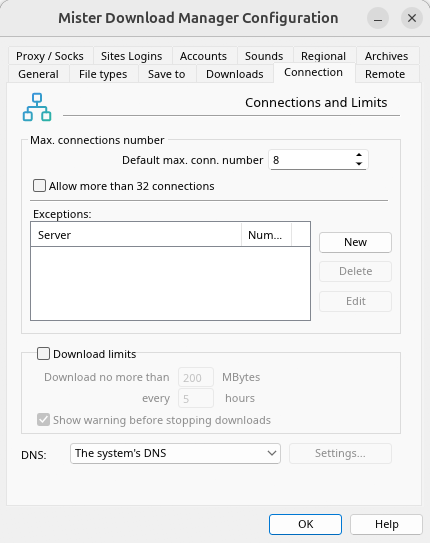
Optionen.
Und auf den anderen Desktops, auf denen es getestet wurde:
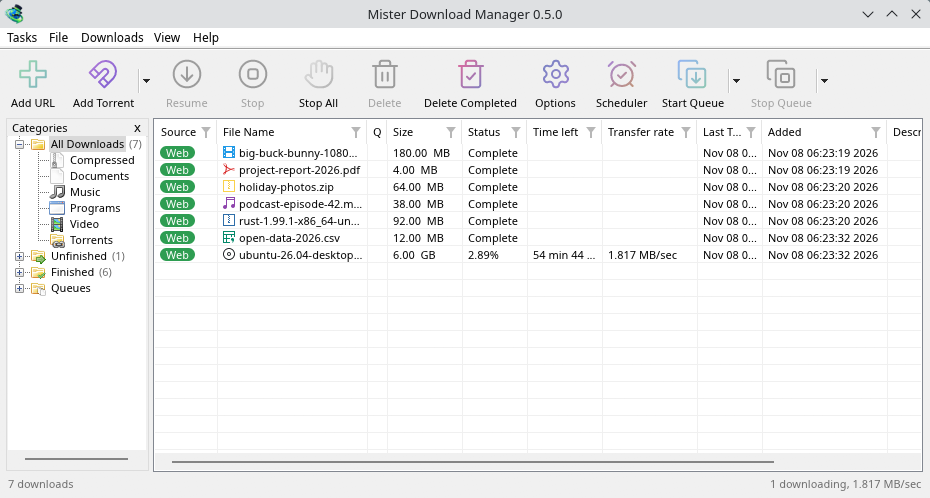
KDE Plasma. 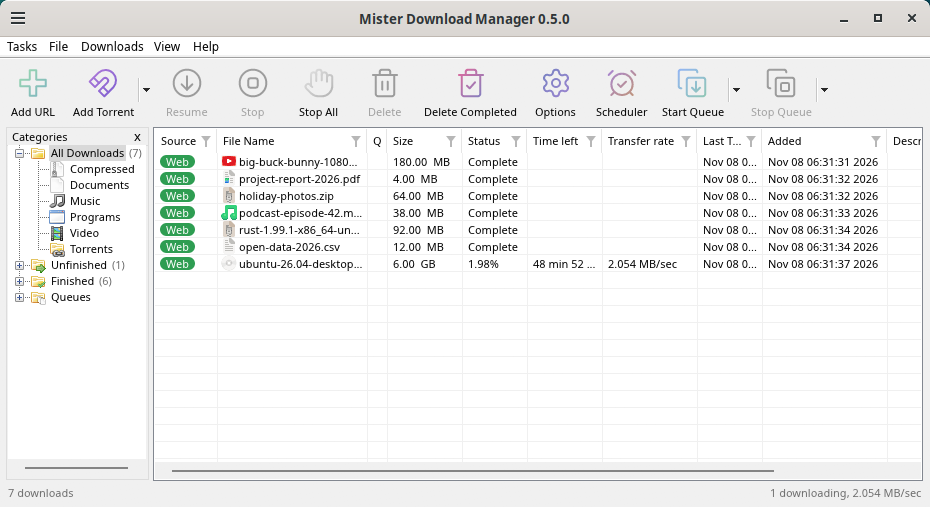
Cinnamon. 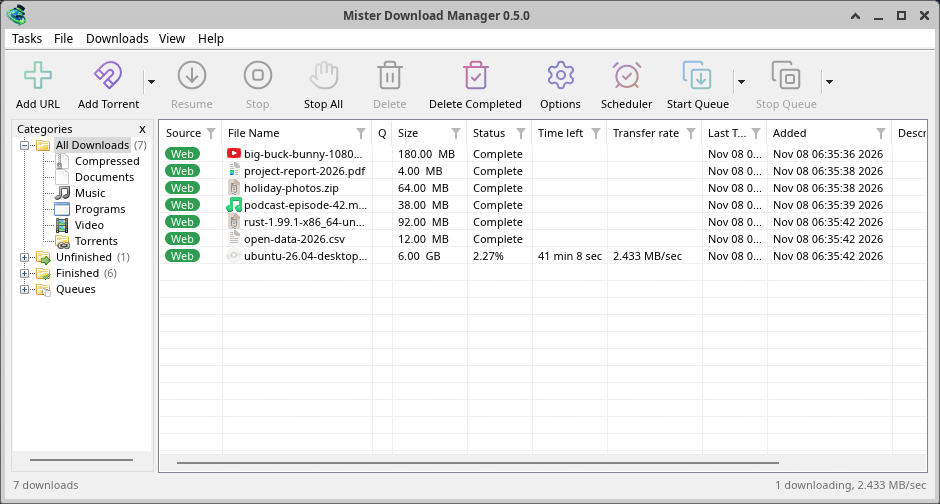
Xfce.
Deinstallieren unter Linux
sudo apt remove misterdownloadmanager (or sudo dnf remove misterdownloadmanager) removes the
programs, and the small files that tell your browsers where GDM's helper is: the .deb and .rpm
install those for everyone (in /etc and /usr/lib), for Chrome, Chromium, Edge, Brave, Vivaldi
and Firefox (the Snap too), so GDM doesn't write them in your home folder. For the AppImage or the
tar.gz, delete the file or the folder.
What GDM keeps in your home folder stays, as with any package: your list and settings
(~/.local/share/misterdownloadmanager), the AppImage's and the tar.gz's browser files, and
those of the browsers that read them only there (Opera, Helium, Thorium, and Firefox's forks:
Zen, LibreWolf, Floorp, Waterfox). A package can't remove those: it never touches
home folders. Without GDM they lead nowhere, so the extension says it can't reach GDM. To remove
them as well, run this as each user who used GDM, before uninstalling:
misterdownloadmanager-nmhost --unregister
(Vom AppImage: ~/.local/share/misterdownloadmanager/browser-host/misterdownloadmanager-nmhost --unregister.) Bereits deinstalliert? Dies entfernt dieselben Dateien:
find ~/.mozilla ~/.librewolf ~/.config -name com.misterdownloadmanager.host.json -delete 2>/dev/null
Auf einem Mac
Die macOS-Builds sind neu und noch experimentell: Wir haben sie selbst noch nicht auf einem Mac ausprobiert, Sie wären also unter den Ersten. Bitte teilen Sie uns mit, wie es gelaufen ist, ob gut oder schlecht.
| Datei | Was es ist |
|---|---|
...-macos-arm64-experimental.dmg |
For a Mac with Apple Silicon (M1 or later: Apple menu → About This Mac shows a Chip). Open it and drag GolinksPRO Download Manager to Applications. macOS asks before its first start, because the app isn't notarized by Apple: right-click it and choose Open (on macOS 15 and later: System Settings → Privacy & Security → Open Anyway). |
...-macos-x86_64-experimental.dmg |
Dasselbe für einen Mac mit Intel-Prozessor (Über diesen Mac zeigt einen Prozessor an). |
Browser integration is set up by GDM itself at each start (the browsers installed then are found); add the extension as in Browser integration.
Installation mit dem Setup
- Führen Sie
MisterDownloadManager-<version>-setup.exeaus. - Choose the language. Windows' display language is already selected. The setup offers every language GDM has, and GDM starts in the one you pick.
- Wählen Sie, ob die Installation nur für Sie oder für alle Benutzer des Computers erfolgen soll. „Nur für Sie“ benötigt keine Administratorrechte und wird unter
%LOCALAPPDATA%\Programs\GolinksPRO Download Managerinstalliert. „Für alle“ wird unterProgram Filesinstalliert. - Pick what the setup should do: - Set up browser integration (Chrome, Edge, Brave, Firefox) - Open .torrent files and magnet links with GolinksPRO Download Manager - Start GolinksPRO Download Manager when Windows starts - Create a desktop shortcut (off unless you tick it)
- Click Install, then Finish to start GDM.
If GDM is already running, the setup asks it to save and close first. To update, use Help → Check for updates → Update now, or run the setup of the new version; your list and settings stay.
Die Browser-Integration erfordert in jedem Browser einen weiteren Schritt: das Hinzufügen der Erweiterung. Klicken Sie in Firefox auf Zu Firefox hinzufügen auf der Seite unter addons.mozilla.org; in Chrome, Edge, Brave, Opera und Vivaldi auf Zu Chrome hinzufügen auf der Seite im Chrome Web Store. Browser-Integration zeigt, wie es geht.
Deinstallieren
Uninstall GDM from Windows Settings → Apps. The uninstaller asks whether to delete your download list and settings too. Your downloaded files are never touched.
Eine Zip-Kopie verwenden
- Entpacken Sie die Datei in einen Ordner, in den Sie schreiben können (nicht direkt in
Program Files). - Führen Sie
misterdownloadmanager.exeaus.
Die ZIP-Dateien enthalten dieselben Programme wie das Setup: die App, misterdownloadmanager-cli.exe (Downloads über die Befehlszeile; siehe Befehlszeile und Automatisierung) und den Ordner extension.
Erster Start und Sprache
- Installed with the setup: GDM starts in the language you chose in the setup.
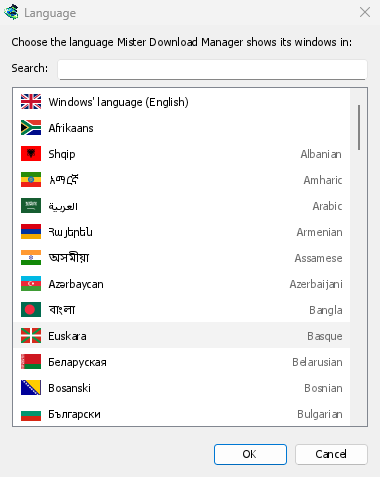
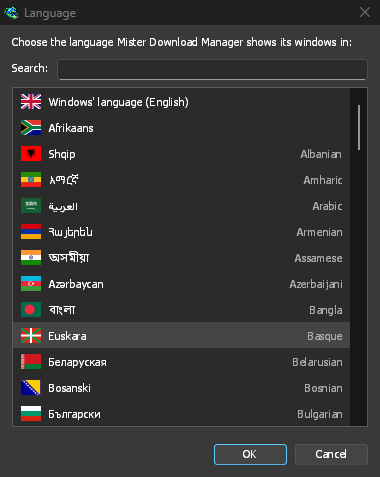
- Otherwise: GDM shows the list of languages, each with its flag and its own name. Pick yours.
Sie können die Sprache jederzeit unter Ansicht → Sprache ändern. Mehr dazu unter Sprachen.
Die Video-Helfer
Next, GDM offers its two free video helpers: yt-dlp, which finds the video on a page, and ffmpeg, which joins its picture and sound. Click Yes, download them (recommended) and they download in the background, about 100 MB, once. Not now leaves them for later: the video window offers them when you first need them. More in Videos.


Das Hauptfenster


Von oben nach unten:
- Menüleiste.
- Aufgaben – Downloads, Torrents, Magnet-Links, Batch-Downloads und Videos von einer Seite hinzufügen; Torrent-Einstellungen; Link-Grabber; RSS-Feeds; das Drop-Ziel anzeigen; die Liste importieren und exportieren; beenden.
- Datei – der ausgewählte Download: Download stoppen, Entfernen, Jetzt herunterladen, Erneut herunterladen.
- Downloads – Alle anhalten, Alle stoppen, Alle abgeschlossenen löschen, Suchen, der Zeitplaner, Warteschlangen, der Geschwindigkeitsbegrenzer und Optionen.
- Ansicht – Kategorien ein- oder ausblenden, die Liste sortieren (Dateien anordnen), Dark Mode-Unterstützung, Immer dunkel, Design, Oberflächengröße (jedes Fenster größer, 100 % bis 200 %; auch Strg +, Strg − und Strg 0), Zeichnen mit (OpenGL oder Direct3D unter Windows, Vulkan unter Linux, Metal unter macOS) und Sprache.
- Help — help pages and tutorials (on the website, in your language when it has it), Keyboard shortcuts, Report a problem, Check for updates, About, Tell a friend and Support GDM (its creator's GitHub Sponsors page: optional, nothing in GDM changes).
- Symbolleiste. URL hinzufügen, Torrent hinzufügen, Fortsetzen, Stoppen, Alle stoppen, Löschen, Abgeschlossene löschen, Optionen, Zeitplaner, Warteschlange starten, Warteschlange anhalten. Der kleine Pfeil neben Torrent hinzufügen, Warteschlange starten und Warteschlange anhalten öffnet weitere Optionen.
- Kategorien (links). Wählen Sie, was die Liste anzeigt: Alle Downloads, Unvollendet, Abgeschlossen und Warteschlangen, jeweils mit ihren Kategorien. Ziehen Sie den Spalt zwischen dem Bereich und der Liste, um ihn zu verbreitern.
- Download-Liste (rechts). Eine Zeile pro Download. Siehe Die Download-Liste.
Dark Mode
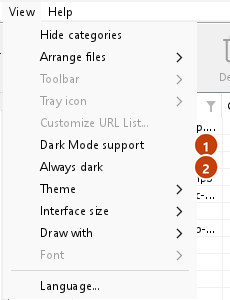
GDM follows your system: when Windows (or your desktop's light/dark preference on Linux and macOS) is set to dark mode, so is GDM. To keep GDM light whatever the system does, turn off View → Dark Mode support. To keep it dark whatever the system does, for example on a desktop that reports no preference, turn on View → Always dark.

Designs
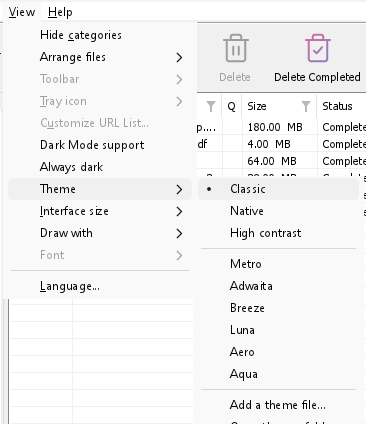
View → Theme changes GDM's look at once, keeping its layout:
- Classic: GDM's own look, the default.
- Nativ: Die Farben Ihres Systems. Die Akzentfarbe von Windows (Einstellungen → Personalisierung → Farben) und, wenn aktiviert, dessen Kontrastdesign; die Akzentfarbe des Desktops und dessen höhere Kontrasteinstellung unter Linux (GNOME 47 und höher, KDE Plasma); die Akzentfarbe unter macOS. GDM folgt diesen, wenn Sie sie ändern.
- Hoher Kontrast: Schwarz und Weiß, ein heller Akzent, jede Kante gezeichnet, Text mit 7:1 oder mehr.
- Metro: Windows 8's flat look: square corners, flat buttons and boxes, a coloured title bar with the title centred (on Windows, where GDM draws it), and one-colour icons (Microsoft's Fluent UI System Icons).
- Adwaita: GNOME's look: round corners, flat grey buttons, a rounded focus ring, GNOME's check boxes, a header bar with the title in bold and round buttons (on Windows, where GDM draws it), and GNOME's Adwaita icons, in colour for files and categories, one colour in the toolbar.
- Breeze: KDE Plasma's look: rounded corners, buttons and boxes that take the accent's edge under the pointer or when focused, KDE's check boxes and focus frame, KDE's title bar with the title centred and round buttons (on Windows, where GDM draws it), and KDE's Breeze icons.
- Luna: Windows XP's look: buttons shaded from white with an orange glow under the pointer, green ticks, square text boxes, progress in green blocks, a deep blue title bar with the title in bold (on Windows, where GDM draws it), and colourful icons drawn for GDM in that manner.
- Aero: Windows 7's look: glossy buttons that turn light blue under the pointer, quiet check boxes, a glossy green progress bar, a glassy title bar with the title on a soft glow (on Windows), and glossy icons drawn for GDM in that manner.
- Aqua: Mac OS X's look: gel buttons round at the ends (the default one blue), glossy check boxes, a blue focus ring, a blue gel progress bar, a grey title bar with small round buttons (on Windows), and icons drawn for GDM in that manner.


Klassisch 

Hoher Kontrast 

Adwaita 

Breeze
Jedes hat eine helle und eine dunkle Seite: Dark Mode-Unterstützung und Immer dunkel wählen wie zuvor zwischen ihnen. Designdateien, die Sie in den Themenordner legen (Ansicht → Design → Themenordner öffnen), werden dort ebenfalls aufgelistet, ebenso wie Base16- und pywal-Farbschemata (Ansicht → Design → Designdatei hinzufügen…; pywal folgt wal, wenn es läuft): Themes beschreibt, wo sich dieser Ordner befindet, was eine Designdatei enthält (inherits, Farben, Größen, Steuerelementformen, Symbole), wie die Farben eines Schemas verwendet werden und wie man eines erstellt und teilt.
Das Taskleistensymbol
Closing the main window doesn't quit GDM. It hides in the notification area, and downloads, queues and schedules carry on. To make closing quit (a portable copy's folder can then be deleted), untick Options → General → Keep running when closing the window. If there is no icon for GDM at all — not in the notification area, nor behind the ^ hidden icons — the window minimizes to the taskbar instead, so downloads continue and there is a way back. An icon behind ^ can be clicked to bring the window back, and starting GDM again always does.
On Linux this needs a tray, which most desktops have (KDE Plasma, Xfce, Cinnamon, Ubuntu's GNOME or GNOME with the AppIndicator extension, waybar's tray). On a desktop without one (some tiling window managers), closing the window quits GDM, since there would be nowhere to bring it back from.
- Klicken Sie auf das Taskleistensymbol, um das Fenster wiederherzustellen.
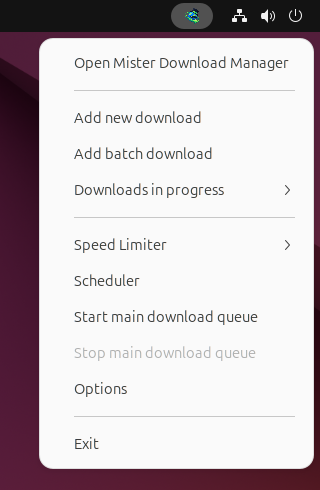
- Klicken Sie mit der rechten Maustaste darauf für Neuen Download hinzufügen, Batch-Download hinzufügen, Aktive Downloads, Geschwindigkeitsbegrenzer, Zeitplaner, die Haupt-Download-Warteschlange, Optionen und Beenden.
- Aktive Downloads listet die laufenden Downloads auf. Wählen Sie einen aus, um dessen Fortschrittsfenster zu sehen.
Minimieren verbirgt das Hauptfenster ebenfalls dort, während In den Infobereich minimieren unter Optionen → Allgemein aktiviert ist. Dies ist standardmäßig der Fall; wenn der Infobereich kein Symbol hat, sendet Minimieren das Fenster stattdessen an die Taskleiste.
Das Fortschrittsfenster eines Downloads kann ebenfalls dorthin verschoben werden, entweder mit der Schaltfläche „Minimieren“ oder mit der Schaltfläche Im Infobereich ausblenden: ein kurzer Strich mit einem Pfeil nach unten in die Ecke.
Unter Windows befindet sich diese Schaltfläche in der Titelleiste des Fensters, links neben „Minimieren“, und im Menü der Titelleiste (Alt+Leertaste). Unter Linux und macOS befindet sie sich am Ende der Registerkartenleiste.
Um das Fenster wiederherzustellen, wählen Sie es unter Aktive Downloads aus oder doppelklicken Sie auf den Download in der Liste.
Zum Beenden wählen Sie Aufgaben → Beenden oder Beenden im Taskleistenmenü.
Where GDM keeps its data
Die Download-Liste und die Einstellungen befinden sich in %APPDATA%\misterdownloadmanager (downloads.json); unter Linux in ~/.local/share/misterdownloadmanager, auf einem Mac in ~/Library/Application Support/misterdownloadmanager. Eine portable Kopie speichert sie stattdessen in ihrem data-Ordner. Heruntergeladene Dateien landen in Ihrem Downloads-Ordner, sortiert in einen Ordner pro Kategorie; dies können Sie unter Optionen → Speichern in ändern.
Nächste Schritte
Kostenlos, Open Source, keine Werbung, keine Testversion.
Download GolinksPRO Download Manager