

GDM runs on 64-bit Windows 10 and Windows 11, and on 64-bit Linux: see On Linux. Builds for macOS are new and still experimental: see On a Mac.
Pilih unduhan
Semua versi tersedia di halaman Rilis. Untuk Windows, tersedia tiga file:
| File | Keterangan |
|---|---|
MisterDownloadManager-<version>-setup.exe |
The installer. Pick this one unless you have a reason not to. It can set up browser integration and open .torrent files and magnet links with GDM. |
MisterDownloadManager-<version>-portable.zip |
Salinan portabel. Daftar unduhan dan pengaturan disimpan di folder data di samping program, dan tidak ada data yang ditulis ke registri. Integrasi browser memerlukan program pemasang. Lihat Mode portabel. |
MisterDownloadManager-<version>-x64.zip |
Program yang sama tanpa program pemasang. Data disimpan di %APPDATA%\misterdownloadmanager, seperti pada salinan yang diinstal. |
Di Linux
GDM runs on 64-bit Linux with a desktop session. It is tested on Ubuntu 24.04, Debian 12 and
Fedora, with GNOME, KDE Plasma, Xfce and Cinnamon, on X11 and in Wayland sessions. Pick one
of these files (up to version 0.2.4, their names end in -experimental, as in
...-linux-x86_64-experimental.deb):
| File | Keterangan |
|---|---|
...-linux-x86_64.deb |
For Ubuntu, Debian, Mint and Pop!_OS: sudo apt install ./<file>.deb. It brings the libraries GDM needs. |
...-linux-x86_64.rpm |
For Fedora, openSUSE and RHEL: sudo dnf install ./<file>.rpm. It brings the libraries GDM needs. |
...-linux-x86_64.AppImage |
Berjalan di sebagian besar distribusi: jadikan dapat dieksekusi (chmod +x) dan jalankan. Ini memperbarui dirinya sendiri di tempat (Bantuan → Periksa pembaruan). |
...-linux-x86_64.tar.gz |
Program biasa, untuk distribusi apa pun. |
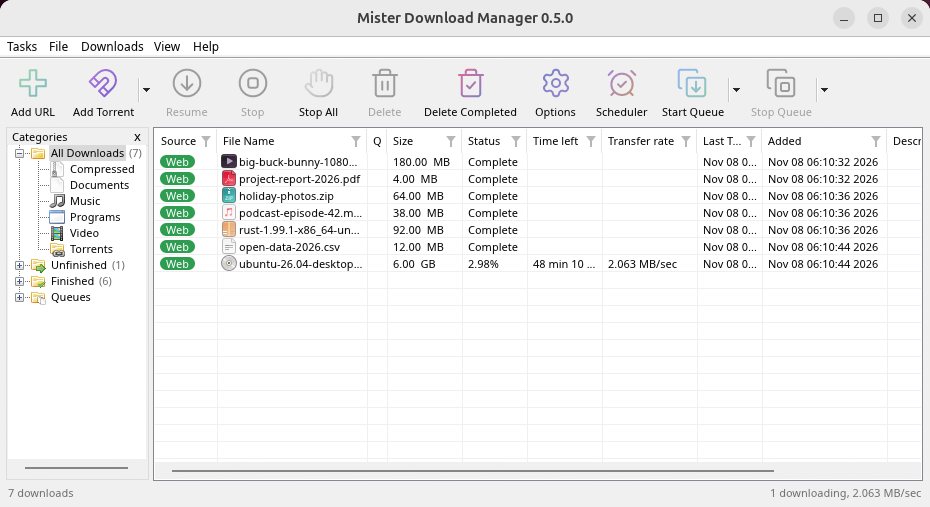
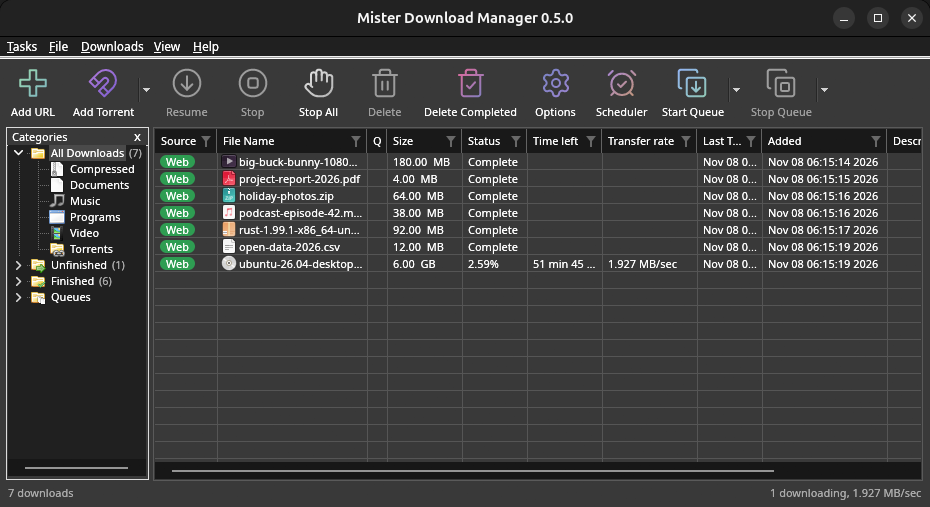
Browser integration is set up by GDM itself at each start (the browsers installed then are found); add the extension as in Browser integration. Firefox installed as a Snap (Ubuntu's) reaches GDM once you allow it; other Snap and Flatpak browsers can't (see Flatpak and Snap browsers). The tray icon, Dark Mode support and Launch on startup work on GNOME (Ubuntu's), KDE Plasma, Xfce and Cinnamon.
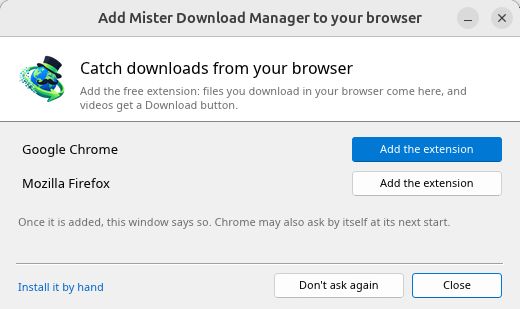
In a Wayland session the windows go through XWayland (below). Not there yet on Linux: screen readers (Orca) don't read GDM's windows; browsers installed as a Flatpak can't reach GDM (Firefox from Flathub may, through the desktop as the Snap does, but that isn't checked yet); and View → Draw with → Vulkan is a choice, OpenGL stays the default.
In a Wayland session (GNOME, KDE Plasma and others), GDM's windows run through XWayland when it is there: Wayland doesn't let a program place its own windows, so GDM's menus and drop-down lists would open in the middle of the screen. To run on Wayland itself anyway, start it with MDM_WAYLAND=1 misterdownloadmanager. If the system lacks a library X11 windows need (such as libxkbcommon-x11, which the .deb and .rpm bring but the AppImage and the tar.gz can't), GDM opens on Wayland instead; with no window system it can use, it names what's missing and the command that installs it.
Jendela-jendela adalah yang dijelaskan dalam bantuan ini, dengan font, ikon file, dan bilah judul desktop:
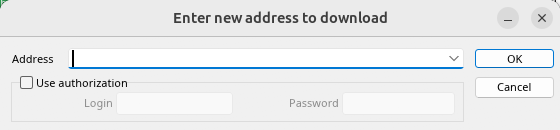
Tambah URL. 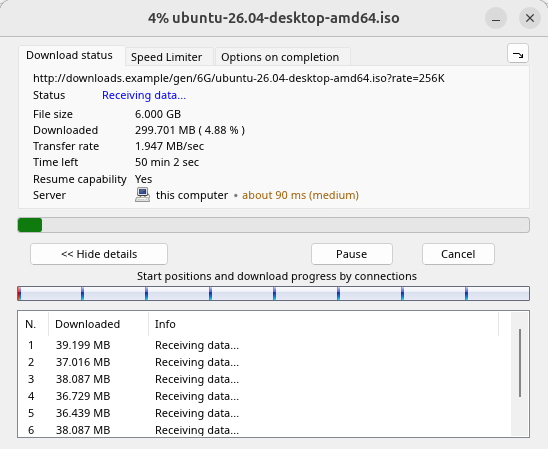
Kemajuan unduhan. 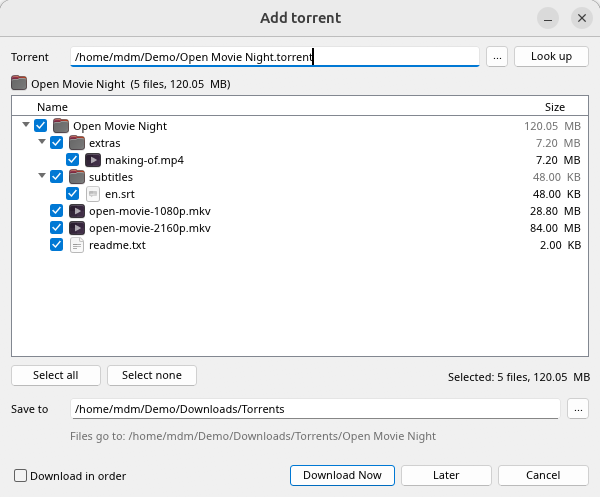
Tambahkan torrent. 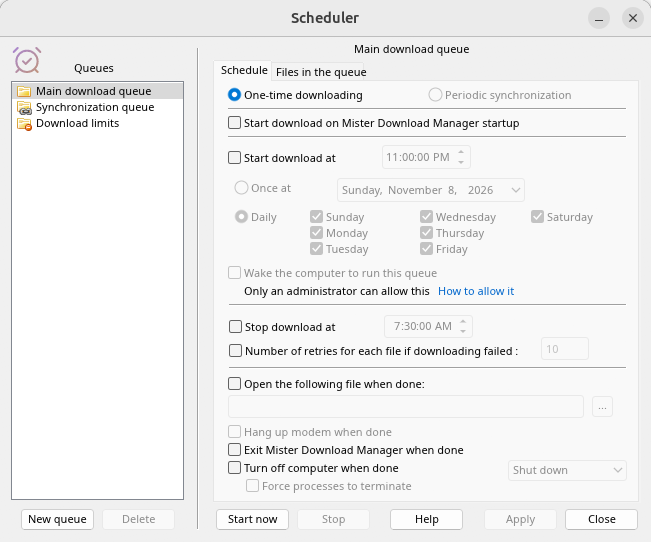
Penjadwal. 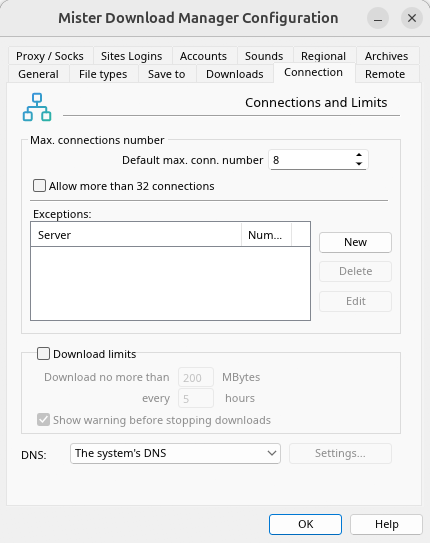
Opsi.
Dan di desktop lain yang telah diperiksa:
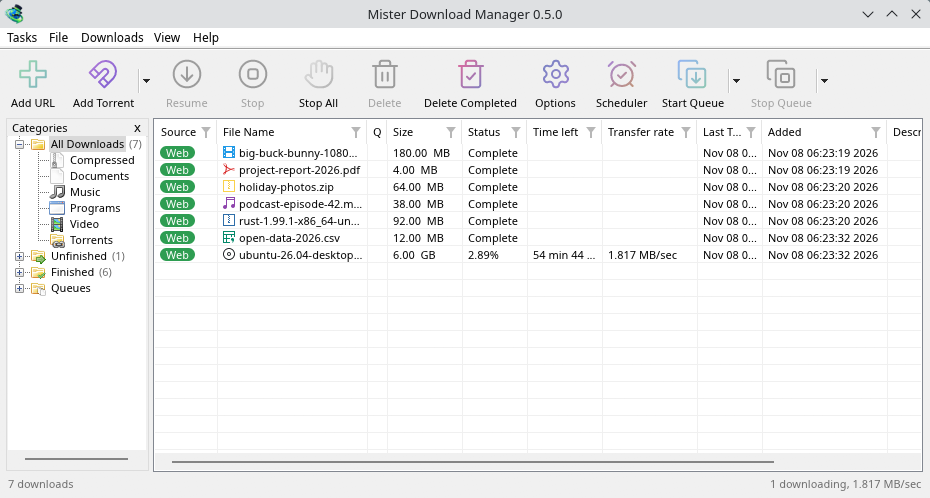
KDE Plasma. 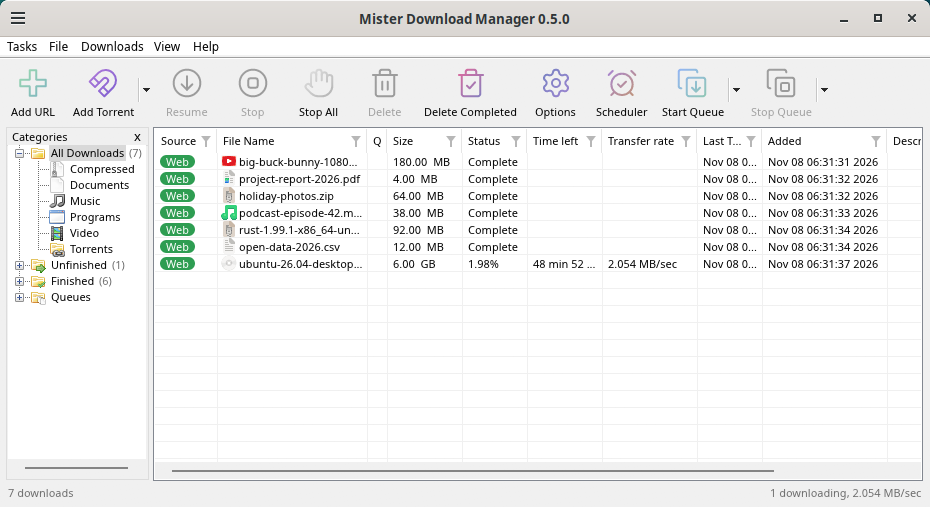
Cinnamon. 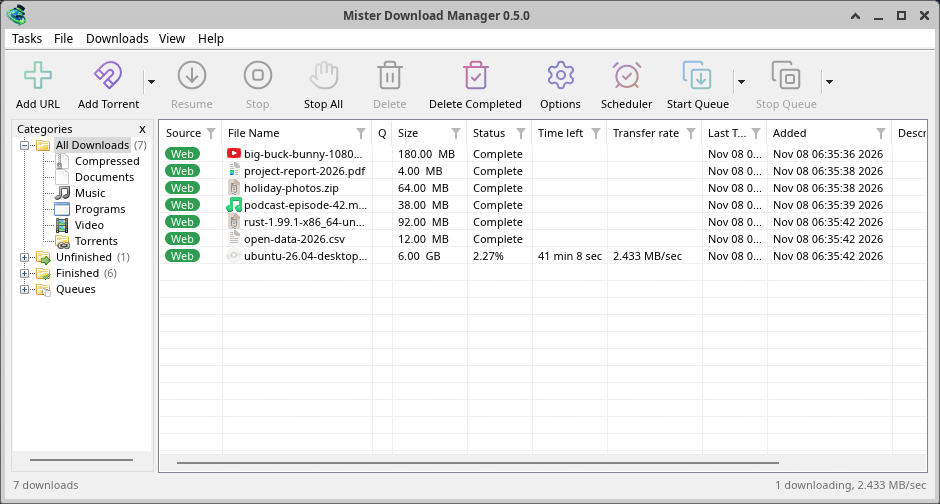
Xfce.
Copot pemasangan di Linux
sudo apt remove misterdownloadmanager (or sudo dnf remove misterdownloadmanager) removes the
programs, and the small files that tell your browsers where GDM's helper is: the .deb and .rpm
install those for everyone (in /etc and /usr/lib), for Chrome, Chromium, Edge, Brave, Vivaldi
and Firefox (the Snap too), so GDM doesn't write them in your home folder. For the AppImage or the
tar.gz, delete the file or the folder.
What GDM keeps in your home folder stays, as with any package: your list and settings
(~/.local/share/misterdownloadmanager), the AppImage's and the tar.gz's browser files, and
those of the browsers that read them only there (Opera, Helium, Thorium, and Firefox's forks:
Zen, LibreWolf, Floorp, Waterfox). A package can't remove those: it never touches
home folders. Without GDM they lead nowhere, so the extension says it can't reach GDM. To remove
them as well, run this as each user who used GDM, before uninstalling:
misterdownloadmanager-nmhost --unregister
(Dari AppImage: ~/.local/share/misterdownloadmanager/browser-host/misterdownloadmanager-nmhost --unregister.) Sudah dicopot pemasangan? Ini menghapus file yang sama:
find ~/.mozilla ~/.librewolf ~/.config -name com.misterdownloadmanager.host.json -delete 2>/dev/null
Di Mac
Versi macOS masih baru dan eksperimental: kami belum mencobanya sendiri di Mac, jadi Anda akan menjadi salah satu yang pertama. Mohon beritahu kami bagaimana hasilnya, baik atau buruk.
| File | Keterangan |
|---|---|
...-macos-arm64-experimental.dmg |
For a Mac with Apple Silicon (M1 or later: Apple menu → About This Mac shows a Chip). Open it and drag GolinksPRO Download Manager to Applications. macOS asks before its first start, because the app isn't notarized by Apple: right-click it and choose Open (on macOS 15 and later: System Settings → Privacy & Security → Open Anyway). |
...-macos-x86_64-experimental.dmg |
Sama, untuk Mac dengan prosesor Intel (Mengenai Mac Ini menunjukkan Prosesor). |
Browser integration is set up by GDM itself at each start (the browsers installed then are found); add the extension as in Browser integration.
Instal dengan program pemasang
- Jalankan
MisterDownloadManager-<version>-setup.exe. - Choose the language. Windows' display language is already selected. The setup offers every language GDM has, and GDM starts in the one you pick.
- Pilih apakah akan menginstal hanya untuk Anda atau untuk semua orang di komputer. Instalasi hanya untuk Anda tidak memerlukan hak administrator dan dilakukan di
%LOCALAPPDATA%\Programs\GolinksPRO Download Manager. Instalasi untuk semua orang dilakukan diProgram Files. - Pick what the setup should do: - Set up browser integration (Chrome, Edge, Brave, Firefox) - Open .torrent files and magnet links with GolinksPRO Download Manager - Start GolinksPRO Download Manager when Windows starts - Create a desktop shortcut (off unless you tick it)
- Click Install, then Finish to start GDM.
If GDM is already running, the setup asks it to save and close first. To update, use Help → Check for updates → Update now, or run the setup of the new version; your list and settings stay.
Integrasi browser memerlukan satu langkah lagi di setiap browser: menambahkan ekstensi. Di Firefox, klik Tambahkan ke Firefox di halamannya di addons.mozilla.org; di Chrome, Edge, Brave, Opera, dan Vivaldi, Tambahkan ke Chrome di halamannya di Chrome Web Store. Integrasi browser menunjukkan caranya.
Copot pemasangan
Uninstall GDM from Windows Settings → Apps. The uninstaller asks whether to delete your download list and settings too. Your downloaded files are never touched.
Gunakan salinan zip
- Ekstrak file ke folder yang dapat Anda tulis (jangan langsung ke
Program Files). - Jalankan
misterdownloadmanager.exe.
File zip berisi program yang sama dengan file instalasi: aplikasi, misterdownloadmanager-cli.exe (untuk mengunduh dari baris perintah; lihat Baris perintah dan otomatisasi) dan folder extension.
Pemakaian pertama dan bahasa
- Installed with the setup: GDM starts in the language you chose in the setup.
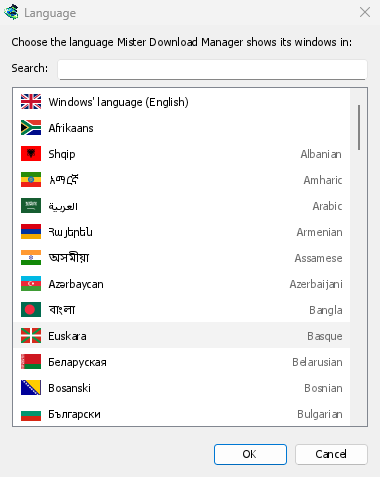
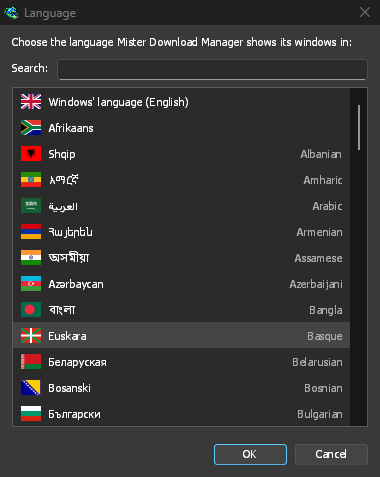
- Otherwise: GDM shows the list of languages, each with its flag and its own name. Pick yours.
Anda dapat mengubahnya kapan saja di Tampilan → Bahasa. Lihat Bahasa untuk informasi selengkapnya.
Alat bantu video
Next, GDM offers its two free video helpers: yt-dlp, which finds the video on a page, and ffmpeg, which joins its picture and sound. Click Yes, download them (recommended) and they download in the background, about 100 MB, once. Not now leaves them for later: the video window offers them when you first need them. More in Videos.


Jendela utama


Dari atas ke bawah:
- Bilah menu.
- Tugas — tambahkan unduhan, torrent, tautan magnet, unduhan massal, dan video dari halaman; Pengaturan torrent; Link grabber; Umpan RSS; tampilkan target seret; impor dan ekspor daftar; keluar.
- Berkas — unduhan yang dipilih: Hentikan Unduhan, Hapus, Unduh Sekarang, Unduh ulang.
- Unduhan — Jeda Semua, Hentikan Semua, Hapus Semua yang Selesai, Cari, Penjadwal, antrean, Pembatas Kecepatan dan Opsi.
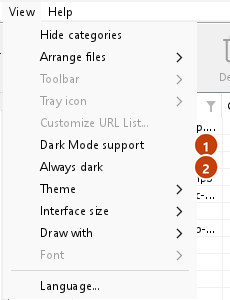
- Tampilan — tampilkan atau sembunyikan kategori, urutkan daftar (Atur file), Dukungan Mode Gelap, Selalu gelap, Tema, Ukuran antarmuka (setiap jendela lebih besar, 100 % hingga 200 %; Ctrl +, Ctrl − dan Ctrl 0 juga), Render dengan (OpenGL, atau Direct3D di Windows, Vulkan di Linux, Metal di macOS) dan Bahasa.
- Help — help pages and tutorials (on the website, in your language when it has it), Keyboard shortcuts, Report a problem, Check for updates, About, Tell a friend and Support GDM (its creator's GitHub Sponsors page: optional, nothing in GDM changes).
- Bilah Alat. Tambah URL, Tambah Torrent, Lanjutkan, Hentikan, Hentikan Semua, Hapus, Hapus yang Selesai, Opsi, Penjadwal, Mulai Antrean, Hentikan Antrean. Panah kecil di sebelah Tambah Torrent, Mulai Antrean dan Hentikan Antrean membuka lebih banyak pilihan.
- Kategori (kiri). Pilih yang ditampilkan dalam daftar: Semua Unduhan, Belum selesai, Selesai dan Antrean, masing-masing dengan kategorinya. Seret celah di antara panel dan daftar untuk memperlebar panel.
- Daftar unduhan (kanan). Satu baris per unduhan. Lihat Daftar unduhan.
Mode gelap
GDM follows your system: when Windows (or your desktop's light/dark preference on Linux and macOS) is set to dark mode, so is GDM. To keep GDM light whatever the system does, turn off View → Dark Mode support. To keep it dark whatever the system does, for example on a desktop that reports no preference, turn on View → Always dark.

Tema
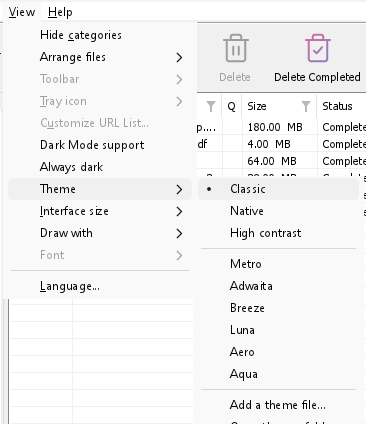
View → Theme changes GDM's look at once, keeping its layout:
- Classic: GDM's own look, the default.
- Asli: warna sistem Anda. Warna aksen Windows (Pengaturan → Personalisasi → Warna) dan, saat aktif, tema kontrasnya; warna aksen desktop dan pengaturan kontras yang lebih tinggi di Linux (GNOME 47 dan yang lebih baru, KDE Plasma); warna aksen di macOS. Ini mengikutinya saat Anda mengubahnya.
- Kontras tinggi: hitam dan putih, aksen cerah, setiap tepi digambar, teks pada rasio 7:1 atau lebih.
- Metro: Windows 8's flat look: square corners, flat buttons and boxes, a coloured title bar with the title centred (on Windows, where GDM draws it), and one-colour icons (Microsoft's Fluent UI System Icons).
- Adwaita: GNOME's look: round corners, flat grey buttons, a rounded focus ring, GNOME's check boxes, a header bar with the title in bold and round buttons (on Windows, where GDM draws it), and GNOME's Adwaita icons, in colour for files and categories, one colour in the toolbar.
- Breeze: KDE Plasma's look: rounded corners, buttons and boxes that take the accent's edge under the pointer or when focused, KDE's check boxes and focus frame, KDE's title bar with the title centred and round buttons (on Windows, where GDM draws it), and KDE's Breeze icons.
- Luna: Windows XP's look: buttons shaded from white with an orange glow under the pointer, green ticks, square text boxes, progress in green blocks, a deep blue title bar with the title in bold (on Windows, where GDM draws it), and colourful icons drawn for GDM in that manner.
- Aero: Windows 7's look: glossy buttons that turn light blue under the pointer, quiet check boxes, a glossy green progress bar, a glassy title bar with the title on a soft glow (on Windows), and glossy icons drawn for GDM in that manner.
- Aqua: Mac OS X's look: gel buttons round at the ends (the default one blue), glossy check boxes, a blue focus ring, a blue gel progress bar, a grey title bar with small round buttons (on Windows), and icons drawn for GDM in that manner.


Klasik 

Kontras tinggi 

Adwaita 

Breeze
Masing-masing memiliki sisi terang dan gelap: Dukungan Mode Gelap dan Selalu gelap memilih di antara keduanya seperti sebelumnya. File tema yang Anda masukkan ke folder tema (Tampilan → Tema → Buka folder tema) juga terdaftar di sana, begitu pula skema warna Base16 dan pywal (Tampilan → Tema → Tambahkan file tema…; pywal mengikuti wal saat berjalan): Tema menjelaskan di mana folder itu berada, apa isi file tema (inherits, warna, ukuran, bentuk kontrol, ikon), bagaimana warna skema digunakan, dan cara membuat serta membagikannya.
Ikon baki
Closing the main window doesn't quit GDM. It hides in the notification area, and downloads, queues and schedules carry on. To make closing quit (a portable copy's folder can then be deleted), untick Options → General → Keep running when closing the window. If there is no icon for GDM at all — not in the notification area, nor behind the ^ hidden icons — the window minimizes to the taskbar instead, so downloads continue and there is a way back. An icon behind ^ can be clicked to bring the window back, and starting GDM again always does.
On Linux this needs a tray, which most desktops have (KDE Plasma, Xfce, Cinnamon, Ubuntu's GNOME or GNOME with the AppIndicator extension, waybar's tray). On a desktop without one (some tiling window managers), closing the window quits GDM, since there would be nowhere to bring it back from.
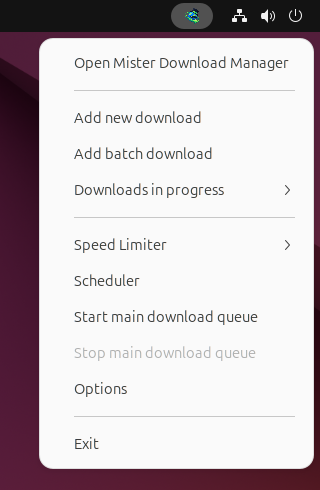
- Klik ikon baki untuk mengembalikan jendela.
- Klik kanan untuk Tambahkan unduhan baru, Tambahkan unduhan batch, Unduhan sedang berlangsung, Pembatas Kecepatan, Penjadwal, antrean unduhan utama, Opsi dan Keluar.
- Unduhan sedang berlangsung mencantumkan unduhan yang sedang berjalan. Pilih salah satu untuk melihat jendela progresnya.
Minimalkan juga menyembunyikan jendela utama di sana, selama Minimalkan ke area notifikasi diaktifkan di Opsi → Umum. Ini aktif secara default; jika baki tidak memiliki ikon, Minimalkan akan mengirim jendela ke bilah tugas sebagai gantinya.
Jendela progres unduhan juga bisa ke sana, dengan tombol Minimalkan atau tombol Sembunyikan ke area notifikasi: tanda hubung pendek dengan panah ke bawah menuju sudut.
Di Windows, tombol itu ada di bilah judul jendela, di kiri Minimalkan, dan di menu bilah judul (Alt+Spasi). Di Linux dan macOS, tombol itu ada di ujung baris tab.
Untuk memunculkan kembali jendela, pilih di Unduhan sedang berlangsung, atau klik ganda unduhan di daftar.
Untuk keluar, pilih Tugas → Keluar atau Keluar di menu baki.
Where GDM keeps its data
Daftar unduhan dan pengaturan ada di %APPDATA%\misterdownloadmanager (downloads.json); di Linux di ~/.local/share/misterdownloadmanager, di Mac di ~/Library/Application Support/misterdownloadmanager. Salinan portabel menyimpannya di folder data miliknya. File yang diunduh masuk ke folder Unduhan Anda, diurutkan ke dalam folder per kategori; Anda dapat mengubahnya di Opsi → Simpan ke.
Langkah selanjutnya
Gratis, sumber terbuka, tanpa iklan, tanpa masa uji coba.
Download GolinksPRO Download Manager