
GDM runs on 64-bit Windows 10 and Windows 11, and on 64-bit Linux: see On Linux. Builds for macOS are new and still experimental: see On a Mac.
Choisir un téléchargement
Toutes les versions se trouvent sur la page Releases. Pour Windows, il y a trois fichiers :
| Fichier | Description |
|---|---|
MisterDownloadManager-<version>-setup.exe |
The installer. Pick this one unless you have a reason not to. It can set up browser integration and open .torrent files and magnet links with GDM. |
MisterDownloadManager-<version>-portable.zip |
Une copie portable. La liste des téléchargements et les paramètres restent dans un dossier data à côté du programme, et rien n'est écrit dans le registre. L'intégration au navigateur nécessite l'installateur. Voir Mode portable. |
MisterDownloadManager-<version>-x64.zip |
Les mêmes programmes sans installateur. Cette version conserve ses données dans %APPDATA%\misterdownloadmanager, comme une copie installée. |
Sous Linux
GDM runs on 64-bit Linux with a desktop session. It is tested on Ubuntu 24.04, Debian 12 and
Fedora, with GNOME, KDE Plasma, Xfce and Cinnamon, on X11 and in Wayland sessions. Pick one
of these files (up to version 0.2.4, their names end in -experimental, as in
...-linux-x86_64-experimental.deb):
| Fichier | Description |
|---|---|
...-linux-x86_64.deb |
For Ubuntu, Debian, Mint and Pop!_OS: sudo apt install ./<file>.deb. It brings the libraries GDM needs. |
...-linux-x86_64.rpm |
For Fedora, openSUSE and RHEL: sudo dnf install ./<file>.rpm. It brings the libraries GDM needs. |
...-linux-x86_64.AppImage |
Fonctionne sur la plupart des distributions : rendez-le exécutable (chmod +x) et exécutez-le. Il se met à jour sur place (Aide → Rechercher les mises à jour). |
...-linux-x86_64.tar.gz |
Les programmes simples, pour toute distribution. |
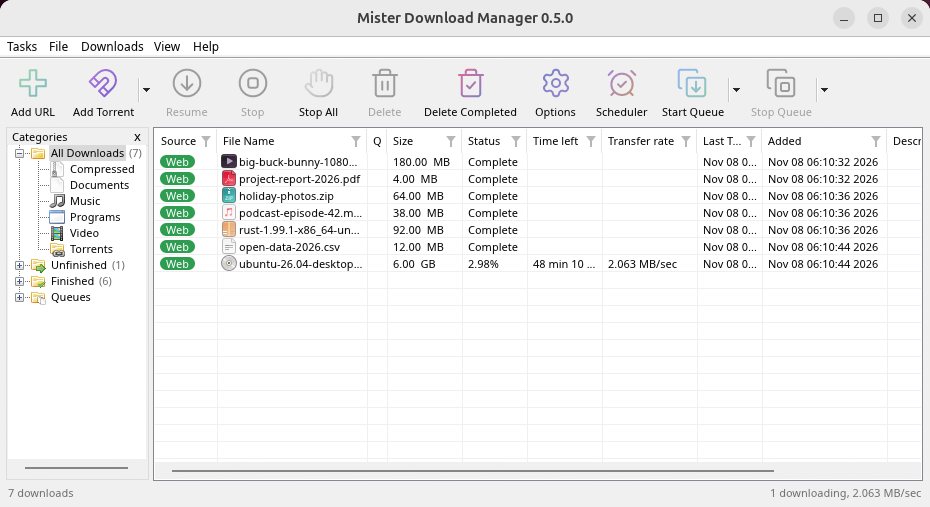
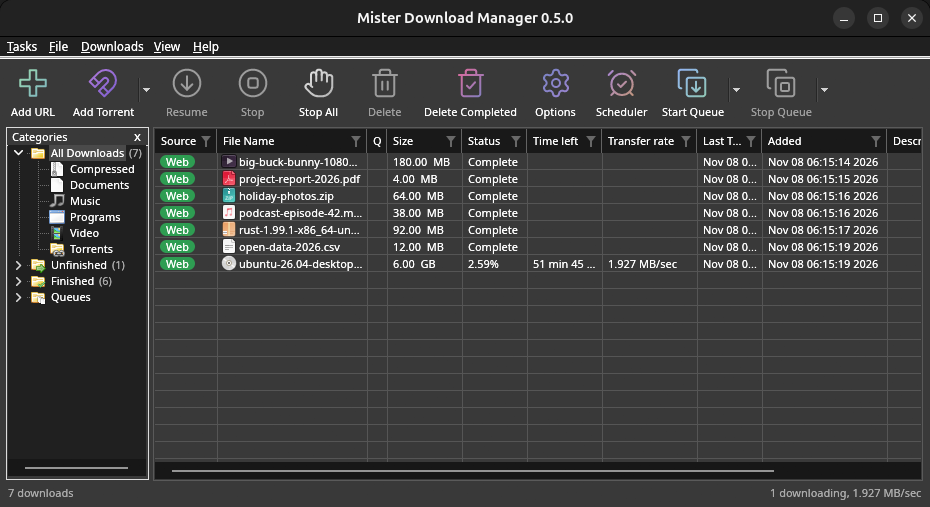
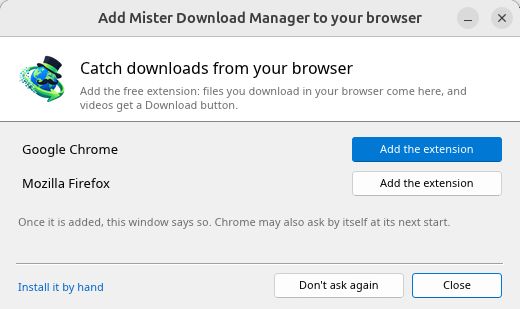
Browser integration is set up by GDM itself at each start (the browsers installed then are found); add the extension as in Browser integration. Firefox installed as a Snap (Ubuntu's) reaches GDM once you allow it; other Snap and Flatpak browsers can't (see Flatpak and Snap browsers). The tray icon, Dark Mode support and Launch on startup work on GNOME (Ubuntu's), KDE Plasma, Xfce and Cinnamon.
In a Wayland session the windows go through XWayland (below). Not there yet on Linux: screen readers (Orca) don't read GDM's windows; browsers installed as a Flatpak can't reach GDM (Firefox from Flathub may, through the desktop as the Snap does, but that isn't checked yet); and View → Draw with → Vulkan is a choice, OpenGL stays the default.
In a Wayland session (GNOME, KDE Plasma and others), GDM's windows run through XWayland when it is there: Wayland doesn't let a program place its own windows, so GDM's menus and drop-down lists would open in the middle of the screen. To run on Wayland itself anyway, start it with MDM_WAYLAND=1 misterdownloadmanager. If the system lacks a library X11 windows need (such as libxkbcommon-x11, which the .deb and .rpm bring but the AppImage and the tar.gz can't), GDM opens on Wayland instead; with no window system it can use, it names what's missing and the command that installs it.
Les fenêtres sont celles décrites dans cette aide, avec les polices, les icônes de fichiers et les barres de titre du bureau :
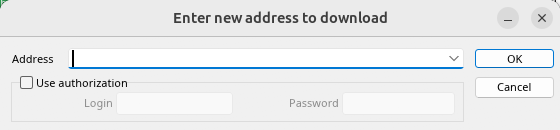
Ajouter une URL. 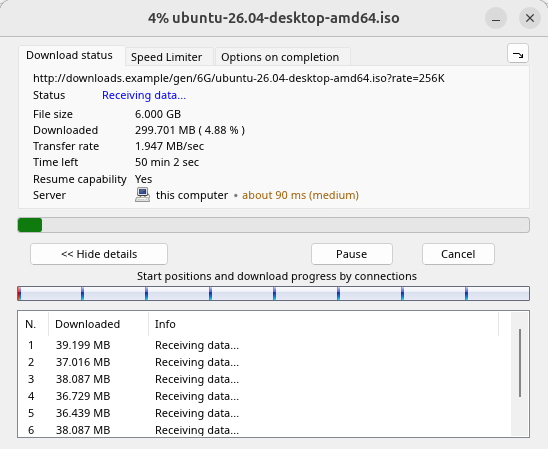
Progression d’un téléchargement. 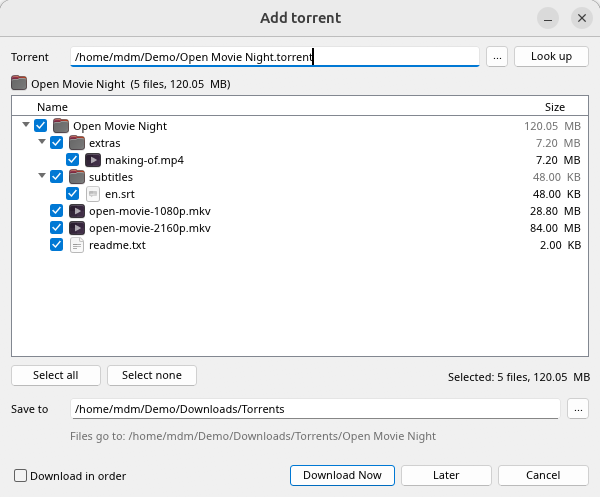
Ajouter un torrent. 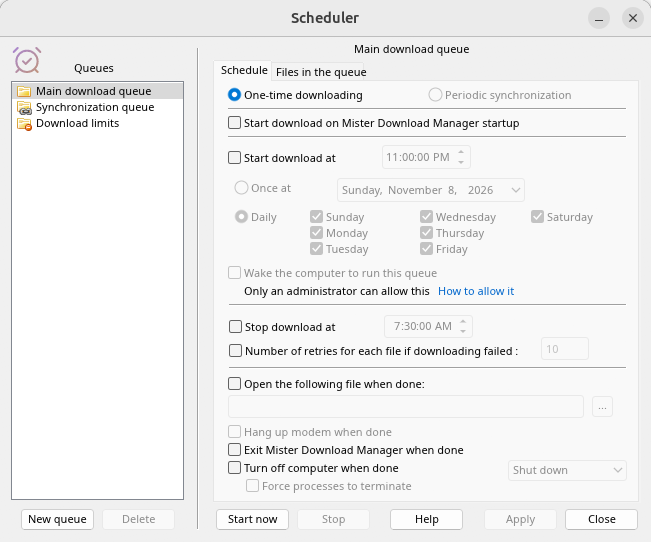
Le Planificateur. 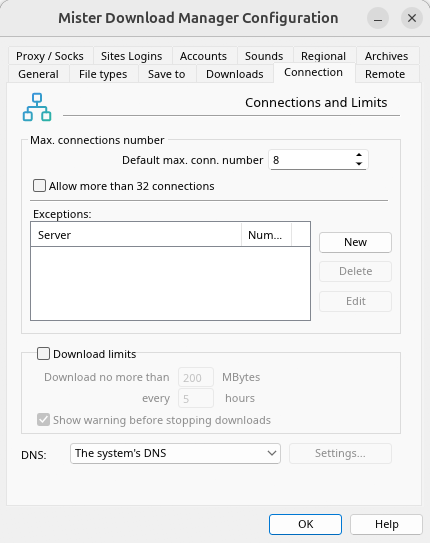
Options.
Et sur les autres bureaux où il a été vérifié :
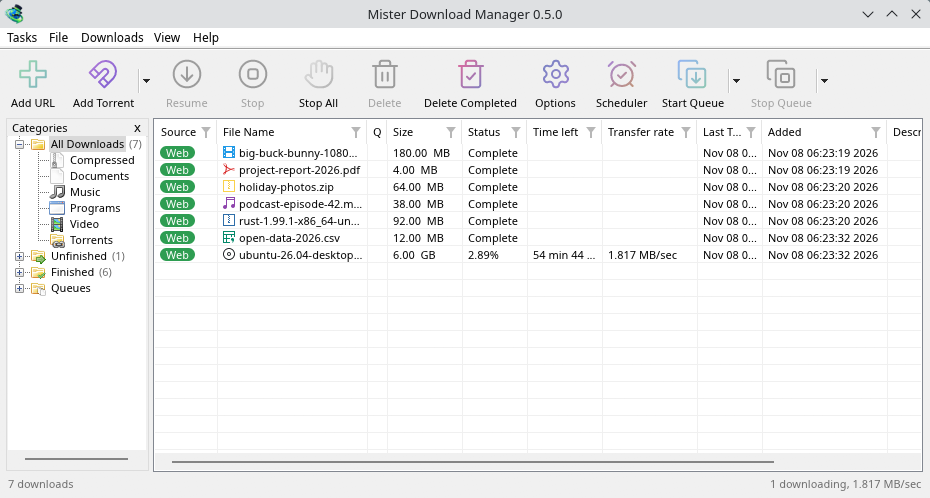
KDE Plasma. 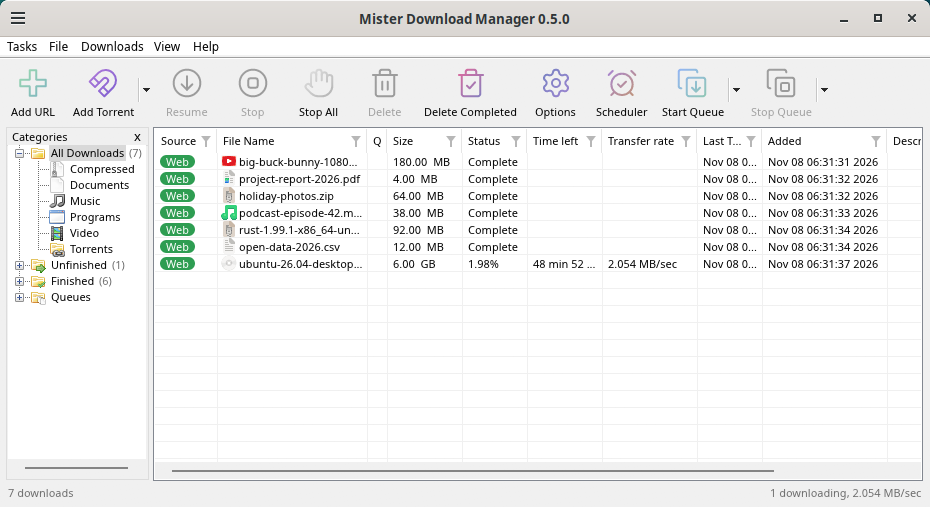
Cinnamon. 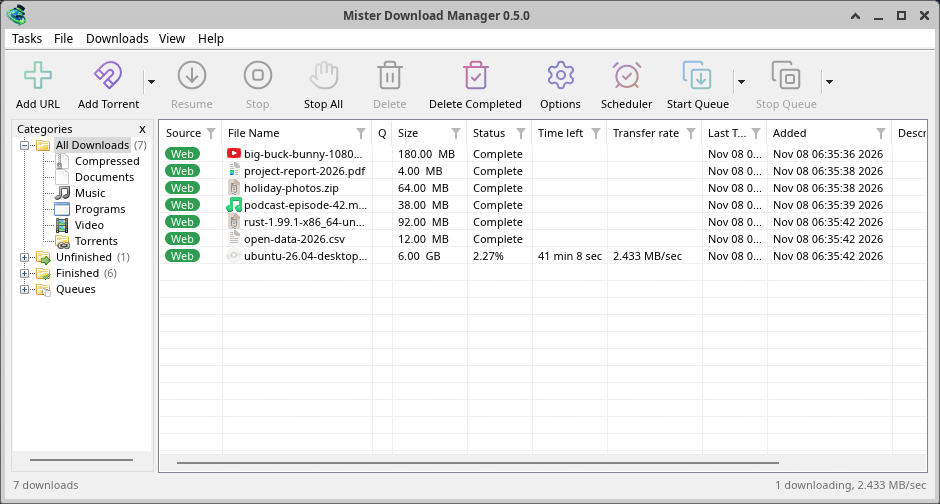
Xfce.
Désinstaller sous Linux
sudo apt remove misterdownloadmanager (or sudo dnf remove misterdownloadmanager) removes the
programs, and the small files that tell your browsers where GDM's helper is: the .deb and .rpm
install those for everyone (in /etc and /usr/lib), for Chrome, Chromium, Edge, Brave, Vivaldi
and Firefox (the Snap too), so GDM doesn't write them in your home folder. For the AppImage or the
tar.gz, delete the file or the folder.
What GDM keeps in your home folder stays, as with any package: your list and settings
(~/.local/share/misterdownloadmanager), the AppImage's and the tar.gz's browser files, and
those of the browsers that read them only there (Opera, Helium, Thorium, and Firefox's forks:
Zen, LibreWolf, Floorp, Waterfox). A package can't remove those: it never touches
home folders. Without GDM they lead nowhere, so the extension says it can't reach GDM. To remove
them as well, run this as each user who used GDM, before uninstalling:
misterdownloadmanager-nmhost --unregister
(Depuis l’AppImage : ~/.local/share/misterdownloadmanager/browser-host/misterdownloadmanager-nmhost --unregister.) Déjà désinstallé ? Ceci supprime les mêmes fichiers :
find ~/.mozilla ~/.librewolf ~/.config -name com.misterdownloadmanager.host.json -delete 2>/dev/null
Sur Mac
Les versions macOS sont nouvelles et encore expérimentales : nous ne les avons pas encore essayées nous-mêmes sur Mac, vous seriez donc parmi les premiers. Veuillez nous dire comment cela s’est passé, en bien ou en mal.
| Fichier | Description |
|---|---|
...-macos-arm64-experimental.dmg |
For a Mac with Apple Silicon (M1 or later: Apple menu → About This Mac shows a Chip). Open it and drag GolinksPRO Download Manager to Applications. macOS asks before its first start, because the app isn't notarized by Apple: right-click it and choose Open (on macOS 15 and later: System Settings → Privacy & Security → Open Anyway). |
...-macos-x86_64-experimental.dmg |
Idem, pour un Mac avec un processeur Intel (À propos de ce Mac affiche un Processeur). |
Browser integration is set up by GDM itself at each start (the browsers installed then are found); add the extension as in Browser integration.
Installer avec le programme d'installation
- Lancer
MisterDownloadManager-<version>-setup.exe. - Choose the language. Windows' display language is already selected. The setup offers every language GDM has, and GDM starts in the one you pick.
- Choisissez d'installer pour vous seulement ou pour tout le monde sur l'ordinateur. Pour vous seulement ne nécessite pas de droits d'administrateur et va dans
%LOCALAPPDATA%\Programs\GolinksPRO Download Manager. Pour tout le monde va dansProgram Files. - Pick what the setup should do: - Set up browser integration (Chrome, Edge, Brave, Firefox) - Open .torrent files and magnet links with GolinksPRO Download Manager - Start GolinksPRO Download Manager when Windows starts - Create a desktop shortcut (off unless you tick it)
- Click Install, then Finish to start GDM.
If GDM is already running, the setup asks it to save and close first. To update, use Help → Check for updates → Update now, or run the setup of the new version; your list and settings stay.
L'intégration au navigateur nécessite une étape supplémentaire dans chaque navigateur : l'ajout de l'extension. Dans Firefox, cliquez sur Ajouter à Firefox sur sa page sur addons.mozilla.org ; dans Chrome, Edge, Brave, Opera et Vivaldi, cliquez sur Ajouter à Chrome sur sa page dans le Chrome Web Store. La section Intégration au navigateur explique comment faire.
Désinstaller
Uninstall GDM from Windows Settings → Apps. The uninstaller asks whether to delete your download list and settings too. Your downloaded files are never touched.
Utiliser une copie ZIP
- Décompressez le fichier dans un dossier où vous pouvez écrire (pas directement dans
Program Files). - Lancer
misterdownloadmanager.exe.
Les fichiers zip contiennent les mêmes programmes que le programme d'installation : l'application, misterdownloadmanager-cli.exe (téléchargements à partir de la ligne de commande ; voir Ligne de commande et automatisation) et le dossier extension.
Premier démarrage et langue
- Installed with the setup: GDM starts in the language you chose in the setup.
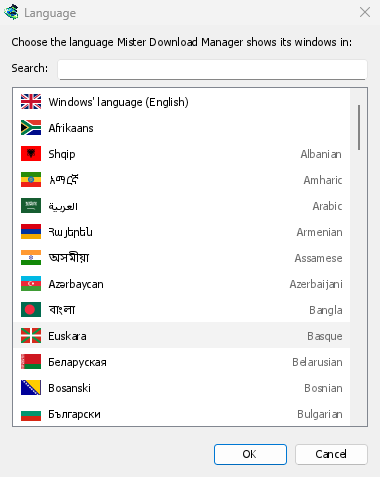
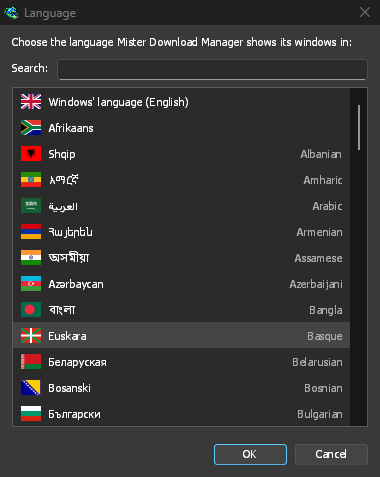
- Otherwise: GDM shows the list of languages, each with its flag and its own name. Pick yours.
Vous pouvez la changer à tout moment dans Affichage → Langue. Plus d’informations dans Langues.
Les assistants vidéo
Next, GDM offers its two free video helpers: yt-dlp, which finds the video on a page, and ffmpeg, which joins its picture and sound. Click Yes, download them (recommended) and they download in the background, about 100 MB, once. Not now leaves them for later: the video window offers them when you first need them. More in Videos.


La fenêtre principale


De haut en bas :
- Barre de menus.
- Tâches — ajouter des téléchargements, des torrents, des liens magnet, des téléchargements par lot et des vidéos à partir d’une page ; Paramètres du torrent ; Récupérateur de liens ; Flux RSS ; afficher la cible de dépôt ; importer et exporter la liste ; quitter.
- Fichier — le téléchargement sélectionné : Arrêter le téléchargement, Supprimer, Télécharger maintenant, Retélécharger.
- Téléchargements — Tout mettre en pause, Tout arrêter, Supprimer tous les téléchargements terminés, Rechercher, le Planificateur, les files d’attente, le Limiteur de vitesse et les Options.
- Affichage — afficher ou masquer les catégories, trier la liste (Organiser les fichiers), Prise en charge du mode sombre, Toujours sombre, Thème, Taille de l’interface (chaque fenêtre plus grande, de 100 % à 200 % ; Ctrl +, Ctrl − et Ctrl 0 également), Dessiner avec (OpenGL, ou Direct3D sous Windows, Vulkan sous Linux, Metal sous macOS) et Langue.
- Help — help pages and tutorials (on the website, in your language when it has it), Keyboard shortcuts, Report a problem, Check for updates, About, Tell a friend and Support GDM (its creator's GitHub Sponsors page: optional, nothing in GDM changes).
- Barre d’outils. Ajouter une URL, Ajouter un torrent, Reprendre, Arrêter, Tout arrêter, Supprimer, Supprimer les téléchargements terminés, Options, Planificateur, Démarrer la file d’attente, Arrêter la file d’attente. La petite flèche à côté de Ajouter un torrent, Démarrer la file d’attente et Arrêter la file d’attente ouvre plus de choix.
- Catégories (à gauche). Choisissez ce que la liste affiche : Tous les téléchargements, Inachevés, Terminé et Files d’attente, chacune avec ses catégories. Faites glisser l’espace entre le volet et la liste pour l’élargir.
- Liste de téléchargements (à droite). Une ligne par téléchargement. Voir La liste de téléchargements.
Mode sombre
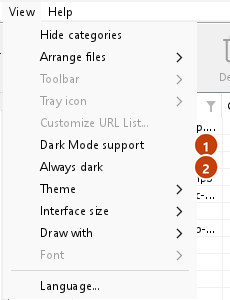
GDM follows your system: when Windows (or your desktop's light/dark preference on Linux and macOS) is set to dark mode, so is GDM. To keep GDM light whatever the system does, turn off View → Dark Mode support. To keep it dark whatever the system does, for example on a desktop that reports no preference, turn on View → Always dark.

Thèmes
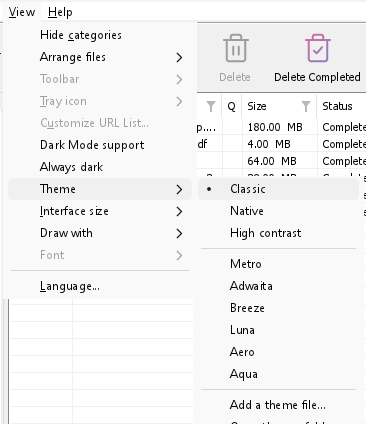
View → Theme changes GDM's look at once, keeping its layout:
- Classic: GDM's own look, the default.
- Natif : les couleurs de votre système. La couleur d'accentuation de Windows (Paramètres → Personnalisation → Couleurs) et, lorsqu'il est activé, son thème de contraste ; la couleur d'accentuation du bureau et son réglage de contraste plus élevé sous Linux (GNOME 47 et versions ultérieures, KDE Plasma) ; la couleur d'accentuation sous macOS. Il les suit lorsque vous les modifiez.
- Contraste élevé : noir et blanc, un accent lumineux, chaque bord dessiné, texte à 7:1 ou plus.
- Metro: Windows 8's flat look: square corners, flat buttons and boxes, a coloured title bar with the title centred (on Windows, where GDM draws it), and one-colour icons (Microsoft's Fluent UI System Icons).
- Adwaita: GNOME's look: round corners, flat grey buttons, a rounded focus ring, GNOME's check boxes, a header bar with the title in bold and round buttons (on Windows, where GDM draws it), and GNOME's Adwaita icons, in colour for files and categories, one colour in the toolbar.
- Breeze: KDE Plasma's look: rounded corners, buttons and boxes that take the accent's edge under the pointer or when focused, KDE's check boxes and focus frame, KDE's title bar with the title centred and round buttons (on Windows, where GDM draws it), and KDE's Breeze icons.
- Luna: Windows XP's look: buttons shaded from white with an orange glow under the pointer, green ticks, square text boxes, progress in green blocks, a deep blue title bar with the title in bold (on Windows, where GDM draws it), and colourful icons drawn for GDM in that manner.
- Aero: Windows 7's look: glossy buttons that turn light blue under the pointer, quiet check boxes, a glossy green progress bar, a glassy title bar with the title on a soft glow (on Windows), and glossy icons drawn for GDM in that manner.
- Aqua: Mac OS X's look: gel buttons round at the ends (the default one blue), glossy check boxes, a blue focus ring, a blue gel progress bar, a grey title bar with small round buttons (on Windows), and icons drawn for GDM in that manner.


Classique 

Contraste élevé 

Adwaita 

Breeze
Chacun a un côté clair et un côté sombre : Prise en charge du mode sombre et Toujours sombre permettent de choisir entre les deux comme auparavant. Les fichiers de thème que vous placez dans le dossier des thèmes (Affichage → Thème → Ouvrir le dossier des thèmes) y sont également répertoriés, tout comme les jeux de couleurs Base16 et pywal (Affichage → Thème → Ajouter un fichier de thème… ; pywal suit wal lors de son exécution) : Thèmes indique où se trouve ce dossier, ce que contient un fichier de thème (inherits, couleurs, tailles, formes des contrôles, icônes), comment les couleurs d’un jeu sont utilisées, et comment en créer et en partager un.
L’icône de la barre d’état système
Closing the main window doesn't quit GDM. It hides in the notification area, and downloads, queues and schedules carry on. To make closing quit (a portable copy's folder can then be deleted), untick Options → General → Keep running when closing the window. If there is no icon for GDM at all — not in the notification area, nor behind the ^ hidden icons — the window minimizes to the taskbar instead, so downloads continue and there is a way back. An icon behind ^ can be clicked to bring the window back, and starting GDM again always does.
On Linux this needs a tray, which most desktops have (KDE Plasma, Xfce, Cinnamon, Ubuntu's GNOME or GNOME with the AppIndicator extension, waybar's tray). On a desktop without one (some tiling window managers), closing the window quits GDM, since there would be nowhere to bring it back from.
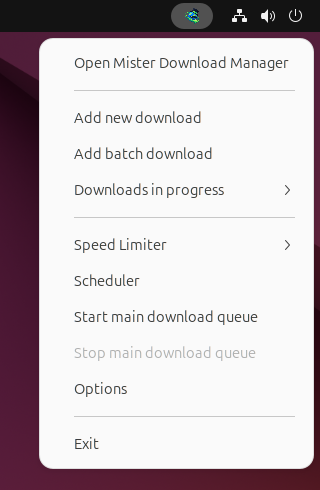
- Cliquez sur l’icône de la barre d’état système pour faire réapparaître la fenêtre.
- Faites un clic droit dessus pour Ajouter un nouveau téléchargement, Ajouter un téléchargement par lot, Téléchargements en cours, Limiteur de vitesse, Planificateur, la file d'attente principale des téléchargements, Options et Quitter.
- Téléchargements en cours liste les téléchargements en cours. Choisissez-en un pour voir sa fenêtre de progression.
Réduire masque également la fenêtre principale, tant que Réduire dans la zone de notification est activé dans Options → Général. C’est activé par défaut ; là où la zone de notification n’a pas d’icône, Réduire envoie plutôt la fenêtre dans la barre des tâches.
La fenêtre de progression d'un téléchargement peut aussi y aller, avec son bouton Réduire ou son bouton Masquer dans la zone de notification : un petit tiret avec une flèche vers le coin.
Sous Windows, ce bouton se trouve dans la barre de titre de la fenêtre, à gauche de Réduire, et dans le menu de la barre de titre (Alt+Espace). Sous Linux et macOS, il est à la fin de la rangée d'onglets.
Pour ramener la fenêtre, choisissez-la dans Téléchargements en cours, ou double-cliquez sur le téléchargement dans la liste.
Pour quitter, choisissez Tâches → Quitter ou Quitter dans le menu de la barre d’état système.
Where GDM keeps its data
La liste des téléchargements et les paramètres se trouvent dans %APPDATA%\misterdownloadmanager (downloads.json) ; sous Linux dans ~/.local/share/misterdownloadmanager, sur un Mac dans ~/Library/Application Support/misterdownloadmanager. Une copie portable les conserve plutôt dans son dossier data. Les fichiers téléchargés vont dans votre dossier Téléchargements, triés dans un dossier par catégorie ; vous pouvez modifier cela dans Options → Enregistrer dans.
Étapes suivantes
- Télécharger votre premier fichier →
- Send browser downloads to GDM →
- Découvrir la liste de téléchargements →
Gratuit, open source, sans publicité ni période d’essai.
Download GolinksPRO Download Manager