

GDM runs on 64-bit Windows 10 and Windows 11, and on 64-bit Linux: see On Linux. Builds for macOS are new and still experimental: see On a Mac.
ダウンロードの選択
すべてのバージョンはリリースページにあります。Windows用には3つのファイルがあります。
| ファイル | 内容 |
|---|---|
MisterDownloadManager-<version>-setup.exe |
The installer. Pick this one unless you have a reason not to. It can set up browser integration and open .torrent files and magnet links with GDM. |
MisterDownloadManager-<version>-portable.zip |
ポータブル版です。ダウンロードリストと設定はプログラムの隣のdataフォルダに保存され、レジストリには何も書き込まれません。ブラウザ統合にはインストーラーが必要です。ポータブルモードをご覧ください。 |
MisterDownloadManager-<version>-x64.zip |
インストーラーなしの同じプログラムです。インストール版と同様に、データは%APPDATA%\misterdownloadmanagerに保存されます。 |
Linux での使用
GDM runs on 64-bit Linux with a desktop session. It is tested on Ubuntu 24.04, Debian 12 and
Fedora, with GNOME, KDE Plasma, Xfce and Cinnamon, on X11 and in Wayland sessions. Pick one
of these files (up to version 0.2.4, their names end in -experimental, as in
...-linux-x86_64-experimental.deb):
| ファイル | 内容 |
|---|---|
...-linux-x86_64.deb |
For Ubuntu, Debian, Mint and Pop!_OS: sudo apt install ./<file>.deb. It brings the libraries GDM needs. |
...-linux-x86_64.rpm |
For Fedora, openSUSE and RHEL: sudo dnf install ./<file>.rpm. It brings the libraries GDM needs. |
...-linux-x86_64.AppImage |
ほとんどのディストリビューションで動作します: 実行可能にして (chmod +x) 実行します。その場で自動更新されます (ヘルプ → 更新プログラムの確認)。 |
...-linux-x86_64.tar.gz |
どのディストリビューションでも使える、プレーンなプログラムです。 |
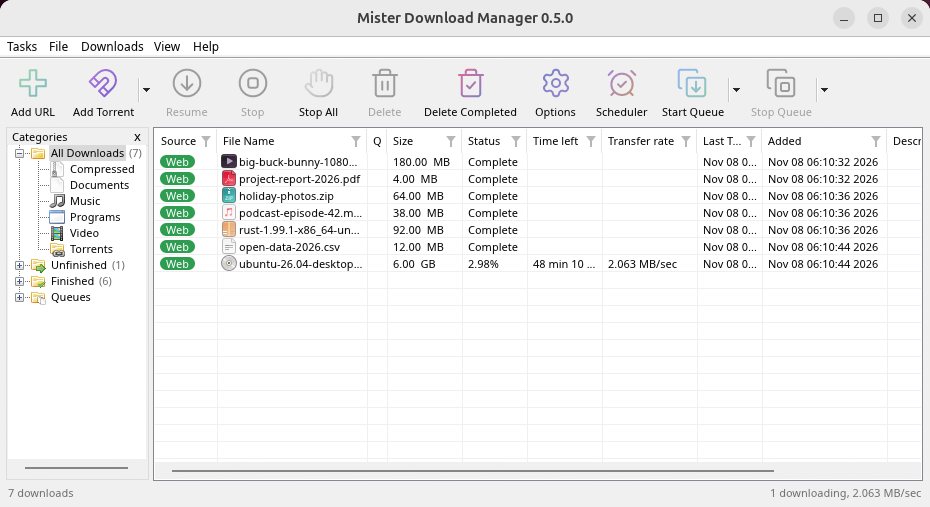
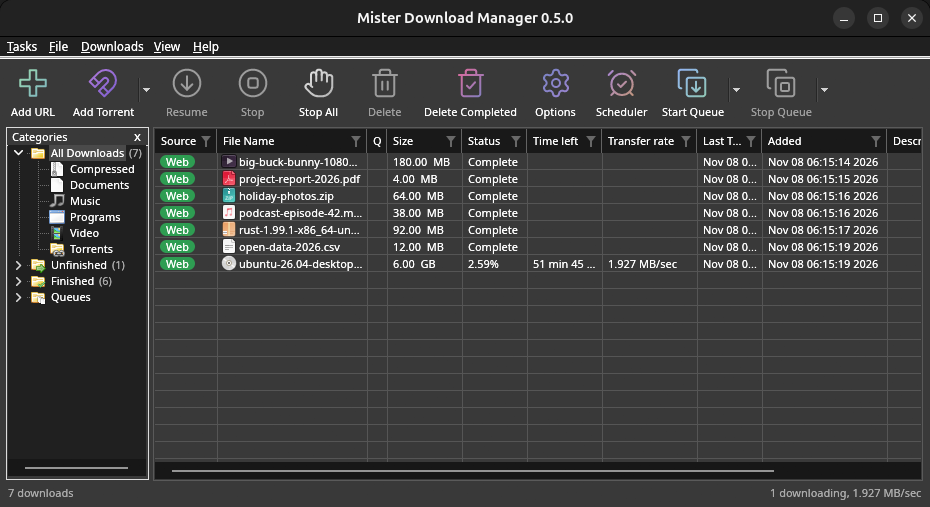
Browser integration is set up by GDM itself at each start (the browsers installed then are found); add the extension as in Browser integration. Firefox installed as a Snap (Ubuntu's) reaches GDM once you allow it; other Snap and Flatpak browsers can't (see Flatpak and Snap browsers). The tray icon, Dark Mode support and Launch on startup work on GNOME (Ubuntu's), KDE Plasma, Xfce and Cinnamon.
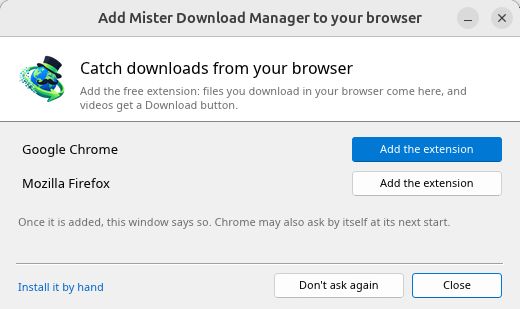
In a Wayland session the windows go through XWayland (below). Not there yet on Linux: screen readers (Orca) don't read GDM's windows; browsers installed as a Flatpak can't reach GDM (Firefox from Flathub may, through the desktop as the Snap does, but that isn't checked yet); and View → Draw with → Vulkan is a choice, OpenGL stays the default.
In a Wayland session (GNOME, KDE Plasma and others), GDM's windows run through XWayland when it is there: Wayland doesn't let a program place its own windows, so GDM's menus and drop-down lists would open in the middle of the screen. To run on Wayland itself anyway, start it with MDM_WAYLAND=1 misterdownloadmanager. If the system lacks a library X11 windows need (such as libxkbcommon-x11, which the .deb and .rpm bring but the AppImage and the tar.gz can't), GDM opens on Wayland instead; with no window system it can use, it names what's missing and the command that installs it.
ウィンドウは、このヘルプで説明されているもので、デスクトップのフォント、ファイル アイコン、タイトル バーを使用します。
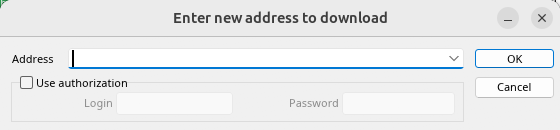
URL を追加。 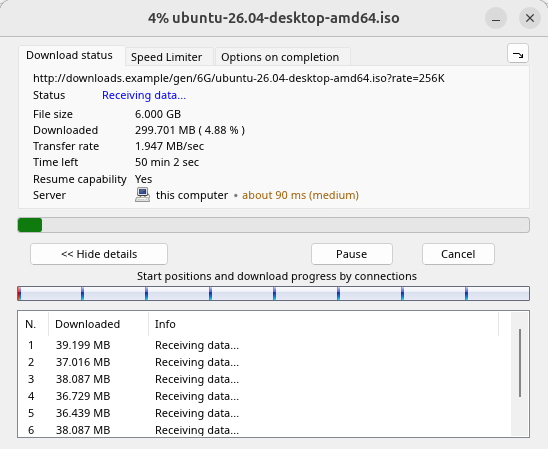
ダウンロードの進行状況。 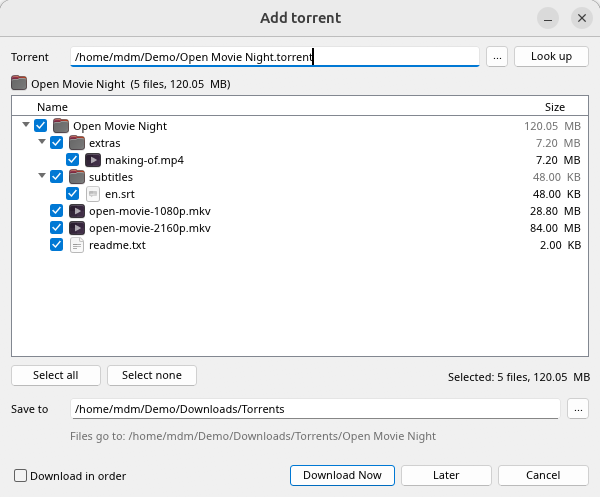
トレントを追加。 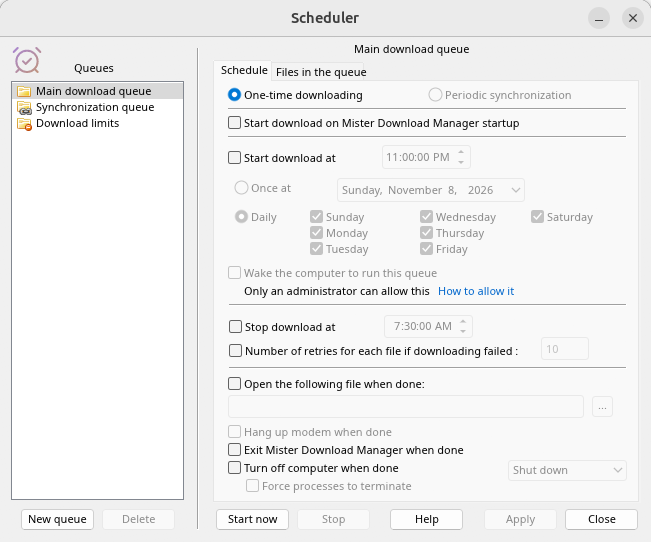
スケジューラ。 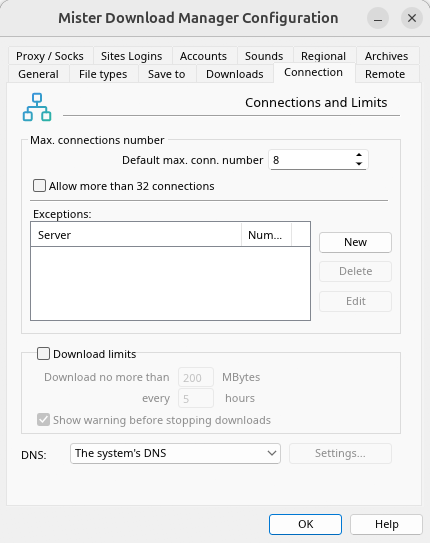
オプション。
その他の確認済みデスクトップ環境でも同様です。
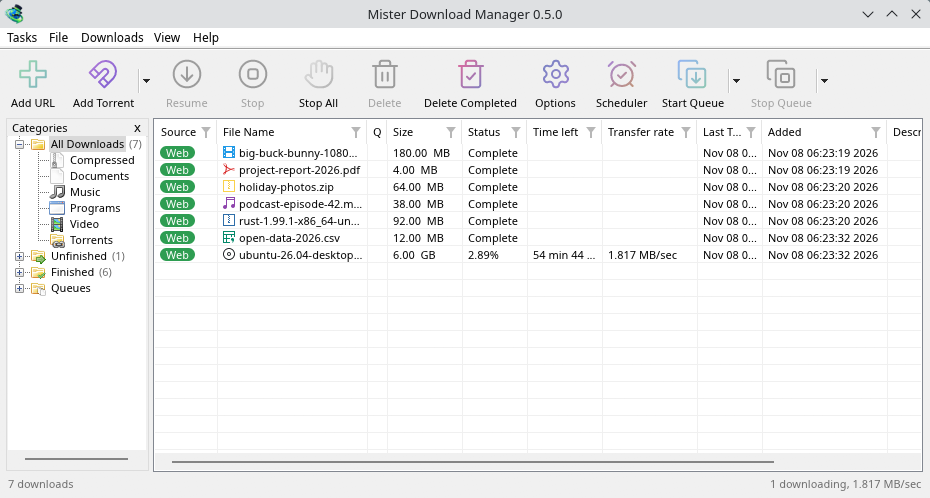
KDE Plasma。 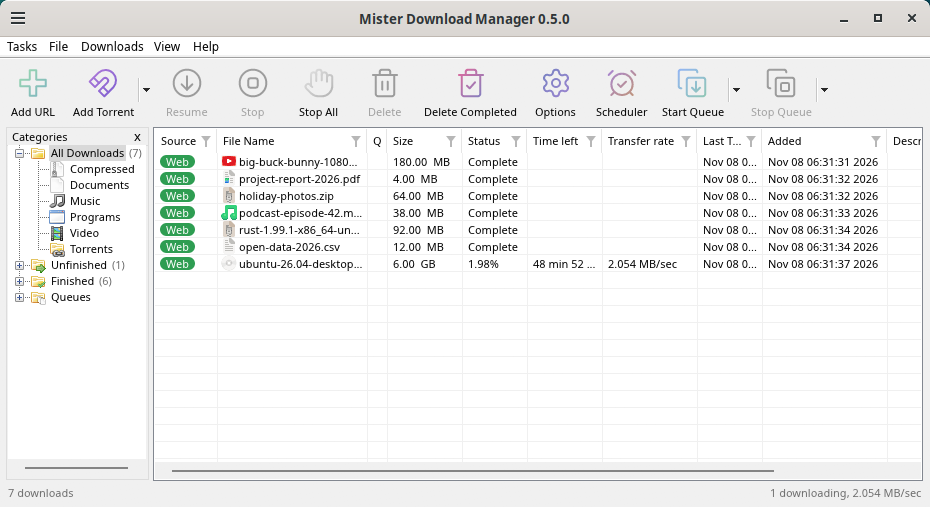
Cinnamon。 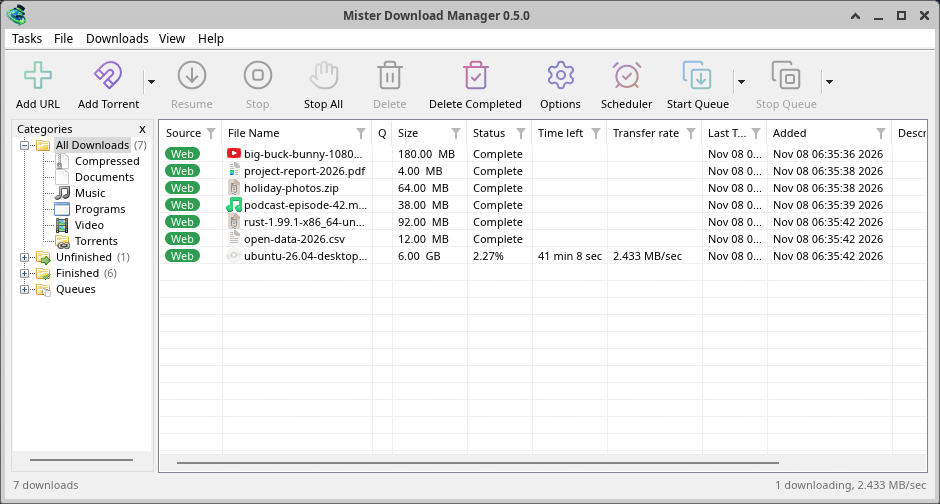
Xfce。
Linux でのアンインストール
sudo apt remove misterdownloadmanager (or sudo dnf remove misterdownloadmanager) removes the
programs, and the small files that tell your browsers where GDM's helper is: the .deb and .rpm
install those for everyone (in /etc and /usr/lib), for Chrome, Chromium, Edge, Brave, Vivaldi
and Firefox (the Snap too), so GDM doesn't write them in your home folder. For the AppImage or the
tar.gz, delete the file or the folder.
What GDM keeps in your home folder stays, as with any package: your list and settings
(~/.local/share/misterdownloadmanager), the AppImage's and the tar.gz's browser files, and
those of the browsers that read them only there (Opera, Helium, Thorium, and Firefox's forks:
Zen, LibreWolf, Floorp, Waterfox). A package can't remove those: it never touches
home folders. Without GDM they lead nowhere, so the extension says it can't reach GDM. To remove
them as well, run this as each user who used GDM, before uninstalling:
misterdownloadmanager-nmhost --unregister
(AppImage から: ~/.local/share/misterdownloadmanager/browser-host/misterdownloadmanager-nmhost --unregister。) すでにアンインストールしましたか? これで同じファイルが削除されます。
find ~/.mozilla ~/.librewolf ~/.config -name com.misterdownloadmanager.host.json -delete 2>/dev/null
Mac での使用
macOS ビルドは新しく、まだ実験段階です。まだ Mac でのテストは行っていませんので、あなたが最初のユーザーの 1 人となるでしょう。良い点も悪い点も、ぜひご意見をお聞かせください。
| ファイル | 内容 |
|---|---|
...-macos-arm64-experimental.dmg |
For a Mac with Apple Silicon (M1 or later: Apple menu → About This Mac shows a Chip). Open it and drag GolinksPRO Download Manager to Applications. macOS asks before its first start, because the app isn't notarized by Apple: right-click it and choose Open (on macOS 15 and later: System Settings → Privacy & Security → Open Anyway). |
...-macos-x86_64-experimental.dmg |
Intelプロセッサを搭載したMac(このMacについてにプロセッサと表示)の場合も同様です。 |
Browser integration is set up by GDM itself at each start (the browsers installed then are found); add the extension as in Browser integration.
セットアップによるインストール
MisterDownloadManager-<version>-setup.exeを実行します。- Choose the language. Windows' display language is already selected. The setup offers every language GDM has, and GDM starts in the one you pick.
- 自分のみにインストールするか、コンピュータ上の全員にインストールするかを選択します。自分のみの場合、管理者権限は不要で
%LOCALAPPDATA%\Programs\GolinksPRO Download Managerにインストールされます。全員の場合、Program Filesにインストールされます。 - Pick what the setup should do: - Set up browser integration (Chrome, Edge, Brave, Firefox) - Open .torrent files and magnet links with GolinksPRO Download Manager - Start GolinksPRO Download Manager when Windows starts - Create a desktop shortcut (off unless you tick it)
- Click Install, then Finish to start GDM.
If GDM is already running, the setup asks it to save and close first. To update, use Help → Check for updates → Update now, or run the setup of the new version; your list and settings stay.
ブラウザ連携には、各ブラウザで拡張機能を追加するというもう1つのステップが必要です。Firefoxでは、addons.mozilla.orgのページでFirefoxへ追加をクリックします。Chrome、Edge、Brave、Opera、Vivaldiでは、ChromeウェブストアのページでChromeに追加をクリックします。ブラウザ連携でその方法が示されています。
アンインストール
Uninstall GDM from Windows Settings → Apps. The uninstaller asks whether to delete your download list and settings too. Your downloaded files are never touched.
zip版の使用
- 書き込み可能なフォルダにファイルを解凍します(
Program Filesに直接解凍しないでください)。 misterdownloadmanager.exeを実行します。
zipファイルには、セットアップと同じプログラムが含まれています。アプリ、misterdownloadmanager-cli.exe(コマンドラインからのダウンロード。コマンドラインと自動化を参照)、およびextensionフォルダです。
初回起動と言語
- Installed with the setup: GDM starts in the language you chose in the setup.
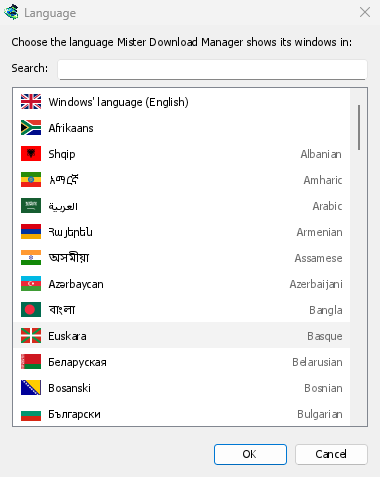
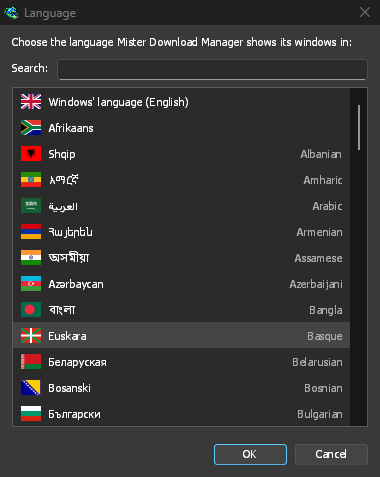
- Otherwise: GDM shows the list of languages, each with its flag and its own name. Pick yours.
言語は表示 → 言語でいつでも変更できます。詳しくは言語をご覧ください。
動画ヘルパー
Next, GDM offers its two free video helpers: yt-dlp, which finds the video on a page, and ffmpeg, which joins its picture and sound. Click Yes, download them (recommended) and they download in the background, about 100 MB, once. Not now leaves them for later: the video window offers them when you first need them. More in Videos.


メインウィンドウ


上から下へ:
- メニューバー。
- タスク — ダウンロード、トレント、マグネット リンク、一括ダウンロード、ページからのビデオを追加。 トレント設定。 リンク グラバー。 RSS フィード。 ドロップ ターゲットの表示。 リストのインポートとエクスポート。 終了。
- ファイル — 選択したダウンロード: ダウンロードを停止、削除、今すぐダウンロード、再ダウンロード。
- ダウンロード — すべて一時停止、すべて停止、完了したものをすべて削除、検索、スケジューラ、キュー、速度制限、オプション。
- 表示 — カテゴリの表示/非表示、リストの並べ替え (ファイルを整理)、ダーク モードのサポート、常にダーク、テーマ、インターフェイスのサイズ (すべてのウィンドウを 100% から 200% に拡大。 Ctrl +、Ctrl −、Ctrl 0 も使用)、描画方法 (OpenGL、Windows では Direct3D、Linux では Vulkan、macOS では Metal)、言語。
- Help — help pages and tutorials (on the website, in your language when it has it), Keyboard shortcuts, Report a problem, Check for updates, About, Tell a friend and Support GDM (its creator's GitHub Sponsors page: optional, nothing in GDM changes).
- ツールバー。 URL を追加、Torrent を追加、再開、停止、すべて停止、削除、完了したものを削除、オプション、スケジューラ、キューの開始、キューの停止。Torrent を追加、キューの開始、キューの停止の横にある小さな矢印をクリックすると、さらに選択肢が開きます。
- カテゴリ (左)。リストに表示するものを選択します: すべてのダウンロード、未完了、完了、キュー。それぞれにカテゴリがあります。ペインとリストの間の隙間をドラッグして幅を広げます。
- ダウンロードリスト (右)。ダウンロードごとに1行。詳しくはダウンロードリストをご覧ください。
ダークモード
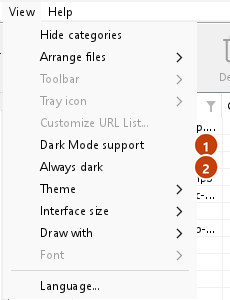
GDM follows your system: when Windows (or your desktop's light/dark preference on Linux and macOS) is set to dark mode, so is GDM. To keep GDM light whatever the system does, turn off View → Dark Mode support. To keep it dark whatever the system does, for example on a desktop that reports no preference, turn on View → Always dark.

テーマ
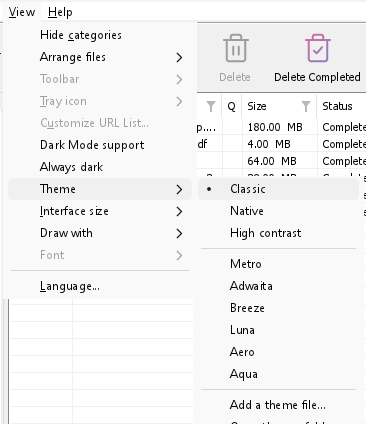
View → Theme changes GDM's look at once, keeping its layout:
- Classic: GDM's own look, the default.
- ネイティブ: システムの色を使用します。Windows のアクセント カラー(設定 → 個人用設定 → 色)と、有効になっている場合はそのコントラスト テーマ。Linux のデスクトップのアクセント カラーと高コントラスト設定(GNOME 47 以降、KDE Plasma)。macOS のアクセント カラー。これらは変更すると追従します。
- ハイ コントラスト: 白黒、明るいアクセント、すべてのエッジが描画され、テキストは7:1以上の比率。
- Metro: Windows 8's flat look: square corners, flat buttons and boxes, a coloured title bar with the title centred (on Windows, where GDM draws it), and one-colour icons (Microsoft's Fluent UI System Icons).
- Adwaita: GNOME's look: round corners, flat grey buttons, a rounded focus ring, GNOME's check boxes, a header bar with the title in bold and round buttons (on Windows, where GDM draws it), and GNOME's Adwaita icons, in colour for files and categories, one colour in the toolbar.
- Breeze: KDE Plasma's look: rounded corners, buttons and boxes that take the accent's edge under the pointer or when focused, KDE's check boxes and focus frame, KDE's title bar with the title centred and round buttons (on Windows, where GDM draws it), and KDE's Breeze icons.
- Luna: Windows XP's look: buttons shaded from white with an orange glow under the pointer, green ticks, square text boxes, progress in green blocks, a deep blue title bar with the title in bold (on Windows, where GDM draws it), and colourful icons drawn for GDM in that manner.
- Aero: Windows 7's look: glossy buttons that turn light blue under the pointer, quiet check boxes, a glossy green progress bar, a glassy title bar with the title on a soft glow (on Windows), and glossy icons drawn for GDM in that manner.
- Aqua: Mac OS X's look: gel buttons round at the ends (the default one blue), glossy check boxes, a blue focus ring, a blue gel progress bar, a grey title bar with small round buttons (on Windows), and icons drawn for GDM in that manner.


クラシック 

ハイ コントラスト 

Adwaita 

Breeze
それぞれにライトとダークの側面があります。ダーク モードのサポートと常にダークで、以前と同様にどちらかを選択します。テーマ フォルダー (表示 → テーマ → テーマ フォルダーを開く) に配置したテーマ ファイルもそこに一覧表示され、Base16 および pywal の配色スキームも同様です (表示 → テーマ → テーマ ファイルを追加…; pywal は実行時に wal に従います)。テーマには、そのフォルダーの場所、テーマ ファイルの内容 (inherits、色、サイズ、コントロールの形状、アイコン)、スキームの色がどのように使用されるか、およびテーマの作成と共有方法が記載されています。
通知領域のアイコン
Closing the main window doesn't quit GDM. It hides in the notification area, and downloads, queues and schedules carry on. To make closing quit (a portable copy's folder can then be deleted), untick Options → General → Keep running when closing the window. If there is no icon for GDM at all — not in the notification area, nor behind the ^ hidden icons — the window minimizes to the taskbar instead, so downloads continue and there is a way back. An icon behind ^ can be clicked to bring the window back, and starting GDM again always does.
On Linux this needs a tray, which most desktops have (KDE Plasma, Xfce, Cinnamon, Ubuntu's GNOME or GNOME with the AppIndicator extension, waybar's tray). On a desktop without one (some tiling window managers), closing the window quits GDM, since there would be nowhere to bring it back from.
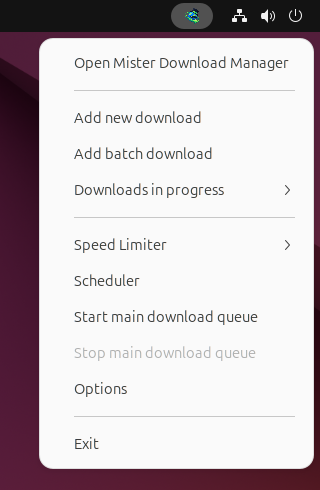
- トレイ アイコンをクリックすると、ウィンドウが再び表示されます。
- 新しいダウンロードを追加、バッチ ダウンロードを追加、進行中のダウンロード、速度制限、スケジューラ、メインのダウンロード キュー、オプション、終了を表示するには、アイコンを右クリックします。
- 進行中のダウンロードには、実行中のダウンロードが一覧表示されます。ダウンロードを選ぶと、その進行状況ウィンドウが表示されます。
オプション → 一般 で 通知領域に最小化する がオンになっている場合、[最小化]もメイン ウィンドウをそこに隠します。これは既定でオンになっています。通知領域にアイコンがない場合、[最小化]はウィンドウを代わりにタスクバーに送ります。
ダウンロードの進行状況ウィンドウも、最小化ボタンまたは通知領域に隠すボタンで通知領域に移動できます。このボタンは、隅に向かう矢印付きの短いダッシュです。
Windows では、そのボタンはウィンドウのタイトル バーの最小化ボタンの左側と、タイトル バーのメニュー(Alt+Space)にあります。Linux と macOS では、タブの列の最後にあります。
ウィンドウを再び表示するには、進行中のダウンロードから選ぶか、リスト内のダウンロードをダブルクリックします。
終了するには、タスク → 終了またはトレイメニューの終了を選択します。
Where GDM keeps its data
ダウンロード リストと設定は %APPDATA%\misterdownloadmanager (downloads.json) にあります。Linux では ~/.local/share/misterdownloadmanager、Mac では ~/Library/Application Support/misterdownloadmanager にあります。ポータブル コピーでは、代わりに data フォルダーに保存されます。ダウンロードされたファイルは、カテゴリごとにフォルダーに分類されてダウンロードフォルダーに保存されます。これはオプション → 保存先で変更できます。
次のステップ
無料、オープンソース、広告なし、試用期間なし。
Download GolinksPRO Download Manager