

GDM downloads videos from their web pages: YouTube, Vimeo, Dailymotion, Twitch, TikTok, X, Instagram, Facebook, Reddit, SoundCloud and well over a thousand other sites. It does this with yt-dlp, an open-source program whose community keeps it working as sites change.
Start a video download
- Give the video's page address to Add URL (Ctrl+N). GDM recognises video pages and opens the video window, already looking the page up.
- Or choose Tasks → Download video from a page..., paste the address into Page address and click Look up.
Any other page address that turns out to be a web page, not a file, is offered to the video window too.
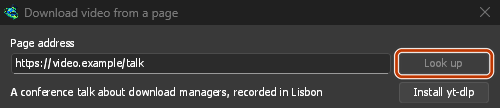
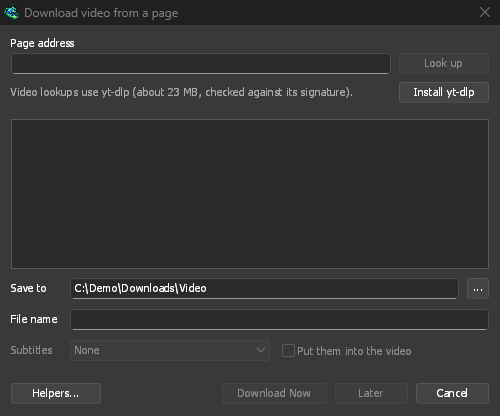
Paste the page's address and click Look up. 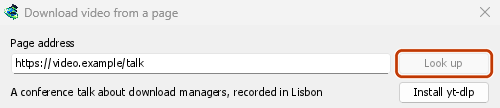
Pick a quality, then Download Now. 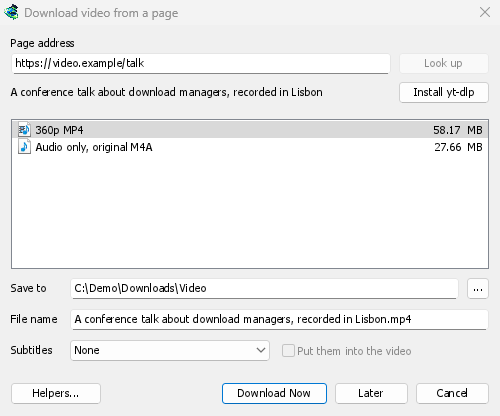
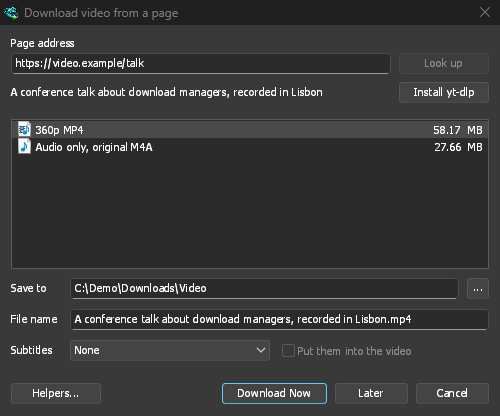
It downloads like any other file, in its own row and window. 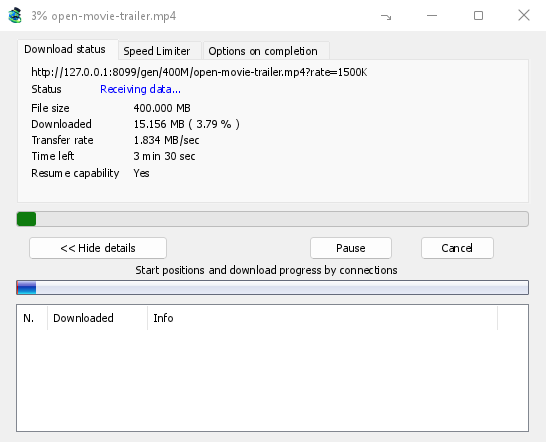
yt-dlp and ffmpeg
GDM offers its two helpers on its first start, and again the first time they are needed. It downloads them from their official releases with its own downloader, so a cut connection resumes, and uses your proxy settings:
- yt-dlp (about 23 MB) looks the page up and downloads the video. The first time, click Install yt-dlp. GDM checks the download against the signature yt-dlp's developers publish before it uses it.
- ffmpeg (about 80 MB) joins a video and its sound when a site keeps them apart, which most sites do for the higher qualities, and turns the sound into an MP3, Opus or FLAC file. Click Install ffmpeg when GDM offers it. GDM checks it against the checksums its release publishes.
Both are kept in a tools folder in GDM's data folder.
Use your own copies
On Linux and macOS, GDM finds yt-dlp and ffmpeg on your PATH and in the usual package-manager folders, including Homebrew's. A program you selected yourself takes priority, followed by GDM's own installed copy. The system copy is used when neither is present, and your package manager keeps it up to date: GDM never downloads over it on its own. If your distribution's yt-dlp is old, Use GDM's own copy in Helpers downloads GDM's, which keeps itself current and is used from then on.
Already have yt-dlp or ffmpeg for another program? Use those instead of a second copy: in Download video from a page, click Helpers..., then Use another program... beside yt-dlp or ffmpeg, and choose the program. GDM runs it once to check that it is that program, and uses it from then on, the command line too. GDM doesn't update a program you chose: keep it up to date yourself (yt-dlp: yt-dlp -U, or your package manager). Use GDM's own copy goes back to the one GDM downloads and checks.
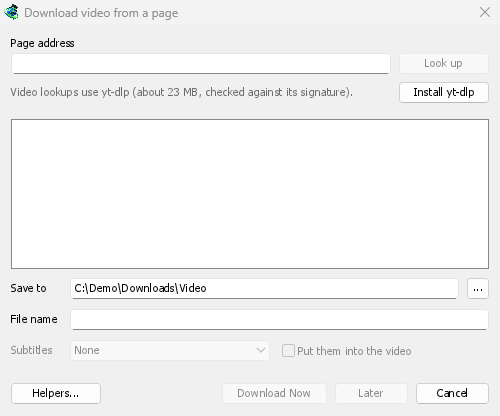
Choose the quality
- Wait for the list. It shows each resolution with its size, best first, then the sound alone:
- Audio only, original: the site's own file, not converted (M4A, or WebM with Opus inside, as the site serves it). The best sound there is, in the smallest file.
- Audio only MP3 at its best variable bitrate (VBR) and at 320, 256, 192 and 128 kbps, for players that only take MP3.
- Audio only OPUS: an
.opusfile. When the site's sound is Opus already (YouTube's usually is), it's only moved into that file, not converted, so nothing is lost. - Audio only FLAC: a lossless.flacfile, for a library or a program that wants FLAC. It can't add quality: the site's sound is already compressed with losses, and FLAC keeps it exactly as it came, in a file several times bigger. The window says so when you choose it. - Pick one. Without ffmpeg, only the qualities that come with their sound are listed, and no MP3, Opus or FLAC (ffmpeg makes them).
- Check Save to (the Video category's folder by default) and File name, which comes from the video's title.
- Choose Subtitles if you want them (see below).
- Click Download Now, or Later to add it to the list without starting.
The video then downloads like any other file, with its own row in the list and its progress window. yt-dlp brings it in over one stream of its own, so the window's connections table stays empty.
Subtitles
When the video has subtitles, the Subtitles list offers them: the uploader's own languages first (and All the uploader's when there are several), then the site's automatic captions, marked automatic. Of those, only the ones in the language spoken and their translations into English and your interface language are listed; sites like YouTube offer a machine translation into every language they know.
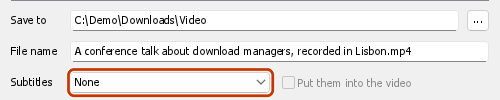
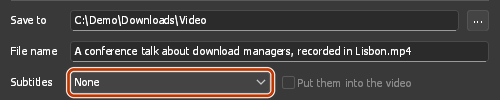
- Saved beside the video, they get its name and the language:
My video.fr.srt. Players such as VLC and MPV pick them up on their own. With ffmpeg they're always SRT; without it, the site's own format (often WebVTT,.vtt). - Put them into the video puts them inside the file instead, as tracks you switch on in the player. It needs ffmpeg, and an MP4 or MKV video.
- A sound-only choice (Audio only, MP3, Opus, FLAC) has no subtitles.
GDM offers the same choice again for the next video when it has that language.
A site may refuse subtitles when it's asked too often: YouTube does, most of all for its translated captions. The video is saved all the same. GDM asks for the subtitles once more after 20 seconds, and if they still don't come, the Download complete window and the download's log say which ones are missing and why. Try them again later. When subtitles meant to go inside the video only come on that second try, they're saved beside it instead.
Playlists and channels
Paste the address of a playlist (youtube.com/playlist?list=…) or a channel's videos (youtube.com/@name/videos) and click Look up. Instead of one video's qualities, the window lists the list's videos, each with its length.


- A playlist is listed whole, as its videos come in: the line above the list says how far it is ("Listing the videos: 1,200 of 6,000"). Stop listing keeps the ones listed so far, and List the rest carries on from there. If the site stops answering part-way (YouTube may, when it's asked too often), the window says after how many videos and why, and List the rest tries again from there.
- A channel is listed 50 videos at a time, newest first. Load more lists the next 50.
- Every video starts ticked. Untick the ones you don't want, or use Select all and Select none. Private and deleted videos are greyed out and can't be ticked.
- Quality applies to every video: Best quality, Up to a height (each video at that height, or the nearest below it), Audio only, original, Audio only MP3, Audio only OPUS or Audio only FLAC. Without ffmpeg, only the qualities that come with their sound are offered, and no MP3, Opus or FLAC.
- The videos go into a folder named after the list, inside Save to, each under its own title.
Download Now adds each video as its own download and starts the main queue, which runs as many at once as you set in the Scheduler (Download N files at the same time). Later adds them without starting. Adding more than 500 at once asks first.
GDM lists at most 20,000 videos of one list.
A page address that points at one video inside a playlist or a mix (for example watch?v=…&list=…) downloads that one video, never the whole list.
Through a VPN's adapter
With Options → Proxy / Socks → Network adapter set, video downloads go through that adapter too, with the same kill switch as other downloads: GDM hands yt-dlp (and the ffmpeg it starts) a proxy of its own on this computer, and opens every connection through the adapter, looking the names up with the DNS you chose in Options → Connection (without an adapter, yt-dlp uses the system's DNS). When the adapter disconnects, the video download stops, and it starts again when the adapter is back. Formats sent over RTMP, RTSP, MMS or FTP can't go through it and are refused.
Sites that want you signed in
Some videos play only for a signed-in viewer: a member's or a private video, an age-restricted one, and YouTube sometimes asks any viewer from an address it doubts to "Sign in to confirm you're not a bot". yt-dlp then needs your browser's cookies, the small files that keep you signed in.
- The Download video button over the video passes that page's cookies, from the window and profile you're in (a private window, a Firefox container), for the look-up and the download. Nothing to set up. Each cookie goes with the domain the browser keeps it for, so a sign-in on YouTube Music (music.youtube.com) or YouTube's mobile site reaches www.youtube.com too.
- A pasted address (Add URL, Download video from a page, a playlist): choose your browser in Options → Sites Logins → Cookies for video sites. yt-dlp then reads that browser's cookies on this computer for every video it looks up or downloads. When the extension passed the page's own cookies, those are used instead: they are that page's and that session's.
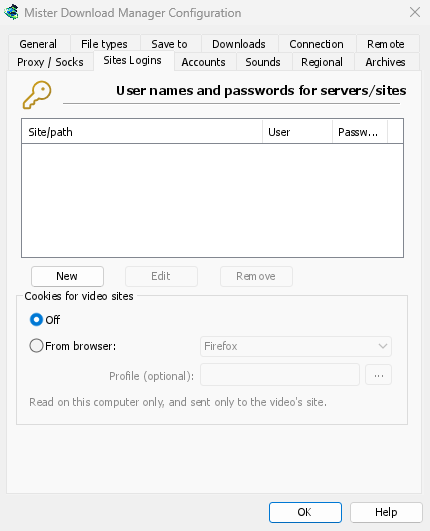
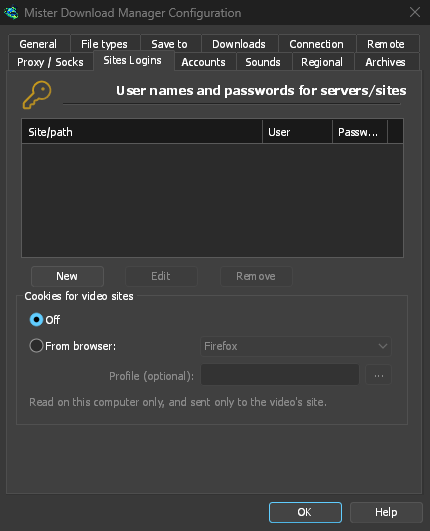
Sign in to the site in that browser first. GDM never logs or shows the cookies; the download's log names only the browser they came from.
Which browsers
From browser lists the browsers yt-dlp reads: Firefox, Chrome, Edge, Brave, Opera, Vivaldi,
Chromium and Whale, and Safari on macOS. Profile is optional: a profile's name (Profile 1)
or its folder; empty, the profile used last.
- Firefox works on every system. If you signed in only moments ago with Firefox open, close it once so it writes the sign-in to its files.
- Chrome, Edge and Brave on Windows lock their cookies to themselves (Chrome 127 and later, "app-bound encryption"), and yt-dlp can't read them while the browser is open either. The window says so; choose Firefox, or use the button over the video, which works with any browser.
- On Linux, Chrome-family browsers keep the key to their cookies in the system's keyring (GNOME Keyring, KWallet); yt-dlp asks it, so it must be unlocked.
- Another browser built on Chromium (Helium, Thorium, ungoogled-chromium...): choose
Chromium and that browser's profile folder (its
Defaultfolder, orProfile 1...; under~/.configon Linux,%LOCALAPPDATA%on Windows). yt-dlp reads the folder, but a browser that keeps its key under its own name in the keyring, or locks its cookies as Chrome does, can't be read this way: use its extension's button.
When a video server can't be reached
Some sites, YouTube among them, send each viewer to a nearby video server, sometimes one inside the internet provider's own network. If that server can't be reached from your connection, a browser quietly switches to another one, but yt-dlp on its own would give up. Before each video download GDM checks the servers in the video's links and, if one doesn't answer, switches to the next one the site lists. The download's log says when this happens.
If a video won't download
- Hover over the download's Status, or open its progress window, to read yt-dlp's message.
- No video this can download on that page means yt-dlp found nothing on the page. Check that the address is the video's own page.
- This video needs you to be signed in, or the site wants you signed in: see Sites that want you signed in.
- Sites change often, and a newer yt-dlp usually fixes it. GDM doesn't update yt-dlp on its own yet. To get the newest one: quit GDM (Tasks → Exit), delete the
tools\yt-dlpfolder in GDM's data folder (%APPDATA%\misterdownloadmanager, or thedatafolder of a portable copy), start GDM, open the video window and click Install yt-dlp. - Videos protected with DRM (most paid streaming services) can't be downloaded, and GDM doesn't try. The browser extension's Media on this page shows such a stream as Protected and doesn't send it.
- A page whose video the window can't find: play the video in your browser, then use the extension's Media on this page to send the stream the page loaded.
- Downloading may be against some sites' terms. Checking that is up to you.
- Still stuck? Use Help → Report a problem and include the page address.
Next steps
Free, open source, no ads, no trial.
Download GolinksPRO Download Manager