

GDM downloads videos from their web pages: YouTube, Vimeo, Dailymotion, Twitch, TikTok, X, Instagram, Facebook, Reddit, SoundCloud and well over a thousand other sites. It does this with yt-dlp, an open-source program whose community keeps it working as sites change.
开始视频下载
- Give the video's page address to Add URL (Ctrl+N). GDM recognises video pages and opens the video window, already looking the page up.
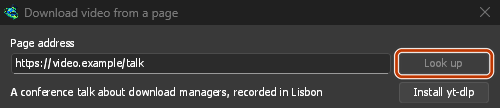
- 或者选择任务 → 从页面下载视频...,将地址粘贴到页面地址中,然后点击查找。
如果其他页面地址对应的是网页而非文件,GDM 也会将其交给视频窗口处理。
粘贴页面地址,然后点击“查找”。 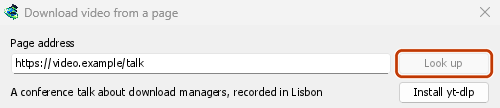
选择画质,然后点击“立即下载”。 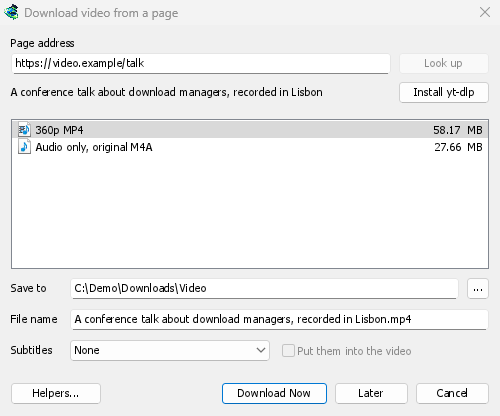
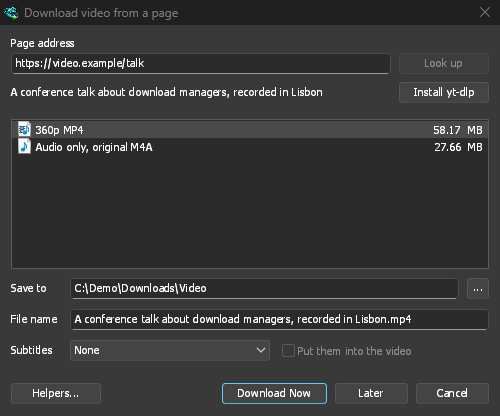
它会像其他文件一样下载,在列表中占据一行,并有自己的窗口。 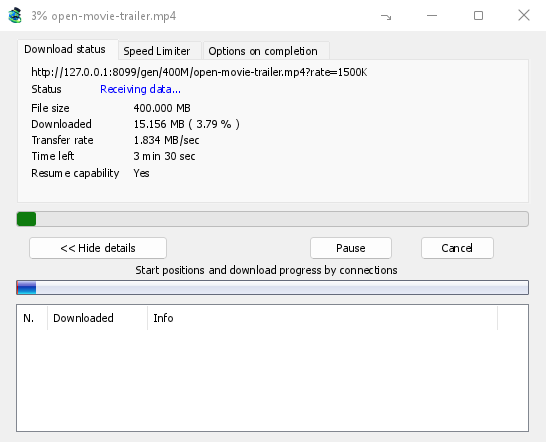
yt-dlp 和 ffmpeg
GDM offers its two helpers on its first start, and again the first time they are needed. It downloads them from their official releases with its own downloader, so a cut connection resumes, and uses your proxy settings:
- yt-dlp (about 23 MB) looks the page up and downloads the video. The first time, click Install yt-dlp. GDM checks the download against the signature yt-dlp's developers publish before it uses it.
- ffmpeg (about 80 MB) joins a video and its sound when a site keeps them apart, which most sites do for the higher qualities, and turns the sound into an MP3, Opus or FLAC file. Click Install ffmpeg when GDM offers it. GDM checks it against the checksums its release publishes.
Both are kept in a tools folder in GDM's data folder.
使用您自己的副本
On Linux and macOS, GDM finds yt-dlp and ffmpeg on your PATH and in the usual package-manager folders, including Homebrew's. A program you selected yourself takes priority, followed by GDM's own installed copy. The system copy is used when neither is present, and your package manager keeps it up to date: GDM never downloads over it on its own. If your distribution's yt-dlp is old, Use GDM's own copy in Helpers downloads GDM's, which keeps itself current and is used from then on.
Already have yt-dlp or ffmpeg for another program? Use those instead of a second copy: in Download video from a page, click Helpers..., then Use another program... beside yt-dlp or ffmpeg, and choose the program. GDM runs it once to check that it is that program, and uses it from then on, the command line too. GDM doesn't update a program you chose: keep it up to date yourself (yt-dlp: yt-dlp -U, or your package manager). Use GDM's own copy goes back to the one GDM downloads and checks.
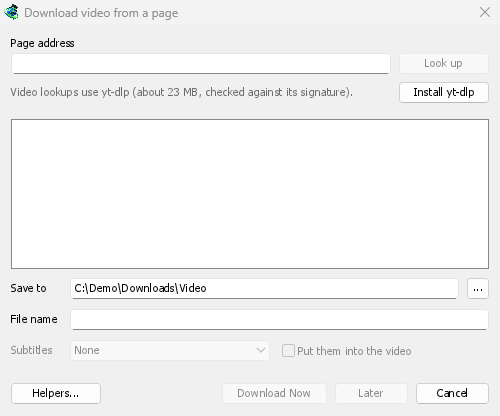
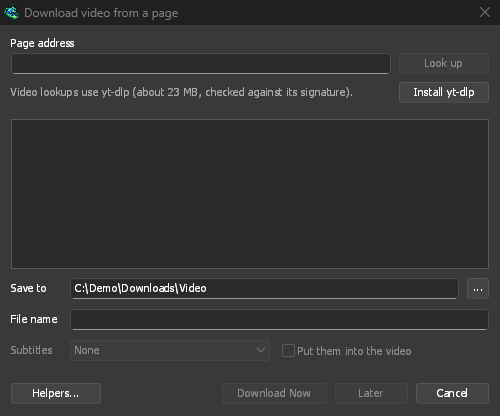
选择画质
- 等待列表加载。列表会按画质从高到低显示各分辨率和对应的文件大小,之后列出纯音频选项:- 仅音频,原始:网站提供的原始文件,不经过转换(网站提供的是 M4A,或包含 Opus 音频的 WebM)。这是音质最好的选项,文件也最小。- 仅音频 MP3:提供最佳可变比特率(VBR),以及 320、256、192 和 128 kbps,适用于只支持 MP3 的播放器。- 仅音频 OPUS:一个
.opus文件。如果网站提供的音频已经是 Opus(YouTube 通常如此),只需将它封装到该文件中,无需转换,因此不会损失音质。- 仅音频 FLAC:无损.flac文件,适用于音乐库或需要 FLAC 的程序。它无法提升音质:网站提供的音频已经过有损压缩,FLAC 会原样保留音频,但文件会大几倍。选择此选项时,窗口会显示这一点。 - 选择一项。如果没有 ffmpeg,列表只会显示包含音频的画质选项,不会提供 MP3、Opus 或 FLAC(这些格式由 ffmpeg 生成)。
- 检查保存到(默认为视频类别的文件夹)和文件名。文件名取自视频标题。
- 需要字幕时,选择字幕(见下文)。
- 点击立即下载,或点击稍后将其添加到列表而不开始下载。
视频随后会像其他文件一样下载,在列表中占据一行,并有自己的进度窗口。yt-dlp 使用自己的单个数据流传输视频,因此窗口中的连接列表会保持为空。
字幕
视频有字幕时,字幕列表会显示可用字幕:首先是上传者提供的语言(有多种时会显示上传者所有),然后是网站自动生成的字幕,并标记为自动。自动字幕只会列出视频原声语言的字幕,以及它们的英语和界面语言翻译。YouTube 等网站还会提供机器翻译,支持其提供的所有语言。
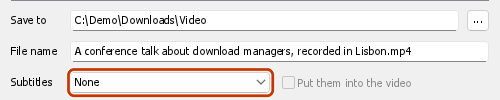
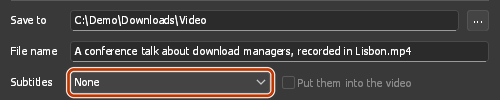
- 字幕文件会保存在视频旁边,文件名与视频相同,并带有语言信息:
My video.fr.srt。VLC 和 MPV 等播放器会自动识别字幕。使用 ffmpeg 时,字幕始终为 SRT 格式;不使用 ffmpeg 时,则采用网站提供的格式(通常是 WebVTT,.vtt)。 - 将它们放入视频会将字幕嵌入文件中,作为可以在播放器中切换的字幕轨道。此功能需要 ffmpeg,且视频格式必须为 MP4 或 MKV。
- 纯音频选项(仅音频、MP3、Opus、FLAC)不提供字幕。
GDM offers the same choice again for the next video when it has that language.
A site may refuse subtitles when it's asked too often: YouTube does, most of all for its translated captions. The video is saved all the same. GDM asks for the subtitles once more after 20 seconds, and if they still don't come, the Download complete window and the download's log say which ones are missing and why. Try them again later. When subtitles meant to go inside the video only come on that second try, they're saved beside it instead.
播放列表和频道
粘贴播放列表 (youtube.com/playlist?list=…) 或频道视频 (youtube.com/@name/videos) 的地址,然后点击 查找。窗口不会显示单个视频的画质选项,而会列出播放列表中的视频及其时长。


- 播放列表会逐步列出其中的视频:列表上方会显示进度(“正在列出视频:6,000 个中的 1,200 个”)。停止列出会保留已列出的视频,列出其余部分会从那里继续。如果网站中途停止响应(YouTube 在请求过于频繁时可能会这样),窗口会显示已列出多少个视频以及原因,然后列出其余部分会从那里继续尝试。
- 频道每次列出 50 个视频,最新的视频排在前面。加载更多会列出接下来的 50 个视频。
- 每个视频默认都已勾选。取消勾选不需要的视频,或使用全选和不选。私人和已删除的视频会显示为灰色,无法勾选。
- 画质适用于所有视频:最佳质量、最高高度(每个视频下载该高度或最接近的较低高度)、仅音频,原始、仅音频 MP3、仅音频 OPUS或仅音频 FLAC。没有 ffmpeg 时,只提供带有音频的视频画质选项,不提供 MP3、Opus 或 FLAC。
- 视频会分别按其标题命名,并保存到保存到中以列表命名的文件夹里。
立即下载会将每个视频分别添加为一个下载任务,并启动主队列。队列会按照您在计划程序(同时下载 N 个文件)中设置的数量同时下载。稍后会添加视频,但不启动下载。一次添加超过 500 个视频时会先询问。
GDM lists at most 20,000 videos of one list.
如果页面地址指向播放列表或混音中的某个视频(例如 watch?v=…&list=…),只会下载该视频,不会下载整个列表。
通过 VPN 适配器
With Options → Proxy / Socks → Network adapter set, video downloads go through that adapter too, with the same kill switch as other downloads: GDM hands yt-dlp (and the ffmpeg it starts) a proxy of its own on this computer, and opens every connection through the adapter, looking the names up with the DNS you chose in Options → Connection (without an adapter, yt-dlp uses the system's DNS). When the adapter disconnects, the video download stops, and it starts again when the adapter is back. Formats sent over RTMP, RTSP, MMS or FTP can't go through it and are refused.
需要登录的网站
部分视频仅限登录用户观看:会员视频、私人视频、有年龄限制的视频。YouTube 有时也会要求它怀疑的 IP 地址用户“登录以确认您不是机器人”。此时,yt-dlp 需要您浏览器中的 Cookie,这些小文件用于保持您的登录状态。
- 视频上方的下载视频按钮会传递您当前窗口和配置文件(私人窗口、Firefox 容器)中的页面 Cookie,用于查找和下载。无需设置。每个 Cookie 都与其浏览器保存的域一起使用,因此在 YouTube Music (music.youtube.com) 或 YouTube 移动网站上的登录也会到达 www.youtube.com。
- 粘贴的地址(添加 URL、从页面下载视频、播放列表):在选项 → 站点登录 → 视频网站的 Cookie中选择您的浏览器。yt-dlp 随后会读取该浏览器在此计算机上的 Cookie,用于查找或下载每个视频。如果扩展程序传递了页面自身的 Cookie,则会优先使用这些 Cookie:它们属于该页面和该会话。
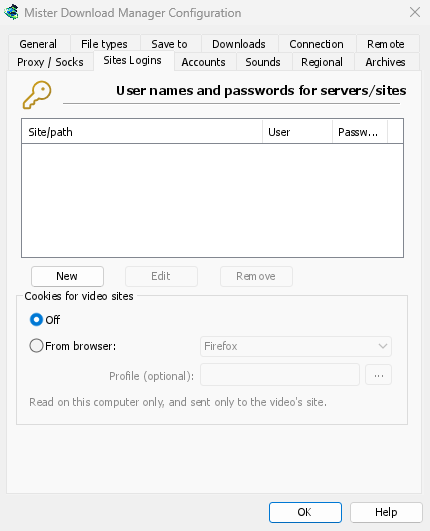
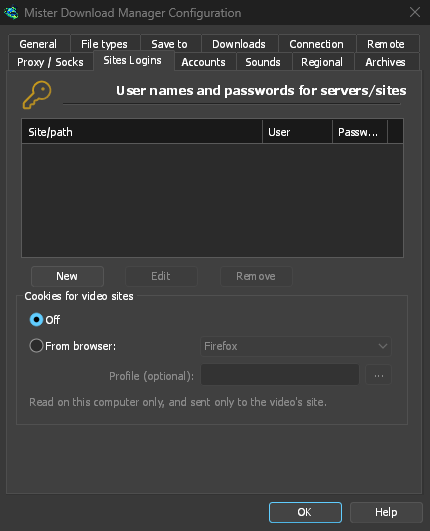
Sign in to the site in that browser first. GDM never logs or shows the cookies; the download's log names only the browser they came from.
支持的浏览器
来自浏览器列出了 yt-dlp 可读取的浏览器:Firefox、Chrome、Edge、Brave、Opera、Vivaldi、Chromium 和 Whale,以及 macOS 上的 Safari。配置文件是可选的:配置文件的名称(Profile 1)或其文件夹;留空则使用上次使用的配置文件。
- Firefox可在所有系统上运行。如果您刚登录 Firefox,请关闭一次浏览器,以便它将登录信息写入文件。
- Windows 上的 Chrome、Edge 和 Brave将其 Cookie 锁定给自己(Chrome 127 及更高版本,“应用绑定加密”),并且在浏览器打开时 yt-dlp 也无法读取它们。窗口会显示此信息;请选择 Firefox,或使用视频上方的按钮,该按钮适用于任何浏览器。
- 在 Linux 上,Chrome 系列浏览器将其 Cookie 密钥保存在系统的密钥环中(GNOME Keyring、KWallet);yt-dlp 会请求它,因此密钥环必须处于解锁状态。
- 其他基于 Chromium 的浏览器(Helium、Thorium、ungoogled-chromium...):选择Chromium和该浏览器的配置文件文件夹(其
Default文件夹,或Profile 1...;在 Linux 上位于~/.config下,在 Windows 上位于%LOCALAPPDATA%下)。yt-dlp 会读取该文件夹,但如果浏览器将其密钥以自己的名称保存在密钥环中,或像 Chrome 一样锁定其 Cookie,则无法通过此方式读取:请使用其扩展程序的按钮。
无法连接到视频服务器时
Some sites, YouTube among them, send each viewer to a nearby video server, sometimes one inside the internet provider's own network. If that server can't be reached from your connection, a browser quietly switches to another one, but yt-dlp on its own would give up. Before each video download GDM checks the servers in the video's links and, if one doesn't answer, switches to the next one the site lists. The download's log says when this happens.
视频无法下载时
- 将鼠标悬停在下载任务的状态上,或打开其进度窗口,即可查看 yt-dlp 的提示。
- 此页面上没有可下载的视频表示 yt-dlp 未在该页面找到视频。请确认地址是视频本身的页面。
- 此视频需要您登录,或网站要求您登录:请参阅需要登录的网站。
- Sites change often, and a newer yt-dlp usually fixes it. GDM doesn't update yt-dlp on its own yet. To get the newest one: quit GDM (Tasks → Exit), delete the
tools\yt-dlpfolder in GDM's data folder (%APPDATA%\misterdownloadmanager, or thedatafolder of a portable copy), start GDM, open the video window and click Install yt-dlp. - Videos protected with DRM (most paid streaming services) can't be downloaded, and GDM doesn't try. The browser extension's Media on this page shows such a stream as Protected and doesn't send it.
- 如果窗口找不到页面中的视频:在浏览器中播放视频,然后使用扩展程序的此页面上的媒体发送页面加载的视频流。
- 下载可能违反某些网站的服务条款。是否违反条款由您自行确认。
- 仍无法解决?使用帮助 → 报告问题,并附上页面地址。
下一步
免费、开源、无广告、无试用版。
Download GolinksPRO Download Manager