

GDM downloads videos from their web pages: YouTube, Vimeo, Dailymotion, Twitch, TikTok, X, Instagram, Facebook, Reddit, SoundCloud and well over a thousand other sites. It does this with yt-dlp, an open-source program whose community keeps it working as sites change.
ビデオのダウンロードを開始する
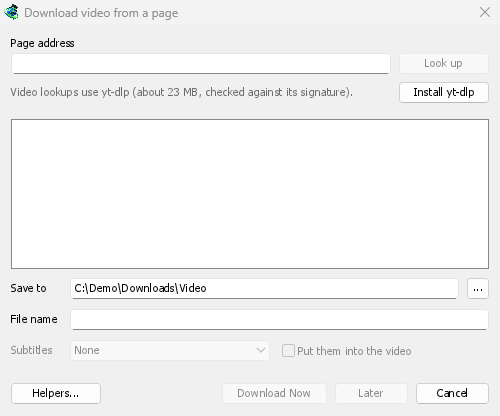
- Give the video's page address to Add URL (Ctrl+N). GDM recognises video pages and opens the video window, already looking the page up.
- または、タスク → ページからビデオをダウンロード... を選択し、ページ アドレスにアドレスを貼り付けて検索をクリックします。
ファイルではなくウェブページであることが判明した他のページアドレスも、動画ウィンドウに提供されます。
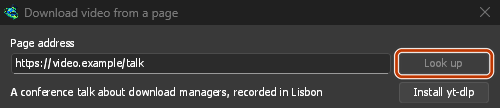
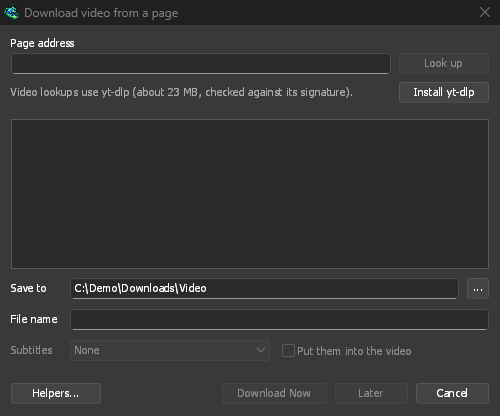
ページのアドレスを貼り付け、検索をクリックします。 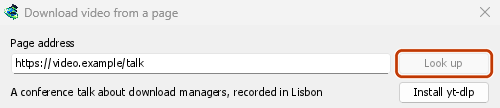
画質を選び、今すぐダウンロードをクリックします。 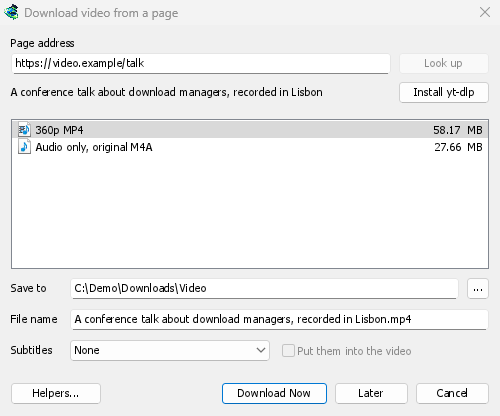
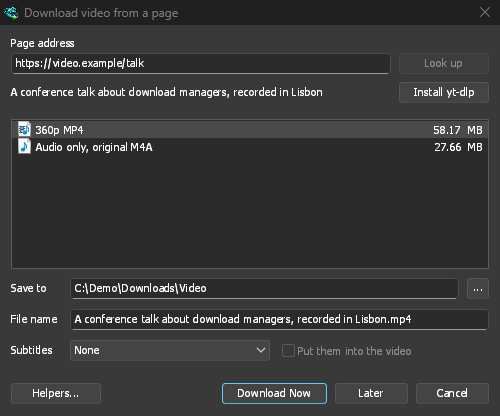
他のファイルと同様に、独自の行とウィンドウでダウンロードされます。 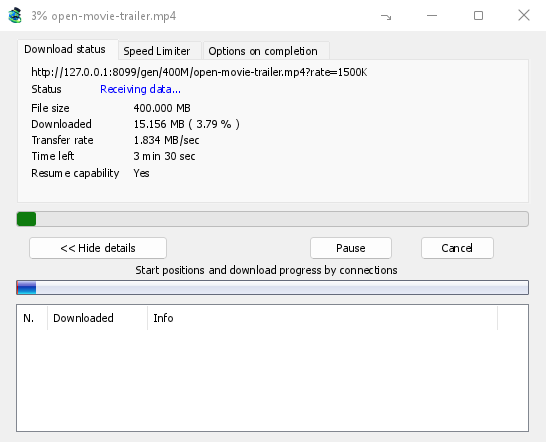
yt-dlp と ffmpeg
GDM offers its two helpers on its first start, and again the first time they are needed. It downloads them from their official releases with its own downloader, so a cut connection resumes, and uses your proxy settings:
- yt-dlp (about 23 MB) looks the page up and downloads the video. The first time, click Install yt-dlp. GDM checks the download against the signature yt-dlp's developers publish before it uses it.
- ffmpeg (about 80 MB) joins a video and its sound when a site keeps them apart, which most sites do for the higher qualities, and turns the sound into an MP3, Opus or FLAC file. Click Install ffmpeg when GDM offers it. GDM checks it against the checksums its release publishes.
Both are kept in a tools folder in GDM's data folder.
独自のコピーを使用する
On Linux and macOS, GDM finds yt-dlp and ffmpeg on your PATH and in the usual package-manager folders, including Homebrew's. A program you selected yourself takes priority, followed by GDM's own installed copy. The system copy is used when neither is present, and your package manager keeps it up to date: GDM never downloads over it on its own. If your distribution's yt-dlp is old, Use GDM's own copy in Helpers downloads GDM's, which keeps itself current and is used from then on.
Already have yt-dlp or ffmpeg for another program? Use those instead of a second copy: in Download video from a page, click Helpers..., then Use another program... beside yt-dlp or ffmpeg, and choose the program. GDM runs it once to check that it is that program, and uses it from then on, the command line too. GDM doesn't update a program you chose: keep it up to date yourself (yt-dlp: yt-dlp -U, or your package manager). Use GDM's own copy goes back to the one GDM downloads and checks.
品質を選択する
- リストが表示されるまでお待ちください。各解像度がサイズとともに表示され、最適なものが最初に、次に音声のみが表示されます。 - 音声のみ、オリジナル: サイト独自のファイルで、変換されていません(M4A、またはサイトが提供するOpusを含むWebM)。最小のファイルで最高の音質です。 - 音声のみ MP3: 最高の可変ビットレート(VBR)および320、256、192、128 kbpsで、MP3のみを再生するプレーヤー向けです。 - 音声のみ OPUS:
.opusファイル。サイトの音声がすでにOpusの場合(YouTubeは通常そうです)、変換されずにそのファイルに移動されるだけなので、何も失われません。 - 音声のみ FLAC: ロスレスの.flacファイルで、FLACを必要とするライブラリやプログラム向けです。品質を追加することはできません。サイトの音声はすでに非可逆圧縮されており、FLACはそれをそのまま、数倍大きいファイルに保持します。これを選択すると、ウィンドウにその旨が表示されます。 - 1つ選択してください。ffmpegがない場合、音声が付属している品質のみがリストに表示され、MP3、Opus、FLACは表示されません(ffmpegがこれらを作成します)。
- 保存先 (デフォルトではビデオカテゴリのフォルダ) と、動画のタイトルから取得されるファイル名を確認します。
- 字幕が必要な場合は、字幕を選択してください(下記参照)。
- 今すぐダウンロードをクリックするか、開始せずにリストに追加するには後でをクリックします。
その後、動画は他のファイルと同様にダウンロードされ、リストに独自の行と進行状況ウィンドウが表示されます。yt-dlp は独自の1つのストリームで動画を取り込むため、ウィンドウの接続テーブルは空のままです。
字幕
動画に字幕がある場合、字幕リストに表示されます。まずアップロード者自身の言語(複数ある場合はアップロード者によるすべての字幕)、次にサイトの自動キャプション(自動と表示)が表示されます。そのうち、話されている言語のものと、その英語およびインターフェース言語への翻訳のみがリストに表示されます。YouTubeのようなサイトは、知っているすべての言語への機械翻訳を提供しています。
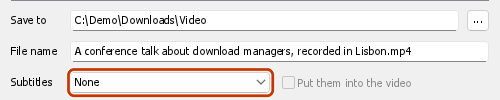
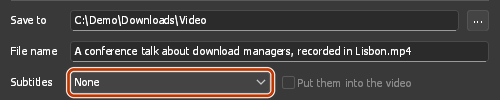
- 動画の横に保存され、動画の名前と言語が付けられます。
My video.fr.srt。VLCやMPVなどのプレーヤーは自動的にこれらを認識します。ffmpegを使用する場合は常にSRT形式で、使用しない場合はサイト独自の形式(多くの場合WebVTT、.vtt)です。 - ビデオに埋め込むを選択すると、代わりにファイル内にトラックとして埋め込まれ、プレーヤーで切り替えることができます。これにはffmpegとMP4またはMKV形式の動画が必要です。
- 音声のみの選択(音声のみ、MP3、Opus、FLAC)には字幕がありません。
GDM offers the same choice again for the next video when it has that language.
A site may refuse subtitles when it's asked too often: YouTube does, most of all for its translated captions. The video is saved all the same. GDM asks for the subtitles once more after 20 seconds, and if they still don't come, the Download complete window and the download's log say which ones are missing and why. Try them again later. When subtitles meant to go inside the video only come on that second try, they're saved beside it instead.
プレイリストとチャンネル
プレイリスト(youtube.com/playlist?list=…)またはチャンネルの動画(youtube.com/@name/videos)のアドレスを貼り付けて、検索をクリックします。1本の動画の品質の代わりに、ウィンドウにはプレイリスト内の動画が長さとともに表示されます。


- プレイリストは、動画が読み込まれるたびに全体の一覧に追加されます。一覧の上には、読み込み状況が表示されます(「動画を一覧表示中: 6,000件中1,200件」)。リストを停止すると、それまでに読み込まれた動画はそのまま残ります。残りをリストをクリックすると、そこから続行します。サイトが途中で応答しなくなった場合(YouTubeでは、要求が多すぎると起こることがあります)、ウィンドウに応答が止まった動画数とその理由が表示されます。残りをリストをクリックすると、そこから再試行します。
- チャンネルの動画は、新しいものから順に50本ずつ一覧表示されます。さらに読み込むをクリックすると、次の50本が一覧表示されます。
- すべての動画は最初から選択されています。不要な動画の選択を解除するか、すべて選択または選択解除を使用します。非公開または削除済みの動画はグレー表示され、選択できません。
- 品質はすべての動画に適用されます。最高品質、高さを指定する上限(各動画で指定した高さ、またはそれ以下で最も近い高さ)、音声のみ、オリジナル、音声のみ MP3、音声のみ OPUS、音声のみ FLACから選べます。ffmpegがない場合は、音声付きの品質のみ選択でき、MP3、Opus、FLACは選択できません。
- 動画は保存先内にリスト名と同じ名前のフォルダーを作成して保存され、各動画のファイル名にはそれぞれのタイトルが使われます。
今すぐダウンロードをクリックすると、各動画が個別のダウンロードとして追加され、メインキューが開始されます。同時に実行する数は、スケジューラの(同時にN個のファイルをダウンロード)で設定した数になります。後でをクリックすると、ダウンロードを開始せずに動画を追加します。一度に500本を超える動画を追加する場合は、確認が求められます。
GDM lists at most 20,000 videos of one list.
プレイリストまたはミックス内の1本の動画を指すページ アドレス(例: watch?v=…&list=…)の場合、その動画だけがダウンロードされ、リスト全体はダウンロードされません。
VPNアダプター経由
With Options → Proxy / Socks → Network adapter set, video downloads go through that adapter too, with the same kill switch as other downloads: GDM hands yt-dlp (and the ffmpeg it starts) a proxy of its own on this computer, and opens every connection through the adapter, looking the names up with the DNS you chose in Options → Connection (without an adapter, yt-dlp uses the system's DNS). When the adapter disconnects, the video download stops, and it starts again when the adapter is back. Formats sent over RTMP, RTSP, MMS or FTP can't go through it and are refused.
サインインが必要なサイト
一部の動画は、サインインしている視聴者のみが再生できます。メンバー限定動画、プライベート動画、年齢制限付き動画、また YouTube は、疑わしいアドレスからの視聴者に対して「ロボットではないことを確認するためにサインインしてください」と求めることがあります。この場合、yt-dlp は、サインイン状態を維持するための小さなファイルであるブラウザーの Cookie を必要とします。
- 動画上の動画をダウンロード ボタン は、現在使用しているウィンドウとプロファイル (プライベート ウィンドウ、Firefox コンテナー) から、そのページの Cookie を検索とダウンロードのために渡します。設定は不要です。各 Cookie はブラウザーが保持しているドメインと関連付けられているため、YouTube Music (music.youtube.com) または YouTube のモバイル サイトでのサインインは www.youtube.com にも到達します。
- 貼り付けたアドレス ([URL を追加]、[ページからビデオをダウンロード]、プレイリスト) の場合: [オプション]→[サイトのログイン]→[動画サイトの Cookie]でブラウザーを選択します。yt-dlp は、検索またはダウンロードするすべての動画について、このコンピューター上のそのブラウザーの Cookie を読み取ります。拡張機能がページの Cookie を渡した場合は、それらが代わりに使用されます。それらはそのページとセッションのものです。
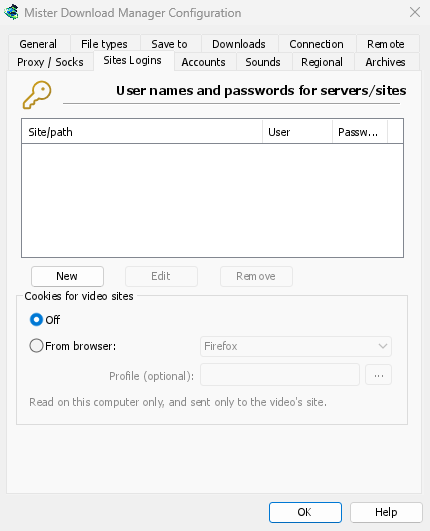
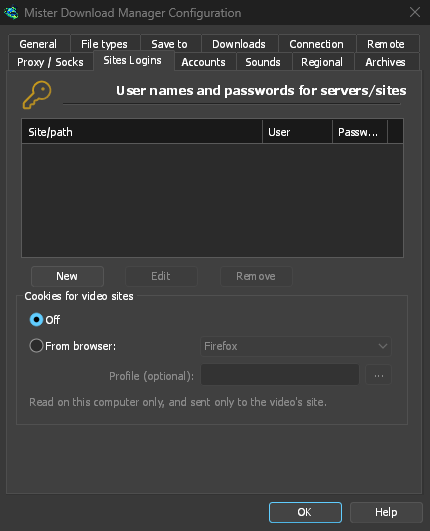
Sign in to the site in that browser first. GDM never logs or shows the cookies; the download's log names only the browser they came from.
対応ブラウザー
[ブラウザーから]には、yt-dlp が読み取るブラウザーが表示されます: Firefox、Chrome、Edge、Brave、Opera、Vivaldi、Chromium、Whale、および macOS の Safari。[プロファイル]はオプションです。プロファイル名 (Profile 1) またはそのフォルダーを指定します。空の場合、最後に使用されたプロファイルが使用されます。
- Firefox はすべてのシステムで動作します。Firefox を開いた状態で数分前にサインインしたばかりの場合は、一度閉じてサインイン情報をファイルに書き込ませてください。
- Windows の Chrome、Edge、Brave は、Cookie を自身にロックします (Chrome 127 以降、「アプリ結合型暗号化」)。ブラウザーが開いている間は yt-dlp も読み取ることができません。ウィンドウにその旨が表示されます。Firefox を選択するか、どのブラウザーでも動作する動画上のボタンを使用してください。
- Linux では、Chrome ファミリーのブラウザーは Cookie のキーをシステムのキーリング (GNOME Keyring、KWallet) に保持します。yt-dlp はそれを要求するため、ロックが解除されている必要があります。
- Chromium ベースの別のブラウザー (Helium、Thorium、ungoogled-chromium など) の場合: [Chromium]とそのブラウザーのプロファイル フォルダー (その
Defaultフォルダー、またはProfile 1...。~/.config(Linux)、%LOCALAPPDATA%(Windows) の下) を選択します。yt-dlp はフォルダーを読み取りますが、キーをキーリングに独自の名称で保持しているブラウザー、または Chrome のように Cookie をロックしているブラウザーは、この方法では読み取れません。その場合は拡張機能のボタンを使用してください。
動画サーバーに接続できない場合
Some sites, YouTube among them, send each viewer to a nearby video server, sometimes one inside the internet provider's own network. If that server can't be reached from your connection, a browser quietly switches to another one, but yt-dlp on its own would give up. Before each video download GDM checks the servers in the video's links and, if one doesn't answer, switches to the next one the site lists. The download's log says when this happens.
動画をダウンロードできない場合
- ダウンロードの状態にカーソルを合わせるか、進行状況ウィンドウを開くと、yt-dlpのメッセージを確認できます。
- このページにはダウンロードできる動画がありませんは、yt-dlpがページ上に動画を見つけられなかったことを意味します。アドレスが動画のページそのものを指しているか確認してください。
- この動画はサインインが必要です、またはサイトがサインインを要求しています: 「サインインが必要なサイト」を参照してください。
- Sites change often, and a newer yt-dlp usually fixes it. GDM doesn't update yt-dlp on its own yet. To get the newest one: quit GDM (Tasks → Exit), delete the
tools\yt-dlpfolder in GDM's data folder (%APPDATA%\misterdownloadmanager, or thedatafolder of a portable copy), start GDM, open the video window and click Install yt-dlp. - Videos protected with DRM (most paid streaming services) can't be downloaded, and GDM doesn't try. The browser extension's Media on this page shows such a stream as Protected and doesn't send it.
- ウィンドウで動画を見つけられないページの場合は、ブラウザーで動画を再生してから、拡張機能のこのページのメディアを使って、ページが読み込んだストリームを送信します。
- ダウンロードが一部のサイトの利用規約に違反する場合があります。規約を確認するかどうかはご自身で判断してください。
- 問題が解決しない場合は、ヘルプ → 問題の報告からページ アドレスを添えて報告してください。
次のステップ
無料、オープンソース、広告なし、試用期間なし。
Download GolinksPRO Download Manager