

With the GDM extension, clicking a download link in your browser hands the download to GDM. GDM gets the address together with the page it came from (the referrer), your cookies for the site and the browser's User-Agent, so downloads that need you to be signed in still work.
L’extension fonctionne avec Google Chrome, Microsoft Edge, Brave, Opera et Vivaldi, avec Firefox 140 ou version ultérieure, et avec Safari 17 ou version ultérieure sur Mac (voir Safari).
Browsers built on them work too: Chromium and Helium take the extension as Chrome does, Brave Origin as Brave does, Zen and LibreWolf as Firefox does. On Windows, Zen has a bug of its own (see The browser and GDM aren't connected).
Configurer
L’intégration au navigateur se compose de deux parties : un petit programme d’aide avec lequel le navigateur communique, et l’extension elle-même.
- Install GDM with the setup and keep Set up browser integration (Chrome, Edge, Brave, Firefox) ticked. This registers the helper. (The portable copy can't do this; see Portable mode.) On Linux and macOS GDM registers it itself, each time it starts, for the browsers installed then.
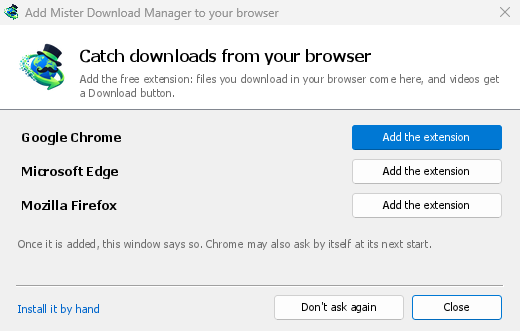
- Add the extension to each browser you use, as below: Firefox from its add-ons store, the others from the Chrome Web Store. Until a browser's extension has reached GDM, GDM's Add GolinksPRO Download Manager to your browser window opens at each start: it lists the browsers it found, and Add the extension opens the store's page in that browser. Install it by hand opens the steps for loading it without the store; Don't ask again stops the window.

Firefox
Firefox 140 or later is needed. Install the add-on from its page on addons.mozilla.org, GolinksPRO Download Manager: click Add to Firefox. Firefox keeps it updated. Zen and LibreWolf install it from the same page. (GDM's Add GolinksPRO Download Manager to your browser window opens that page for you.)
Chrome, Edge, Brave, Opera et Vivaldi
Install the extension from its page in the Chrome Web Store, GolinksPRO Download Manager: click Add to Chrome. In Edge the button is Get: Edge first asks to Allow extensions from other stores (click Allow), then Add extension. The browser keeps it updated. GDM's Add GolinksPRO Download Manager to your browser window opens that page in each browser for you, and Chrome may offer it by itself at its next start once GDM is installed.
To load it by hand instead (a browser that can't use the store, or a build of your own): its files are in the extension folder where GDM is installed: %LOCALAPPDATA%\Programs\GolinksPRO Download Manager\extension if you installed it for yourself, or Program Files\GolinksPRO Download Manager\extension if you installed it for everyone. Every release also has them as their own download, ...-extension-chromium.zip (unzip it first).
- Ouvrez la page des extensions :
chrome://extensions,edge://extensionsoubrave://extensions. - Activez le Mode développeur.
- Cliquez sur Charger l’extension non empaquetée et choisissez le dossier
extension\chromium.
GolinksPRO Download Manager appears in the list. Leave it turned on. Pin its button to the toolbar to see at a glance whether the browser reaches GDM.
Safari (macOS)
L’application Mac inclut l’extension Safari : il n’y a rien à télécharger. Safari 17 ou version ultérieure et macOS 14 ou version ultérieure sont nécessaires.
- Drag GDM to Applications and start it once. GDM's Add GolinksPRO Download Manager to your browser window lists Safari: How to Add shows the steps below.
- In Safari open Settings → Extensions and tick GolinksPRO Download Manager. Click Always Allow on Every Website: the extension needs to read the site to pass your sign-in on.
- Tant que l’application n’est pas notarisée par Apple (les versions expérimentales ne le sont pas), Safari ne liste l’extension qu’avec les extensions non signées autorisées : Réglages → Avancés → Afficher les fonctionnalités pour les développeurs web, puis Réglages → Développeur → Autoriser les extensions non signées. Safari oublie ce réglage à chaque fois qu’il se ferme.
Safari ne permet pas à une extension de voir ni d’arrêter les téléchargements du navigateur, donc ce qui fonctionne diffère des autres navigateurs :
- Works as in the other browsers: the right-click items, the button over videos, Media on this page, the toolbar button, Alt-click, GDM starting by itself, and every rule in Options.
- A click on a link to a file type GDM takes goes to GDM. A download the page starts by itself (a script, or a link with no file name in its address that the server answers with a file) stays with Safari: use right-click → Download with GolinksPRO Download Manager for those.
- Non disponible : le partage du proxy ou VPN du navigateur, et un téléchargement depuis un formulaire.
À partir du fichier zip simple
The -x64.zip copy has no installer, but you can register the helper yourself. Open a command prompt in GDM's folder and run:
misterdownloadmanager-nmhost.exe --register
Ceci est uniquement pour votre compte Windows. --unregister annule cette opération. Chargez ensuite l’extension comme ci-dessus, depuis le dossier extension du zip.
Ce qu’il faut
When you click a download, the extension checks GDM's Options:
- Options → General → Use advanced browser integration must be on. Turn it off to send nothing to GDM.
- L’option Options → Général → Capturer les téléchargements des navigateurs suivants doit avoir votre navigateur coché.
- Options → Types de fichiers → Démarrer automatiquement le téléchargement des types de fichiers suivants doit lister le type de fichier. La liste commence avec les types habituels : ZIP, RAR, 7Z, EXE, MSI, ISO, DMG, DEB, RPM, APPIMAGE, MP3, MP4, MKV, WEBM, PDF, modèles d’IA tels que GGUF et SAFETENSORS, fichiers 3D tels que GLB et STL, et bien d’autres. Tout autre type peut être ajouté à la liste.
- Options → Types de fichiers → Ne pas démarrer automatiquement le téléchargement depuis les sites suivants ne doit pas lister le site. Les noms sont séparés par des espaces, et
*correspond à n’importe quelle partie, comme dans*.update.microsoft.com. Modifier la liste... en dessous liste les adresses complètes à ignorer, une par ligne (https://example.com/private/*). - Options → Types de fichiers → Ne pas prendre les fichiers de taille inférieure à laisse les petits fichiers (un reçu, une icône) au navigateur. 0 prend n’importe quelle taille.
- L’extension doit être autorisée à lire le site. Lorsque vous la limitez à certains sites (ou Au clic), elle ne peut pas transmettre votre connexion, elle laisse donc les téléchargements de ces sites au navigateur.


When the browser keeps a download, the extension's button says which of these left it there, with the file's name, and GDM's log has a line for each one (logs\mdm.log in GDM's data folder).
L’adresse sur laquelle vous avez cliqué et celle vers laquelle ses redirections ont mené sont toutes deux vérifiées, de sorte qu’un site que vous avez exclu reste exclu même s’il vous envoie vers un autre serveur. Tout le reste reste avec le navigateur. Les modifications dans les Options atteignent le navigateur en moins d’une minute ; vous n’avez pas besoin de le redémarrer.
When GDM takes a download, it gets the browser's file name, size and type with it, so Download File Info shows them at once without asking the server again. A download from a form (a button that posts and gets a file back) is posted again by GDM with the form's data; a form that sends a file stays with the browser.
When GDM takes a download, the browser's own copy is cancelled and removed from the browser's download list. In Firefox and the browsers built on it (Waterfox, Zen, LibreWolf), GDM takes it as soon as the server answers, before the browser asks What should … do with this file?: for a file GDM takes, that question never shows (Waterfox asks it for every new type of file). Files GDM doesn't take get the question as before. Download File Info opens in GDM (unless you turned it off in Options → Downloads). Cancelling there doesn't hand the download back to the browser.
Click a download link in the browser: Download File Info opens in GDM. 

Démarrer le téléchargement : la fenêtre de progression montre le téléchargement en cours. 

Téléchargement terminé : Ouvrir le fichier, ou Ouvrir le dossier. 

Downloads from a private window use that window's cookies, never the normal ones, and aren't kept in GDM's list after it closes.
Files GDM downloads from the browser are marked as coming from the internet, as the browser marks its own: Windows checks a program with SmartScreen before it runs and Office opens a document in Protected View.
Fichiers que le navigateur ouvrirait
A PDF, a song or a video that the browser would show or play itself goes to GDM too, when its type is in Options → File types (not on the excluded sites). To turn this off, untick Also take files the browser would open in Options → General → Keys.... This needs a Chromium browser (Chrome, Edge, Brave, Opera, Vivaldi) version 128 or later, or Firefox.
Le bouton de la barre d’outils
The extension's button shows whether the browser reaches GDM. A red ! means it doesn't; click the button to see why, and How to fix it opens the matching section of The browser and GDM aren't connected. The button also:
- Prendre les téléchargements de ce navigateur : décochez pour mettre en pause, et chaque téléchargement reste avec le navigateur jusqu’à ce que vous le recochiez.
- Never take downloads from the current site: adds it to GDM's excluded sites.
- Open GolinksPRO Download Manager and Options....
- Media on this page: what the page has loaded that GDM can download (see below).
Une extension VPN ou proxy
A VPN or proxy extension is a proxy for the browser only. Switch on Send downloads through this browser's proxy or VPN extension in the extension's toolbar popup (it's off as installed), and GDM downloads what it takes from the browser through the same proxy (with Options → Proxy / Socks → Use proxy/socks from a browser's request, on by default; see Options). Switched off, the extension reads nothing of the browser's proxy.
- Firefox asks you once, at the switch, to allow the extension to read the browser's proxy; switching it off takes that permission back. GDM gets the proxy the browser's own request for the file took, including the ones a VPN extension picks for each request.
- Chrome, Edge, Brave, Opera and Vivaldi can't ask for that permission at the switch, so the
extension has it from the install (Chrome counts it under the access to every site the extension
already asks for, so it adds no line to the install prompt and the update asks for nothing new).
The switch asks nothing. GDM gets the browser's effective proxy, whoever set it (a VPN or proxy
extension, a policy, the command line): a fixed server for the download's scheme (
http,https,socks4,socks5), unless the address is on its bypass list, or its proxy auto-config script (by its address or inline). With no proxy, or the system's, nothing is sent and GDM goes by its own Options. A QUIC proxy can't be shared.
Dans les deux cas, les identifiants du proxy ne sont jamais lus : un proxy qui demande les propres identifiants de l’extension VPN ne peut pas être partagé, et le téléchargement l’indique plutôt que de se faire sans.
Contenu multimédia sur cette page
Certaines pages lisent une vidéo sans lien direct, et certains lecteurs la cachent aussi du bouton de téléchargement. Le bouton de la barre d'outils liste ce que la page a chargé, pour que vous puissiez quand même l'enregistrer :
- Flux : HLS (
.m3u8) et DASH (.mpd), la façon dont la plupart des sites diffusent de longues vidéos. Chaque flux est listé une seule fois, quel que soit le nombre de qualités entre lesquelles son lecteur a basculé, avec ses qualités (1080p · 720p) et sa durée lorsque l'extension peut les lire. Un flux dont l'adresse ne se termine pas par.m3u8ou.mpd, servi en texte brut, est également trouvé : lorsque vous ouvrez la liste (ou appuyez sur le bouton de téléchargement au-dessus de son lecteur) et que le lecteur diffuse un flux, l'extension lit les premiers kilo-octets de ce que ce lecteur a récupéré pour le reconnaître. Rien n'est lu tant que vous ne le demandez pas. - Fichiers vidéo et audio lus par la page (MP4, WebM, MP3 et similaires), avec leur taille et, pour une vidéo, la taille de son image.
Start the video first: the list fills as the page loads things, and it's emptied when the tab goes
to another page. With Prefix media file names with the page title on, a file from the list is
named after the page, then its own name (The page - clip.mp4). Click Download beside one: a stream opens GDM's Download video from a page
window, which reads its qualities (yt-dlp does the work); a file goes to GDM's list like any other
download. Your cookies for its server, the page as the referrer and your browser's User-Agent go
with it, as they do for a link you click.
Pieces of a stream (its segments) are never listed. A copy-protected stream (DRM: Widevine, PlayReady, FairPlay, as most paid streaming services use) is listed as Protected, with no Download button: no tool may break that protection, and GDM doesn't try.
Cela ne vous demande rien de plus : l'extension voit déjà ce que le navigateur télécharge afin de prendre en charge les téléchargements. Ce qu'elle note reste dans la mémoire du navigateur et est oublié lorsque le navigateur se ferme.
Right-click: Download with GolinksPRO Download Manager
Right-click a link, a video, a sound or a picture and choose Download with GolinksPRO Download Manager. GDM downloads it whatever its type: you asked for it, so the file types list and the excluded sites don't apply here (they only decide which downloads GDM takes over by itself). A video that plays as a stream goes to the Download video window with the stream its player loaded (HLS or DASH), as the button over videos sends it, with your cookies for the stream's server and the page as the referrer.
Select part of a page and right-click it for Download selected links with GolinksPRO Download Manager, or right-click the page for Download all links with GolinksPRO Download Manager: the links open in Link grabber, sorted into packages, where you tick the ones you want.
If GDM can't be reached when you choose one of these, the help page opens at the section that explains why.
Le bouton de téléchargement sur les vidéos

Point at a video on a web page and a small Download video button appears at its edge. Click it and GDM's Download video from a page window opens and looks up the qualities it can download. It takes the video you clicked: its own file when it plays one, or the stream the player loaded (HLS or DASH), else the page. When the button can't tell which one you mean, the toolbar button's Media on this page lists them all. Embedded players work too, and your sign-in for the site, the page that embeds the player and your browser's User-Agent go with it, so videos for members, or that play only on the site that embeds them, can be downloaded. Sound players get the button too.
Le bouton reste discret : il s’affiche uniquement lorsque vous survolez une vidéo (ou lorsque le lecteur a le focus clavier ; appuyez sur Tab pour passer au bouton), s’estompe lorsque le pointeur reste immobile et n’apparaît pas sur les petites vidéos ni les courtes boucles muettes (images animées, arrière-plans). En plein écran, il suit la vidéo si le lecteur le permet. Pour les vidéos protégées contre la copie (DRM), il indique que la vidéo ne peut pas être enregistrée.
- Déplacer le bouton : faites-le glisser le long du bord de la vidéo ; il s’aligne sur le bord le plus proche et y reste sur ce site.
- Its menu (the arrow next to it): Hide on this video, Never on the site (GDM remembers the site), and Button settings..., which opens GDM's Options.
- Turn it off, or see the sites it stays off: Options → General → Customize GDM Download panels in browsers → Edit....


Le bouton suit le reste de l’intégration : il ne s’affiche pas si Utiliser l’intégration avancée du navigateur est désactivé ou si le navigateur n’est pas coché.
Touches pour forcer ou empêcher la capture
Hold Alt while clicking a link to let the browser download it instead of GDM. In Firefox, Alt+click saves a link only when its browser.altClickSave setting is on (in about:config); otherwise right-click the link and choose Save Link As..., which the browser keeps. Options → General → Keys... says so, and holds Also take files the browser would open.
Pour que les téléchargements d’un site restent toujours dans le navigateur, utilisez l’option Ne jamais prendre les téléchargements de du bouton de la barre d’outils ou ajoutez le site à la liste Ne pas démarrer automatiquement le téléchargement depuis les sites suivants. Pour qu’un type de fichier reste dans le navigateur, retirez-le de la liste des types de fichiers.
When GDM isn't running
You don't need to start GDM first. When the browser hands over a download and GDM isn't running, the helper starts it and passes the download on.
If GDM can't be reached at all (it was uninstalled, or the helper isn't registered), the download stays with the browser, so nothing is lost, and the toolbar button shows a red !. See The browser and GDM aren't connected, or run Options → General → Test browser integration....


Étapes suivantes
- Tutoriel : capturer les téléchargements de votre navigateur →
- Change which file types GDM takes →
- Si le navigateur ne transmet pas les téléchargements →
Gratuit, open source, sans publicité ni période d’essai.
Download GolinksPRO Download Manager