

With the GDM extension, clicking a download link in your browser hands the download to GDM. GDM gets the address together with the page it came from (the referrer), your cookies for the site and the browser's User-Agent, so downloads that need you to be signed in still work.
이 확장 프로그램은 Google Chrome, Microsoft Edge, Brave, Opera, Vivaldi에서 작동하며, Firefox 140 이상, Mac의 Safari 17 이상에서도 작동합니다 (Safari 참조).
Browsers built on them work too: Chromium and Helium take the extension as Chrome does, Brave Origin as Brave does, Zen and LibreWolf as Firefox does. On Windows, Zen has a bug of its own (see The browser and GDM aren't connected).
설정하기
브라우저 통합은 브라우저와 통신하는 작은 도우미 프로그램과 확장 프로그램 자체의 두 부분으로 구성됩니다.
- Install GDM with the setup and keep Set up browser integration (Chrome, Edge, Brave, Firefox) ticked. This registers the helper. (The portable copy can't do this; see Portable mode.) On Linux and macOS GDM registers it itself, each time it starts, for the browsers installed then.
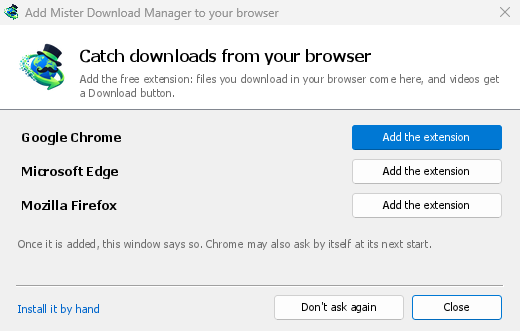
- Add the extension to each browser you use, as below: Firefox from its add-ons store, the others from the Chrome Web Store. Until a browser's extension has reached GDM, GDM's Add GolinksPRO Download Manager to your browser window opens at each start: it lists the browsers it found, and Add the extension opens the store's page in that browser. Install it by hand opens the steps for loading it without the store; Don't ask again stops the window.

Firefox
Firefox 140 or later is needed. Install the add-on from its page on addons.mozilla.org, GolinksPRO Download Manager: click Add to Firefox. Firefox keeps it updated. Zen and LibreWolf install it from the same page. (GDM's Add GolinksPRO Download Manager to your browser window opens that page for you.)
Chrome, Edge, Brave, Opera 및 Vivaldi
Install the extension from its page in the Chrome Web Store, GolinksPRO Download Manager: click Add to Chrome. In Edge the button is Get: Edge first asks to Allow extensions from other stores (click Allow), then Add extension. The browser keeps it updated. GDM's Add GolinksPRO Download Manager to your browser window opens that page in each browser for you, and Chrome may offer it by itself at its next start once GDM is installed.
To load it by hand instead (a browser that can't use the store, or a build of your own): its files are in the extension folder where GDM is installed: %LOCALAPPDATA%\Programs\GolinksPRO Download Manager\extension if you installed it for yourself, or Program Files\GolinksPRO Download Manager\extension if you installed it for everyone. Every release also has them as their own download, ...-extension-chromium.zip (unzip it first).
- 확장 프로그램 페이지를 엽니다:
chrome://extensions,edge://extensions또는brave://extensions. - 개발자 모드를 켭니다.
- 압축 해제된 확장 프로그램 로드를 클릭하고
extension\chromium폴더를 선택합니다.
GolinksPRO Download Manager appears in the list. Leave it turned on. Pin its button to the toolbar to see at a glance whether the browser reaches GDM.
Safari (macOS)
Mac 앱에는 Safari 확장 프로그램이 포함되어 있어 별도로 다운로드할 필요가 없습니다. Safari 17 이상 및 macOS 14 이상이 필요합니다.
- Drag GDM to Applications and start it once. GDM's Add GolinksPRO Download Manager to your browser window lists Safari: How to Add shows the steps below.
- In Safari open Settings → Extensions and tick GolinksPRO Download Manager. Click Always Allow on Every Website: the extension needs to read the site to pass your sign-in on.
- 앱이 Apple에 의해 공증되지 않은 경우 (실험 빌드는 공증되지 않음), Safari는 서명되지 않은 확장 프로그램이 허용될 때만 확장 프로그램을 나열합니다. 설정 → 고급 → 웹 개발자용 기능 보기를 선택한 다음 설정 → 개발자 → 서명되지 않은 확장 프로그램 허용을 선택합니다. Safari는 종료할 때마다 이 설정을 잊어버립니다.
Safari는 확장 프로그램이 브라우저의 다운로드를 보거나 중지하도록 허용하지 않으므로 다른 브라우저와 작동 방식이 다릅니다.
- Works as in the other browsers: the right-click items, the button over videos, Media on this page, the toolbar button, Alt-click, GDM starting by itself, and every rule in Options.
- A click on a link to a file type GDM takes goes to GDM. A download the page starts by itself (a script, or a link with no file name in its address that the server answers with a file) stays with Safari: use right-click → Download with GolinksPRO Download Manager for those.
- 사용할 수 없는 기능: 브라우저의 프록시 또는 VPN 공유, 양식에서 다운로드.
일반 zip 파일에서
The -x64.zip copy has no installer, but you can register the helper yourself. Open a command prompt in GDM's folder and run:
misterdownloadmanager-nmhost.exe --register
이것은 귀하의 Windows 계정에만 해당됩니다. --unregister은 이를 취소합니다. 그런 다음 위와 같이 zip 파일의 extension 폴더에서 확장 프로그램을 로드합니다.
작동 방식
When you click a download, the extension checks GDM's Options:
- Options → General → Use advanced browser integration must be on. Turn it off to send nothing to GDM.
- 옵션 → 일반 → 다음 브라우저에서 다운로드 캡처에 귀하의 브라우저가 선택되어 있어야 합니다.
- 옵션 → 파일 형식 → 다음 파일 형식 자동 다운로드 시작에 파일 형식이 나열되어야 합니다. 목록은 일반적인 형식으로 시작합니다: ZIP, RAR, 7Z, EXE, MSI, ISO, DMG, DEB, RPM, APPIMAGE, MP3, MP4, MKV, WEBM, PDF, GGUF 및 SAFETENSORS와 같은 AI 모델, GLB 및 STL과 같은 3D 파일 등. 다른 형식도 목록에 추가할 수 있습니다.
- 옵션 → 파일 형식 → 다음 사이트에서 자동으로 다운로드 시작 안 함에 해당 사이트가 없어야 합니다. 이름은 공백으로 구분되며,
*는*.update.microsoft.com처럼 모든 부분과 일치합니다. 그 아래의 목록 편집...은 제외할 전체 주소를 한 줄에 하나씩 나열합니다(https://example.com/private/*). - 옵션 → 파일 형식 → 다음보다 작은 파일은 가져오지 않음은 작은 파일(영수증, 아이콘)을 브라우저에 남겨둡니다. 0은 모든 크기를 가져옵니다.
- 확장 프로그램은 해당 사이트를 읽을 수 있어야 합니다. 일부 사이트로 제한하거나(클릭 시) 로그인 정보를 전달할 수 없으므로 해당 사이트의 다운로드는 브라우저에 남겨둡니다.


When the browser keeps a download, the extension's button says which of these left it there, with the file's name, and GDM's log has a line for each one (logs\mdm.log in GDM's data folder).
클릭한 주소와 리디렉션된 주소 모두 확인되므로, 제외한 사이트는 다른 서버로 연결되더라도 계속 제외됩니다. 그 외의 모든 것은 브라우저에 남습니다. 옵션 변경 사항은 1분 이내에 브라우저에 적용되며, 브라우저를 다시 시작할 필요가 없습니다.
When GDM takes a download, it gets the browser's file name, size and type with it, so Download File Info shows them at once without asking the server again. A download from a form (a button that posts and gets a file back) is posted again by GDM with the form's data; a form that sends a file stays with the browser.
When GDM takes a download, the browser's own copy is cancelled and removed from the browser's download list. In Firefox and the browsers built on it (Waterfox, Zen, LibreWolf), GDM takes it as soon as the server answers, before the browser asks What should … do with this file?: for a file GDM takes, that question never shows (Waterfox asks it for every new type of file). Files GDM doesn't take get the question as before. Download File Info opens in GDM (unless you turned it off in Options → Downloads). Cancelling there doesn't hand the download back to the browser.
Click a download link in the browser: Download File Info opens in GDM. 

다운로드 시작: 진행 창에 다운로드 진행 상황이 표시됩니다. 

다운로드 완료: 파일을 열거나 폴더를 엽니다. 

Downloads from a private window use that window's cookies, never the normal ones, and aren't kept in GDM's list after it closes.
Files GDM downloads from the browser are marked as coming from the internet, as the browser marks its own: Windows checks a program with SmartScreen before it runs and Office opens a document in Protected View.
브라우저가 열 파일
A PDF, a song or a video that the browser would show or play itself goes to GDM too, when its type is in Options → File types (not on the excluded sites). To turn this off, untick Also take files the browser would open in Options → General → Keys.... This needs a Chromium browser (Chrome, Edge, Brave, Opera, Vivaldi) version 128 or later, or Firefox.
도구 모음 버튼
The extension's button shows whether the browser reaches GDM. A red ! means it doesn't; click the button to see why, and How to fix it opens the matching section of The browser and GDM aren't connected. The button also:
- 이 브라우저에서 다운로드 가져오기: 선택을 해제하면 일시 중지됩니다. 다시 선택할 때까지 모든 다운로드는 브라우저에서 처리됩니다.
- Never take downloads from the current site: adds it to GDM's excluded sites.
- Open GolinksPRO Download Manager and Options....
- Media on this page: what the page has loaded that GDM can download (see below).
VPN 또는 프록시 확장 프로그램
A VPN or proxy extension is a proxy for the browser only. Switch on Send downloads through this browser's proxy or VPN extension in the extension's toolbar popup (it's off as installed), and GDM downloads what it takes from the browser through the same proxy (with Options → Proxy / Socks → Use proxy/socks from a browser's request, on by default; see Options). Switched off, the extension reads nothing of the browser's proxy.
- Firefox asks you once, at the switch, to allow the extension to read the browser's proxy; switching it off takes that permission back. GDM gets the proxy the browser's own request for the file took, including the ones a VPN extension picks for each request.
- Chrome, Edge, Brave, Opera and Vivaldi can't ask for that permission at the switch, so the
extension has it from the install (Chrome counts it under the access to every site the extension
already asks for, so it adds no line to the install prompt and the update asks for nothing new).
The switch asks nothing. GDM gets the browser's effective proxy, whoever set it (a VPN or proxy
extension, a policy, the command line): a fixed server for the download's scheme (
http,https,socks4,socks5), unless the address is on its bypass list, or its proxy auto-config script (by its address or inline). With no proxy, or the system's, nothing is sent and GDM goes by its own Options. A QUIC proxy can't be shared.
두 경우 모두 프록시 로그인은 읽히지 않습니다. VPN 확장 프로그램 자체의 로그인을 요구하는 프록시는 공유할 수 없으며, 다운로드는 로그인 없이 진행하는 대신 그렇게 표시됩니다.
이 페이지의 미디어
일부 페이지에서는 비디오 링크 없이 비디오가 재생되고, 일부 플레이어는 다운로드 버튼에서도 비디오를 숨깁니다. 도구 모음 버튼에는 페이지에 로드된 항목이 표시되므로 여기서 저장할 수 있습니다.
- 스트림: 긴 비디오를 재생할 때 대부분의 사이트에서 사용하는 HLS(
.m3u8) 및 DASH(.mpd)입니다. 스트림마다 한 번만 표시되며, 플레이어가 여러 화질로 전환해도 마찬가지입니다. 확장 프로그램에서 확인할 수 있으면 화질(1080p · 720p)과 재생 시간도 표시됩니다. 주소가.m3u8또는.mpd로 끝나지 않고 일반 텍스트로 제공되는 스트림도 찾을 수 있습니다. 목록을 열거나 플레이어 위의 다운로드 버튼을 누른 상태에서 플레이어가 스트림을 재생하면, 확장 프로그램은 플레이어가 가져온 데이터의 처음 몇 KB를 읽어 스트림을 식별합니다. 요청하기 전까지는 아무것도 읽지 않습니다. - 페이지에서 재생한 비디오 및 오디오 파일(MP4, WebM, MP3 등)과 파일 크기. 비디오의 경우 화면 크기도 표시됩니다.
Start the video first: the list fills as the page loads things, and it's emptied when the tab goes
to another page. With Prefix media file names with the page title on, a file from the list is
named after the page, then its own name (The page - clip.mp4). Click Download beside one: a stream opens GDM's Download video from a page
window, which reads its qualities (yt-dlp does the work); a file goes to GDM's list like any other
download. Your cookies for its server, the page as the referrer and your browser's User-Agent go
with it, as they do for a link you click.
Pieces of a stream (its segments) are never listed. A copy-protected stream (DRM: Widevine, PlayReady, FairPlay, as most paid streaming services use) is listed as Protected, with no Download button: no tool may break that protection, and GDM doesn't try.
별도로 설정할 필요가 없습니다. 확장 프로그램은 다운로드를 GDM으로 전달하기 위해 브라우저가 다운로드하는 항목을 이미 확인합니다. 기록된 내용은 브라우저 메모리에만 저장되며 브라우저를 닫으면 삭제됩니다.
Right-click: Download with GolinksPRO Download Manager
Right-click a link, a video, a sound or a picture and choose Download with GolinksPRO Download Manager. GDM downloads it whatever its type: you asked for it, so the file types list and the excluded sites don't apply here (they only decide which downloads GDM takes over by itself). A video that plays as a stream goes to the Download video window with the stream its player loaded (HLS or DASH), as the button over videos sends it, with your cookies for the stream's server and the page as the referrer.
Select part of a page and right-click it for Download selected links with GolinksPRO Download Manager, or right-click the page for Download all links with GolinksPRO Download Manager: the links open in Link grabber, sorted into packages, where you tick the ones you want.
If GDM can't be reached when you choose one of these, the help page opens at the section that explains why.
비디오 위 다운로드 단추

Point at a video on a web page and a small Download video button appears at its edge. Click it and GDM's Download video from a page window opens and looks up the qualities it can download. It takes the video you clicked: its own file when it plays one, or the stream the player loaded (HLS or DASH), else the page. When the button can't tell which one you mean, the toolbar button's Media on this page lists them all. Embedded players work too, and your sign-in for the site, the page that embeds the player and your browser's User-Agent go with it, so videos for members, or that play only on the site that embeds them, can be downloaded. Sound players get the button too.
방해가 되지 않습니다. 비디오에 마우스를 가져갈 때만 표시되고(또는 플레이어가 키보드 포커스를 가질 때; Tab을 누르면 버튼으로 이동), 포인터가 멈추면 흐려지며, 작은 비디오와 짧은 음소거 루프(애니메이션 그림, 배경)는 제외됩니다. 전체 화면에서는 플레이어가 허용하는 경우 비디오를 따라갑니다. 복사 방지된 비디오(DRM)에서는 비디오를 저장할 수 없다고 표시됩니다.
- 이동: 비디오 가장자리를 따라 어디든지 드래그할 수 있습니다. 가장 가까운 가장자리에 스냅되어 해당 사이트에 고정됩니다.
- Its menu (the arrow next to it): Hide on this video, Never on the site (GDM remembers the site), and Button settings..., which opens GDM's Options.
- Turn it off, or see the sites it stays off: Options → General → Customize GDM Download panels in browsers → Edit....


이 단추는 나머지 통합을 따릅니다. 고급 브라우저 통합 사용이 꺼져 있거나 브라우저가 선택 해제된 경우에는 표시되지 않습니다.
강제 또는 방지 캡처 키
Hold Alt while clicking a link to let the browser download it instead of GDM. In Firefox, Alt+click saves a link only when its browser.altClickSave setting is on (in about:config); otherwise right-click the link and choose Save Link As..., which the browser keeps. Options → General → Keys... says so, and holds Also take files the browser would open.
사이트의 다운로드를 영구적으로 브라우저에 유지하려면 도구 모음 버튼의 다음에서 다운로드 절대 가져오지 않음을 사용하거나, 다음 사이트에서 자동으로 다운로드 시작 안 함에 사이트를 추가하십시오. 파일 유형을 브라우저에 유지하려면 파일 유형 목록에서 제거하십시오.
When GDM isn't running
You don't need to start GDM first. When the browser hands over a download and GDM isn't running, the helper starts it and passes the download on.
If GDM can't be reached at all (it was uninstalled, or the helper isn't registered), the download stays with the browser, so nothing is lost, and the toolbar button shows a red !. See The browser and GDM aren't connected, or run Options → General → Test browser integration....


다음 단계
무료, 오픈 소스, 광고 없음, 평가판 없음.
Download GolinksPRO Download Manager