

GDM downloads BitTorrent files from magnet links and .torrent files. Torrents appear in the same list as other downloads, marked Torrent in the Source column, and can be queued and scheduled like them.
টরেন্ট যোগ করা
- টরেন্ট যোগ করুন টুলবারে ক্লিক করে একটি
.torrentফাইল বেছে নিন। অথবা এর পাশের তীরটিতে ক্লিক করে টরেন্ট ফাইল খুলুন... অথবা ম্যাগনেট লিঙ্ক যোগ করুন... (এটি কাজগুলি এর নিচেও আছে) বেছে নিন। - টরেন্ট যোগ করুন খুলবে। টরেন্ট এ একটি ম্যাগনেট লিঙ্ক পেস্ট করুন, অথবা একটি
.torrentফাইল বেছে নিতে ... এ ক্লিক করুন, তারপর খুঁজুন এ ক্লিক করুন। - GDM reads the torrent and shows its files as a folder tree. A
.torrentfile is read at once. A magnet link first has to get the file list from other peers, usually within seconds. While it waits, Add torrent shows how many peers it found, from the trackers, the DHT or your local network, and how many answered. After 30 seconds without an answer, it says what may be in the way: a link with no trackers while the DHT is off, or a firewall, a VPN or a network that blocks BitTorrent. - যে ফোল্ডার বা ফাইলগুলি আপনি চান না সেগুলির টিক তুলে দিন। সব নির্বাচন করুন এবং কোনোটি নির্বাচন করবেন না বড় টরেন্টগুলির জন্য সহায়ক। নির্বাচিত দেখায় আপনি কতগুলি ফাইল এবং কত ডেটা বেছে নিয়েছেন।
- এতে সংরক্ষণ করুন পরীক্ষা করুন। ফাইলগুলি এখানে যাবে সঠিক ফোল্ডারটি দেখায়। টরেন্টগুলির নিজস্ব বিভাগ আছে, তাই ডিফল্টরূপে এটি
Downloads\Torrents। - ডাউনলোড হওয়ার সময় ভিডিও দেখতে চাইলে, ক্রমানুসারে ডাউনলোড করুন বিকল্পটি টিক দিন (ক্রমানুসারে ডাউনলোড করুন দেখুন)।
- এখনই ডাউনলোড করুন ক্লিক করুন, অথবা শুরু না করে তালিকায় যোগ করতে পরে ক্লিক করুন।
যা চান না, সেগুলোর টিক তুলে দিন। তারপর এখনই ডাউনলোড করুন। 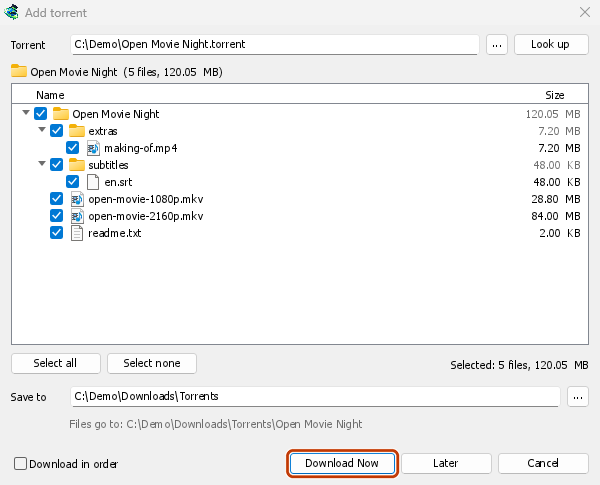

এর অগ্রগতি উইন্ডো: প্রতিটি ফাইল এবং এর কতটুকু ডাউনলোড হয়েছে। 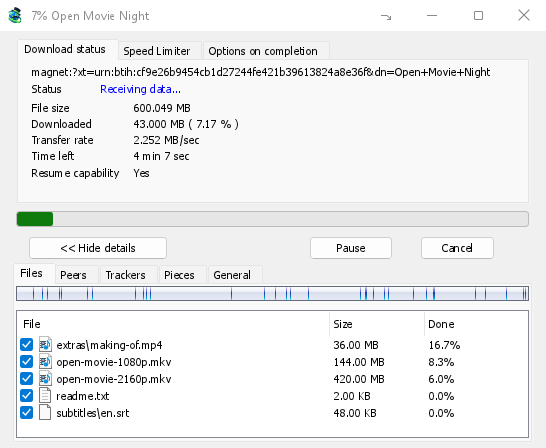
পিস: টরেন্টের মানচিত্র, যা ধীরে ধীরে পূরণ হচ্ছে। 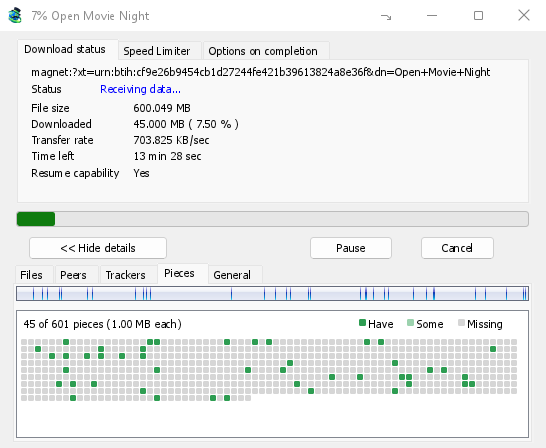
You can also paste a magnet link into Add URL, or drop a magnet link or a .torrent file on the drop target (Tasks → Show drop target). If a torrent is already in the list, GDM says so instead of adding it twice.
A .torrent file's web address works too: paste it into Add URL or Torrent, or let the browser hand the download over. GDM fetches the file, with the browser's cookies when the browser sent it, and Add torrent shows what it holds. The browser hands .torrent downloads over because TORRENT is in Options → File types. It's there by default; a list you had before this version keeps what it had, so add TORRENT to it yourself. Download with GolinksPRO Download Manager on a link always hands it over. A command line with /n (silent) saves the .torrent file itself, like any file. GDM fetches at most 10 MB: anything bigger isn't a .torrent file.
If some of the torrent's files are already in the folder, GDM asks before using them. Yes keeps them for the torrent: GDM checks them, keeps what matches the torrent and downloads the rest, which is how you continue a download started elsewhere or share files you already have. No (the default) goes back, so you can choose another folder and nothing of yours is overwritten.
GDM refuses a torrent with file names your system can't write safely, says which name, and writes nothing. What others can see, the network switches in Torrent settings, blocklists and proxies: Torrents and your security.
ডাউনলোড চলাকালীন
এর অগ্রগতি উইন্ডো খুলতে তালিকায় টরেন্টটিতে ডাবল-ক্লিক করুন। সাধারণ স্ট্যাটাস ছাড়াও, একটি টরেন্টের উইন্ডোতে পাঁচটি ট্যাব থাকে:
- ফাইলগুলি — প্রতিটি ফাইল, তার আকার এবং কতটুকু ডাউনলোড হয়েছে। যে ফাইলগুলি আপনি আনটিক করেছেন সেগুলি বাদ দেওয়া হয়েছে দেখায়। টরেন্ট চলার সময়ও কী ডাউনলোড হবে তা পরিবর্তন করতে একটি ফাইলের বক্স টিক বা আনটিক করুন। অন্তত একটি ফাইল টিক করা থাকে। যদি আপনি এখনও অনুপস্থিত সবকিছু আনটিক করেন, তাহলে টরেন্ট শেষ হয়। যদি একটি শেষ হওয়া টরেন্ট যা চলছে না, একটি ফাইল ফিরে পায়, তবে এটি বন্ধ অবস্থায় অপেক্ষা করে যতক্ষণ না আপনি এটি পুনরায় শুরু করেন, যাতে কিছু অদৃশ্যভাবে ডাউনলোড না হয়।
- পিয়ার্স — যে কম্পিউটারগুলি থেকে আপনি ডাউনলোড করছেন, প্রতিটি থেকে আপনি কতটুকু পেয়েছেন এবং কতটুকু পাঠিয়েছেন তা সহ।
- ট্র্যাকার — টরেন্টের ট্র্যাকারগুলি। কোনো ট্র্যাকার না থাকলে, পিয়ার্স DHT এবং অন্যান্য পিয়ার্স থেকে আসে।
- খণ্ড — টরেন্টের খণ্ডগুলির একটি মানচিত্র: আছে, আংশিকভাবে আছে, অথবা অনুপস্থিত।
- General — the info hash, pieces, peers, how much was sent, the share ratio, how long it has been shared and the folder. What was sent and the time shared add up over all of the torrent's runs: they don't start again at 0 after a pause or a restart of GDM.
টরেন্ট ডাউনলোড শেষ হওয়ার পর, যতক্ষণ এটি শেয়ার করা হয়, ততক্ষণ ট্যাবগুলি থাকে।
একটি টরেন্টের উইন্ডোর স্পিড লিমিটার ট্যাবে, এর ডাউনলোড সীমা ছাড়াও, আপনার পছন্দের গতিতে আপলোড সীমিত করুন অপশনটি আছে। এই সীমা টরেন্টের সাথে সংরক্ষিত থাকে: যখনই টরেন্ট চলে বা শেয়ার হয়, তখনই এটি আবার প্রযোজ্য হয়। একটি টরেন্টকে কোনোভাবেই 16 কিলোবাইট/সেকেন্ডের নিচে রাখা যায় না।
টরেন্ট কমান্ড
তালিকায় কোনো টরেন্টে ডান-ক্লিক করে টরেন্ট খুলুন:
- ফাইলগুলি পুনরায় চেক করুন — টরেন্টের ফাইলগুলির প্রতিটি অংশ পড়ে এবং চেক করে, উদাহরণস্বরূপ ফাইলগুলি সরানোর পরে বা ডিস্কে ত্রুটি থাকলে। একটি চলমান টরেন্ট এর পরে চলতে থাকে এবং যা অনুপস্থিত তা নিয়ে আসে। একটি বন্ধ টরেন্ট বন্ধ থাকে। এর ইভেন্ট লগ বলে কতটুকু পাওয়া গেছে: একটি ক্ষতিগ্রস্ত অংশ সহ একটি শেষ হওয়া টরেন্ট বন্ধ হয়ে যায়, এবং এটি পুনরায় শুরু করলে অংশটি আবার নিয়ে আসে।
- পুনরায় ঘোষণা করুন — টরেন্টের ট্র্যাকারদের কাছে এখন আবার পিয়ারদের জন্য অনুরোধ করে, তাদের পরবর্তী রাউন্ডের জন্য অপেক্ষা না করে। টরেন্ট চলাকালীন বা শেয়ার করার সময় এটি কাজ করে।
- Add trackers... — adds trackers, one address a line (
http,httpsorudp). They are kept with the torrent, after the ones it has, and the Trackers tab shows them. A tracker on your computer or your local network is refused: GDM never contacts those (why). - ক্রমানুসারে ডাউনলোড করুন — টরেন্টের ফাইলগুলো শুরু থেকে ডাউনলোড করে (নিচে দেখুন)। বিরল অংশগুলো আগে ডাউনলোড করতে আবার এতে ক্লিক করুন।
- প্রথমে প্রথম ও শেষ অংশগুলি — ক্রমানুসারে ডাউনলোড করুন চালু থাকলে, প্রতিটি ফাইলের প্রথম ও শেষ অংশ বাকি অংশগুলোর আগে ডাউনলোড হয়। এটি ডিফল্টরূপে চালু থাকে।
- ম্যাগনেট লিঙ্ক কপি করুন — টরেন্টের জন্য একটি ম্যাগনেট লিঙ্ক কপি করে, এর ট্র্যাকার সহ।
প্রতিটি কমান্ডের ফলাফল টরেন্টের ইভেন্ট লগে যায়; এটি পড়তে তালিকার স্ট্যাটাস সেলে হোভার করুন।
ক্রমানুসারে ডাউনলোড করুন
By default GDM downloads the pieces that the fewest peers have first, as BitTorrent programs usually do. That way a piece only one peer has is fetched before that peer leaves, and GDM can pass it on to others sooner. On GDM's test swarms it finished just as fast as downloading in order, and it was the only order that finished when a scarce piece's only holder left.
ক্রমানুসারে ডাউনলোড করুন একটি ফাইলের শুরু প্রথমে পায়, যাতে আপনি ডাউনলোড হওয়ার সময় একটি ভিডিও দেখতে পারেন: প্রথম অংশটি আসার পর আপনার প্লেয়ারে এটি খুলুন। টরেন্ট যোগ করুন-এ এটি টিক দিন, অথবা তালিকার রাইট-ক্লিক মেনুতে টরেন্ট → ক্রমানুসারে ডাউনলোড করুন নির্বাচন করুন, যেকোনো সময়, এমনকি এটি চলার সময়ও। পরবর্তী অনুরোধ করা অংশগুলি নতুন ক্রম অনুসরণ করে।
- প্রথম এবং শেষ অংশগুলি প্রথমে (ডিফল্টরূপে চালু) বিকল্পের সাথে, প্রতিটি ফাইলের শেষ অংশগুলিও তাড়াতাড়ি আসে। বেশিরভাগ ভিডিও ফাইল তাদের সূচক শেষে রাখে, এবং একটি প্লেয়ার কিছু চালানোর আগে এটি পড়ে।
- কয়েকটি ফাইল একটার পর একটা ডাউনলোড হয়, নাম অনুসারে সাজানো থাকে।
- ধীরগতির পিয়াররা কিছুটা দূরের অংশ নেয়, যাতে শুরু তাদের জন্য অপেক্ষা না করে।
ক্রমানুসারে একটি টরেন্ট দ্রুত শেষ হয় না, এবং এটি স্বার্মকে কম সাহায্য করে: আপনি যা এখন দেখতে চান তার জন্য এটি ব্যবহার করুন।
RSS ফিডগুলি
Many sites publish their new torrents as an RSS or Atom feed. GDM can watch feeds, list what they hold, and add the new torrents you want by itself. Choose Tasks → RSS feeds..., or click the arrow next to Add Torrent.


ফিডগুলি ট্যাব:
- Type a feed's address into Feed address and click Add feed. GDM fetches it at once, then every 30 minutes; change that under Check feeds every ... minutes, 5 at the least.
- এর নিবন্ধগুলি দেখতে বাম দিকে একটি ফিড বেছে নিন। একটি টরেন্ট সহ একটি নিবন্ধে একটি টরেন্ট আইকন এবং এর আকার দেখানো হয় যখন ফিড এটি দেয়। একটিতে ডাবল-ক্লিক করুন, অথবা এটি নির্বাচন করুন এবং ডাউনলোড করুন...-এ ক্লিক করুন, এটি দিয়ে টরেন্ট যোগ করুন খুলতে, যেমন যেকোনো ম্যাগনেট লিঙ্ক বা
.torrentঠিকানার জন্য। - রিফ্রেশ করুন নির্বাচিত ফিডটি এখন নিয়ে আসে। সরান এটি দেখা বন্ধ করে দেয়। যে ফিডটি পড়া যায় না সেটি লাল রঙে দেখানো হয় এবং এর নিচের লাইনে কারণটি বলা থাকে।
ডাউনলোড নিয়মাবলী ট্যাব: একটি নিয়ম নতুন নিবন্ধগুলির টরেন্টগুলি যোগ করে যার শিরোনামগুলি এটি মেলে, জিজ্ঞাসা না করেই।
- অবশ্যই থাকতে হবে: শিরোনামে অবশ্যই যে শব্দগুলি থাকতে হবে, সেগুলির সবগুলি, যেকোনো ক্রমে।
|বিকল্পগুলি (1080p|2160p) আলাদা করে, এবং*ও?হল ওয়াইল্ডকার্ড। কেস গুরুত্বপূর্ণ নয়। - অবশ্যই থাকবে না: যে শব্দগুলি নিয়মটিকে একটি নিবন্ধ বাদ দিতে বাধ্য করে, একই ভাবে লেখা।
- নিয়মিত এক্সপ্রেশন: দুটি বাক্সে নিয়মিত এক্সপ্রেশন থাকে।
- পর্বগুলি: কোন পর্বগুলি নিতে হবে, শিরোনামে
S01E05বা1x05থেকে পড়া।1x2হল সিজন 1 পর্ব 2,1x5-8পর্ব 5 থেকে 8,2x1-সিজন 2 পর্ব 1 থেকে সব কিছু, এবং3সিজন 3-এর সব,;দ্বারা আলাদা করা। খালি: যেকোনো নিবন্ধ। একটি নিয়ম প্রতিটি পর্ব একবার নেয়: একটি পর্বের দ্বিতীয় প্রকাশ যা এটি ইতিমধ্যেই যোগ করেছে তা বাদ দেওয়া হয়। - এতে সংরক্ষণ করুন: যে ফোল্ডারে এর টরেন্টগুলি যায়; খালি থাকলে, টরেন্ট ক্যাটাগরির ফোল্ডার। শুরু না করেই সেগুলিকে যোগ করুন সেগুলিকে পরে ডাউনলোড করুন যেমন করত তেমনই যোগ করে।
- ফিডগুলি: যে ফিডগুলি এটি দেখে; কোনোটি টিক দেওয়া না থাকলে, সেগুলির সবগুলি।
Rules only look at articles that are new since the feed was last fetched, and a feed's first fetch only lists what is there. So adding a feed or a rule never downloads a whole backlog. Matches ... articles now shows which of the articles the feeds hold now the rule matches, to check it; download those by hand. A torrent the list already has isn't added again, and neither is one whose files are already in the folder: GDM never writes into files it didn't make without asking. The bottom line of the tab says what the rules did last, and a torrent a rule added says so in its event log.
Feeds and rules are kept in rss.json in GDM's data folder. GDM reads at most 5 MB of a feed.
টরেন্ট সেটিংস
কাজগুলি → টরেন্ট সেটিংস... (অথবা টরেন্ট যোগ করুন এর পাশের তীর) বেছে নিন:
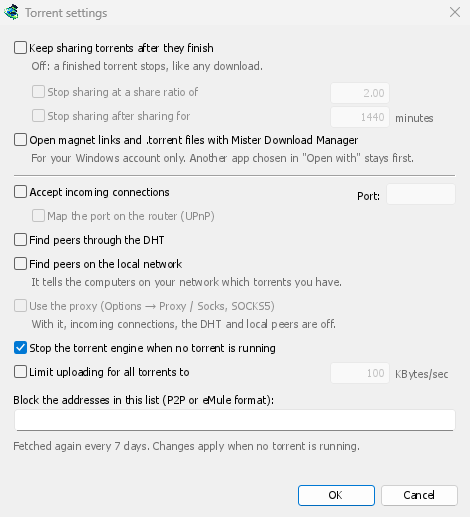
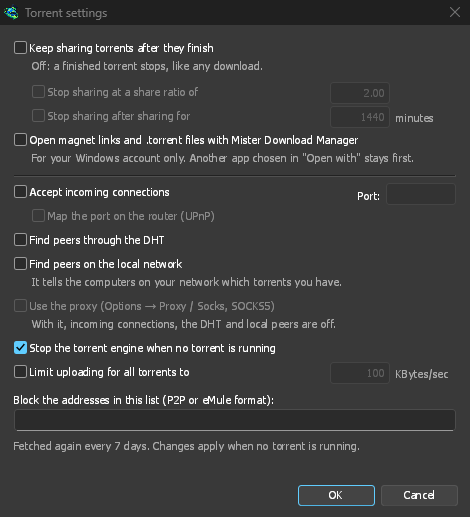
- টরেন্ট শেষ হওয়ার পরেও শেয়ার করা চালিয়ে যান — ডিফল্টরূপে বন্ধ: একটি শেষ হওয়া টরেন্ট যেকোনো ডাউনলোডের মতোই থেমে যায়। আপনার ডাউনলোড সম্পূর্ণ হওয়ার পরে অন্যান্য পিয়ার্সগুলিতে আপলোড চালিয়ে যেতে এটি চালু করুন।
- এই শেয়ার অনুপাতে শেয়ার করা বন্ধ করুন — একটি সম্পূর্ণ টরেন্ট ততবার ডেটা পাঠানোর পর শেয়ার করা বন্ধ করে দেয়, যতবার এটি পেয়েছে (2.00: দ্বিগুণ)। এটি ডিফল্টরূপে বন্ধ থাকে।
- এতক্ষণ শেয়ার করার পর শেয়ার করা বন্ধ করুন — অথবা এটি যতবার শেয়ার করা হয়েছে, তার সব রান মিলিয়ে। এটি ডিফল্টরূপে বন্ধ থাকে।
A torrent stopped by one of these says so in its event log, and isn't shared again when GDM starts. Raise or turn off the limit to share it again.
- Limit uploading for all torrents to — off by default. Caps what all your torrents together send to other peers, while they download and while they share. A torrent's own upload limit, in its progress window, applies on top of it.
- Open magnet links and .torrent files with GolinksPRO Download Manager — Windows then opens magnet links in your browser and .torrent files in Explorer with GDM. This is for your Windows account only; a program you chose in Windows' Open with stays first. The setup can turn it on for you.
একই উইন্ডোতে নেটওয়ার্ক সুইচ (ইনকামিং সংযোগ, পোর্ট, UPnP, DHT, SOCKS5 প্রক্সি) এবং ব্লক-লিস্ট রয়েছে: টরেন্ট এবং আপনার নিরাপত্তা দেখুন।
GDM starts its torrent engine the first time you add a torrent. If you never use torrents, it never listens for peers.
On a Linux system without CA certificates (a minimal install without the ca-certificates package), torrents still work: peers, the DHT and http:// trackers. An https:// tracker can't be checked there, so GDM skips it; install that package to use those too.
With a debrid account, torrents and magnet links can go to the service instead of to peers, and GDM downloads the files from it over HTTP: see Torrents through the service.
পরবর্তী ধাপ
বিনামূল্যে, ওপেন সোর্স, কোনো বিজ্ঞাপন নেই, কোনো ট্রায়াল নেই।
Download GolinksPRO Download Manager