

GDM downloads BitTorrent files from magnet links and .torrent files. Torrents appear in the same list as other downloads, marked Torrent in the Source column, and can be queued and scheduled like them.
टॉरेंट जोड़ें
- टॉरेंट जोड़ें पर क्लिक करके एक
.torrentफ़ाइल चुनें। या इसके आगे के तीर पर क्लिक करें और टॉरेंट फ़ाइल खोलें... या मैग्नेट लिंक जोड़ें... चुनें (यह कार्य के अंतर्गत भी है)। - टॉरेंट जोड़ें विंडो खुलती है। टॉरेंट में मैग्नेट लिंक चिपकाएँ, या
.torrentफ़ाइल चुनने के लिए ... पर क्लिक करें। फिर खोजें पर क्लिक करें। - GDM reads the torrent and shows its files as a folder tree. A
.torrentfile is read at once. A magnet link first has to get the file list from other peers, usually within seconds. While it waits, Add torrent shows how many peers it found, from the trackers, the DHT or your local network, and how many answered. After 30 seconds without an answer, it says what may be in the way: a link with no trackers while the DHT is off, or a firewall, a VPN or a network that blocks BitTorrent. - जिन फ़ोल्डरों या फ़ाइलों को आप नहीं चाहते हैं, उन्हें अनटिक करें। सभी चुनें और कोई नहीं चुनें बड़े टॉरेंट के लिए सहायक होते हैं। चयनित दिखाता है कि आपने कितनी फ़ाइलें और कितना डेटा चुना है।
- इसमें सहेजें की जाँच करें। फ़ाइलें यहाँ सहेजी जाएँगी में पूरा फ़ोल्डर पथ दिखता है। टॉरेंट की अपनी श्रेणी होती है, इसलिए डिफ़ॉल्ट रूप से यह
Downloads\Torrentsहोता है। - डाउनलोड के दौरान वीडियो देखने के लिए क्रम में डाउनलोड करें पर टिक करें (देखें क्रम में डाउनलोड करें)।
- अभी डाउनलोड करें पर क्लिक करें, या सूची में जोड़े बिना शुरू करने के लिए बाद में पर क्लिक करें।
जो फ़ाइलें नहीं चाहिए, उनके आगे का टिक हटाएँ। फिर अभी डाउनलोड करें। 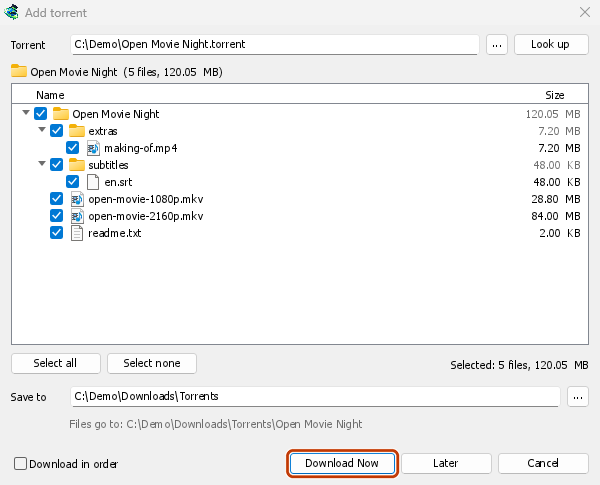

इसकी प्रगति विंडो में हर फ़ाइल और उसमें डाउनलोड हुए हिस्से की मात्रा दिखती है। 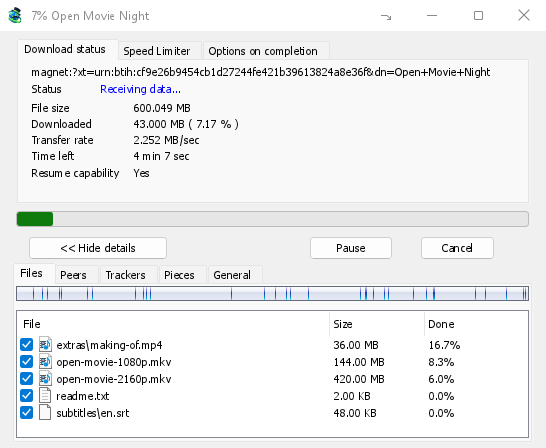
भाग: टॉरेंट का नक्शा, भर रहा है। 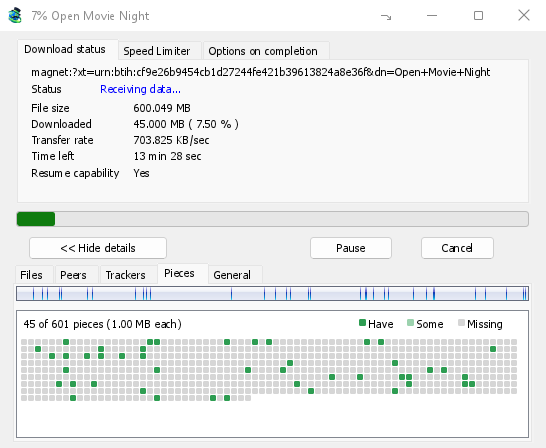
You can also paste a magnet link into Add URL, or drop a magnet link or a .torrent file on the drop target (Tasks → Show drop target). If a torrent is already in the list, GDM says so instead of adding it twice.
A .torrent file's web address works too: paste it into Add URL or Torrent, or let the browser hand the download over. GDM fetches the file, with the browser's cookies when the browser sent it, and Add torrent shows what it holds. The browser hands .torrent downloads over because TORRENT is in Options → File types. It's there by default; a list you had before this version keeps what it had, so add TORRENT to it yourself. Download with GolinksPRO Download Manager on a link always hands it over. A command line with /n (silent) saves the .torrent file itself, like any file. GDM fetches at most 10 MB: anything bigger isn't a .torrent file.
If some of the torrent's files are already in the folder, GDM asks before using them. Yes keeps them for the torrent: GDM checks them, keeps what matches the torrent and downloads the rest, which is how you continue a download started elsewhere or share files you already have. No (the default) goes back, so you can choose another folder and nothing of yours is overwritten.
GDM refuses a torrent with file names your system can't write safely, says which name, and writes nothing. What others can see, the network switches in Torrent settings, blocklists and proxies: Torrents and your security.
डाउनलोड के दौरान
प्रगति विंडो खोलने के लिए सूची में टॉरेंट पर डबल-क्लिक करें। सामान्य स्थिति के अलावा, टॉरेंट की विंडो में पाँच टैब होते हैं:
- फ़ाइलें — प्रत्येक फ़ाइल, उसका आकार और उसका कितना हिस्सा पूरा हो गया है। जिन फ़ाइलों को आपने अनटिक किया है वे छोड़ा गया दिखाती हैं। डाउनलोड की जाने वाली चीज़ को बदलने के लिए फ़ाइल के बॉक्स को टिक या अनटिक करें, भले ही टॉरेंट चल रहा हो। कम से कम एक फ़ाइल टिक की हुई रहती है। यदि आप अभी भी गुम हुई हर चीज़ को अनटिक करते हैं, तो टॉरेंट समाप्त हो जाता है। यदि एक समाप्त टॉरेंट जो नहीं चल रहा है, उसे एक फ़ाइल वापस मिलती है, तो वह तब तक रुके हुए रहता है जब तक आप उसे फिर से शुरू नहीं करते, ताकि कुछ भी अनदेखा डाउनलोड न हो।
- पीयर — वे कंप्यूटर जिनसे आप डाउनलोड कर रहे हैं। हर कंप्यूटर से आपने कितना डेटा पाया और भेजा, यह भी दिखता है।
- ट्रैकर — टॉरेंट के ट्रैकर। ट्रैकर न हों, तो पीयर DHT और दूसरे पीयर से मिलते हैं।
- भाग — टॉरेंट के भागों का नक्शा: डाउनलोड हुए, आंशिक रूप से डाउनलोड हुए या बाकी।
- General — the info hash, pieces, peers, how much was sent, the share ratio, how long it has been shared and the folder. What was sent and the time shared add up over all of the torrent's runs: they don't start again at 0 after a pause or a restart of GDM.
टॉरेंट पूरा होने के बाद भी, साझा होने तक उसके टैब बने रहते हैं।
टोरेंट की विंडो के गति सीमित करने वाला टैब में, उसकी डाउनलोड सीमा के अलावा, अपलोडिंग सीमित करें आपकी पसंद की गति तक है। वह सीमा टोरेंट के साथ बनी रहती है: जब भी टोरेंट चलता या साझा होता है तो यह फिर से लागू होती है। किसी भी तरह से टोरेंट को 16 KB/सेकंड से कम नहीं रखा जा सकता।
टॉरेंट कमांड
सूची में किसी टॉरेंट पर राइट-क्लिक करें और टॉरेंट खोलें:
- फ़ाइलें फिर से जाँचें — टॉरेंट की फ़ाइलों के हर टुकड़े को पढ़ता है और उसकी जाँच करता है, उदाहरण के लिए फ़ाइलों को अंदर ले जाने या डिस्क में त्रुटियों के बाद। एक चल रहा टॉरेंट उसके बाद जारी रहता है और जो गुम है उसे फ़ेच करता है। एक रुका हुआ टॉरेंट रुका रहता है। इसका इवेंट लॉग बताता है कि कितना पाया गया: एक क्षतिग्रस्त टुकड़े वाला समाप्त टॉरेंट रुका हुआ हो जाता है, और उसे फिर से शुरू करने पर टुकड़ा फिर से फ़ेच होता है।
- पुनः घोषणा करें — टॉरेंट के ट्रैकरों से अभी फिर पीयर माँगता है, अगले दौर तक इंतज़ार करने के बजाय। यह टॉरेंट के चलते या साझा होते समय काम करता है।
- Add trackers... — adds trackers, one address a line (
http,httpsorudp). They are kept with the torrent, after the ones it has, and the Trackers tab shows them. A tracker on your computer or your local network is refused: GDM never contacts those (why). - क्रम में डाउनलोड करें — टॉरेंट की फ़ाइलों को शुरुआत से डाउनलोड करता है (नीचे देखें)। सबसे दुर्लभ भागों को पहले डाउनलोड करने के लिए इसे फिर से क्लिक करें।
- पहले और अंतिम भाग पहले — क्रम में डाउनलोड करें चालू होने पर, हर फ़ाइल के पहले और अंतिम भाग बाकी भागों से पहले डाउनलोड होते हैं। यह डिफ़ॉल्ट रूप से चालू रहता है।
- मैग्नेट लिंक कॉपी करें — टॉरेंट का मैग्नेट लिंक और उसके ट्रैकर कॉपी करता है।
हर कमांड का नतीजा टॉरेंट के इवेंट लॉग में दर्ज होता है। इसे पढ़ने के लिए सूची में टॉरेंट के स्थिति सेल पर कर्सर ले जाएँ।
क्रम में डाउनलोड करें
By default GDM downloads the pieces that the fewest peers have first, as BitTorrent programs usually do. That way a piece only one peer has is fetched before that peer leaves, and GDM can pass it on to others sooner. On GDM's test swarms it finished just as fast as downloading in order, and it was the only order that finished when a scarce piece's only holder left.
क्रम में डाउनलोड करें फ़ाइल की शुरुआत पहले डाउनलोड करता है, ताकि डाउनलोड के दौरान आप वीडियो देख सकें: पहला भाग डाउनलोड होते ही वीडियो को अपने प्लेयर में खोलें। इसे टॉरेंट जोड़ें में चुनें, या सूची में राइट-क्लिक मेनू से टॉरेंट → क्रम में डाउनलोड करें चुनें। आप इसे कभी भी चुन सकते हैं, डाउनलोड चलते समय भी। इसके बाद मांगे गए भाग नए क्रम में डाउनलोड होंगे।
- पहले और अंतिम भाग पहले चालू होने पर (यह डिफ़ॉल्ट रूप से चालू रहता है), हर फ़ाइल के अंतिम भाग भी जल्दी डाउनलोड होते हैं। ज़्यादातर वीडियो फ़ाइलों का इंडेक्स अंत में होता है, और प्लेयर कुछ भी चलाने से पहले इसे पढ़ता है।
- कई फ़ाइलें नाम के क्रम में, एक के बाद एक डाउनलोड होती हैं।
- धीमे साथी कुछ आगे के भाग डाउनलोड करते हैं, ताकि शुरुआत उनके इंतज़ार में न रुके।
क्रम में डाउनलोड करने से टॉरेंट जल्दी पूरा नहीं होता और इससे समूह को भी कम मदद मिलती है। इसका उपयोग तभी करें, जब आप कुछ अभी देखना चाहते हों।
RSS फ़ीड
Many sites publish their new torrents as an RSS or Atom feed. GDM can watch feeds, list what they hold, and add the new torrents you want by itself. Choose Tasks → RSS feeds..., or click the arrow next to Add Torrent.


फ़ीड टैब:
- Type a feed's address into Feed address and click Add feed. GDM fetches it at once, then every 30 minutes; change that under Check feeds every ... minutes, 5 at the least.
- फ़ीड के लेख देखने के लिए बाईं ओर कोई फ़ीड चुनें। फ़ीड में टॉरेंट वाला लेख टॉरेंट आइकन दिखाता है और, अगर फ़ीड आकार देता है, तो उसका आकार भी। किसी लेख पर डबल-क्लिक करें, या उसे चुनकर डाउनलोड करें... पर क्लिक करें। इससे वह लेख टॉरेंट जोड़ें में खुलेगा, जैसे किसी मैग्नेट लिंक या
.torrentपते को खोलने पर खुलता है। - रीफ़्रेश करें चुनी हुई फ़ीड को अभी प्राप्त करता है। हटाएँ उस फ़ीड को देखना बंद कर देता है। जो फ़ीड पढ़ी नहीं जा सकती, वह लाल रंग में दिखती है। नीचे की पंक्ति में इसका कारण दिया होता है।
नियम डाउनलोड करें टैब: नियम उन नए लेखों के टॉरेंट बिना पूछे जोड़ता है, जिनके शीर्षक नियम से मेल खाते हैं।
- इसमें होना चाहिए: शीर्षक में मौजूद होने वाले सभी शब्द, किसी भी क्रम में।
|विकल्पों (1080p|2160p) को अलग करता है, और*तथा?वाइल्डकार्ड हैं। बड़े और छोटे अक्षरों का फ़र्क नहीं पड़ता। - इसमें नहीं होना चाहिए: ऐसे शब्द जिनके होने पर नियम लेख को छोड़ देता है। इन्हें भी उसी तरह लिखें।
- नियमित अभिव्यक्तियाँ: इसके बजाय दोनों बॉक्स में नियमित अभिव्यक्तियाँ लिखें।
- एपिसोड: कौन से एपिसोड लेने हैं। इन्हें शीर्षक में
S01E05या1x05से पढ़ा जाता है।1x2का मतलब सीज़न 1, एपिसोड 2 है;1x5-8का मतलब एपिसोड 5 से 8;2x1-का मतलब सीज़न 2, एपिसोड 1 से आगे के सभी एपिसोड; और3का मतलब सीज़न 3 के सभी एपिसोड है। इन्हें;से अलग करें। खाली छोड़ने पर कोई भी लेख लिया जाता है। नियम हर एपिसोड को केवल एक बार लेता है: जिस एपिसोड को वह पहले ही जोड़ चुका है, उसकी दूसरी रिलीज़ छोड़ दी जाती है। - इसमें सहेजें: वह फ़ोल्डर जिसमें इस फ़ीड के टॉरेंट रखे जाएँगे। खाली छोड़ने पर टॉरेंट श्रेणी का फ़ोल्डर इस्तेमाल होगा। उन्हें शुरू किए बिना जोड़ें चुनने पर टॉरेंट बाद में डाउनलोड करें की तरह जोड़े जाते हैं।
- फ़ीड: देखी जाने वाली फ़ीड। कोई फ़ीड नहीं चुनने पर सभी फ़ीड देखी जाती हैं।
Rules only look at articles that are new since the feed was last fetched, and a feed's first fetch only lists what is there. So adding a feed or a rule never downloads a whole backlog. Matches ... articles now shows which of the articles the feeds hold now the rule matches, to check it; download those by hand. A torrent the list already has isn't added again, and neither is one whose files are already in the folder: GDM never writes into files it didn't make without asking. The bottom line of the tab says what the rules did last, and a torrent a rule added says so in its event log.
Feeds and rules are kept in rss.json in GDM's data folder. GDM reads at most 5 MB of a feed.
टॉरेंट सेटिंग्स
कार्य → टॉरेंट सेटिंग्स... चुनें (या टॉरेंट जोड़ें के आगे वाले तीर पर क्लिक करें):
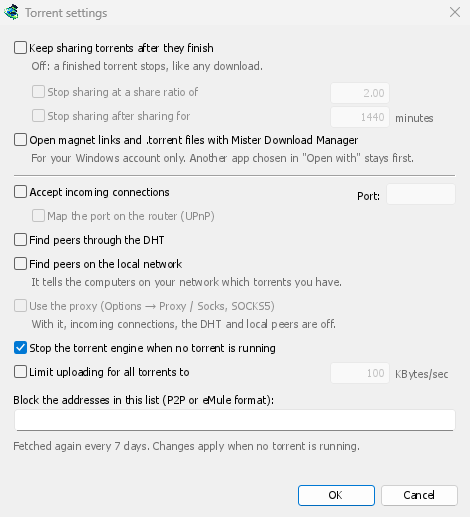
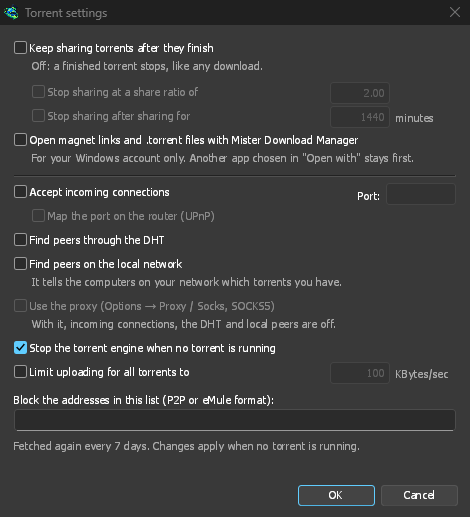
- टॉरेंट समाप्त होने के बाद भी उन्हें साझा करते रहें — डिफ़ॉल्ट रूप से बंद: पूरा हुआ टॉरेंट किसी भी डाउनलोड की तरह रुक जाता है। डाउनलोड पूरा होने के बाद अन्य पीयर को अपलोड करना जारी रखने के लिए इसे चालू करें।
- इस साझा अनुपात पर साझा करना बंद करें — पूरा हुआ टॉरेंट उतनी बार डेटा भेज देने के बाद साझा होना बंद कर देता है, जितना डेटा उसके पास है (2.00: दोगुना)। डिफ़ॉल्ट रूप से बंद।
- इतने समय तक साझा करने के बाद साझा करना बंद करें … मिनट — या, जब कुल मिलाकर इतने समय तक साझा किया जा चुका हो, तो इसे साझा करना बंद करें। डिफ़ॉल्ट रूप से बंद।
A torrent stopped by one of these says so in its event log, and isn't shared again when GDM starts. Raise or turn off the limit to share it again.
- Limit uploading for all torrents to — off by default. Caps what all your torrents together send to other peers, while they download and while they share. A torrent's own upload limit, in its progress window, applies on top of it.
- Open magnet links and .torrent files with GolinksPRO Download Manager — Windows then opens magnet links in your browser and .torrent files in Explorer with GDM. This is for your Windows account only; a program you chose in Windows' Open with stays first. The setup can turn it on for you.
उसी विंडो में नेटवर्क स्विच (आने वाले कनेक्शन, पोर्ट, UPnP, DHT, SOCKS5 प्रॉक्सी) और ब्लॉकलिस्ट होती है: टॉरेंट और आपकी सुरक्षा देखें।
GDM starts its torrent engine the first time you add a torrent. If you never use torrents, it never listens for peers.
On a Linux system without CA certificates (a minimal install without the ca-certificates package), torrents still work: peers, the DHT and http:// trackers. An https:// tracker can't be checked there, so GDM skips it; install that package to use those too.
With a debrid account, torrents and magnet links can go to the service instead of to peers, and GDM downloads the files from it over HTTP: see Torrents through the service.
अगले चरण
मुफ़्त, ओपन सोर्स, कोई विज्ञापन नहीं, कोई ट्रायल नहीं।
Download GolinksPRO Download Manager