

GDM downloads BitTorrent files from magnet links and .torrent files. Torrents appear in the same list as other downloads, marked Torrent in the Source column, and can be queued and scheduled like them.
Añadir un torrent
- Haz clic en Añadir torrent en la barra de herramientas para elegir un archivo
.torrent. También puedes hacer clic en la flecha que hay al lado y elegir Abrir archivo torrent... o Añadir enlace magnet... (también en Tareas). - Se abre Añadir torrent. Pega un enlace magnet en Torrent o haz clic en ... para elegir un archivo
.torrent. Después, haz clic en Buscar. - GDM reads the torrent and shows its files as a folder tree. A
.torrentfile is read at once. A magnet link first has to get the file list from other peers, usually within seconds. While it waits, Add torrent shows how many peers it found, from the trackers, the DHT or your local network, and how many answered. After 30 seconds without an answer, it says what may be in the way: a link with no trackers while the DHT is off, or a firewall, a VPN or a network that blocks BitTorrent. - Desmarca las carpetas o los archivos que no quieras. Seleccionar todo y No seleccionar ninguno son útiles con torrents grandes. Seleccionado muestra cuántos archivos y cuántos datos has elegido.
- Comprueba Guardar en. Los archivos van a muestra la carpeta exacta. Los torrents tienen su propia categoría, así que esta es
Downloads\Torrentsde forma predeterminada. - Para ver un vídeo mientras se descarga, marca Descargar en orden (consulta Descargar en orden).
- Haz clic en Descargar ahora, o en Más tarde para añadirlo a la lista sin iniciar la descarga.
Desmarca lo que no quieras y luego haz clic en Descargar ahora. 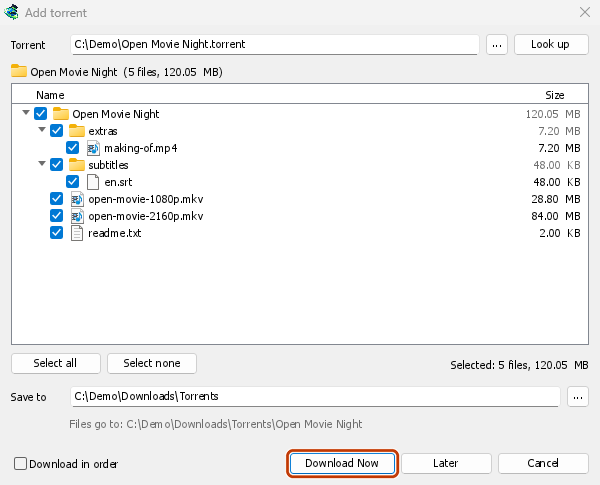

Su ventana de progreso muestra cada archivo y cuánto se ha descargado. 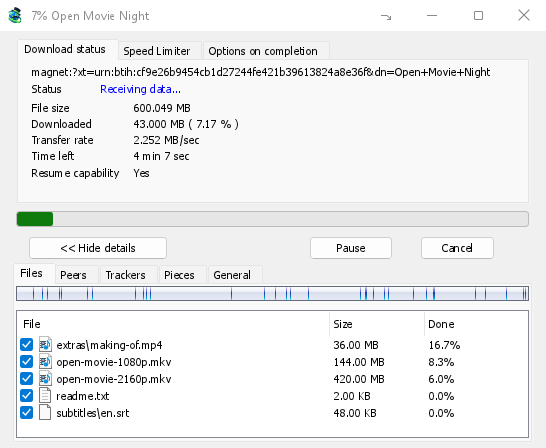
Partes: el mapa del torrent se va rellenando. 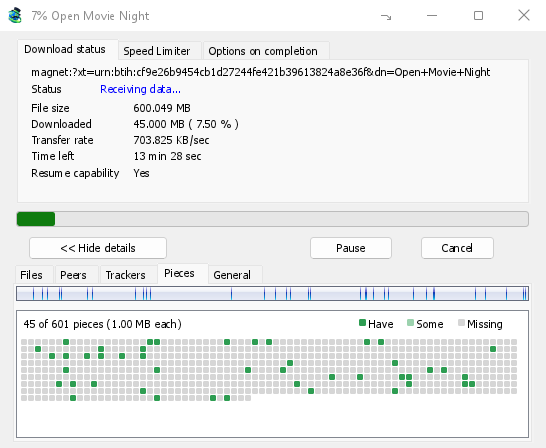
You can also paste a magnet link into Add URL, or drop a magnet link or a .torrent file on the drop target (Tasks → Show drop target). If a torrent is already in the list, GDM says so instead of adding it twice.
A .torrent file's web address works too: paste it into Add URL or Torrent, or let the browser hand the download over. GDM fetches the file, with the browser's cookies when the browser sent it, and Add torrent shows what it holds. The browser hands .torrent downloads over because TORRENT is in Options → File types. It's there by default; a list you had before this version keeps what it had, so add TORRENT to it yourself. Download with GolinksPRO Download Manager on a link always hands it over. A command line with /n (silent) saves the .torrent file itself, like any file. GDM fetches at most 10 MB: anything bigger isn't a .torrent file.
If some of the torrent's files are already in the folder, GDM asks before using them. Yes keeps them for the torrent: GDM checks them, keeps what matches the torrent and downloads the rest, which is how you continue a download started elsewhere or share files you already have. No (the default) goes back, so you can choose another folder and nothing of yours is overwritten.
GDM refuses a torrent with file names your system can't write safely, says which name, and writes nothing. What others can see, the network switches in Torrent settings, blocklists and proxies: Torrents and your security.
Mientras se descarga
Haga doble clic en el torrent de la lista para abrir su ventana de progreso. Además del estado habitual, la ventana de un torrent tiene cinco pestañas:
- Archivos: muestra cada archivo, su tamaño y cuánto se ha descargado. Los archivos que desmarcaste aparecen como Omitido. Marca o desmarca la casilla de un archivo para cambiar qué se descarga, incluso mientras el torrent está en marcha. Siempre queda al menos un archivo marcado. Si desmarcas todos los archivos que aún faltan, el torrent finaliza. Si se vuelve a añadir un archivo a un torrent finalizado que no está en marcha, el torrent queda detenido hasta que lo reanudes, así no se descarga nada sin que lo sepas.
- Pares: los ordenadores desde los que descargas, con la cantidad de datos que has recibido de cada uno y que les has enviado.
- Rastreadores: los rastreadores del torrent. Si no hay ninguno, los pares se encuentran a través de la DHT y de otros pares.
- Partes: un mapa de las partes del torrent, que muestra cuáles están completas, cuáles están a medio descargar y cuáles faltan.
- General — the info hash, pieces, peers, how much was sent, the share ratio, how long it has been shared and the folder. What was sent and the time shared add up over all of the torrent's runs: they don't start again at 0 after a pause or a restart of GDM.
Las pestañas se mantienen cuando termina la descarga del torrent, mientras se siga compartiendo.
Además del límite de descarga, la pestaña Limitador de velocidad de la ventana del torrent permite usar Limitar subida para establecer la velocidad que quieras. El límite se guarda con el torrent y se aplica cada vez que está en marcha o compartiéndose. En ningún caso se puede limitar la velocidad de un torrent a menos de 16 KB/s.
Comandos de torrent
Haz clic con el botón derecho en un torrent de la lista y abre Torrent:
- Volver a comprobar archivos: lee y comprueba todas las partes de los archivos del torrent, por ejemplo, después de moverlos o si se han producido errores en un disco. Si el torrent está en marcha, continúa después y descarga lo que falte. Si está detenido, sigue detenido. El registro de eventos indica cuánto se ha encontrado. Si un torrent finalizado tiene una parte dañada, pasa a estar detenido; al reanudarlo, se vuelve a descargar esa parte.
- Volver a anunciar: pide ahora a los rastreadores del torrent que vuelvan a buscar pares, en lugar de esperar al siguiente intento. Funciona mientras el torrent está en marcha o se comparte.
- Add trackers... — adds trackers, one address a line (
http,httpsorudp). They are kept with the torrent, after the ones it has, and the Trackers tab shows them. A tracker on your computer or your local network is refused: GDM never contacts those (why). - Descargar en orden: descarga los archivos del torrent desde el principio (véase más abajo). Haga clic de nuevo para volver a las partes más raras primero.
- Primeras y últimas partes primero: con Descargar en orden, las primeras y últimas partes de cada archivo se descargan antes que el resto. Está activado por defecto.
- Copiar enlace magnet: copia un enlace magnet para el torrent, con sus rastreadores.
El resultado de cada comando se guarda en el registro de eventos del torrent; pasa el ratón por la celda Estado correspondiente en la lista para leerlo.
Descargar en orden
By default GDM downloads the pieces that the fewest peers have first, as BitTorrent programs usually do. That way a piece only one peer has is fetched before that peer leaves, and GDM can pass it on to others sooner. On GDM's test swarms it finished just as fast as downloading in order, and it was the only order that finished when a scarce piece's only holder left.
Descargar en orden descarga primero el inicio de un archivo, para que puedas ver un vídeo mientras se descarga: ábrelo en tu reproductor cuando se haya descargado la primera parte. Activa esta opción en Añadir torrent o elige Torrent → Descargar en orden en el menú contextual de la lista, en cualquier momento, incluso mientras se descarga. Las siguientes partes solicitadas seguirán el nuevo orden.
- Con Primeras y últimas partes primero (activado por defecto), las últimas partes de cada archivo también llegan pronto. La mayoría de los archivos de vídeo guardan el índice al final, y el reproductor lo lee antes de reproducir nada.
- Si hay varios archivos, se descargan uno tras otro, por orden alfabético.
- Los pares más lentos descargan partes un poco más adelante, para que no retrasen el inicio.
Descargar un torrent en orden no hace que termine antes y ayuda menos al enjambre: usa esta opción para ver ahora lo que quieras.
Fuentes RSS
Many sites publish their new torrents as an RSS or Atom feed. GDM can watch feeds, list what they hold, and add the new torrents you want by itself. Choose Tasks → RSS feeds..., or click the arrow next to Add Torrent.


Pestaña Fuentes:
- Type a feed's address into Feed address and click Add feed. GDM fetches it at once, then every 30 minutes; change that under Check feeds every ... minutes, 5 at the least.
- Selecciona una fuente a la izquierda para ver sus artículos. Si un artículo contiene un torrent, muestra un icono de torrent y su tamaño, si la fuente lo indica. Haz doble clic en un artículo o selecciónalo y haz clic en Descargar... para abrir Añadir torrent con él, igual que con cualquier enlace magnet o dirección
.torrent. - Actualizar obtiene ahora la fuente seleccionada. Quitar deja de seguirla. Las fuentes que no se pueden leer se muestran en rojo y la línea inferior indica el motivo.
Pestaña Reglas de descarga: una regla añade sin preguntar los torrents de los artículos nuevos cuyos títulos coinciden con ella.
- Debe contener: palabras que debe contener el título, todas ellas y en cualquier orden.
|separa las alternativas (1080p|2160p), y*y?son comodines. No se distingue entre mayúsculas y minúsculas. - No debe contener: palabras que hacen que la regla omita un artículo. Escríbelas de la misma manera.
- Expresiones regulares: en lugar de palabras, las dos casillas contienen expresiones regulares.
- Episodios: qué episodios descargar, según aparezcan en el título con el formato
S01E05o1x05.1x2es la temporada 1, episodio 2;1x5-8, los episodios del 5 al 8;2x1-, todo a partir de la temporada 2, episodio 1; y3, toda la temporada 3. Separa los episodios con;. Si está vacío, se aplica a cualquier artículo. Una regla añade cada episodio una sola vez: omite las nuevas publicaciones de episodios que ya haya añadido. - Guardar en: la carpeta donde se guardan los torrents; si está vacío, se usa la carpeta de la categoría Torrents. Añadirlos sin iniciarlos los añade igual que Descargar más tarde.
- Fuentes: las fuentes que sigue; si no hay ninguna marcada, se usan todas.
Rules only look at articles that are new since the feed was last fetched, and a feed's first fetch only lists what is there. So adding a feed or a rule never downloads a whole backlog. Matches ... articles now shows which of the articles the feeds hold now the rule matches, to check it; download those by hand. A torrent the list already has isn't added again, and neither is one whose files are already in the folder: GDM never writes into files it didn't make without asking. The bottom line of the tab says what the rules did last, and a torrent a rule added says so in its event log.
Feeds and rules are kept in rss.json in GDM's data folder. GDM reads at most 5 MB of a feed.
Configuración de torrents
Elige Tareas → Configuración de torrents... (o haz clic en la flecha junto a Añadir torrent):
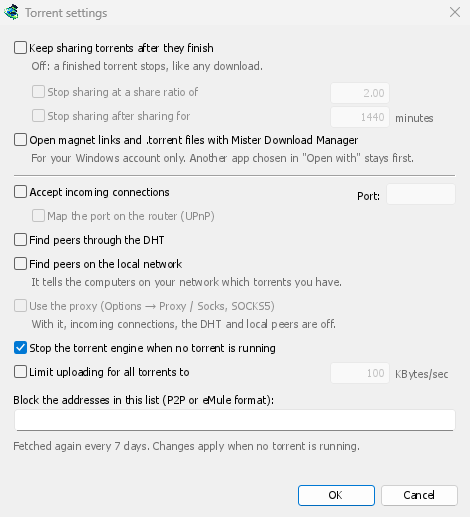
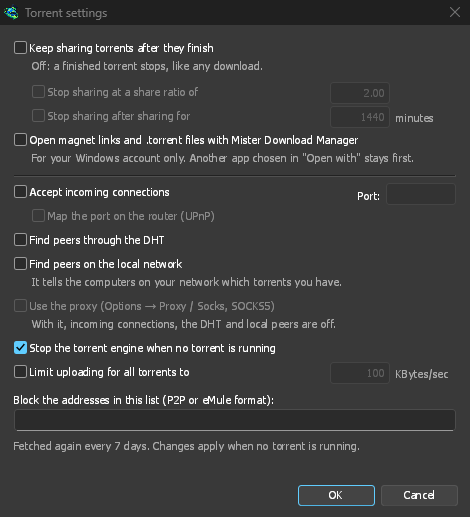
- Seguir compartiendo torrents después de que terminen — desactivado por defecto: un torrent terminado se detiene, como cualquier descarga. Actívelo para seguir subiendo a otros pares después de que su descarga se haya completado.
- Dejar de compartir con una relación de uso compartido de — un torrent terminado deja de compartirse una vez que ha enviado esa cantidad de veces lo que tiene (2.00: el doble). Desactivado por defecto.
- Dejar de compartir después de compartir durante … minutos — o una vez que se ha compartido durante ese tiempo, en todas sus ejecuciones. Desactivado por defecto.
A torrent stopped by one of these says so in its event log, and isn't shared again when GDM starts. Raise or turn off the limit to share it again.
- Limit uploading for all torrents to — off by default. Caps what all your torrents together send to other peers, while they download and while they share. A torrent's own upload limit, in its progress window, applies on top of it.
- Open magnet links and .torrent files with GolinksPRO Download Manager — Windows then opens magnet links in your browser and .torrent files in Explorer with GDM. This is for your Windows account only; a program you chose in Windows' Open with stays first. The setup can turn it on for you.
La misma ventana tiene los ajustes de red (conexiones entrantes, el puerto, UPnP, DHT, un proxy SOCKS5) y la lista de bloqueo: consulta Torrents y tu seguridad.
GDM starts its torrent engine the first time you add a torrent. If you never use torrents, it never listens for peers.
On a Linux system without CA certificates (a minimal install without the ca-certificates package), torrents still work: peers, the DHT and http:// trackers. An https:// tracker can't be checked there, so GDM skips it; install that package to use those too.
With a debrid account, torrents and magnet links can go to the service instead of to peers, and GDM downloads the files from it over HTTP: see Torrents through the service.
Pasos siguientes
Gratis, código abierto, sin anuncios, sin prueba.
Download GolinksPRO Download Manager