

GDM downloads BitTorrent files from magnet links and .torrent files. Torrents appear in the same list as other downloads, marked Torrent in the Source column, and can be queued and scheduled like them.
Aggiungi un torrent
- Fai clic su Aggiungi torrent nella barra degli strumenti per scegliere un file
.torrent. Oppure fai clic sulla freccia accanto e scegli Apri file torrent... o Aggiungi link magnet... (anche sotto Attività). - Si apre la finestra Aggiungi torrent. Incolla un link magnet in Torrent, oppure fai clic su ... per scegliere un file
.torrent, poi fai clic su Cerca. - GDM reads the torrent and shows its files as a folder tree. A
.torrentfile is read at once. A magnet link first has to get the file list from other peers, usually within seconds. While it waits, Add torrent shows how many peers it found, from the trackers, the DHT or your local network, and how many answered. After 30 seconds without an answer, it says what may be in the way: a link with no trackers while the DHT is off, or a firewall, a VPN or a network that blocks BitTorrent. - Deseleziona le cartelle o i file che non vuoi. Seleziona tutto e Deseleziona tutto sono utili con i torrent di grandi dimensioni. Selezionati mostra quanti file e quanti dati hai selezionato.
- Controlla Salva in. I file vanno in mostra la cartella esatta. I torrent hanno una categoria dedicata, quindi per impostazione predefinita è
Downloads\Torrents. - Per guardare un video mentre viene scaricato, seleziona Scarica in sequenza (vedi Scarica in sequenza).
- Fai clic su Scarica ora, o su Più tardi per aggiungerlo all'elenco senza avviare il download.
Deseleziona ciò che non vuoi, poi fai clic su Scarica ora. 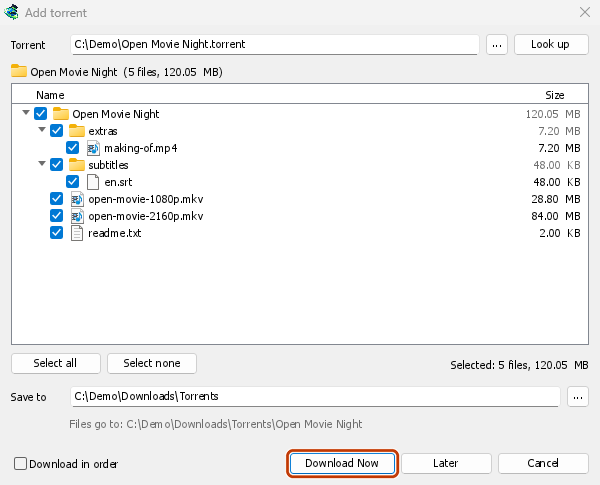

La sua finestra di avanzamento: ogni file e quanto ne è stato scaricato. 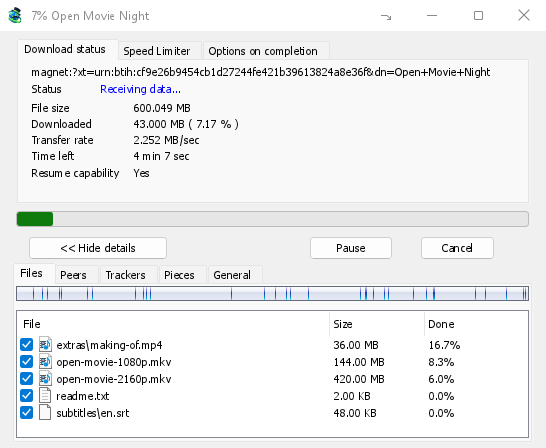
Parti: la mappa delle parti del torrent, che si riempie. 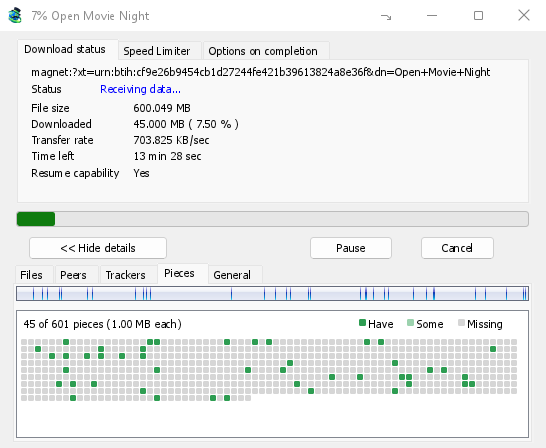
You can also paste a magnet link into Add URL, or drop a magnet link or a .torrent file on the drop target (Tasks → Show drop target). If a torrent is already in the list, GDM says so instead of adding it twice.
A .torrent file's web address works too: paste it into Add URL or Torrent, or let the browser hand the download over. GDM fetches the file, with the browser's cookies when the browser sent it, and Add torrent shows what it holds. The browser hands .torrent downloads over because TORRENT is in Options → File types. It's there by default; a list you had before this version keeps what it had, so add TORRENT to it yourself. Download with GolinksPRO Download Manager on a link always hands it over. A command line with /n (silent) saves the .torrent file itself, like any file. GDM fetches at most 10 MB: anything bigger isn't a .torrent file.
If some of the torrent's files are already in the folder, GDM asks before using them. Yes keeps them for the torrent: GDM checks them, keeps what matches the torrent and downloads the rest, which is how you continue a download started elsewhere or share files you already have. No (the default) goes back, so you can choose another folder and nothing of yours is overwritten.
GDM refuses a torrent with file names your system can't write safely, says which name, and writes nothing. What others can see, the network switches in Torrent settings, blocklists and proxies: Torrents and your security.
Durante il download
Fai doppio clic sul torrent nell'elenco per aprire la finestra di avanzamento. Oltre al normale stato, la finestra di un torrent ha cinque schede:
- File: ogni file, la sua dimensione e la quantità scaricata. I file che hai deselezionato mostrano Saltato. Seleziona o deseleziona la casella di un file per modificare cosa viene scaricato, anche mentre il torrent è in esecuzione. Almeno un file resta selezionato. Se deselezioni tutti i file che mancano ancora, il torrent termina. Se un torrent completato e non in esecuzione riceve di nuovo un file, resta fermo finché non lo riprendi, così non viene scaricato nulla a tua insaputa.
- Peer: i computer da cui scarichi, con la quantità di dati ricevuti e inviati a ciascuno.
- Tracker: i tracker del torrent. Se non ce ne sono, i peer provengono dalla DHT e dagli altri peer.
- Parti: una mappa delle parti del torrent: presenti, parzialmente presenti o mancanti.
- General — the info hash, pieces, peers, how much was sent, the share ratio, how long it has been shared and the folder. What was sent and the time shared add up over all of the torrent's runs: they don't start again at 0 after a pause or a restart of GDM.
Le schede restano disponibili dopo che il torrent è terminato, finché è condiviso.
La scheda Limitatore di velocità della finestra di un torrent permette di impostare, oltre al limite di download, Limita l'upload a una velocità a tua scelta. Il limite viene salvato con il torrent e si applica ogni volta che il torrent viene eseguito o condiviso. In ogni caso, la velocità di un torrent non può essere limitata a meno di 16 KB/sec.
Comandi torrent
Fai clic destro su un torrent nell'elenco e apri Torrent:
- Verifica di nuovo i file: legge e verifica ogni parte dei file del torrent, ad esempio dopo aver spostato i file o in caso di errori del disco. Un torrent in esecuzione riprende e scarica ciò che manca. Un torrent fermo resta fermo. Il log eventi indica la quantità di dati trovata: un torrent completato con una parte danneggiata si ferma e, quando lo riprendi, scarica di nuovo quella parte.
- Riannuncia: chiede subito di nuovo i peer ai tracker del torrent, invece di aspettare il successivo aggiornamento. Funziona mentre il torrent è in esecuzione o condiviso.
- Add trackers... — adds trackers, one address a line (
http,httpsorudp). They are kept with the torrent, after the ones it has, and the Trackers tab shows them. A tracker on your computer or your local network is refused: GDM never contacts those (why). - Scarica in sequenza: scarica i file del torrent dall'inizio (vedi sotto). Fai clic di nuovo per tornare a scaricare prima le parti più rare.
- Prima le parti iniziali e finali: con Scarica in sequenza, le parti iniziali e finali di ogni file vengono scaricate prima delle altre. L'opzione è attiva per impostazione predefinita.
- Copia link magnet: copia un link magnet al torrent, con i suoi tracker.
L'esito di ogni comando viene annotato nel log eventi del torrent; passa il puntatore sulla sua cella Stato nell'elenco per leggerlo.
Scarica in sequenza
By default GDM downloads the pieces that the fewest peers have first, as BitTorrent programs usually do. That way a piece only one peer has is fetched before that peer leaves, and GDM can pass it on to others sooner. On GDM's test swarms it finished just as fast as downloading in order, and it was the only order that finished when a scarce piece's only holder left.
Scarica in sequenza scarica prima l'inizio di un file, così puoi guardare un video mentre viene scaricato: aprilo nel lettore quando è disponibile la prima parte. Seleziona l'opzione in Aggiungi torrent, oppure scegli Torrent → Scarica in sequenza dal menu del clic destro nell'elenco, in qualsiasi momento, anche mentre il torrent è in download. Le parti richieste successivamente seguiranno il nuovo ordine.
- Con Prima le parti iniziali e finali (attiva per impostazione predefinita), anche le parti finali di ogni file vengono scaricate presto. La maggior parte dei file video contiene l'indice alla fine, e il lettore lo legge prima di riprodurre qualsiasi cosa.
- I file vengono scaricati uno dopo l'altro, in ordine alfabetico.
- I peer più lenti scaricano parti un po' più avanti, così l'inizio non resta in attesa.
Un torrent scaricato in sequenza non termina più in fretta e aiuta meno lo sciame: usalo per ciò che vuoi guardare subito.
Feed RSS
Many sites publish their new torrents as an RSS or Atom feed. GDM can watch feeds, list what they hold, and add the new torrents you want by itself. Choose Tasks → RSS feeds..., or click the arrow next to Add Torrent.


Scheda Feed:
- Type a feed's address into Feed address and click Add feed. GDM fetches it at once, then every 30 minutes; change that under Check feeds every ... minutes, 5 at the least.
- Seleziona un feed a sinistra per vedere i suoi articoli. Se un articolo contiene un torrent, viene mostrata un'icona torrent e, se il feed la fornisce, la dimensione. Fai doppio clic su un articolo, oppure selezionalo e fai clic su Scarica..., per aprirlo in Aggiungi torrent, come faresti con qualsiasi link magnet o indirizzo
.torrent. - Aggiorna recupera subito il feed selezionato. Rimuovi interrompe il monitoraggio. I feed che non è possibile leggere vengono mostrati in rosso e la riga in basso indica il motivo.
Scheda Regole di download: una regola aggiunge senza chiedere i torrent degli articoli nuovi il cui titolo corrisponde ai criteri.
- Deve contenere: le parole che il titolo deve contenere, tutte e in qualsiasi ordine.
|separa le alternative (1080p|2160p), mentre*e?sono caratteri jolly. Le maiuscole e le minuscole sono considerate uguali. - Non deve contenere: le parole che fanno ignorare un articolo alla regola, specificate allo stesso modo.
- Espressioni regolari: usa invece espressioni regolari nelle due caselle.
- Episodi: quali episodi scaricare, ricavati dal titolo da
S01E05o1x05.1x2indica la stagione 1, episodio 2;1x5-8gli episodi dal 5 all'8;2x1-tutti gli episodi dalla stagione 2, episodio 1 in poi;3tutta la stagione 3. Separa i valori con;. Se il campo è vuoto, vengono considerati tutti gli articoli. Una regola scarica ogni episodio una sola volta: una nuova release di un episodio già aggiunto viene ignorata. - Salva in: la cartella in cui vengono salvati i torrent; se il campo è vuoto, viene usata la cartella della categoria Torrent. Aggiungili senza avviarli li aggiunge come farebbe Scarica più tardi.
- Feed: i feed da monitorare; se nessuno è selezionato, vengono usati tutti.
Rules only look at articles that are new since the feed was last fetched, and a feed's first fetch only lists what is there. So adding a feed or a rule never downloads a whole backlog. Matches ... articles now shows which of the articles the feeds hold now the rule matches, to check it; download those by hand. A torrent the list already has isn't added again, and neither is one whose files are already in the folder: GDM never writes into files it didn't make without asking. The bottom line of the tab says what the rules did last, and a torrent a rule added says so in its event log.
Feeds and rules are kept in rss.json in GDM's data folder. GDM reads at most 5 MB of a feed.
Impostazioni torrent
Scegli Attività → Impostazioni torrent... (oppure fai clic sulla freccia accanto a Aggiungi torrent):
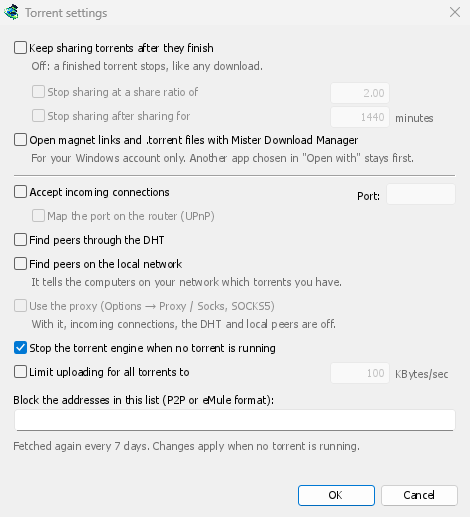
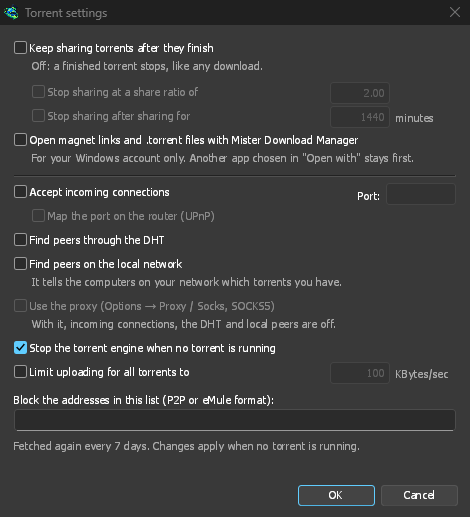
- Continua a condividere i torrent dopo il completamento: disattivato per impostazione predefinita: un torrent completato si interrompe, come qualsiasi download. Attivalo per continuare a fare upload agli altri peer dopo aver completato il download.
- Interrompi la condivisione al rapporto di: un torrent completato smette di essere condiviso quando ha inviato quel numero di volte la propria dimensione (2.00: il doppio). Disattivata per impostazione predefinita.
- Interrompi la condivisione dopo … minuti di condivisione: oppure quando il torrent è stato condiviso così a lungo, sommando tutte le sessioni. Disattivata per impostazione predefinita.
A torrent stopped by one of these says so in its event log, and isn't shared again when GDM starts. Raise or turn off the limit to share it again.
- Limit uploading for all torrents to — off by default. Caps what all your torrents together send to other peers, while they download and while they share. A torrent's own upload limit, in its progress window, applies on top of it.
- Open magnet links and .torrent files with GolinksPRO Download Manager — Windows then opens magnet links in your browser and .torrent files in Explorer with GDM. This is for your Windows account only; a program you chose in Windows' Open with stays first. The setup can turn it on for you.
La stessa finestra contiene le impostazioni di rete (connessioni in entrata, la porta, UPnP, la DHT, un proxy SOCKS5) e la blocklist: vedi Torrent e la tua sicurezza.
GDM starts its torrent engine the first time you add a torrent. If you never use torrents, it never listens for peers.
On a Linux system without CA certificates (a minimal install without the ca-certificates package), torrents still work: peers, the DHT and http:// trackers. An https:// tracker can't be checked there, so GDM skips it; install that package to use those too.
With a debrid account, torrents and magnet links can go to the service instead of to peers, and GDM downloads the files from it over HTTP: see Torrents through the service.
Passi successivi
Gratuito, open source, senza pubblicità, senza periodo di prova.
Download GolinksPRO Download Manager