

GDM downloads BitTorrent files from magnet links and .torrent files. Torrents appear in the same list as other downloads, marked Torrent in the Source column, and can be queued and scheduled like them.
เพิ่มทอร์เรนต์
- คลิก เพิ่มทอร์เรนต์ บนแถบเครื่องมือเพื่อเลือกไฟล์
.torrentหรือคลิกลูกศรข้างปุ่ม แล้วเลือก เปิดไฟล์ทอร์เรนต์... หรือ เพิ่มลิงก์แม่เหล็ก... (มีใน งาน ด้วย) - หน้าต่าง เพิ่มทอร์เรนต์ จะเปิดขึ้น วางลิงก์แม่เหล็กในช่อง ทอร์เรนต์ หรือคลิก ... เพื่อเลือกไฟล์
.torrentจากนั้นคลิก ค้นหา - GDM reads the torrent and shows its files as a folder tree. A
.torrentfile is read at once. A magnet link first has to get the file list from other peers, usually within seconds. While it waits, Add torrent shows how many peers it found, from the trackers, the DHT or your local network, and how many answered. After 30 seconds without an answer, it says what may be in the way: a link with no trackers while the DHT is off, or a firewall, a VPN or a network that blocks BitTorrent. - ยกเลิกการเลือกโฟลเดอร์หรือไฟล์ที่ไม่ต้องการ เลือกทั้งหมด และ ไม่เลือกเลย ช่วยจัดการทอร์เรนต์ขนาดใหญ่ ที่เลือก จะแสดงจำนวนไฟล์และปริมาณข้อมูลที่เลือก
- ตรวจสอบ บันทึกไปที่ ไฟล์จะไปที่ จะแสดงโฟลเดอร์ปลายทางอย่างชัดเจน ทอร์เรนต์มีหมวดหมู่ของตัวเอง ดังนั้นค่าเริ่มต้นจึงเป็น
Downloads\Torrents - หากต้องการดูวิดีโอระหว่างดาวน์โหลด ให้เลือก ดาวน์โหลดตามลำดับ (ดู ดาวน์โหลดตามลำดับ)
- คลิก ดาวน์โหลดเดี๋ยวนี้ หรือ ภายหลัง เพื่อเพิ่มลงในรายการโดยไม่ต้องเริ่มดาวน์โหลด
ยกเลิกการเลือกสิ่งที่คุณไม่ต้องการ จากนั้นคลิก ดาวน์โหลดเดี๋ยวนี้ 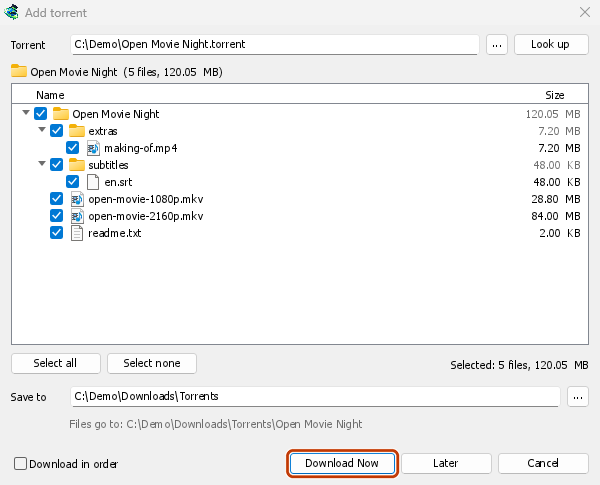

หน้าต่างแสดงความคืบหน้า: แต่ละไฟล์และปริมาณที่ดาวน์โหลดได้ 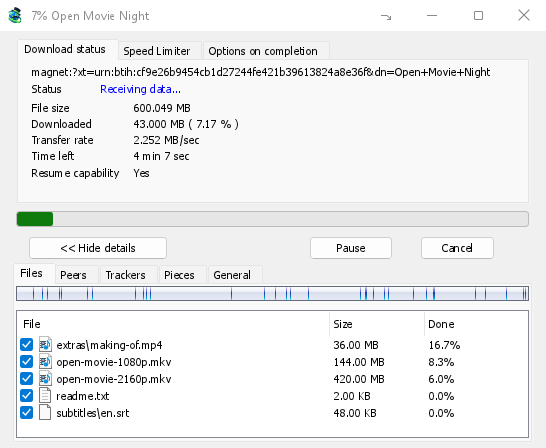
ชิ้นส่วน: แผนที่ของทอร์เรนต์ที่กำลังเติมเต็ม 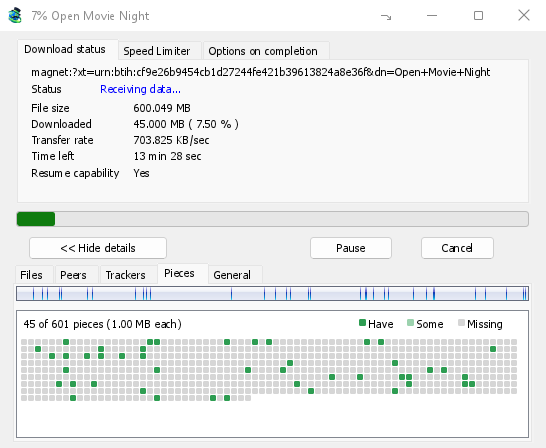
You can also paste a magnet link into Add URL, or drop a magnet link or a .torrent file on the drop target (Tasks → Show drop target). If a torrent is already in the list, GDM says so instead of adding it twice.
A .torrent file's web address works too: paste it into Add URL or Torrent, or let the browser hand the download over. GDM fetches the file, with the browser's cookies when the browser sent it, and Add torrent shows what it holds. The browser hands .torrent downloads over because TORRENT is in Options → File types. It's there by default; a list you had before this version keeps what it had, so add TORRENT to it yourself. Download with GolinksPRO Download Manager on a link always hands it over. A command line with /n (silent) saves the .torrent file itself, like any file. GDM fetches at most 10 MB: anything bigger isn't a .torrent file.
If some of the torrent's files are already in the folder, GDM asks before using them. Yes keeps them for the torrent: GDM checks them, keeps what matches the torrent and downloads the rest, which is how you continue a download started elsewhere or share files you already have. No (the default) goes back, so you can choose another folder and nothing of yours is overwritten.
GDM refuses a torrent with file names your system can't write safely, says which name, and writes nothing. What others can see, the network switches in Torrent settings, blocklists and proxies: Torrents and your security.
ระหว่างการดาวน์โหลด
ดับเบิลคลิกทอร์เรนต์ในรายการเพื่อเปิดหน้าต่างความคืบหน้า นอกจากสถานะทั่วไปแล้ว หน้าต่างทอร์เรนต์ยังมี 5 แท็บ:
- ไฟล์ — แสดงแต่ละไฟล์ ขนาด และความคืบหน้า ไฟล์ที่ยกเลิกการเลือกจะแสดงสถานะ ข้าม เลือกหรือยกเลิกการเลือกช่องของไฟล์เพื่อเปลี่ยนไฟล์ที่จะดาวน์โหลดได้ แม้ขณะที่ทอร์เรนต์กำลังทำงาน ต้องเลือกไฟล์ไว้อย่างน้อย 1 ไฟล์ หากยกเลิกการเลือกไฟล์ที่ยังดาวน์โหลดไม่ครบทั้งหมด ทอร์เรนต์จะเสร็จสิ้น หากมีไฟล์กลับมาในทอร์เรนต์ที่เสร็จแล้วและไม่ได้กำลังทำงาน ทอร์เรนต์จะหยุดรอจนกว่าจะดำเนินการต่อ เพื่อไม่ให้ดาวน์โหลดโดยที่ไม่เห็น
- เพียร์ — คอมพิวเตอร์ที่กำลังดาวน์โหลดไฟล์จาก โดยแสดงปริมาณข้อมูลที่ได้รับจากและส่งไปยังแต่ละเครื่อง
- Trackers — ตัวติดตามของทอร์เรนต์ หากไม่มี ตัวติดตามจะมาจาก DHT และเพียร์อื่นๆ
- ชิ้นส่วน — แผนที่ชิ้นส่วนของทอร์เรนต์ แสดงว่ามีครบ มีบางส่วน หรือยังขาดอยู่
- General — the info hash, pieces, peers, how much was sent, the share ratio, how long it has been shared and the folder. What was sent and the time shared add up over all of the torrent's runs: they don't start again at 0 after a pause or a restart of GDM.
แท็บต่าง ๆ จะยังอยู่หลังดาวน์โหลดทอร์เรนต์เสร็จ ตราบใดที่ยังแชร์อยู่
แท็บ ตัวจำกัดความเร็ว ในหน้าต่างทอร์เรนต์มีตัวเลือก จำกัดความเร็วการอัปโหลด นอกเหนือจากขีดจำกัดความเร็วดาวน์โหลด โดยเลือกความเร็วได้ตามต้องการ ขีดจำกัดนี้จะบันทึกไว้กับทอร์เรนต์ และมีผลทุกครั้งที่ทอร์เรนต์ทำงานหรือแชร์ ไม่ว่าจะตั้งค่าอย่างไร ความเร็วของทอร์เรนต์จะไม่ต่ำกว่า 16 กิโลไบต์/วินาที
คำสั่งทอร์เรนต์
คลิกขวาที่ทอร์เรนต์ในรายการ แล้วเปิด ทอร์เรนต์:
- ตรวจสอบไฟล์อีกครั้ง — อ่านและตรวจสอบทุกชิ้นส่วนของไฟล์ทอร์เรนต์ เช่น หลังย้ายไฟล์เข้ามาหรือเกิดข้อผิดพลาดกับดิสก์ ทอร์เรนต์ที่กำลังทำงานจะทำงานต่อและดาวน์โหลดส่วนที่ขาดหายไป ส่วนทอร์เรนต์ที่หยุดอยู่จะยังคงหยุด บันทึกเหตุการณ์จะแสดงว่าพบข้อมูลมากน้อยเพียงใด หากชิ้นส่วนเสียหายในทอร์เรนต์ที่ดาวน์โหลดเสร็จแล้ว ทอร์เรนต์จะหยุด และเมื่อดำเนินการต่อก็จะดาวน์โหลดชิ้นส่วนนั้นอีกครั้ง
- แจ้งตัวติดตามอีกครั้ง — ขอข้อมูลเพียร์จากตัวติดตามของทอร์เรนต์อีกครั้งทันที แทนที่จะรอรอบถัดไป ใช้ได้ขณะที่ทอร์เรนต์กำลังทำงานหรือแชร์
- Add trackers... — adds trackers, one address a line (
http,httpsorudp). They are kept with the torrent, after the ones it has, and the Trackers tab shows them. A tracker on your computer or your local network is refused: GDM never contacts those (why). - ดาวน์โหลดตามลำดับ — ดาวน์โหลดไฟล์ในทอร์เรนต์จากต้นไฟล์ก่อน (ดูด้านล่าง) คลิกอีกครั้งเพื่อกลับไปดาวน์โหลดชิ้นส่วนที่มีอยู่น้อยที่สุดก่อน
- ชิ้นส่วนแรกและชิ้นส่วนสุดท้ายก่อน — เมื่อเลือก ดาวน์โหลดตามลำดับ ชิ้นส่วนแรกและชิ้นส่วนสุดท้ายของแต่ละไฟล์จะมาก่อนส่วนที่เหลือ ซึ่งเปิดใช้งานโดยค่าเริ่มต้น
- คัดลอกลิงก์แม่เหล็ก — คัดลอกลิงก์แม่เหล็กสำหรับทอร์เรนต์ พร้อมตัวติดตาม
ผลลัพธ์ของแต่ละคำสั่งจะอยู่ในบันทึกเหตุการณ์ของทอร์เรนต์; วางเมาส์เหนือเซลล์ สถานะ ในรายการเพื่ออ่าน
ดาวน์โหลดตามลำดับ
By default GDM downloads the pieces that the fewest peers have first, as BitTorrent programs usually do. That way a piece only one peer has is fetched before that peer leaves, and GDM can pass it on to others sooner. On GDM's test swarms it finished just as fast as downloading in order, and it was the only order that finished when a scarce piece's only holder left.
ดาวน์โหลดตามลำดับ จะดาวน์โหลดต้นไฟล์ก่อน เพื่อให้ดูวิดีโอระหว่างดาวน์โหลดได้ โดยเปิดวิดีโอในโปรแกรมเล่นเมื่อดาวน์โหลดส่วนแรกเสร็จ เลือกตัวเลือกนี้ใน เพิ่มทอร์เรนต์ หรือเลือก ทอร์เรนต์ → ดาวน์โหลดตามลำดับ จากเมนูคลิกขวาของรายการได้ทุกเมื่อ แม้ขณะกำลังดาวน์โหลด ชิ้นส่วนที่ร้องขอถัดไปจะเป็นไปตามลำดับใหม่
- เมื่อเลือก ชิ้นส่วนแรกและชิ้นส่วนสุดท้ายก่อน (เปิดใช้งานไว้เป็นค่าเริ่มต้น) ชิ้นส่วนท้ายๆ ของแต่ละไฟล์จะถูกดาวน์โหลดก่อนด้วย ไฟล์วิดีโอส่วนใหญ่เก็บดัชนีไว้ที่ส่วนท้าย และโปรแกรมเล่นจะอ่านดัชนีก่อนเล่นวิดีโอ
- ไฟล์หลายไฟล์จะถูกดาวน์โหลดทีละไฟล์ โดยเรียงตามชื่อ
- เพียร์ที่ช้ากว่าจะได้รับชิ้นส่วนที่อยู่ถัดไปอีกเล็กน้อย เพื่อไม่ให้การดาวน์โหลดส่วนต้นต้องรอ
การดาวน์โหลดทอร์เรนต์ตามลำดับไม่ได้ทำให้ดาวน์โหลดเสร็จเร็วขึ้น และช่วยสวอร์มน้อยกว่า ใช้วิธีนี้กับไฟล์ที่ต้องการดูตอนนี้
ฟีด RSS
Many sites publish their new torrents as an RSS or Atom feed. GDM can watch feeds, list what they hold, and add the new torrents you want by itself. Choose Tasks → RSS feeds..., or click the arrow next to Add Torrent.


แท็บ ฟีด:
- Type a feed's address into Feed address and click Add feed. GDM fetches it at once, then every 30 minutes; change that under Check feeds every ... minutes, 5 at the least.
- เลือกฟีดทางซ้ายเพื่อดูบทความ บทความที่มีทอร์เรนต์จะแสดงไอคอนทอร์เรนต์และขนาด หากฟีดระบุไว้ ดับเบิลคลิกบทความ หรือเลือกแล้วคลิก ดาวน์โหลด... เพื่อเปิด เพิ่มทอร์เรนต์ พร้อมข้อมูลนั้น เช่นเดียวกับลิงก์แม่เหล็กหรือที่อยู่
.torrent - รีเฟรช จะดึงข้อมูลฟีดที่เลือกทันที ส่วน เอาออก จะหยุดติดตามฟีด ฟีดที่อ่านไม่ได้จะแสดงเป็นสีแดง และบรรทัดด้านล่างจะแจ้งสาเหตุ
แท็บ กฎการดาวน์โหลด: กฎจะเพิ่มทอร์เรนต์จากบทความใหม่ที่ชื่อตรงกับเงื่อนไขโดยอัตโนมัติ โดยไม่ถาม
- ต้องมี: คำทั้งหมดที่ชื่อต้องมี โดยเรียงลำดับใดก็ได้
|ใช้คั่นตัวเลือก (1080p|2160p) ส่วน*และ?ใช้แทนอักขระ ไม่แยกตัวพิมพ์เล็กกับตัวพิมพ์ใหญ่ - ต้องไม่มี: คำที่ทำให้กฎข้ามบทความ โดยเขียนในรูปแบบเดียวกัน
- การแสดงออกทั่วไป: ใช้การแสดงออกทั่วไปแทนในช่องทั้งสอง
- ตอน: ระบุตอนที่จะเลือก โดยดูจาก
S01E05หรือ1x05ในชื่อ1x2หมายถึงซีซัน 1 ตอน 2,1x5-8หมายถึงตอนที่ 5 ถึง 8,2x1-หมายถึงทุกตอนตั้งแต่ซีซัน 2 ตอน 1 เป็นต้นไป และ3หมายถึงทุกตอนของซีซัน 3 คั่นรายการด้วย;เว้นว่างไว้เพื่อเลือกทุกบทความ กฎจะเลือกแต่ละตอนเพียงครั้งเดียว โดยจะข้ามการเผยแพร่ตอนที่เพิ่มไปแล้ว - บันทึกไปที่: โฟลเดอร์สำหรับบันทึกทอร์เรนต์ หากเว้นว่างไว้ จะใช้โฟลเดอร์ของหมวดหมู่ทอร์เรนต์ เพิ่มโดยไม่เริ่ม จะเพิ่มทอร์เรนต์เหมือนกับเลือก ดาวน์โหลดภายหลัง
- ฟีด: ฟีดที่จะติดตาม หากไม่เลือกฟีด จะติดตามทั้งหมด
Rules only look at articles that are new since the feed was last fetched, and a feed's first fetch only lists what is there. So adding a feed or a rule never downloads a whole backlog. Matches ... articles now shows which of the articles the feeds hold now the rule matches, to check it; download those by hand. A torrent the list already has isn't added again, and neither is one whose files are already in the folder: GDM never writes into files it didn't make without asking. The bottom line of the tab says what the rules did last, and a torrent a rule added says so in its event log.
Feeds and rules are kept in rss.json in GDM's data folder. GDM reads at most 5 MB of a feed.
การตั้งค่าทอร์เรนต์
เลือก Tasks → Torrent settings... (หรือลูกศรข้าง Add Torrent):
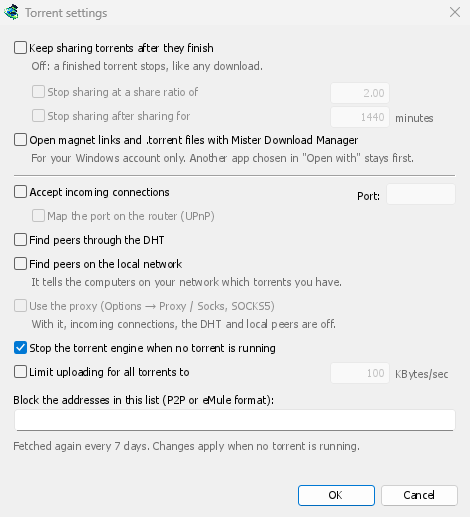
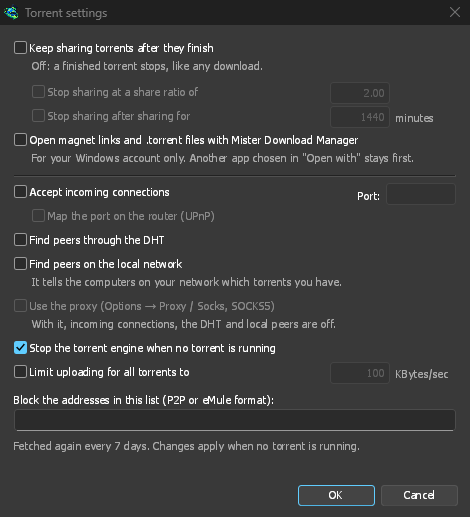
- แชร์ทอร์เรนต์ต่อไปหลังจากดาวน์โหลดเสร็จสิ้น — ปิดไว้โดยค่าเริ่มต้น: ทอร์เรนต์ที่ดาวน์โหลดเสร็จแล้วจะหยุดทำงานเหมือนกับการดาวน์โหลดทั่วไป เปิดตัวเลือกนี้เพื่ออัปโหลดให้เพียร์รายอื่นต่อไปหลังจากดาวน์โหลดเสร็จ
- หยุดการแชร์เมื่ออัตราส่วนการแชร์ถึง — ทอร์เรนต์ที่ดาวน์โหลดเสร็จแล้วจะหยุดการแชร์เมื่อได้ส่งข้อมูลออกไปเป็นจำนวนเท่าของข้อมูลที่มีอยู่ (2.00: สองเท่า) ปิดใช้งานโดยค่าเริ่มต้น
- หยุดการแชร์หลังจากแชร์เป็นเวลา … นาที — หรือหยุดเมื่อแชร์ครบเวลาที่กำหนด โดยนับรวมทุกครั้งที่ทำงาน ปิดไว้โดยค่าเริ่มต้น
A torrent stopped by one of these says so in its event log, and isn't shared again when GDM starts. Raise or turn off the limit to share it again.
- Limit uploading for all torrents to — off by default. Caps what all your torrents together send to other peers, while they download and while they share. A torrent's own upload limit, in its progress window, applies on top of it.
- Open magnet links and .torrent files with GolinksPRO Download Manager — Windows then opens magnet links in your browser and .torrent files in Explorer with GDM. This is for your Windows account only; a program you chose in Windows' Open with stays first. The setup can turn it on for you.
ในหน้าต่างเดียวกันนี้มีสวิตช์เครือข่าย (การเชื่อมต่อขาเข้า, พอร์ต, UPnP, DHT, พร็อกซี SOCKS5) และรายการบล็อก: ดู ทอร์เรนต์และความปลอดภัยของคุณ
GDM starts its torrent engine the first time you add a torrent. If you never use torrents, it never listens for peers.
On a Linux system without CA certificates (a minimal install without the ca-certificates package), torrents still work: peers, the DHT and http:// trackers. An https:// tracker can't be checked there, so GDM skips it; install that package to use those too.
With a debrid account, torrents and magnet links can go to the service instead of to peers, and GDM downloads the files from it over HTTP: see Torrents through the service.
ขั้นตอนถัดไป
ฟรี, โอเพนซอร์ส, ไม่มีโฆษณา, ไม่มีช่วงทดลองใช้
Download GolinksPRO Download Manager