

There are several ways to give GDM something to download. Most of them end in the same window, Download File Info, where you choose where the file goes.
URL जोड़ें
- फ़ाइल का पता कॉपी करें (ब्राउज़र में: लिंक पर राइट-क्लिक करें → लिंक कॉपी करें)।
- टूलबार पर URL जोड़ें पर क्लिक करें, कार्य → नया डाउनलोड जोड़ें चुनें, या Ctrl+N दबाएँ।
- डाउनलोड करने के लिए नया पता दर्ज करें विंडो खुलती है। अगर क्लिपबोर्ड में वेब पता है, तो वह पहले से भरा होता है। पता के अंत में मौजूद तीर से आपके दर्ज किए गए पिछले 20 पतों की सूची खुलती है। किसी पते को फिर से इस्तेमाल करने के लिए उसे चुनें। काटें, कॉपी करें, चिपकाएँ, हटाएँ और सभी चुनें विकल्पों के लिए बॉक्स पर राइट-क्लिक करें।
- अगर सर्वर को उपयोगकर्ता नाम और पासवर्ड चाहिए, तो प्राधिकरण का उपयोग करें पर टिक करें और दोनों दर्ज करें।
- ठीक है पर क्लिक करें।
GDM takes http://, https://, ftp://, ftps://, ftpes:// and magnet: addresses. Anything else gets Invalid address.
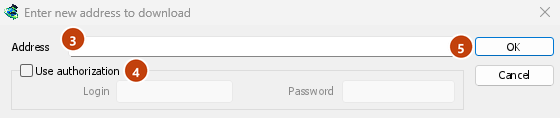
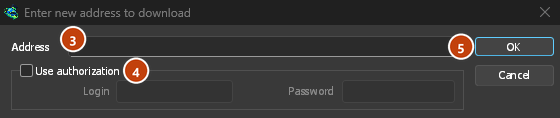
अगर पता किसी वीडियो के पेज का है (YouTube, Vimeo, TikTok और अन्य), तो वीडियो विंडो खुलती है। वीडियो डाउनलोड देखें। मैग्नेट लिंक से टॉरेंट जोड़ें खुलता है; टॉरेंट देखें।
FTP और FTPS
FTP डाउनलोड, वेब डाउनलोड की तरह काम करते हैं: एक साथ कई कनेक्शन, रोकने और फिर से शुरू करने की सुविधा, और वही प्रगति विंडो।
ftp://— साधारण FTP।ftpes://— सत्र की शुरुआत से TLS द्वारा सुरक्षित FTP (एक्सप्लिसिट FTPS,AUTH TLS, आमतौर पर पोर्ट 21)। इसका इस्तेमाल तब करें जब सर्वर TLS का समर्थन करता हो।ftps://— इम्प्लिसिट FTPS, पोर्ट 990, जब तक पते में कोई दूसरा पोर्ट न दिया गया हो।
सर्वर के प्रमाणपत्र की जाँच Windows (या सिस्टम) के विश्वसनीय प्रमाणपत्रों के विरुद्ध की जाती है, जैसा कि https:// के लिए होता है। उनके बिना एक Linux सिस्टम (ca-certificates पैकेज के बिना एक न्यूनतम इंस्टॉलेशन) अभी भी सादे HTTP और FTP पर डाउनलोड करता है; प्रत्येक सुरक्षित डाउनलोड तुरंत विफल हो जाता है, यह कहते हुए कि उस पैकेज को स्थापित करें।
Logging in. Write the login in the address (ftp://user:password@server/folder/file.iso),
tick Use authorization, or save it in Options → Sites Logins. Without one, GDM logs in as
anonymous. The path is relative to the folder the login starts in; to start from the server's
root, write %2F after the server (ftp://server/%2Fpub/file.iso).
Resuming. GDM keeps the file's size and modification time. If either has changed when you resume, it says the file changed on the server instead of mixing two versions (Options → Downloads → Ignore file modification time changes skips the time check). The password is not written to the resume file next to the download: GDM gives it again when it resumes.
कनेक्शन। डिफ़ॉल्ट रूप से पैसिव मोड का इस्तेमाल होता है। विकल्प → प्रॉक्सी / SOCKS → PASV मोड में FTP का उपयोग करें को बंद करने पर, FTP उन सर्वरों के लिए एक्टिव मोड इस्तेमाल करता है जो सिर्फ़ एक्टिव कनेक्शन स्वीकार करते हैं। FTP, HTTP प्रॉक्सी के बजाय सीधे सर्वर से कनेक्ट होता है।
Browsers no longer download ftp:// links themselves. Right-click one and choose Download with
GolinksPRO Download Manager, or copy it and use Add URL.
Google Drive लिंक
Google Drive के लिंक को उसी रूप में चिपकाएँ, जैसा शेयर करें → लिंक कॉपी करें से मिलता है:
https://drive.google.com/file/d/…/view?usp=sharing,/viewके साथ या उसके बिना;https://drive.google.com/uc?id=…&export=downloadऔरhttps://drive.google.com/open?id=…;https://docs.google.com/document/d/…/edit(और Sheets, Slides, Drawings)।
GDM downloads the file itself, as it was uploaded (a video comes in its own format, not the player's copy), with its real name and size, over several connections, and it can resume. For a large file, Drive shows a page that says it can't scan this file for viruses; GDM goes past it as Download anyway does.
Google Docs, Sheets और Slides की फ़ाइलें Word (.docx), Excel (.xlsx) और PowerPoint (.pptx) फ़ाइलों के रूप में मिलती हैं, और Drawings की फ़ाइल .png के रूप में मिलती है। ये फ़ाइलें अनुरोध किए जाने पर बनती हैं, इसलिए इनके डाउनलोड होने तक इनका आकार पता नहीं चलता और इन्हें फिर से शुरू नहीं किया जा सकता: बीच में रुक जाने पर डाउनलोड फिर से शुरू से होता है।
Files that aren't shared with everyone. Right-click the link in the browser and choose Download with GolinksPRO Download Manager, or use Drive's own Download button: the extension passes your browser's Google sign-in with the download. GDM never asks for or keeps your password. Without a sign-in, GDM says the file needs you to sign in.
When Drive won't give a file. Drive limits how often a file can be downloaded: after many downloads in a day it answers "too many users have viewed or downloaded this file recently". GDM shows Drive's own words and writes nothing. Try again later (it can take up to a day), or sign in to Google in your browser and download from there, which often gets past the limit. GDM doesn't try to get around it. A file whose owner turned off downloading, or that your account can't open, gets no access.
ड्राइव वीडियो पर वीडियो बटन मूल फ़ाइल को डाउनलोड करता है, न कि प्लेयर की छोटी प्रतियों में से एक को।
फ़ोल्डर अभी तक डाउनलोड नहीं किए जाते हैं: एक फ़ोल्डर का लिंक यह एक Google Drive फ़ोल्डर है, फ़ाइल नहीं देता है। ब्राउज़र में फ़ोल्डर खोलें और वहां से उसकी फ़ाइलें डाउनलोड करें।
फ़ाइल जानकारी डाउनलोड करें
GDM asks the server for the file's name and size, and shows them in Download File Info:
- URL — पता।
- श्रेणी — फ़ाइल के प्रकार (संपीड़ित, दस्तावेज़, संगीत, प्रोग्राम, वीडियो या सामान्य) से चुनी गई। प्रत्येक श्रेणी का अपना फ़ोल्डर होता है। इसके बगल में + एक नई श्रेणी बनाता है।
- इस रूप में सहेजें — फ़ोल्डर और फ़ाइल नाम। आप दूसरा टाइप कर सकते हैं, इसके अंत में तीर से आपके द्वारा सहेजे गए अंतिम 20 फ़ोल्डरों में से एक चुन सकते हैं, या ... के साथ एक फ़ोल्डर चुन सकते हैं।
- "…" श्रेणी के लिए इस पथ को याद रखें — अब से आपके द्वारा टाइप किए गए फ़ोल्डर को श्रेणी का फ़ोल्डर बनाने के लिए इस पर टिक करें।
- विवरण — आपका अपना एक नोट। यह सूची के विवरण कॉलम में दिखाता है और खोज इसे खोज सकती है।
- Server — where the server is: its country's flag and name, and how long a round trip to it takes. See Where the server is. It stays blank when the browser handed the download over with its name and size, since GDM didn't need to ask the server.
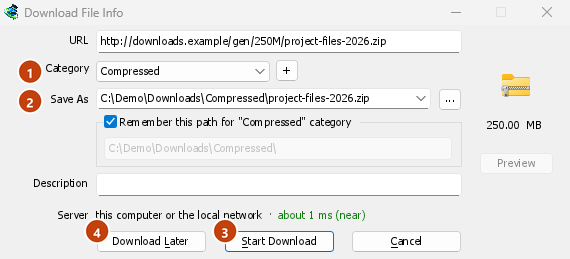
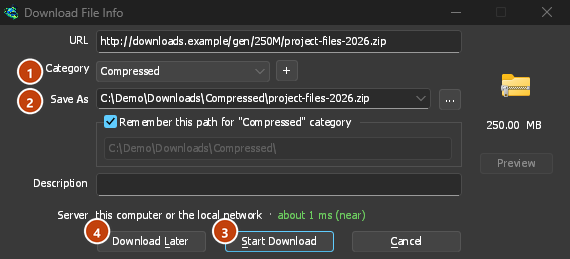
फिर चुनें:
- डाउनलोड प्रारंभ करें (या Enter) — अभी डाउनलोड करें। प्रगति विंडो खुलती है।
- बाद में डाउनलोड करें — बिना शुरू किए इसे एक कतार में जोड़ें। नीचे देखें।
- रद्द करें (या Esc) — कुछ भी न जोड़ें।
By default GDM starts downloading while this window is open, so no time is lost while you decide. Cancel drops what it fetched. You can turn this off in Options → Downloads → Start downloading immediately while displaying "Download File Info" dialog.
If the folder doesn't exist yet, GDM asks Do you want to create it? before it starts.
बाद में डाउनलोड करें
Download Later puts the download in a queue instead of starting it. By default GDM asks which one: pick the queue under Add to queue, and tick Start the queue now if you want it to run straight away. Cancel leaves the download in the list, in no queue.
उस प्रश्न को छोड़ने और हमेशा मुख्य डाउनलोड कतार का उपयोग करने के लिए, विकल्प → डाउनलोड → "बाद में डाउनलोड करें" बटन दबाने पर कतार चयन पैनल दिखाएँ को बंद करें।
कतारें और शेड्यूलर में कतारों के बारे में अधिक जानकारी।
क्लिपबोर्ड से
With Options → General → Offer to download links copied to the clipboard ticked (it is, unless you turned it off), when you copy a link to a file type in Options → File types (ZIP, EXE, MP4, PDF and many more), Download File Info opens with it filled in, ready for Start Download. Links to other pages are left alone. With Options → Downloads → Show start download dialog off, the download starts at once instead. Only links copied while GDM runs are taken, never one that was already there.
खींचें और छोड़ें
- Choose Tasks → Show drop target. A small box with the GDM icon appears and stays on top of other windows.
- Drag a link from your browser onto it. GDM adds it as if you had used Add URL.
You can also drop magnet links and .torrent files on it. Drag the box to move it, and double-click it to bring the main window back. Right-click it for Show GolinksPRO Download Manager, Add new download and Hide drop target.
बैच डाउनलोड: कई क्रमांकित फ़ाइलें
उन फ़ाइलों के लिए जिनके नाम केवल एक संख्या या अक्षर से भिन्न होते हैं, जैसे photo001.jpg से photo150.jpg:
- कार्य → बैच डाउनलोड जोड़ें चुनें। (कार्य → क्लिपबोर्ड से बैच डाउनलोड जोड़ें कॉपी किए गए पते को भर देता है।)
- पता में, पते को एक तारांकन के साथ लिखें जहाँ संख्या या अक्षर बदलता है:
https://example.com/photo*.jpg। - एस्टरिस्क को इससे बदलें के तहत, संख्याएँ या अक्षर चुनें, फिर से और तक।
- संख्याओं के लिए, वाइल्डकार्ड का आकार अंकों की संख्या के बराबर रखें। 3 चुनने पर फ़ाइलें
photo001.jpg,photo002.jpgऔर इसी तरह होंगी। - अगर सर्वर पर लॉगिन करना ज़रूरी है, तो प्राधिकरण का उपयोग करें चुनें।
- पहली फ़ाइल, दूसरी फ़ाइल और अंतिम फ़ाइल चुनें, फिर ठीक है पर क्लिक करें।
The downloads go to a queue. As with Download Later, GDM asks which queue unless you turn off Options → Downloads → Show queue selection panel on closing batch download dialogs.


लिंक की सूची
टेक्स्ट फ़ाइल के सभी लिंक जोड़ने के लिए:
- कार्य → आयात किया गया। → टेक्स्ट फ़ाइल से चुनें।
- Pick the file. Link grabber lists every web address GDM found in it, in packages.
- जिन पतों की ज़रूरत नहीं है, उन्हें अनचेक करें (सभी चुनें और सभी को अनचेक करें से मदद मिलेगी), फिर कतार में जोड़ें पर क्लिक करें।


डाउनलोड मुख्य डाउनलोड कतार में जुड़ जाते हैं और शुरू करने के लिए तैयार रहते हैं (शुरू करें से भी डाउनलोड शुरू हो जाता है)। कार्य → आयात किया गया। → IDM निर्यात फ़ाइल से एक .ef2 फ़ाइल पढ़ता है, जिसमें हर डाउनलोड का रेफ़रर और कुकीज़ होती हैं।
कार्य → लिंक ग्रैबर... से वही विंडो खाली खुलती है: उसमें लिंक वाला टेक्स्ट पेस्ट करें (Ctrl+V)। पैकेज, आर्काइव पासवर्ड और डाउनलोड होने पर आर्काइव निकालने के बारे में जानने के लिए लिंक ग्रैबर और आर्काइव देखें।
अपनी सूची सहेजने के लिए, कार्य → निर्यात करें → पाठ फ़ाइल में (हर पंक्ति में एक पता) या IDM निर्यात फ़ाइल में का उपयोग करें।
जब पता पहले से सूची में हो
By default GDM asks what to do when you add an address it already has. You can choose a fixed answer in Options → Downloads → If a duplicate download link is added:
- एक संवाद दिखाएँ और पूछें कि क्या करना है।
- संख्यात्मक फ़ाइल नाम के साथ डुप्लिकेट जोड़ें
- डुप्लिकेट जोड़ें और मौजूदा फ़ाइल को अधिलेखित करें
- अगर मौजूदा फ़ाइल पूरी हो चुकी है, तो डाउनलोड पूरा होने का संवाद दिखाएँ, वरना उसे फिर से शुरू करें।
अगले चरण
मुफ़्त, ओपन सोर्स, कोई विज्ञापन नहीं, कोई ट्रायल नहीं।
Download GolinksPRO Download Manager