

Apri Download → Opzioni, oppure fai clic su Opzioni nella barra degli strumenti. La finestra ha dodici pagine su due righe di schede. OK salva le modifiche; chiudendo la finestra o premendo Esc le annulli.
Alcuni pulsanti sono disattivati. Appartengono a funzionalità non ancora implementate.
Generale


- Launch GolinksPRO Download Manager on startup — start GDM when you sign in to Windows. It starts in the notification area, its window hidden, with its downloads, queues and Scheduler running; click its icon (or start GDM again) to show the window. On Linux and macOS it starts with your session the same way; where no notification area shows GDM's icon (some Linux desktops), it starts minimized, and the option's tooltip says so. GDM waits for the notification area up to 30 seconds after making its icon, its window hidden, as a desktop's can come up after GDM at sign-in. Off by default. Greyed in a portable copy, which writes nothing to the registry.
- Proponi di scaricare i collegamenti copiati negli Appunti — quando copi un collegamento il cui tipo di file è nella pagina Tipi di file, si apre la finestra Informazioni sul file da scaricare con il collegamento, pronta per avviare il download (o il download si avvia subito, se Mostra la finestra di avvio del download è disattivata). Questo vale per archivi, programmi, musica, video, PDF e qualsiasi tipo che hai aggiunto tu, così copiare l'indirizzo di un'immagine, un font o un modello 3D per usarlo altrove non avvia mai un download. Attivato per impostazione predefinita.
- Use advanced browser integration — let the browser extension hand downloads to GDM. Turn it off to keep every download in the browser.
- Chiedi conferma prima di eliminare i download: chiede conferma prima di rimuovere i download dall'elenco. Attiva per impostazione predefinita; Non mostrare più questa finestra in quella domanda la disattiva, e selezionandola qui la riattivi.
- Keep running when closing the window — closing the main window hides it in the notification area instead of quitting, and downloads, queues and schedules go on. On by default; unticked, closing quits GDM (so a portable copy's folder can then be deleted). If there is no icon for GDM at all — not even behind the ^ hidden icons — the window minimizes to the taskbar instead, so downloads continue and the window stays reachable; an icon behind ^ can be clicked to bring it back, or start GDM again. Greyed where no tray shows GDM's icon (some Linux desktops): closing quits there.
- Minimize to the notification area — Minimize hides the main window, and a download's progress window, in the notification area; downloads go on. On by default. Where the tray has no icon, the main window minimizes to the taskbar instead. The close setting above is separate; when it is on, closing hides there too (or minimizes to the taskbar if there is no icon at all). Greyed where no tray shows GDM's icon (some Linux desktops); in a Wayland session the main window stays minimized in the dock, since Wayland can't hide a window.
- Acquisisci i download dai seguenti browser: deseleziona un browser per lasciare i suoi download al browser stesso.
- Customize GDM Download panels in browsers → Edit... — the download button over videos on web pages: turn it off, or list the sites it never shows on (separate them by spaces;
*.example.comcovers its subdomains). See Browser integration.
Vedi Integrazione con i browser.
Tipi di file
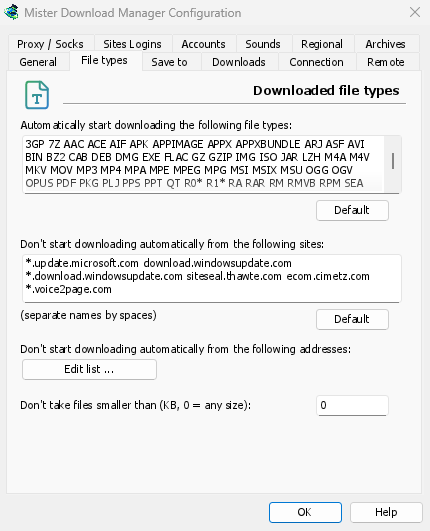
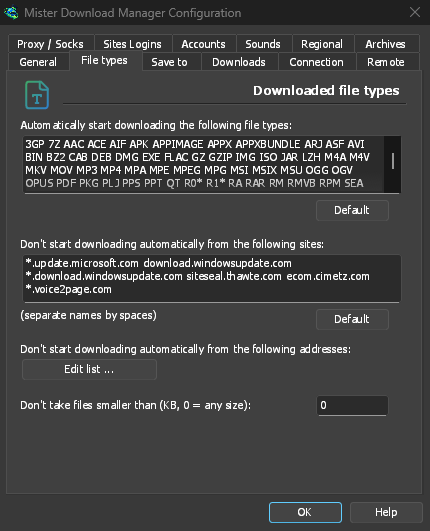
- Avvia automaticamente il download dei seguenti tipi di file — i tipi di file che il browser passa (e che gli Appunti rilevano). Separali con spazi;
*corrisponde a qualsiasi carattere, come inR0*. Predefiniti ripristina l'elenco originale. L'elenco inizia con i soliti archivi, programmi e installatori (Windows, macOS e Linux: DMG, PKG, DEB, RPM, APPIMAGE, MSIX), musica e video, file PDF e Office, modelli e set di dati AI (GGUF, SAFETENSORS, CKPT, PT, ONNX, PARQUET), file 3D e CAD (GLB, FBX, OBJ, STL, BLEND, STEP), file di design e RAW della fotocamera, ebook, immagini disco e archivi divisi. Pagine, script, testo semplice e immagini web sono esclusi di proposito, così il salvataggio di un'immagine o di una pagina resta con il browser; aggiungi qualsiasi tipo di cui hai bisogno, o metti un singolo*nella casella per accettare ogni file che ha un'estensione. Un elenco che non hai mai modificato acquisisce i tipi aggiunti da una nuova versione; uno che hai modificato resta così com'è. - Non avviare automaticamente il download dai seguenti siti: siti i cui download rimangono nel browser, separati da spazi.
*.example.comcopre ogni parte di un sito. Predefiniti ripristina l'elenco originale.
Salva in
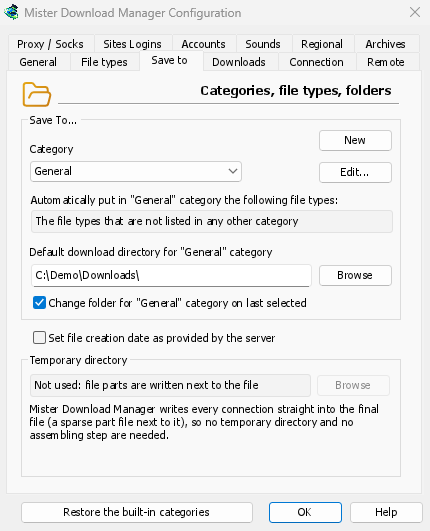
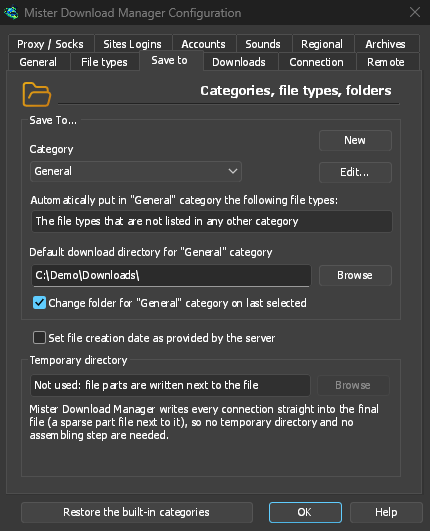
- Categoria: scegli una categoria per vedere e modificare le sue impostazioni qui sotto.
- Nuovo: crea la tua categoria. Modifica... cambia quella selezionata: il suo nome, i tipi di file e la cartella. Le categorie predefinite (Compressi, Documenti, Musica, Programmi, Video) possono essere rinominate, assegnate ad altri tipi di file ed eliminate come le tue; una rinominata mantiene la sua cartella. Generale e Torrent cambiano solo la loro cartella.
- Ripristina le categorie predefinite: ripristina le categorie predefinite come erano in origine, dopo che le hai rinominate, modificate o eliminate.
- Metti automaticamente nella categoria "…" i seguenti tipi di file: i tipi di file che vanno in questa categoria.
- Cartella di download predefinita per la categoria "…": la cartella della categoria. Digita un percorso o fai clic su Sfoglia.
- Cambia cartella per la categoria "…" in base all'ultima selezionata: quando scegli un'altra cartella in Informazioni sul file da scaricare, diventa la cartella della categoria da quel momento in poi. Attivato per impostazione predefinita. (Imposta lo stato iniziale di Ricorda questo percorso in quella finestra.)
- Imposta la data di creazione del file fornita dal server: assegna ai file completati la data riportata dal server, non la data in cui li hai scaricati.
GDM doesn't use a temporary folder: every connection writes straight into the final file's place, so there is nothing to put together at the end.
Download
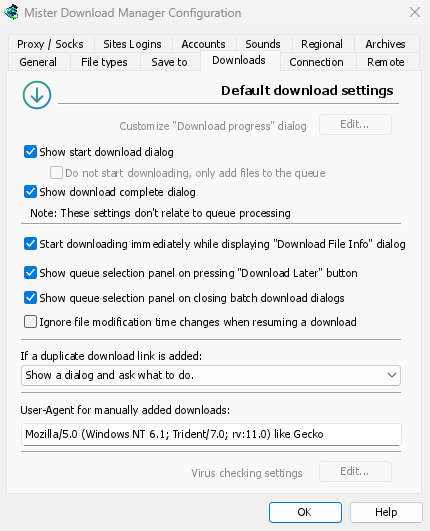
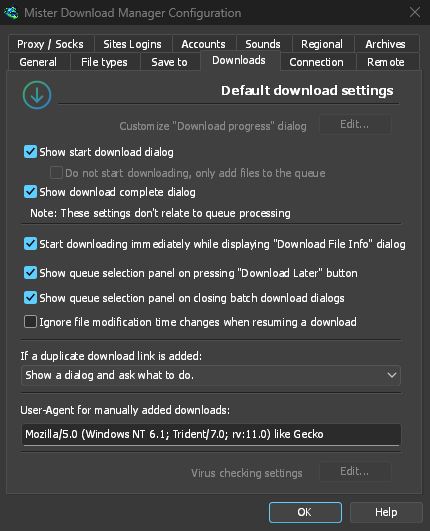
- Mostra la finestra di avvio del download: mostra Informazioni sul file da scaricare per ogni nuovo download. Se disattivato, i download iniziano subito, o si uniscono alla coda solo se selezioni Non avviare il download, aggiungi solo i file alla coda.
- Mostra la finestra di download completato: mostra Download completato quando un file termina.
- Avvia subito il download mentre è aperta la finestra "Informazioni sul file da scaricare": attivato per impostazione predefinita, così il download è già in corso mentre scegli una cartella.
- Mostra il pannello di scelta della coda quando si preme "Scarica più tardi": ti chiede quale coda usare; se è disattivato, il download viene aggiunto alla Coda di download principale.
- Mostra il pannello di scelta della coda alla chiusura delle finestre di download in batch: lo stesso per i download in batch.
- Ignora i cambiamenti della data di modifica del file quando si riprende un download: utile per i server che ogni volta segnalano una nuova data per lo stesso file. Senza questa opzione, con questi server ogni ripresa ricomincia da capo.
- Se viene aggiunto un collegamento di download duplicato: chiedi cosa fare, aggiungilo con un nome numerato, sovrascrivi quello precedente oppure apri quello completato / riprendi quello non completato.
- User-Agent for manually added downloads — how GDM names itself to servers for downloads you add yourself. Downloads from the browser use the browser's own User-Agent.
Connessione


- N. max connessioni predefinito: quante connessioni può usare ogni download, da 1 a 32 (8 per impostazione predefinita). Digita il numero o usa le frecce.
- Allow more than 32 connections — raises the most to 128, for the number above and for the exceptions. Most servers allow far fewer from one address; GDM notices and asks those for fewer. Turned off again, any higher number comes back to 32.
- Exceptions — a different number for some servers. New adds one (the server's name and the number of connections); Edit and Delete change or remove the selected one. Rows marked (auto) are limits GDM learned by itself from servers that refused more connections. They can't be edited and fade away by themselves.
- Limiti di download: limita la quantità scaricata nell'arco di alcune ore. La stessa impostazione si trova nel Pianificatore; vedi Code e Pianificatore.
- DNS — which DNS turns the servers' names into addresses for GDM's downloads, its own downloads (helpers, updates) and FTP. The system's DNS is the default (on Windows 11 it can already be encrypted, in Windows' own network settings). Or pick Cloudflare, Google, Quad9, AdGuard or NextDNS, or Another DNS... to type your own; Settings... chooses how it's asked:
- DNS su HTTPS (l'impostazione predefinita) o DNS su TLS: la richiesta è crittografata, così nessuno lungo il percorso può vedere o modificare i nomi che cerchi.
- Plain DNS: not encrypted. GDM asks it over TCP, never UDP, so it never needs a firewall exception.
- Per il tuo DNS: gli indirizzi IP dei server, il nome indicato nel loro certificato (TLS) oppure l'indirizzo
https://(HTTPS, con i relativi indirizzi IP, se li conosci). NextDNS richiede il tuo ID di configurazione. - Se non è raggiungibile, usa il DNS di sistema: è disattivato per impostazione predefinita. Se il DNS non risponde, il download si interrompe e un messaggio indica quale DNS non ha risposto, invece di inviare silenziosamente le tue richieste al DNS di sistema. Se il DNS indica che un nome non esiste, non viene usato il DNS di sistema (altrimenti si annullerebbe il filtraggio).
- Prova interroga il DNS per github.com e mostra quanto tempo impiega.
I nomi nel tuo file hosts e i nomi locali (parole singole, .local, .lan, .home.arpa, .internal, localhost) restano con il DNS del sistema. Le pagine video (yt-dlp) e le gallerie di immagini (gallery-dl) usano il DNS che hai scelto solo quando è selezionata una scheda di rete; altrimenti, come i tracker torrent, usano quello del sistema. Con un proxy, il proxy cerca per te i nomi dei siti che raggiunge.
Scopri di più in Connessioni e velocità.
Proxy / Socks


- Nessun proxy/socks: connettiti direttamente. È l'impostazione predefinita.
- Usa le impostazioni di sistema: usa il proxy del sistema: le impostazioni di Windows o macOS, o su Linux le variabili
https_proxy,http_proxyeall_proxydella tua sessione. - Use automatic configuration script — the proxy auto-config (PAC) script your network gives: type its address (
http://…/proxy.pac, or a file). GDM fetches it and asks it which proxy each download goes through (PROXY,SOCKSorDIRECT), as browsers do. Until it has been fetched, or if it can't be, GDM uses the system's settings. - Configurazione manuale proxy/socks: digita l'indirizzo del proxy, la Porta e, se richiesti, il Nome utente e la Password, poi seleziona i protocolli per cui è valido (http, https). Per un proxy SOCKS, scrivi l'indirizzo come
socks5://host. - Leggi dal sistema: compila i campi manuali dalle impostazioni proxy di Windows (su Windows).
- Use proxy/socks from a browser's request… — on by default. A download GDM takes from the browser goes through the proxy the browser used for it. That's the one a VPN or proxy extension set, the browser's own manual proxy, or its proxy auto-config script. Without it, the download would leave from your own address, and content limited to the VPN's country, or to its address, would fail. The browser extension reads that proxy and hands it to GDM with each download, once you switch on Send downloads through this browser's proxy or VPN extension in the extension's toolbar popup (Firefox asks you once; Chrome, Edge, Brave, Opera and Vivaldi ask nothing more: see A VPN or proxy extension).
- Non puoi condividere un proxy che richiede le credenziali fornite automaticamente dall'estensione VPN, perché nessun altro programma le conosce. Il download si interrompe e ti avvisa, invece di proseguire senza proxy. Usa l'app della VPN oppure seleziona la sua scheda in Scheda di rete.
- In Firefox, GDM sees the proxy the browser's own request for the file took, including the ones a VPN extension picks for each request. In Chrome and the other Chromium browsers, it sees the browser's proxy settings: the server for the download's scheme (honouring their bypass list) or their proxy auto-config script.
- When the browser used no proxy, and No proxy/socks is chosen, GDM uses Windows' proxy settings, as browsers do.
- Network adapter — Any (the system chooses) is the default. Pick an adapter, usually your VPN's, and every connection GDM opens goes out through it, or not at all. That covers downloads, FTP, torrents, video pages and image galleries, the DNS you chose, GDM's own downloads and the update check. It works as a kill switch: when the adapter disconnects, or the VPN is switched off, nothing goes out through your normal connection. Running downloads stop with "… is not connected" and start again when the adapter is back. The line under the list shows the adapter's address, or that it isn't connected.
- Come funziona: Windows associa la connessione all'indirizzo della scheda. Windows invia poi quei pacchetti solo attraverso quella scheda (il suo modello host forte). Linux associa la connessione al dispositivo stesso (Linux 5.7 o versioni successive) e macOS all'interfaccia. Se l'indirizzo è di un tipo non supportato dalla scheda (IPv6 su una VPN solo IPv4), la connessione viene rifiutata e non passa attraverso un'altra scheda.
- The system's DNS asks the names in its own way, and Windows may ask over every adapter. To keep the names inside the adapter too, choose a DNS under Connection → DNS: GDM then asks it through the adapter.
- Video pages and image galleries: yt-dlp, gallery-dl and the ffmpeg yt-dlp starts can't be held to an adapter themselves, so while one is chosen GDM gives them a proxy of its own on this computer (
127.0.0.1, with a password only they get). GDM opens their connections through the adapter, as it opens its own, and looks the names up with the DNS you chose. When the adapter disconnects, their connections close and the downloads stop with the others. Video formats that can't go through a proxy (RTMP, RTSP, MMS, FTP) are refused rather than sent around it. - Non sono ancora vincolati alla scheda, quindi non si avviano mentre ne è scelta una:
ftps://(TLS implicito;ftp://con TLS funziona). - Le connessioni a questo stesso computer (
localhost) non sono vincolate. Un proxy su questo computer gestisce i download e decide dove inviarli. - Su macOS, una VPN che si riconnette potrebbe ottenere una nuova interfaccia (
utun5invece diutun4): selezionala di nuovo. - Use FTP in PASV mode — on by default: for FTP downloads GDM opens the data connections itself (passive mode), which works through routers and firewalls. Turn it off only for a server that needs active mode (the server connects back to you). FTP never goes through the proxy above, so its ftp box stays greyed. See FTP and FTPS.
Accessi ai siti
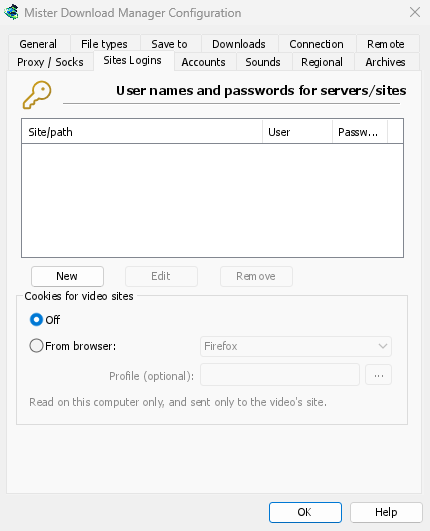
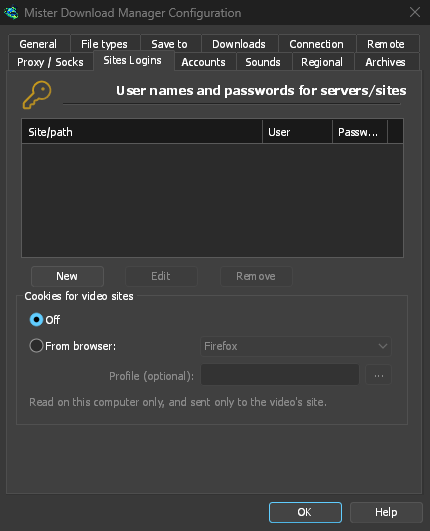
User names and passwords for sites that ask for them. New adds a row: the site (with a path if the login is only for part of it), the user name and the password. Edit and Remove change or delete the selected row. GDM uses the login for every download from that site. A login typed in Add URL (Use authorization) takes priority for that one download.
The passwords (these, the proxy's and the debrid accounts') are kept in the system's keychain: Windows Credential Manager, the keyring on Linux (Secret Service: GNOME Keyring, KeePassXC and others) or the macOS keychain; GDM's settings keep only a reference. A locked keyring is never unlocked for GDM: without one, they stay in GDM's settings, sealed for your Windows account on Windows. Options → Accounts says where they are. A portable copy keeps them in its own folder.
Cookie per i siti video: per i video che si riproducono solo quando hai effettuato l'accesso (YouTube: "Accedi per confermare che non sei un bot"):
- Disattivato (impostazione predefinita): yt-dlp ottiene i cookie solo dall'estensione del browser, quando usi il pulsante sopra un video.
- Dal browser: yt-dlp legge i cookie del browser scelto su questo computer (Firefox, Chrome, Edge, Brave, Opera, Vivaldi, Chromium, Whale; Safari su macOS) per ogni video che cerca o scarica, inclusi gli indirizzi incollati. Quando l'estensione ha passato i cookie della pagina, vengono usati quelli. Profilo (facoltativo): il nome o la cartella di un profilo (... ne sceglie uno); se vuoto, quello usato l'ultima volta. Chrome, Edge e Brave bloccano i loro cookie su Windows: Firefox funziona. Vedi Siti che richiedono l'accesso.
Account


I tuoi account dei servizi debrid (Real-Debrid, AllDebrid, Premiumize; sperimentale): Aggiungi... consente di accedere tramite un codice nel browser o con il tuo token o la tua chiave API. I collegamenti provenienti da host supportati dal servizio vengono poi scaricati tramite il servizio. Gli account vengono provati nell'ordine in cui compaiono nell'elenco. Vedi Account del servizio debrid.
Suoni
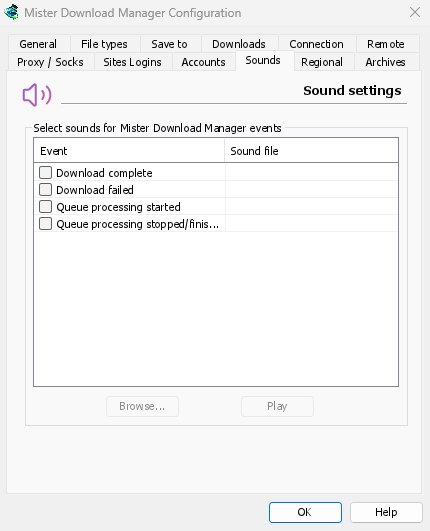
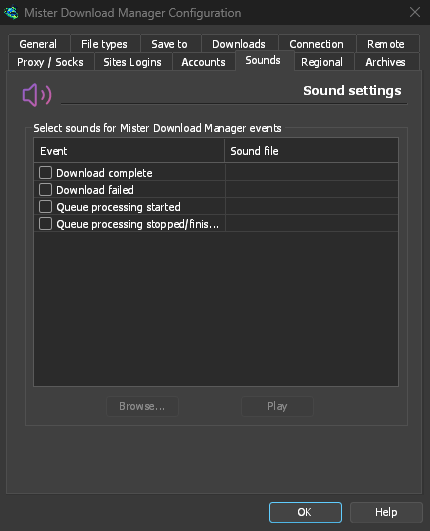
Riproduci un suono per Download completato, Download non riuscito, Elaborazione coda avviata e Elaborazione coda interrotta/completata. Seleziona un evento, fai clic su Sfoglia... per scegliere un file .wav e su Riproduci per ascoltarlo.
Formato internazionale
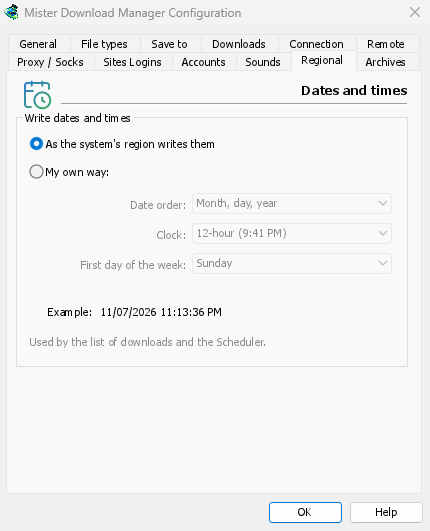
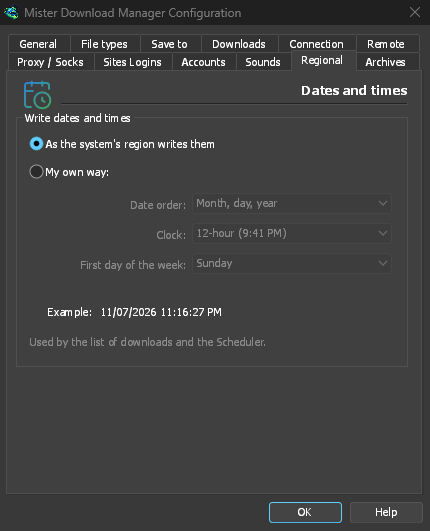
Formato di date e orari nell'elenco dei download e nel Pianificatore.
- Come nelle impostazioni internazionali del sistema (impostazione predefinita): usa le impostazioni internazionali di Windows (Impostazioni → Ora e lingua → Area geografica); su macOS e Linux, usa il formato consueto della lingua. In inglese, l'elenco mantiene il formato delle date di IDM.
- Personalizzato: scegli l'ordine della data (giorno, mese, anno; mese, giorno, anno; oppure anno, mese, giorno), il formato a 12 o 24 ore e il primo giorno della settimana nel calendario del Pianificatore. Esempio mostra il risultato.
Archivi


Archivi (zip, 7z, rar, tar, gz, xz) e Link grabber.
- Estrai gli archivi al completamento del download (disattivata per impostazione predefinita): estrae ogni archivio appena il download è completo (o quando è stato scaricato l'ultimo volume di un archivio diviso). Un pacchetto del Link grabber ha una propria opzione Estrai al termine.
- Poi sposta gli archivi nel Cestino (disattivata per impostazione predefinita; nel Cestino su macOS e Linux): solo dopo un'estrazione completata correttamente. Questa è anche l'impostazione predefinita dell'opzione Elimina gli archivi dopo l'estrazione per i nuovi pacchetti.
- Destinazione del contenuto di un archivio: in una cartella con il nome dell'archivio se contiene più elementi (impostazione predefinita), sempre in una cartella di questo tipo oppure direttamente nella cartella dell'archivio.
- Se 7-Zip è stato trovato: serve per gli archivi 7z e RAR.
- Analizza i collegamenti all'arrivo (nome, dimensione, online): il Link grabber chiede a ogni server informazioni sul relativo file (attivata per impostazione predefinita).
- Nascondi le pagine web: l'impostazione predefinita del Link grabber per la stessa casella (attiva).
Remoto
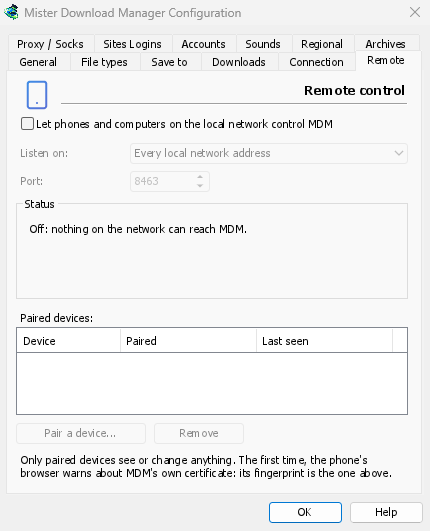
Control GDM from your phone or another computer on the local network: see Control GDM from your phone.
- Let phones and computers on the local network control GDM (off by default).
- Ascolta su: ogni indirizzo di rete locale (l'impostazione predefinita), solo questo computer, o un indirizzo specifico.
- Porta: 8463 per impostazione predefinita.
- Stato: cosa sta facendo, l'indirizzo da aprire sul telefono e l'impronta digitale del certificato.
- Dispositivi associati: Associa un dispositivo... mostra un codice QR e un codice; Rimuovi disassocia immediatamente il dispositivo selezionato.
Altrove
Alcune impostazioni si trovano al di fuori di questa finestra:
- Download → Limitatore di velocità → Impostazioni...: limiti di velocità. Vedi Connessioni e velocità.
- Attività → Impostazioni torrent...: condivisione e associazioni di file. Vedi Torrent.
- Visualizza → Supporto modalità scura, Sempre scuro, Tema, Rendering con, Dimensioni interfaccia e Lingua. Vedi Per iniziare e Risoluzione dei problemi.
- Guida → Verifica aggiornamenti...: Verifica aggiornamenti a ogni avvio si trova in quella finestra.
Passi successivi
Gratuito, open source, senza pubblicità, senza periodo di prova.
Download GolinksPRO Download Manager