

Set up the extension once, and every download link you click in Firefox, Chrome, Edge, Brave, Opera or Vivaldi goes to GDM.
시작하기 전에
On Windows, GDM must be installed with the setup, with Set up browser integration (Chrome, Edge, Brave, Firefox) ticked. It is ticked by default. If you're not sure, run the setup again. A portable copy can't do this. On Linux and macOS, start GDM once: it sets browser integration up itself.
GDM's Add GolinksPRO Download Manager to your browser window, which opens at each start until a browser's extension has reached GDM, does the steps below for you: Add the extension opens the store's page in that browser.
설정이 끝나면 다운로드 링크는 다음과 같이 처리됩니다.
Click a download link in the browser: Download File Info opens in GDM. 

다운로드 시작: 진행 창에 다운로드 진행 상황이 표시됩니다. 

다운로드 완료: 파일을 열거나 폴더를 엽니다. 

Firefox에서
- Open the add-on's page on addons.mozilla.org, GolinksPRO Download Manager, and click Add to Firefox. Zen and LibreWolf use the same page.
- Firefox에서 확인을 요청하면 추가를 클릭합니다. 부가 기능은 Firefox에서 자동으로 업데이트됩니다.
- Go to a web page and click a download link, for example a ZIP or an EXE: GDM opens Download File Info. Click Start Download.
Chrome, Edge, Brave, Opera 또는 Vivaldi에서
- Open the extension's page in the Chrome Web Store, GolinksPRO Download Manager, and click Add to Chrome. In Edge the button is Get, and Edge first asks to Allow extensions from other stores: click Allow.
- 브라우저에서 확인을 요청하면 확장 프로그램 추가를 클릭합니다. 확장 프로그램은 브라우저에서 자동으로 업데이트됩니다.
- Go to a web page and click a download link, for example a ZIP or an EXE: GDM opens Download File Info. Click Start Download.
스토어를 사용하지 않는 경우
브라우저에서 스토어를 사용할 수 없는 경우(조직에서 관리하는 컴퓨터이거나 직접 빌드한 브라우저인 경우) 확장 프로그램을 수동으로 추가합니다.
- 브라우저의 확장 프로그램 페이지를 엽니다. 주소 표시줄에
chrome://extensions,edge://extensions또는brave://extensions를 입력합니다. - 개발자 모드를 켭니다.
- 압축 해제된 확장 프로그램 로드를 클릭합니다.
- Choose the
extension\chromiumfolder inside GDM's folder. If you installed GDM for yourself, that is%LOCALAPPDATA%\Programs\GolinksPRO Download Manager\extension\chromium; you can paste that path into the folder box. - GolinksPRO Download Manager appears. Make sure it is turned on.
- 웹 페이지에서 ZIP 또는 EXE 등의 다운로드 링크를 클릭합니다.
- GDM opens Download File Info instead of the browser downloading the file. Click Start Download.
You don't need to start GDM first: if it isn't running, it starts by itself.
Choose what GDM takes
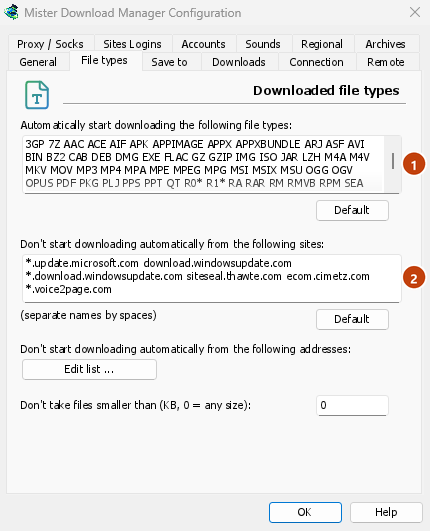
- 파일 형식: 옵션 → 파일 형식 → 다음 파일 형식 자동 다운로드 시작. 공백으로 구분해 형식을 추가하거나 삭제합니다.
- 제외할 사이트: 옵션 → 파일 형식 → 다음 사이트에서 자동 다운로드 시작 안 함.
downloads.example.com또는*.example.com처럼 사이트 이름을 추가합니다. - One browser only: Options → General → Capture downloads from the following browsers. Untick the ones GDM should leave alone.
Everything GDM doesn't take stays with the browser.
브라우저에서 열리는 링크 다운로드
Links to a PDF or a video file, which the browser would open itself, go to GDM too when their type is listed. To leave one to the browser, hold Alt while clicking it (Firefox opens it; Chrome and Edge download it themselves). Any other link: right-click it and choose Download with GolinksPRO Download Manager, which takes any type.
다음 단계
무료, 오픈 소스, 광고 없음, 평가판 없음.
Download GolinksPRO Download Manager