

Set up the extension once, and every download link you click in Firefox, Chrome, Edge, Brave, Opera or Vivaldi goes to GDM.
Voordat u begint
On Windows, GDM must be installed with the setup, with Set up browser integration (Chrome, Edge, Brave, Firefox) ticked. It is ticked by default. If you're not sure, run the setup again. A portable copy can't do this. On Linux and macOS, start GDM once: it sets browser integration up itself.
GDM's Add GolinksPRO Download Manager to your browser window, which opens at each start until a browser's extension has reached GDM, does the steps below for you: Add the extension opens the store's page in that browser.
Na de installatie werkt een downloadlink als volgt:
Click a download link in the browser: Download File Info opens in GDM. 

Download starten: het voortgangsvenster toont de binnenkomende download. 

Download voltooid: Open het bestand, of Map openen. 

In Firefox
- Open the add-on's page on addons.mozilla.org, GolinksPRO Download Manager, and click Add to Firefox. Zen and LibreWolf use the same page.
- Firefox vraagt om bevestiging: klik op Toevoegen. Firefox houdt de add-on up-to-date.
- Go to a web page and click a download link, for example a ZIP or an EXE: GDM opens Download File Info. Click Start Download.
In Chrome, Edge, Brave, Opera of Vivaldi
- Open the extension's page in the Chrome Web Store, GolinksPRO Download Manager, and click Add to Chrome. In Edge the button is Get, and Edge first asks to Allow extensions from other stores: click Allow.
- De browser vraagt om bevestiging: klik op Extensie toevoegen. De extensie wordt automatisch bijgewerkt.
- Go to a web page and click a download link, for example a ZIP or an EXE: GDM opens Download File Info. Click Start Download.
Zonder de winkel
Als een browser de winkel niet kan gebruiken (bijvoorbeeld op een computer die door een organisatie wordt beheerd of met een zelf samengestelde versie), voegt u de extensie handmatig toe:
- Open de pagina met extensies in uw browser: typ
chrome://extensions,edge://extensionsofbrave://extensionsin de adresbalk. - Schakel Ontwikkelaarsmodus in.
- Klik op Uitgepakte extensie laden.
- Choose the
extension\chromiumfolder inside GDM's folder. If you installed GDM for yourself, that is%LOCALAPPDATA%\Programs\GolinksPRO Download Manager\extension\chromium; you can paste that path into the folder box. - GolinksPRO Download Manager appears. Make sure it is turned on.
- Ga naar een webpagina en klik op een downloadlink, bijvoorbeeld een ZIP- of EXE-bestand.
- GDM opens Download File Info instead of the browser downloading the file. Click Start Download.
You don't need to start GDM first: if it isn't running, it starts by itself.
Choose what GDM takes
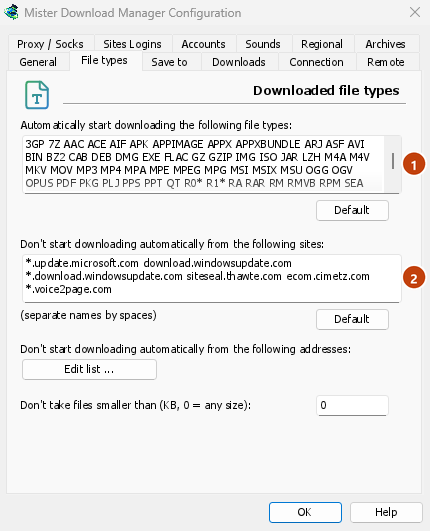
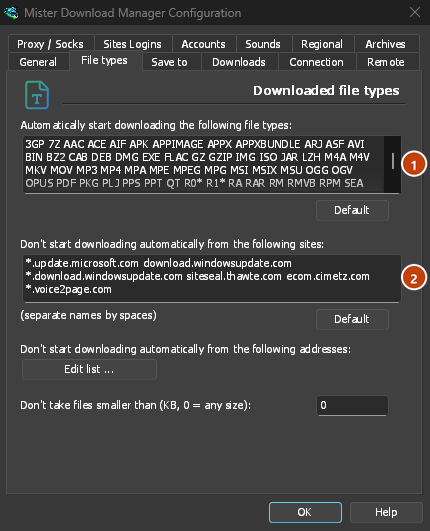
- Bestandstypen: Opties → Bestandstypen → Volgende bestandstypen automatisch downloaden. Voeg bestandstypen toe of verwijder ze. Scheid ze met spaties.
- Sites overslaan: Opties → Bestandstypen → Niet automatisch downloaden van de volgende sites. Voeg de naam van de site toe, bijvoorbeeld
downloads.example.comof*.example.com. - One browser only: Options → General → Capture downloads from the following browsers. Untick the ones GDM should leave alone.
Everything GDM doesn't take stays with the browser.
Een link downloaden die de browser zelf zou openen
Links to a PDF or a video file, which the browser would open itself, go to GDM too when their type is listed. To leave one to the browser, hold Alt while clicking it (Firefox opens it; Chrome and Edge download it themselves). Any other link: right-click it and choose Download with GolinksPRO Download Manager, which takes any type.
Volgende stappen
- Browserintegratie in detail (Firefox, privévensters, wat er wordt verzonden) →
- Als de browser downloads niet overdraagt →
- 's Nachts downloaden →
Gratis, open source, geen advertenties, geen proefversie.
Download GolinksPRO Download Manager