
Set up the extension once, and every download link you click in Firefox, Chrome, Edge, Brave, Opera or Vivaldi goes to GDM.
Перед началом
On Windows, GDM must be installed with the setup, with Set up browser integration (Chrome, Edge, Brave, Firefox) ticked. It is ticked by default. If you're not sure, run the setup again. A portable copy can't do this. On Linux and macOS, start GDM once: it sets browser integration up itself.
GDM's Add GolinksPRO Download Manager to your browser window, which opens at each start until a browser's extension has reached GDM, does the steps below for you: Add the extension opens the store's page in that browser.
После настройки ссылка на скачивание выглядит так:
Click a download link in the browser: Download File Info opens in GDM. 

Начать загрузку: в окне отображается ход загрузки. 

Загрузка завершена: откройте файл или папку. 

В Firefox
- Open the add-on's page on addons.mozilla.org, GolinksPRO Download Manager, and click Add to Firefox. Zen and LibreWolf use the same page.
- Firefox попросит подтвердить действие: нажмите Добавить. Firefox будет автоматически обновлять дополнение.
- Go to a web page and click a download link, for example a ZIP or an EXE: GDM opens Download File Info. Click Start Download.
В Chrome, Edge, Brave, Opera или Vivaldi
- Open the extension's page in the Chrome Web Store, GolinksPRO Download Manager, and click Add to Chrome. In Edge the button is Get, and Edge first asks to Allow extensions from other stores: click Allow.
- Браузер попросит подтвердить действие: нажмите Добавить расширение. Браузер будет автоматически обновлять расширение.
- Go to a web page and click a download link, for example a ZIP or an EXE: GDM opens Download File Info. Click Start Download.
Без магазина
Если браузер не может использовать свой магазин (компьютер, управляемый организацией, или ваша собственная сборка), добавьте расширение вручную:
- Откройте страницу расширений вашего браузера: введите
chrome://extensions,edge://extensionsилиbrave://extensionsв адресную строку. - Включите Режим разработчика.
- Нажмите Загрузить распакованное.
- Choose the
extension\chromiumfolder inside GDM's folder. If you installed GDM for yourself, that is%LOCALAPPDATA%\Programs\GolinksPRO Download Manager\extension\chromium; you can paste that path into the folder box. - GolinksPRO Download Manager appears. Make sure it is turned on.
- Перейдите на веб-страницу и нажмите на ссылку для скачивания, например, ZIP или EXE.
- GDM opens Download File Info instead of the browser downloading the file. Click Start Download.
You don't need to start GDM first: if it isn't running, it starts by itself.
Choose what GDM takes
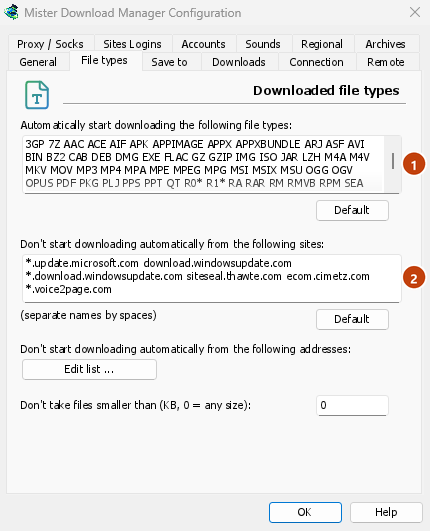
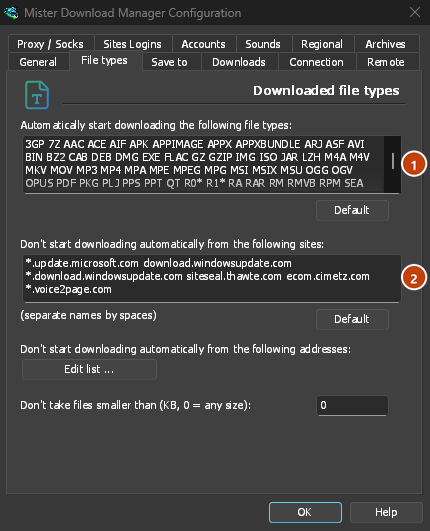
- Какие типы файлов: Параметры → Типы файлов → Автоматически начинать загрузку следующих типов файлов. Добавьте или удалите типы, разделенные пробелами.
- Сайты, которые нужно оставить в покое: Параметры → Типы файлов → Не начинать загрузку автоматически со следующих сайтов. Добавьте название сайта, например
downloads.example.comили*.example.com. - One browser only: Options → General → Capture downloads from the following browsers. Untick the ones GDM should leave alone.
Everything GDM doesn't take stays with the browser.
Скачать ссылку, которую браузер открыл бы
Links to a PDF or a video file, which the browser would open itself, go to GDM too when their type is listed. To leave one to the browser, hold Alt while clicking it (Firefox opens it; Chrome and Edge download it themselves). Any other link: right-click it and choose Download with GolinksPRO Download Manager, which takes any type.
Дальнейшие действия
- Интеграция с браузером подробно (Firefox, приватные окна, что отправляется) →
- Если браузер не передаёт загрузки →
- Загрузка на ночь →
Бесплатно, с открытым исходным кодом, без рекламы, без пробного периода.
Download GolinksPRO Download Manager