

Set up the extension once, and every download link you click in Firefox, Chrome, Edge, Brave, Opera or Vivaldi goes to GDM.
ก่อนเริ่มต้น
On Windows, GDM must be installed with the setup, with Set up browser integration (Chrome, Edge, Brave, Firefox) ticked. It is ticked by default. If you're not sure, run the setup again. A portable copy can't do this. On Linux and macOS, start GDM once: it sets browser integration up itself.
GDM's Add GolinksPRO Download Manager to your browser window, which opens at each start until a browser's extension has reached GDM, does the steps below for you: Add the extension opens the store's page in that browser.
เมื่อตั้งค่าแล้ว ลิงก์ดาวน์โหลดจะเป็นดังนี้:
Click a download link in the browser: Download File Info opens in GDM. 

เริ่มการดาวน์โหลด: หน้าต่างความคืบหน้าแสดงการดาวน์โหลด 

ดาวน์โหลดเสร็จสมบูรณ์: เปิดไฟล์ หรือ เปิดโฟลเดอร์ 

ใน Firefox
- Open the add-on's page on addons.mozilla.org, GolinksPRO Download Manager, and click Add to Firefox. Zen and LibreWolf use the same page.
- Firefox จะขอการยืนยัน: คลิก เพิ่ม Firefox จะอัปเดตส่วนเสริมให้เป็นปัจจุบันอยู่เสมอ
- Go to a web page and click a download link, for example a ZIP or an EXE: GDM opens Download File Info. Click Start Download.
ใน Chrome, Edge, Brave, Opera หรือ Vivaldi
- Open the extension's page in the Chrome Web Store, GolinksPRO Download Manager, and click Add to Chrome. In Edge the button is Get, and Edge first asks to Allow extensions from other stores: click Allow.
- เบราว์เซอร์จะขอให้ยืนยัน: คลิก เพิ่มส่วนขยาย ซึ่งจะทำให้ส่วนขยายเป็นปัจจุบันอยู่เสมอ
- Go to a web page and click a download link, for example a ZIP or an EXE: GDM opens Download File Info. Click Start Download.
โดยไม่ต้องใช้ Store
เมื่อเบราว์เซอร์ไม่สามารถใช้ Store ได้ (คอมพิวเตอร์ที่จัดการโดยองค์กร หรือเป็นเวอร์ชันที่คุณสร้างเอง) ให้เพิ่มส่วนขยายด้วยตนเอง:
- เปิดหน้าส่วนขยายของเบราว์เซอร์ของคุณ: พิมพ์
chrome://extensions,edge://extensionsหรือbrave://extensionsในแถบที่อยู่ - เปิด โหมดนักพัฒนาซอฟต์แวร์
- คลิก โหลดที่ไม่ได้แพ็ค
- Choose the
extension\chromiumfolder inside GDM's folder. If you installed GDM for yourself, that is%LOCALAPPDATA%\Programs\GolinksPRO Download Manager\extension\chromium; you can paste that path into the folder box. - GolinksPRO Download Manager appears. Make sure it is turned on.
- ไปที่หน้าเว็บแล้วคลิกลิงก์ดาวน์โหลด เช่น ไฟล์ ZIP หรือ EXE
- GDM opens Download File Info instead of the browser downloading the file. Click Start Download.
You don't need to start GDM first: if it isn't running, it starts by itself.
Choose what GDM takes
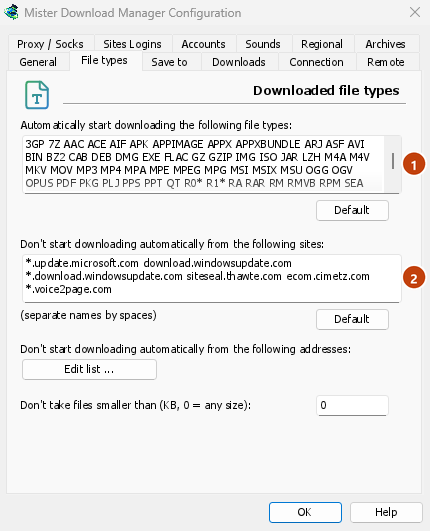
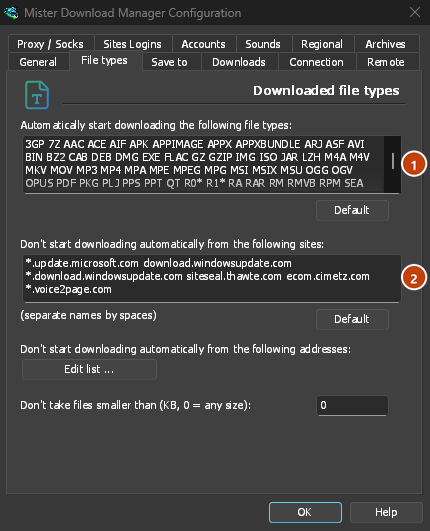
- ชนิดไฟล์ใด: ตัวเลือก → ชนิดไฟล์ → เริ่มดาวน์โหลดชนิดไฟล์ต่อไปนี้โดยอัตโนมัติ เพิ่มหรือลบชนิดไฟล์ โดยคั่นด้วยช่องว่าง
- ไซต์ที่จะไม่ยุ่งเกี่ยว: ตัวเลือก → ชนิดไฟล์ → ไม่เริ่มดาวน์โหลดโดยอัตโนมัติจากไซต์ต่อไปนี้ เพิ่มชื่อไซต์ เช่น
downloads.example.comหรือ*.example.com - One browser only: Options → General → Capture downloads from the following browsers. Untick the ones GDM should leave alone.
Everything GDM doesn't take stays with the browser.
ดาวน์โหลดลิงก์ที่เบราว์เซอร์จะเปิด
Links to a PDF or a video file, which the browser would open itself, go to GDM too when their type is listed. To leave one to the browser, hold Alt while clicking it (Firefox opens it; Chrome and Edge download it themselves). Any other link: right-click it and choose Download with GolinksPRO Download Manager, which takes any type.
ขั้นตอนถัดไป
- รายละเอียดการรวมเบราว์เซอร์ (Firefox, หน้าต่างส่วนตัว, สิ่งที่ถูกส่ง) →
- หากเบราว์เซอร์ไม่ส่งรายการดาวน์โหลดให้ →
- ดาวน์โหลดข้ามคืน →
ฟรี, โอเพนซอร์ส, ไม่มีโฆษณา, ไม่มีช่วงทดลองใช้
Download GolinksPRO Download Manager