

There are several ways to give GDM something to download. Most of them end in the same window, Download File Info, where you choose where the file goes.
Tambah URL
- Salin alamat file (di peramban: klik kanan tautan → Salin tautan).
- Klik Tambah URL di bilah alat, pilih Tugas → Tambahkan unduhan baru, atau tekan Ctrl+N.
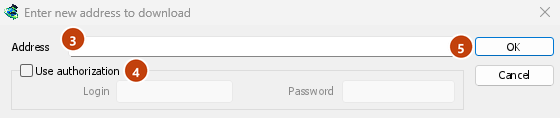
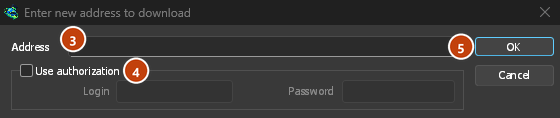
- Masukkan alamat baru untuk diunduh terbuka. Jika papan klip berisi alamat web, alamat tersebut sudah terisi. Panah di akhir Alamat mencantumkan 20 alamat terakhir yang Anda masukkan; pilih salah satu untuk menggunakannya lagi. Klik kanan kotak untuk Potong, Salin, Tempel, Hapus, dan Pilih semua.
- Jika server memerlukan nama pengguna dan kata sandi, centang Gunakan otorisasi, lalu masukkan keduanya.
- Klik OK.
GDM takes http://, https://, ftp://, ftps://, ftpes:// and magnet: addresses. Anything else gets Invalid address.
Jika alamatnya adalah halaman video (YouTube, Vimeo, TikTok, dan lainnya), jendela video akan terbuka. Lihat Unduhan video. Tautan magnet akan membuka Tambahkan torrent; lihat Torrent.
FTP dan FTPS
Unduhan FTP bekerja seperti unduhan web: menggunakan beberapa koneksi sekaligus, dapat dijeda dan dilanjutkan, serta menampilkan jendela progres yang sama.
ftp://— FTP biasa.ftpes://— FTP yang diamankan dengan TLS sejak awal sesi (FTPS eksplisit,AUTH TLS, biasanya menggunakan port 21). Gunakan opsi ini jika server menyatakan mendukung TLS.ftps://— FTPS implisit, menggunakan port 990 kecuali alamatnya mencantumkan port lain.
Sertifikat server diperiksa terhadap sertifikat tepercaya Windows (atau sistem), seperti untuk https://. Sistem Linux tanpa sertifikat tersebut (instalasi minimal tanpa paket ca-certificates) tetap mengunduh melalui HTTP dan FTP biasa; setiap unduhan aman akan langsung gagal, dengan pesan untuk menginstal paket tersebut.
Logging in. Write the login in the address (ftp://user:password@server/folder/file.iso),
tick Use authorization, or save it in Options → Sites Logins. Without one, GDM logs in as
anonymous. The path is relative to the folder the login starts in; to start from the server's
root, write %2F after the server (ftp://server/%2Fpub/file.iso).
Resuming. GDM keeps the file's size and modification time. If either has changed when you resume, it says the file changed on the server instead of mixing two versions (Options → Downloads → Ignore file modification time changes skips the time check). The password is not written to the resume file next to the download: GDM gives it again when it resumes.
Koneksi. Secara default, mode pasif digunakan. Opsi → Proksi / Socks → Gunakan FTP dalam mode PASV menonaktifkan mode ini untuk server yang hanya menerima koneksi aktif. FTP terhubung langsung ke server, bukan melalui proksi HTTP.
Browsers no longer download ftp:// links themselves. Right-click one and choose Download with
GolinksPRO Download Manager, or copy it and use Add URL.
Tautan Google Drive
Tempel tautan Google Drive apa adanya, seperti tautan yang diberikan melalui Bagikan → Salin tautan:
https://drive.google.com/file/d/…/view?usp=sharing, dengan atau tanpa/view;https://drive.google.com/uc?id=…&export=downloaddanhttps://drive.google.com/open?id=…;https://docs.google.com/document/d/…/edit(dan Sheets, Slides, serta Drawings).
GDM downloads the file itself, as it was uploaded (a video comes in its own format, not the player's copy), with its real name and size, over several connections, and it can resume. For a large file, Drive shows a page that says it can't scan this file for viruses; GDM goes past it as Download anyway does.
Google Docs, Sheets, dan Slides diunduh sebagai file Word (.docx), Excel (.xlsx), dan PowerPoint (.pptx), sedangkan Drawings diunduh sebagai .png. File-file ini dibuat saat diminta, sehingga ukurannya tidak diketahui sebelum selesai diunduh dan unduhannya tidak dapat dilanjutkan. Jika unduhan terputus, unduhan akan dimulai lagi dari awal.
Files that aren't shared with everyone. Right-click the link in the browser and choose Download with GolinksPRO Download Manager, or use Drive's own Download button: the extension passes your browser's Google sign-in with the download. GDM never asks for or keeps your password. Without a sign-in, GDM says the file needs you to sign in.
When Drive won't give a file. Drive limits how often a file can be downloaded: after many downloads in a day it answers "too many users have viewed or downloaded this file recently". GDM shows Drive's own words and writes nothing. Try again later (it can take up to a day), or sign in to Google in your browser and download from there, which often gets past the limit. GDM doesn't try to get around it. A file whose owner turned off downloading, or that your account can't open, gets no access.
Tombol video di atas video Drive mengunduh file asli, bukan salah satu salinan berukuran lebih kecil yang digunakan pemutar.
Folder belum dapat diunduh: tautan folder akan menampilkan pesan ini adalah folder Google Drive, bukan file. Buka folder tersebut di browser dan unduh file di dalamnya dari sana.
Info File Unduhan
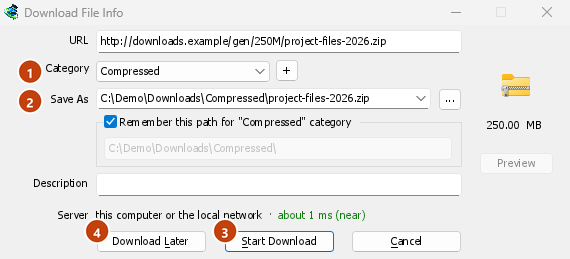
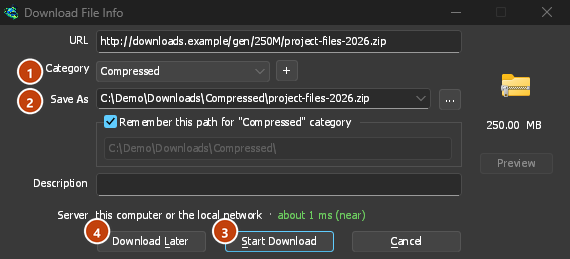
GDM asks the server for the file's name and size, and shows them in Download File Info:
- URL — alamatnya.
- Kategori — dipilih berdasarkan jenis file (Terkompresi, Dokumen, Musik, Program, Video, atau Umum). Setiap kategori memiliki folder tersendiri. + di sampingnya membuat kategori baru.
- Simpan Sebagai — folder dan nama file. Anda dapat mengetik nama lain, memilih salah satu dari 20 folder terakhir yang digunakan untuk menyimpan file melalui panah di ujungnya, atau memilih folder dengan ....
- Ingat jalur ini untuk kategori "…" — centang opsi ini untuk menjadikan folder yang Anda masukkan sebagai folder kategori tersebut mulai sekarang.
- Deskripsi — catatan pribadi. Deskripsi ditampilkan di kolom Deskripsi pada daftar dan dapat dicari dengan Cari.
- Server — where the server is: its country's flag and name, and how long a round trip to it takes. See Where the server is. It stays blank when the browser handed the download over with its name and size, since GDM didn't need to ask the server.
Kemudian pilih:
- Mulai Unduhan (atau Enter) — unduh sekarang. Jendela progres akan terbuka.
- Unduh nanti — tambahkan ke antrean tanpa memulai unduhan. Lihat di bawah.
- Batal (atau Esc) — tidak menambahkan apa pun.
By default GDM starts downloading while this window is open, so no time is lost while you decide. Cancel drops what it fetched. You can turn this off in Options → Downloads → Start downloading immediately while displaying "Download File Info" dialog.
If the folder doesn't exist yet, GDM asks Do you want to create it? before it starts.
Unduh Nanti
Download Later puts the download in a queue instead of starting it. By default GDM asks which one: pick the queue under Add to queue, and tick Start the queue now if you want it to run straight away. Cancel leaves the download in the list, in no queue.
Untuk melewati pertanyaan tersebut dan selalu menggunakan Antrean unduhan utama, nonaktifkan Opsi → Unduhan → Tampilkan panel pemilihan antrean saat menekan tombol "Unduh nanti".
Informasi selengkapnya tentang antrean ada di Antrean dan Penjadwal.
Dari papan klip
With Options → General → Offer to download links copied to the clipboard ticked (it is, unless you turned it off), when you copy a link to a file type in Options → File types (ZIP, EXE, MP4, PDF and many more), Download File Info opens with it filled in, ready for Start Download. Links to other pages are left alone. With Options → Downloads → Show start download dialog off, the download starts at once instead. Only links copied while GDM runs are taken, never one that was already there.
Seret dan lepas
- Choose Tasks → Show drop target. A small box with the GDM icon appears and stays on top of other windows.
- Drag a link from your browser onto it. GDM adds it as if you had used Add URL.
You can also drop magnet links and .torrent files on it. Drag the box to move it, and double-click it to bring the main window back. Right-click it for Show GolinksPRO Download Manager, Add new download and Hide drop target.
Unduhan batch: banyak file bernomor
Untuk file yang namanya hanya berbeda dalam angka atau huruf, seperti photo001.jpg hingga photo150.jpg:
- Pilih Tugas → Tambahkan unduhan batch. (Tugas → Tambahkan unduhan batch dari clipboard mengisi alamat yang disalin.)
- Di Alamat, tulis alamat dengan satu tanda bintang sebagai pengganti angka atau huruf yang berubah:
https://example.com/photo*.jpg. - Di bagian Ganti tanda bintang dengan, pilih Angka atau Huruf, lalu tentukan Dari dan Ke.
- Untuk angka, atur Ukuran wildcard sesuai jumlah digit. Jika nilainya 3, nama file akan menjadi
photo001.jpg,photo002.jpg, dan seterusnya. - Jika server memerlukan login, centang Gunakan otorisasi.
- Centang File pertama, File kedua dan File terakhir, lalu klik OK.
The downloads go to a queue. As with Download Later, GDM asks which queue unless you turn off Options → Downloads → Show queue selection panel on closing batch download dialogs.


Daftar tautan
Untuk menambahkan semua tautan dalam file teks:
- Pilih Tugas → Impor → Dari file teks.
- Pick the file. Link grabber lists every web address GDM found in it, in packages.
- Hapus centang pada alamat yang tidak Anda inginkan (Centang semua dan Hapus centang semua dapat membantu), lalu klik Tambahkan ke antrean.


Unduhan akan masuk ke Antrean unduhan utama dan siap dimulai (Mulai juga akan memulainya). Tugas → Impor → Dari file ekspor IDM membaca file .ef2, termasuk perujuk dan cookie untuk setiap unduhan.
Tugas → Link grabber... membuka jendela yang sama dalam keadaan kosong. Tempel teks yang berisi tautan (Ctrl+V). Lihat Link grabber dan arsip untuk informasi tentang paket, kata sandi arsip, dan cara mengekstrak arsip setelah diunduh.
Untuk menyimpan daftar Anda sendiri, gunakan Tugas → Ekspor → Ke file teks (satu alamat per baris) atau Ke file ekspor IDM.
Jika alamat sudah ada dalam daftar
By default GDM asks what to do when you add an address it already has. You can choose a fixed answer in Options → Downloads → If a duplicate download link is added:
- Tampilkan dialog dan tanyakan apa yang harus dilakukan.
- Tambahkan duplikat dengan nama file bernomor
- Tambahkan duplikat dan timpa file yang ada
- Jika file yang ada sudah selesai diunduh, tampilkan dialog unduhan selesai; jika belum, lanjutkan unduhan.
Langkah selanjutnya
- Send browser downloads to GDM →
- Lihat unduhan di jendela progres →
- Tambahkan unduhan ke antrean untuk nanti →
Gratis, sumber terbuka, tanpa iklan, tanpa masa uji coba.
Download GolinksPRO Download Manager