

There are several ways to give GDM something to download. Most of them end in the same window, Download File Info, where you choose where the file goes.
URL を追加
- ファイルのURLをコピーします(ブラウザの場合:リンクを右クリック → リンクをコピー)。
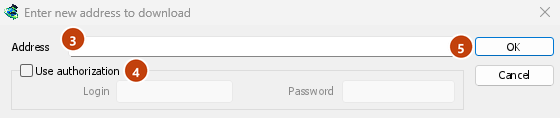
- ツールバーのURL を追加をクリックするか、タスク → 新しいダウンロードを追加を選択するか、Ctrl+Nを押します。
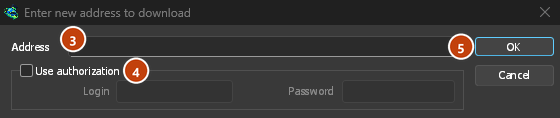
- ダウンロードする新しいアドレスを入力してくださいが開きます。クリップボードにウェブアドレスがある場合は、すでに入力されています。アドレスの末尾にある矢印をクリックすると、過去20件のアドレスが表示され、そこから選択して再利用できます。ボックスを右クリックすると、切り取り、コピー、貼り付け、削除、すべて選択ができます。
- サーバーにユーザー名とパスワードが必要な場合は、認証を使用するにチェックを入れて入力します。
- OKをクリックします。
GDM takes http://, https://, ftp://, ftps://, ftpes:// and magnet: addresses. Anything else gets Invalid address.
アドレスが動画ページ(YouTube、Vimeo、TikTokなど)の場合、代わりに動画ウィンドウが開きます。ビデオのダウンロードをご覧ください。マグネットリンクはトレントを追加を開きます。トレントをご覧ください。
FTPとFTPS
FTPダウンロードはウェブダウンロードと同様に機能します。複数の接続を同時に行い、一時停止と再開が可能で、同じ進行状況ウィンドウが表示されます。
ftp://— 通常のFTP。ftpes://— セッション開始時からTLSで保護されたFTP(明示的FTPS、AUTH TLS、通常ポート21)。サーバーがTLSをサポートしていると表示されている場合に使用します。ftps://— 暗黙的FTPS、アドレスで指定されていない限りポート990。
サーバーの証明書は、https:// の場合と同様に、Windows (またはシステム) の信頼された証明書に対してチェックされます。証明書がない Linux システム (ca-certificates パッケージがない最小インストール) では、引き続きプレーンな HTTP および FTP でダウンロードされます。その場合、セキュアなダウンロードはすぐに失敗し、そのパッケージをインストールするように求められます。
Logging in. Write the login in the address (ftp://user:password@server/folder/file.iso),
tick Use authorization, or save it in Options → Sites Logins. Without one, GDM logs in as
anonymous. The path is relative to the folder the login starts in; to start from the server's
root, write %2F after the server (ftp://server/%2Fpub/file.iso).
Resuming. GDM keeps the file's size and modification time. If either has changed when you resume, it says the file changed on the server instead of mixing two versions (Options → Downloads → Ignore file modification time changes skips the time check). The password is not written to the resume file next to the download: GDM gives it again when it resumes.
接続。デフォルトではパッシブモードが使用されます。オプション → プロキシ / SOCKS → PASV モードで FTP を使用するは、アクティブ接続のみを受け入れるサーバーの場合にこれをオフにします。FTPはHTTPプロキシを介さず、サーバーに直接接続します。
Browsers no longer download ftp:// links themselves. Right-click one and choose Download with
GolinksPRO Download Manager, or copy it and use Add URL.
Google ドライブのリンク
Google ドライブのリンクは、共有 → リンクをコピーで取得したものをそのまま貼り付けてください。
https://drive.google.com/file/d/…/view?usp=sharing(/viewの有無にかかわらず)https://drive.google.com/uc?id=…&export=downloadおよびhttps://drive.google.com/open?id=…https://docs.google.com/document/d/…/edit(スプレッドシート、スライド、図形描画も同様です)。
GDM downloads the file itself, as it was uploaded (a video comes in its own format, not the player's copy), with its real name and size, over several connections, and it can resume. For a large file, Drive shows a page that says it can't scan this file for viruses; GDM goes past it as Download anyway does.
Google ドキュメント、スプレッドシート、スライドは、Word(.docx)、Excel(.xlsx)、PowerPoint(.pptx)ファイルとして、図形描画は.pngとしてダウンロードされます。これらのファイルは要求されたときに作成されるため、到着するまでサイズが不明であり、再開できません。途中で中断されたダウンロードは最初からやり直されます。
Files that aren't shared with everyone. Right-click the link in the browser and choose Download with GolinksPRO Download Manager, or use Drive's own Download button: the extension passes your browser's Google sign-in with the download. GDM never asks for or keeps your password. Without a sign-in, GDM says the file needs you to sign in.
When Drive won't give a file. Drive limits how often a file can be downloaded: after many downloads in a day it answers "too many users have viewed or downloaded this file recently". GDM shows Drive's own words and writes nothing. Try again later (it can take up to a day), or sign in to Google in your browser and download from there, which often gets past the limit. GDM doesn't try to get around it. A file whose owner turned off downloading, or that your account can't open, gets no access.
Drive の動画上に表示される動画ボタンを使うと、プレーヤー用の小さなコピーではなく、元のファイルをダウンロードします。
フォルダーはまだダウンロードできません。フォルダーのリンクを開くと、これは Google Drive のフォルダーであり、ファイルではありませんと表示されます。ブラウザーでフォルダーを開き、そこからファイルをダウンロードしてください。
ダウンロード ファイル情報
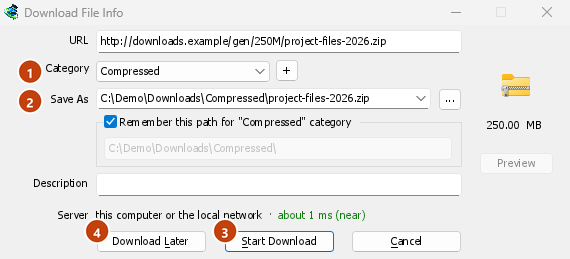
GDM asks the server for the file's name and size, and shows them in Download File Info:
- URL — アドレス。
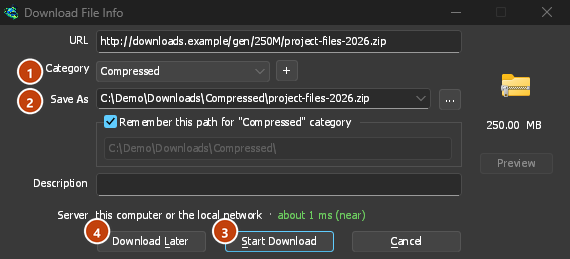
- カテゴリ — ファイルの種類(圧縮、ドキュメント、音楽、プログラム、ビデオ、一般)に基づいて選択されます。カテゴリごとに専用のフォルダーがあります。横の+をクリックすると、新しいカテゴリを作成できます。
- 名前を付けて保存 — 保存先のフォルダーとファイル名。別の名前やフォルダーを入力するか、末尾の矢印から最近保存先に使った20個のフォルダーのいずれかを選ぶか、...をクリックしてフォルダーを選択できます。
- このパスを「…」カテゴリに記憶する — チェックすると、入力したフォルダーが以後このカテゴリのフォルダーになります。
- 説明 — 任意のメモです。リストの説明列に表示され、検索で検索できます。
- Server — where the server is: its country's flag and name, and how long a round trip to it takes. See Where the server is. It stays blank when the browser handed the download over with its name and size, since GDM didn't need to ask the server.
次のいずれかを選択します。
- ダウンロード開始(またはEnter) — 今すぐダウンロードします。進行状況ウィンドウが開きます。
- 後でダウンロード — ダウンロードを開始せずにキューに追加します。詳しくは以下を参照してください。
- キャンセル(またはEsc) — 何も追加しません。
By default GDM starts downloading while this window is open, so no time is lost while you decide. Cancel drops what it fetched. You can turn this off in Options → Downloads → Start downloading immediately while displaying "Download File Info" dialog.
If the folder doesn't exist yet, GDM asks Do you want to create it? before it starts.
後でダウンロード
Download Later puts the download in a queue instead of starting it. By default GDM asks which one: pick the queue under Add to queue, and tick Start the queue now if you want it to run straight away. Cancel leaves the download in the list, in no queue.
確認画面を表示せず、常にメインダウンロードキューを使うには、オプション → ダウンロード → 「後でダウンロード」ボタンを押したときにキュー選択パネルを表示をオフにします。
キューについて詳しくは、キューとスケジューラを参照してください。
クリップボードから
With Options → General → Offer to download links copied to the clipboard ticked (it is, unless you turned it off), when you copy a link to a file type in Options → File types (ZIP, EXE, MP4, PDF and many more), Download File Info opens with it filled in, ready for Start Download. Links to other pages are left alone. With Options → Downloads → Show start download dialog off, the download starts at once instead. Only links copied while GDM runs are taken, never one that was already there.
ドラッグ&ドロップ
- Choose Tasks → Show drop target. A small box with the GDM icon appears and stays on top of other windows.
- Drag a link from your browser onto it. GDM adds it as if you had used Add URL.
You can also drop magnet links and .torrent files on it. Drag the box to move it, and double-click it to bring the main window back. Right-click it for Show GolinksPRO Download Manager, Add new download and Hide drop target.
バッチダウンロード:多数の番号付きファイル
ファイル名が数字または文字だけ異なるファイル(photo001.jpgからphoto150.jpgなど)の場合:
- タスク → バッチ ダウンロードを追加を選択します。(タスク → クリップボードからバッチ ダウンロードを追加は、コピーされたアドレスを埋めます。)
- アドレスに、数字または文字が変わる場所にアスタリスクを1つ付けてアドレスを記述します。
https://example.com/photo*.jpg。 - アスタリスクを置き換えるの下で、数字または文字を選択し、次に開始と終了を選択します。
- 数字の場合、ワイルドカード サイズを桁数に設定します。3の場合、ファイルは
photo001.jpg、photo002.jpgなどになります。 - サーバーへのログインが必要な場合は、認証を使用するにチェックを入れます。
- 最初のファイル、2番目のファイル、最後のファイルを確認し、OKをクリックします。
The downloads go to a queue. As with Download Later, GDM asks which queue unless you turn off Options → Downloads → Show queue selection panel on closing batch download dialogs.


リンクのリスト
テキストファイル内のすべてのリンクを追加するには:
- タスク → インポート → テキスト ファイルからを選択します。
- Pick the file. Link grabber lists every web address GDM found in it, in packages.
- 不要なアドレスのチェックを外してから(すべてチェックとすべて選択解除が役立ちます)、キューに追加をクリックします。


ダウンロードはメインダウンロードキューに追加され、開始準備が整います(開始でも開始できます)。タスク → インポート → IDM エクスポート ファイルからは.ef2ファイルを読み込み、各ダウンロードのリファラーとクッキーが含まれます。
タスク → リンク グラバー...は同じウィンドウを空で開きます。リンクを含むテキストを貼り付けます(Ctrl+V)。パッケージ、アーカイブパスワード、ダウンロード後のアーカイブの展開については、リンクグラバーとアーカイブを参照してください。
独自のリストを保存するには、タスク → エクスポート → テキスト ファイルへ(1行に1アドレス)またはIDM エクスポート ファイルへを使用します。
アドレスがすでにリストにある場合
By default GDM asks what to do when you add an address it already has. You can choose a fixed answer in Options → Downloads → If a duplicate download link is added:
- ダイアログを表示して、実行する内容を尋ねます。
- 重複を番号付きファイル名で追加する
- 重複を追加し、既存のファイルを上書きする
- 既存のファイルが完全な場合は、ダウンロード完了ダイアログを表示します。そうでない場合は、ダウンロードを再開します。
次のステップ
無料、オープンソース、広告なし、試用期間なし。
Download GolinksPRO Download Manager