

进度窗口
每个正在进行的下载都有自己的进度窗口。它在下载开始时打开;要再次打开它,请双击列表中的下载。
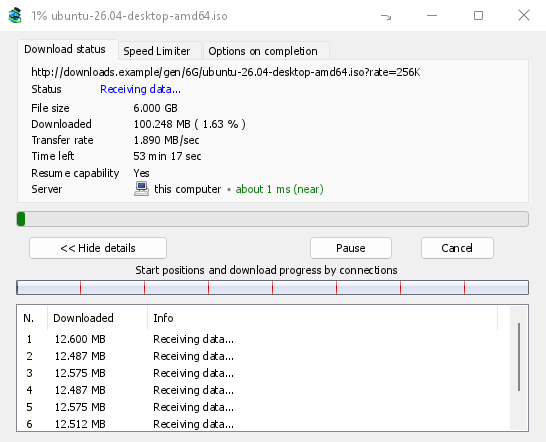
“下载状态”选项卡显示:
- 状态 — 正在连接...、正在接收数据...、已暂停、完成或错误信息。
- 文件大小、已下载和传输速率。
- 剩余时间。
- Resume capability — Yes if the server lets GDM continue the download later, No if it doesn't.
- 服务器 — 服务器的位置和距离。请参阅服务器位置。
显示详情 >>(默认打开)会添加连接视图:
- 显示整个文件的进度条,显示每个连接的起始位置和已完成的进度(连接的起始位置和下载进度)。
- 一个表格,每行显示一个连接:连接编号、已下载量以及当前正在执行的操作。
按钮:
- 暂停会停止下载并保留已下载的部分;恢复会继续下载。
- 取消会停止下载并关闭窗口。下载仍保留在列表中,可以恢复。
- 通过关闭按钮关闭窗口会使下载继续运行。
- Hide to the notification area (a short dash with an arrow down to the corner; on Windows in the title bar, left of Minimize) puts the window in the notification area; Downloads in progress in the tray icon's menu brings it back. See The tray icon.
服务器位置
下载文件信息、进度窗口和属性会显示下载文件的服务器位置:服务器所在国家的旗帜和名称,然后是往返所需的时间,例如约 24 毫秒(近)。
- 近(绿色):低于 60 毫秒,通常是同一国家或邻国。
- 中(琥珀色):60 到 150 毫秒,通常是同一大陆。
- 远(红色):超过 150 毫秒,通常是另一个大陆。远距离服务器通常较慢,增加连接数帮助最大。
将鼠标悬停在该行上,可查看服务器地址以及时间测量方式。
How GDM knows:
- The country comes from a table of address ranges that comes with GDM (IP to Country Lite by DB-IP, CC BY 4.0), looked up on your computer. GDM never sends the address anywhere to ask where it is. The table is updated with each release; an address that has moved since may show its old country.
- The time is measured from the download's own connections, as each one opens: GDM sends nothing extra to the server. It is an estimate (the time to open a connection, divided by its round trips: one for http, two for https), so it says about. The quickest connection counts.
- 您计算机或本地网络上的服务器会显示为本地服务器,不带旗帜。
- Through a proxy, GDM only sees the proxy, so it says through a proxy (with the proxy's country when it knows it) instead of guessing the server's. A VPN that works at the system level can't be seen: the country is then the server's, but the time includes the VPN's detour.
- 内容分发网络(Cloudflare、Amazon CloudFront、Fastly、Akamai 等)从离您较近的服务器提供文件,而不是从网站所有者的服务器提供。工具提示会说明这一点:位置是网络服务器的位置,而不是网站的位置。
- Torrents, videos and galleries have no single server of GDM's own (peers, or yt-dlp's and gallery-dl's), so their windows don't show one.
属性保留了上次运行所看到的信息,因此已完成的下载仍会显示其来源。
另外两个选项卡:
- 速度限制器 — 仅用于此下载的限制。请参见下文。
- 完成时选项 — 显示文件将保存的位置。取消勾选显示下载完成对话框可跳过此文件的下载完成框。
隐藏选项卡会将当前选项卡从下载窗口中移除,并返回到下载状态。要恢复选项卡,请右键点击选项卡行并选择显示隐藏的选项卡;关闭窗口再重新打开也能恢复。
下载完成时
下载完成窗口显示文件大小、地址和保存位置。您可以选择打开、打开方式...、打开文件夹或关闭。在 Windows 上,您还可以将右下角的小框拖到资源管理器、电子邮件或聊天中以放置文件。此窗口会显示在其他程序上方,直到您点击它,但不会抢占您正在输入的程序的键盘焦点。
勾选不再显示此对话框以停止显示它。可以在选项 → 下载 → 显示下载完成对话框中重新开启。
How GDM uses connections
GDM splits a file into parts and downloads them over several connections at once:
- GDM 默认使用 8 个连接。您可以在选项 → 连接 → 默认最大连接数中设置 1 到 32 个连接,或者勾选允许超过 32 个连接后最多设置 128 个。只有当服务器以有限的速度发送每个连接并允许来自一个地址的多个连接时,更多的连接才会有帮助;大多数服务器允许的连接数要少得多。
- 一个连接完成负责的部分后,会接手剩余部分中最大的一半。这样,只要还有其他连接在工作,就不会有连接闲置。
- 比其他连接慢得多的连接会被断开并重新打开。
- Some servers allow only a few connections. GDM notices this and stops asking that server for more. What it has learned shows in Options → Connection under Exceptions, marked (auto).
- 也可以自行设置服务器的连接数:选择选项 → 连接 → 新建,然后输入服务器名称和连接数。
Each connection writes straight into the file's place on disk, in a part file named <name>.mdm.part next to the final file. When every part is done, GDM checks the size and renames it. There is no temporary folder and no joining step at the end.
恢复下载
A download resumes where it stopped: after you stop it, after the connection drops, or after Windows or GDM crashes. GDM saves how far each part has got as it goes.
- 连接失败时会自动重试。进度窗口的表格会显示正在重试和重试原因。
- 要继续已停止的下载,请选择该下载,然后点击工具栏上的恢复(或选择文件 → 立即下载)。
- Before continuing, GDM checks that the file on the server is still the same. If it changed, the download stops with the file changed on the server. Use Redownload to start again from the beginning.
- If Resume capability is No, the server can't send a file in parts. GDM then downloads it over one connection, and a download that stops has to start over.
恢复中断的下载也适用于过期链接。
仅通过您的 VPN:网络适配器及其终止开关
Options → Proxy / Socks → Network adapter holds every connection GDM opens to one network adapter, usually your VPN's: downloads, FTP, torrents, video pages and galleries, GDM's own downloads and the update check. It works as a kill switch: when the adapter disconnects, or the VPN is switched off, nothing goes out through your normal connection. Running downloads stop with … is not connected, and start again by themselves when the adapter is back. The line under the list shows the adapter's address, or that it isn't connected. Details in Options → Proxy / Socks and, for torrents, in Torrents and your security.
DNS
Options → Connection → DNS chooses who turns the servers' names into addresses: the system's DNS (the default), or an encrypted one (DNS over HTTPS or TLS) such as Cloudflare, Google, Quad9, AdGuard, NextDNS or your own. With a network adapter chosen, GDM asks it through the adapter, so the names stay inside your VPN too. See Options → Connection.
速度限制器
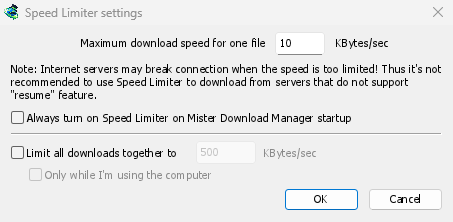
The Speed Limiter keeps GDM from using all of your connection.
对每个下载
- 选择下载 → 速度限制器 → 设置...。
- 以千字节/秒为单位设置单个文件的最大下载速度。默认值为 10,因此请在开启速度限制器前设置。
- 点击确定。
- 选择下载 → 速度限制器 → 开启。选择关闭即可恢复全速下载。
Always turn on Speed Limiter on GolinksPRO Download Manager startup turns it on each time GDM starts.
在这里,1 个种子算作 1 个文件:每个种子都有自己的速度限制。如果某个下载有单独的速度限制(参见对单个下载),则该下载会使用自己的限制。
限制所有下载的总速度
In the same window, tick Limit all downloads together to and set the speed. This caps GDM as a whole, however many files are downloading, torrents included. When torrents and other downloads run at the same time, each side gets at least half of the speed, and more when the other side needs less: a torrent going slowly leaves the rest to the other downloads, and the other way round. It applies whenever it is ticked, whether the per-file limiter is on or off.
Tick Only while I'm using the computer to apply it only while you use the mouse or keyboard. After a minute without input, GDM goes back to full speed.
针对单个下载
在下载的进度窗口中,打开速度限制器选项卡:
- 勾选使用限速器。
- 以千字节/秒为单位设置最大下载速度。新限制会立即生效。
- Tick Remember Speed Limiter settings for this file on download stop/resume to keep this limit for the file: it applies again when you resume it later, even after restarting GDM.
对于种子,限速仅适用于该种子,其他下载仍使用各自的限速。种子的速度不能低于 16 千字节/秒:如果设置的限速更低,速度会设为 16 千字节/秒。
速度过低时,某些服务器会断开连接。对于无法恢复下载的服务器(恢复功能:否),请避免设置过低的限速。
下一步
免费、开源、无广告、无试用版。
Download GolinksPRO Download Manager