

Add a download from your phone, or from another computer at home, and watch it run on the
computer where GDM is: paste a link or a magnet link, send a .torrent file, see the list with
its progress, and pause, start or remove downloads. Your phone opens a small page that GDM
itself serves; nothing is installed on the phone, and no outside service is involved.
The remote control is off until you turn it on, it answers only phones and computers you paired with a code GDM shows, and it listens only on your local network (your Wi-Fi or your cable), never on an address the internet can reach.
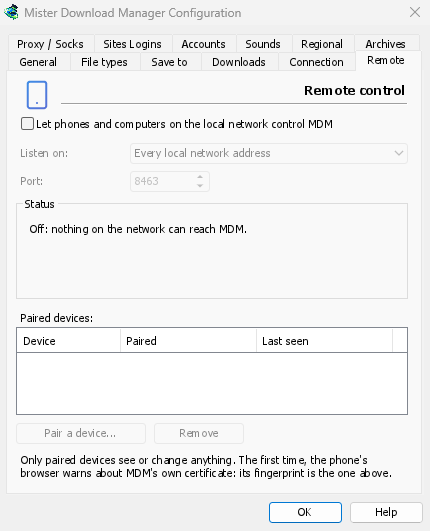
开启
- 选项 → 远程。
- Tick Let phones and computers on the local network control GDM.
- 点击确定。
页面将显示开启并显示要打开的地址,例如https://192.168.1.20:8463/。
The first time, Windows may ask whether to let GDM communicate on networks: allow it on private networks, or the phone can't reach GDM.
配对您的手机
- 在电脑上:选项 → 远程 → 配对设备... 它会显示一个二维码、地址和一个 8 位代码。
- 在手机上,连接同一 Wi-Fi:用相机扫描二维码(或输入地址)。
- The browser warns that the connection's certificate isn't trusted. That is expected: GDM made its own certificate, on your computer, and no public authority knows it. To be sure the page is your GDM's, open the warning's details: the certificate's SHA-256 fingerprint is the one Options → Remote shows. Then continue to the page (Advanced → Proceed in Chrome, Show details → visit this website in Safari).
- 扫描二维码后,代码会自动填写;否则请手动输入。为手机命名,然后点击配对。电脑上的窗口会显示配对成功,并以完成关闭。
一个代码只能使用一次,有效期十分钟,并且在五次错误尝试后失效:点击新代码获取另一个。要让页面触手可及,请将其添加到手机主屏幕(浏览器菜单:添加到主屏幕)。
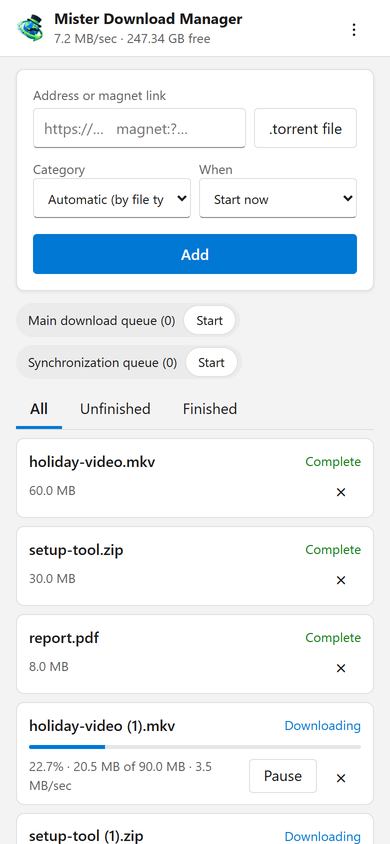
页面功能
- Add: a download's address or a magnet link, or a
.torrentfile from the phone. Pick a Category (or let the file's type pick it), and When: Start now, or wait in a queue. A torrent is added with all its files, once GDM has read them (a magnet link can take a moment). - 列表:每个下载的进度、速度和大小,包含所有、未完成和已完成。可以暂停和开始每个下载;×将其从列表中删除,如果勾选同时删除文件,还会从电脑中删除其文件。
- 队列:启动和停止每个队列。
- 顶部栏显示总速度和下载目标位置的可用空间。
Downloads added from the phone are like the ones you add on the computer: they go into the category's folder, follow the queues, the Scheduler and the speed limits, and go through the network adapter you chose in Options → Proxy / Socks (and stop when it disconnects). The page shows the language your phone uses when GDM has it, and follows its light or dark mode.
您已配对的设备
选项 → 远程列出了已配对的设备,以及每个设备的配对时间和上次看到的时间。选择一个并点击删除:它会立即被拒绝从下一次请求开始(无需点击确定)。在手机上,页面的⋮ → 忘记此设备会从该侧执行相同的操作。
手机丢失了?在选项中将其删除。要立即停止所有设备,请取消勾选该框:不再监听任何设备。
监听位置
- 监听:每个本地网络地址(默认)会逐一监听电脑的每个私有地址(
192.168.x.x、10.x.x.x、172.16–31.x.x和 IPv6 的fd…),并在您加入另一个网络时跟随它们。仅此电脑监听127.0.0.1。或者选择一个适配器的一个地址。 - 端口:
8463,除非其他程序正在使用它;然后选择另一个(1024 到 65535)。
Don't make GDM reachable from the internet (a router's port forwarding): the remote control is made for your home network. To reach it while away, use a VPN to your home network instead (WireGuard, Tailscale): with Tailscale, choose its address in Listen on.
安全
简而言之,远程控制的安全保障:
- 默认关闭,关闭时没有任何监听。
- 仅限已配对设备:除了配对之外的每个请求都需要设备在配对时获得的令牌。配对代码只能使用一次,有效期十分钟,有五次尝试机会,并且尝试速度会减慢。设置会保留每个令牌的指纹,而不是令牌本身。
- Your local network only: GDM listens on the computer's private addresses, one by one, never on every address at once.
- 加密:使用 HTTPS,证书在您的计算机上生成并保存;其指纹在“选项”中,可与手机浏览器显示的指纹进行比较。
- Web pages can't use it: requests must name GDM's own address, come from its own page, and carry the token; GDM's page can't be shown inside another site.
- 仅限下载:配对设备可以列出、添加、暂停、开始和删除下载,以及启动和停止队列。它不能更改设置、在计算机上打开窗口或查看文件夹(它获取的列表没有路径)。
发现问题?请按照SECURITY.md的说明私下报告。
免费、开源、无广告、无试用版。
Download GolinksPRO Download Manager