

便携版可直接从 U 盘运行,并将下载列表和设置保存在 U 盘上。调整几项设置后,下载文件也会保存到 U 盘上。
1. Put GDM on the stick
- 从发布页面下载
MisterDownloadManager-<version>-portable.zip。 - 将其解压到 U 盘上,例如解压到
E:\GDM。 - Check that there is a
datafolder next tomisterdownloadmanager.exe. That folder is what makes GDM portable. Don't delete it. - 运行
misterdownloadmanager.exe并选择您的语言。
2. 将下载文件保存到 U 盘
默认情况下,下载文件会保存到您正在使用的计算机的“下载”文件夹。要将它们保存在 U 盘上,请执行以下操作:
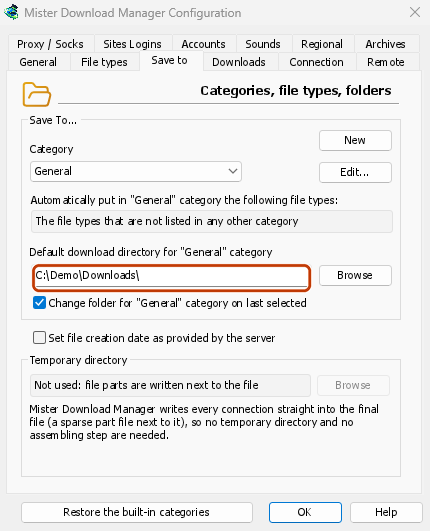
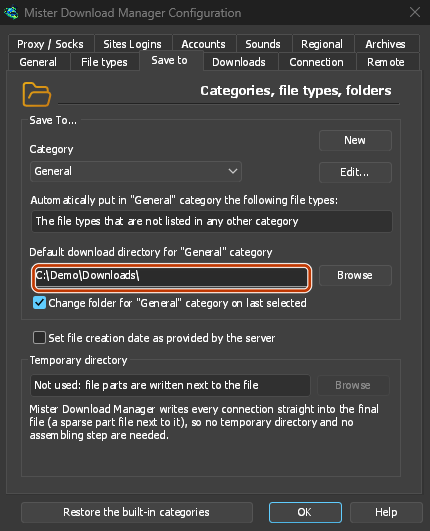
- 打开下载 → 选项,然后选择保存到选项卡。
- 在类别下,选择常规。
- 在“常规”类别的默认下载目录中,点击浏览并选择 U 盘上的一个文件夹,例如
E:\Downloads。 - 选择下一个类别(压缩文件、文档、音乐、程序、视频、种子),并执行相同的操作,例如
E:\Downloads\Video。 - 点击确定。
3. 使用方法
- 使用添加 URL、剪贴板(选项 → 常规 → 提供下载复制到剪贴板的链接)或拖放目标(任务 → 显示拖放目标)添加下载。
- 浏览器扩展无法将下载发送到便携版,因为这需要安装程序。
- Before you unplug the stick, quit GDM with Tasks → Exit so it saves everything. Closing the window only hides it in the tray.
在另一台计算机上
Windows may give the stick another drive letter, such as F: instead of E:. The folders you set, and the downloads already in the list, still point at the old letter. Check Options → Save to and change the folders if needed. When GDM is about to save into a folder that doesn't exist, it asks whether to create it.
下一步
免费、开源、无广告、无试用版。
Download GolinksPRO Download Manager