

There are several ways to give GDM something to download. Most of them end in the same window, Download File Info, where you choose where the file goes.
添加 URL
- 复制文件地址(在浏览器中:右键点击链接 → 复制链接)。
- 点击工具栏上的添加 URL,选择任务 → 添加新下载,或按Ctrl+N。
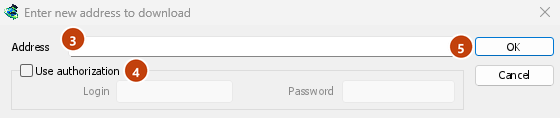
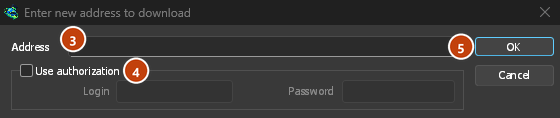
- 输入要下载的新地址窗口随即打开。如果剪贴板中有网址,地址会自动填入。地址末尾的箭头会列出最近输入的 20 个地址;选择一个即可再次使用。右键点击输入框,可选择剪切、复制、粘贴、删除和全选。
- 如果服务器需要用户名和密码,请勾选使用授权并输入用户名和密码。
- 点击确定。
GDM takes http://, https://, ftp://, ftps://, ftpes:// and magnet: addresses. Anything else gets Invalid address.
如果地址是视频页面(YouTube、Vimeo、TikTok 等),会打开视频窗口。请参阅视频下载。磁力链接会打开添加种子窗口。请参阅种子。
FTP 和 FTPS
FTP 下载与网页下载类似:可以同时建立多个连接、暂停和恢复下载,并使用相同的进度窗口。
ftp://— 普通 FTP。ftpes://— 在会话开始时使用 TLS 加密的 FTP(显式 FTPS,AUTH TLS,通常使用端口 21)。服务器表示支持 TLS 时,请使用此方式。ftps://— 隐式 FTPS,默认使用端口 990,地址另有指定时除外。
服务器证书会根据 Windows(或系统)的受信任证书进行检查,与 https:// 的方式相同。没有这些证书的 Linux 系统(未安装 ca-certificates 软件包的最小化安装)仍会通过纯 HTTP 和 FTP 下载;每个安全下载都会立即失败,并提示安装该软件包。
Logging in. Write the login in the address (ftp://user:password@server/folder/file.iso),
tick Use authorization, or save it in Options → Sites Logins. Without one, GDM logs in as
anonymous. The path is relative to the folder the login starts in; to start from the server's
root, write %2F after the server (ftp://server/%2Fpub/file.iso).
Resuming. GDM keeps the file's size and modification time. If either has changed when you resume, it says the file changed on the server instead of mixing two versions (Options → Downloads → Ignore file modification time changes skips the time check). The password is not written to the resume file next to the download: GDM gives it again when it resumes.
连接。默认使用被动模式。对于只接受主动连接的服务器,可通过选项 → 代理/Socks → 在 PASV 模式下使用 FTP关闭被动模式。FTP 会直接连接服务器,不会通过 HTTP 代理。
Browsers no longer download ftp:// links themselves. Right-click one and choose Download with
GolinksPRO Download Manager, or copy it and use Add URL.
Google Drive 链接
直接粘贴 Google Drive 链接,即分享 → 复制链接生成的链接:
https://drive.google.com/file/d/…/view?usp=sharing带或不带/view;https://drive.google.com/uc?id=…&export=download以及https://drive.google.com/open?id=…;https://docs.google.com/document/d/…/edit(以及 Sheets、Slides 和 Drawings)。
GDM downloads the file itself, as it was uploaded (a video comes in its own format, not the player's copy), with its real name and size, over several connections, and it can resume. For a large file, Drive shows a page that says it can't scan this file for viruses; GDM goes past it as Download anyway does.
Google Docs、Sheets 和 Slides会以 Word(.docx)、Excel(.xlsx)和 PowerPoint(.pptx)文件的形式下载,Drawings 则会以 .png 格式下载。这些文件会在请求时生成,因此下载完成前无法知道文件大小,也无法恢复下载:下载中断后会从头开始。
Files that aren't shared with everyone. Right-click the link in the browser and choose Download with GolinksPRO Download Manager, or use Drive's own Download button: the extension passes your browser's Google sign-in with the download. GDM never asks for or keeps your password. Without a sign-in, GDM says the file needs you to sign in.
When Drive won't give a file. Drive limits how often a file can be downloaded: after many downloads in a day it answers "too many users have viewed or downloaded this file recently". GDM shows Drive's own words and writes nothing. Try again later (it can take up to a day), or sign in to Google in your browser and download from there, which often gets past the limit. GDM doesn't try to get around it. A file whose owner turned off downloading, or that your account can't open, gets no access.
云端硬盘视频上方的视频按钮会下载原始文件,而不是播放器较小的副本之一。
文件夹尚未下载:文件夹链接会显示这是一个 Google 云端硬盘文件夹,不是文件。请在浏览器中打开该文件夹并从那里下载其文件。
下载文件信息
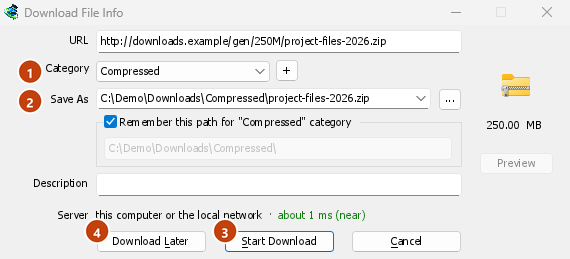
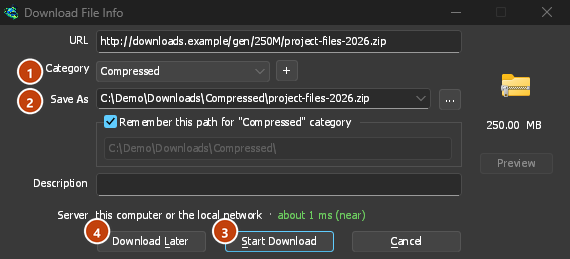
GDM asks the server for the file's name and size, and shows them in Download File Info:
- URL — 地址。
- 类别 — 根据文件类型(压缩文件、文档、音乐、程序、视频或常规)选择。每个类别都有自己的文件夹。+ 旁边可创建新类别。
- 另存为 — 文件夹和文件名。您可以输入另一个,从箭头末尾选择您最近保存的 20 个文件夹之一,或使用...选择一个文件夹。
- 记住“…”类别的此路径 — 勾选此项可将您输入的文件夹设为该类别从今往后的文件夹。
- 描述 — 您自己的备注。它会显示在列表的描述列中,并且“查找”可以搜索它。
- Server — where the server is: its country's flag and name, and how long a round trip to it takes. See Where the server is. It stays blank when the browser handed the download over with its name and size, since GDM didn't need to ask the server.
然后选择:
- 开始下载(或Enter) — 立即下载。进度窗口打开。
- 稍后下载 — 将其添加到队列而不开始。请参阅下文。
- 取消(或Esc) — 不添加任何内容。
By default GDM starts downloading while this window is open, so no time is lost while you decide. Cancel drops what it fetched. You can turn this off in Options → Downloads → Start downloading immediately while displaying "Download File Info" dialog.
If the folder doesn't exist yet, GDM asks Do you want to create it? before it starts.
稍后下载
Download Later puts the download in a queue instead of starting it. By default GDM asks which one: pick the queue under Add to queue, and tick Start the queue now if you want it to run straight away. Cancel leaves the download in the list, in no queue.
要跳过此问题并始终使用主下载队列,请关闭选项 → 下载 → 按“稍后下载”按钮时显示队列选择面板。
有关队列的更多信息,请参1阅队列和计划程序。
从剪贴板
With Options → General → Offer to download links copied to the clipboard ticked (it is, unless you turned it off), when you copy a link to a file type in Options → File types (ZIP, EXE, MP4, PDF and many more), Download File Info opens with it filled in, ready for Start Download. Links to other pages are left alone. With Options → Downloads → Show start download dialog off, the download starts at once instead. Only links copied while GDM runs are taken, never one that was already there.
拖放
- Choose Tasks → Show drop target. A small box with the GDM icon appears and stays on top of other windows.
- Drag a link from your browser onto it. GDM adds it as if you had used Add URL.
You can also drop magnet links and .torrent files on it. Drag the box to move it, and double-click it to bring the main window back. Right-click it for Show GolinksPRO Download Manager, Add new download and Hide drop target.
批量下载:许多带编号的文件
对于名称仅因数字或字母而异的文件,例如photo001.jpg到photo150.jpg:
- 选择任务 → 添加批量下载。(任务 → 从剪贴板添加批处理下载会填入复制的地址。)
- 在地址中,在数字或字母变化的位置写入一个星号:
https://example.com/photo*.jpg。 - 在将星号替换为下,选择数字或字母,然后选择从和到。
- 对于数字,将通配符大小设置为位数。如果设置为 3,文件将是
photo001.jpg、photo002.jpg等等。 - 如果服务器需要登录,请勾选使用授权。
- 检查第一个文件、第二个文件和最后一个文件,然后点击确定。
The downloads go to a queue. As with Download Later, GDM asks which queue unless you turn off Options → Downloads → Show queue selection panel on closing batch download dialogs.


链接列表
要添加文本文件中的所有链接:
- 选择任务 → 导入 → 从文本文件。
- Pick the file. Link grabber lists every web address GDM found in it, in packages.
- 取消勾选不需要的地址(可使用全选和取消全选),然后点击添加到队列。


下载会加入主下载队列,等待开始(点击开始也可启动队列)。任务 → 导入 → 从 IDM 导出文件可读取.ef2文件,其中包含每个下载的来源页和 Cookie。
任务 → 链接抓取器...会打开一个空白的同一窗口:粘贴包含链接的文本(Ctrl+V)。有关下载包、压缩包密码以及下载完成后解压压缩包的信息,请参阅链接抓取器和压缩包。
要保存您自己的列表,请使用任务 → 导出 → 导出到文本文件(每行一个地址)或导出到 IDM 文件。
当地址已在列表中时
By default GDM asks what to do when you add an address it already has. You can choose a fixed answer in Options → Downloads → If a duplicate download link is added:
- 显示对话框并询问如何操作。
- 添加带编号文件名的重复项
- 添加重复项并覆盖现有文件
- 如果现有文件已下载完成,则显示下载完成对话框;否则继续下载。
下一步
免费、开源、无广告、无试用版。
Download GolinksPRO Download Manager